
Device Audiences is a powerful feature in Applivery that allows administrators to create dynamic groups of Devices based on specific criteria. These audiences simplify large-scale device management by enabling targeted application of Policies, configurations, and deployments through Automation Rules.
You can learn more about Automation Rules by following this link.
How Device Audiences work
A Device Audience is defined by a set of selectors—rules that determine which Devices are included. Each audience can include multiple selectors, and a Device becomes part of the audience if it matches at least one of them.
This flexible, rules-based approach ensures that audiences automatically adjust as device or employee attributes change, keeping your configurations up to date without manual intervention.
Creating a Device Audience
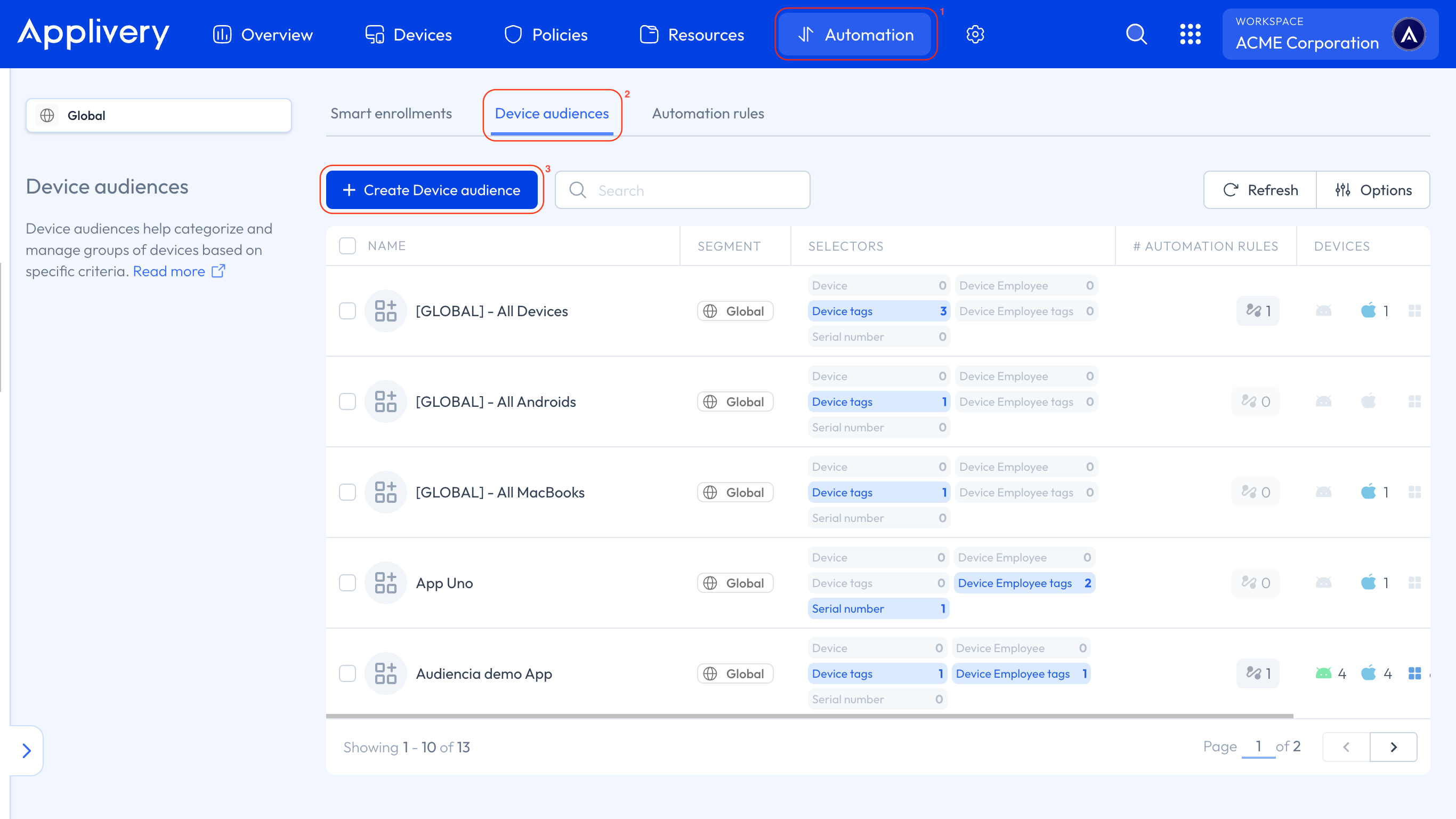
Once in the Applivery Dashboard, navigate to the Automation (1) section. Select Device Audiences (2) and click the + Create Device Audience button (3).
The configuration form includes the following sections:
Configuration
Name: Enter a descriptive name for the audience.
Description (Optional): Provide context about the audience’s purpose or usage scenario.
Devices selection
Each selector defines a condition for device inclusion. You can combine multiple selectors to capture Devices that match any of the specified rules.
Device tags: Include Devices based on their assigned tags or tag groups. Click Add groups to select existing tag groups. Each time you add a group, an OR condition is created — meaning a Device will match if it has any tag from any of the selected groups.
Employee tags: Include Devices linked to employees with specific tags or tag groups. Click Add groups to select existing employee tag groups.
Each time you add a group, an OR condition is created — meaning a Device will match if it has any tag from any of the selected groups.Serial numbers: Explicitly include specific Devices by their unique serial numbers. Click Add serial numbers and enter one or more values, separated by commas. Devices listed here will always be included in the audience, regardless of other selector criteria.
Add device: Manually add enrolled Devices to the audience. Click Select a Device to search among enrolled Devices, then click + Add to include it in the audience.
Add employee: Manually add specific employees, including all Devices associated with them. Click Select an employee to search existing users, then click + Add to include it in the audience.
Only existing employees can be added. If an employee is missing, create them first in the Directory section.
You can remove any selector at any time by clicking Remove.
Matched Devices preview
At the bottom of the editor, you’ll find the Matched Devices preview panel, which provides a real-time view of all Devices that currently meet your audience criteria.
Device details: Displays each Device’s name, serial number, and linked employee (if any).
Matching selectors: Shows which rule(s) caused each Device to be included (e.g., Matched by Device Tag: test or Matched by Serial Number: G4M6GKFXJT).
Live updates: As Devices are tagged, untagged, or reassigned, the preview refreshes automatically.
Use this preview to confirm that your selectors are working as intended before saving. If no Devices appear, double-check your criteria for accuracy or missing tags.
Device Audiences are dynamic — once created, they continuously update based on the most recent device and employee data. This ensures Policies and configurations remain automatically aligned with your organization’s current structure.