
This is a premium feature that may not be available on your current plan. Check availability on the Applivery pricing page.
System for Cross-domain Identity Management (SCIM) is an open standard that automates user and group provisioning across cloud services. Rather than managing users manually inside Applivery, SCIM lets Microsoft Entra ID push user and group information automatically — creating, updating, and deactivating users and keeping group memberships in sync without any manual intervention.
When combined with SAML SSO, SCIM handles the provisioning side of identity management. SAML authenticates users when they log in, while SCIM continuously keeps the user directory and group structure in Applivery up to date. Crucially, SCIM group management is fully independent of SAML — groups pushed via SCIM exist in Applivery as first-class objects before any user ever logs in, and they don't require any additional group configuration on the SAML side.
SCIM works on top of an existing SAML SSO integration. If you haven't set that up yet, start with the Single Sign-On with Azure AD guide first.
What SCIM manages in Applivery
SCIM can manage three types of resources in Applivery, each with different provisioning behavior depending on the portal you configure it for.
When SCIM is configured for the Enterprise Store, Applivery can automatically create or remove employee accounts in response to changes in Entra ID. When a user is created in Entra ID you can choose to either do nothing or automatically create them as an employee. When they are deactivated, you can choose to either do nothing or remove them from Applivery.
When SCIM is configured for the Dashboard, Applivery manages Collaborator accounts. When a user is created in Entra ID you can choose to either do nothing or create them as a Collaborator with a default role (Admin, Developer/Editor, or Viewer). When they are deactivated, you can do nothing or remove them as a Collaborator.
The initial role assigned on creation can be overridden by group-based role mapping — see Role mapping below.
When SCIM is configured for the MDM Portal, Applivery offers the most granular deactivation options. When a user is created in Entra ID, you can do nothing or create them as an MDM employee. When they are deactivated, you have five options: do nothing, unassign the user from their Devices, change the Policy of their assigned Devices, remove the user, or remove the user and all their associated Devices.
Setting up SCIM
In the Applivery Dashboard, go to your **Workspace Settings from the top dropdown menu, then open Login providers in the left-hand menu. Find the SAML row and click Configure for the portal you want to protect — Dashboard, App Store, or MDM Portal. Scroll to the bottom of the SAML configuration screen and click Enable SCIM.
Applivery will generate a Base URL and Bearer Token. Copy both — you'll need them when configuring Entra ID. The provisioning behavior options (what happens when a user is created or deactivated) are also available here, specific to the portal you selected.
In the Microsoft Entra admin center, follow the steps described here to create your new application.
Inside the newly created application, open the Provisioning section and click Get started. Set the Provisioning Mode to Automatic, then fill in the Admin Credentials:
Field | Value |
|---|---|
Tenant URL | The Base URL generated by Applivery. |
Secret Token | The Bearer Token generated by Applivery. |
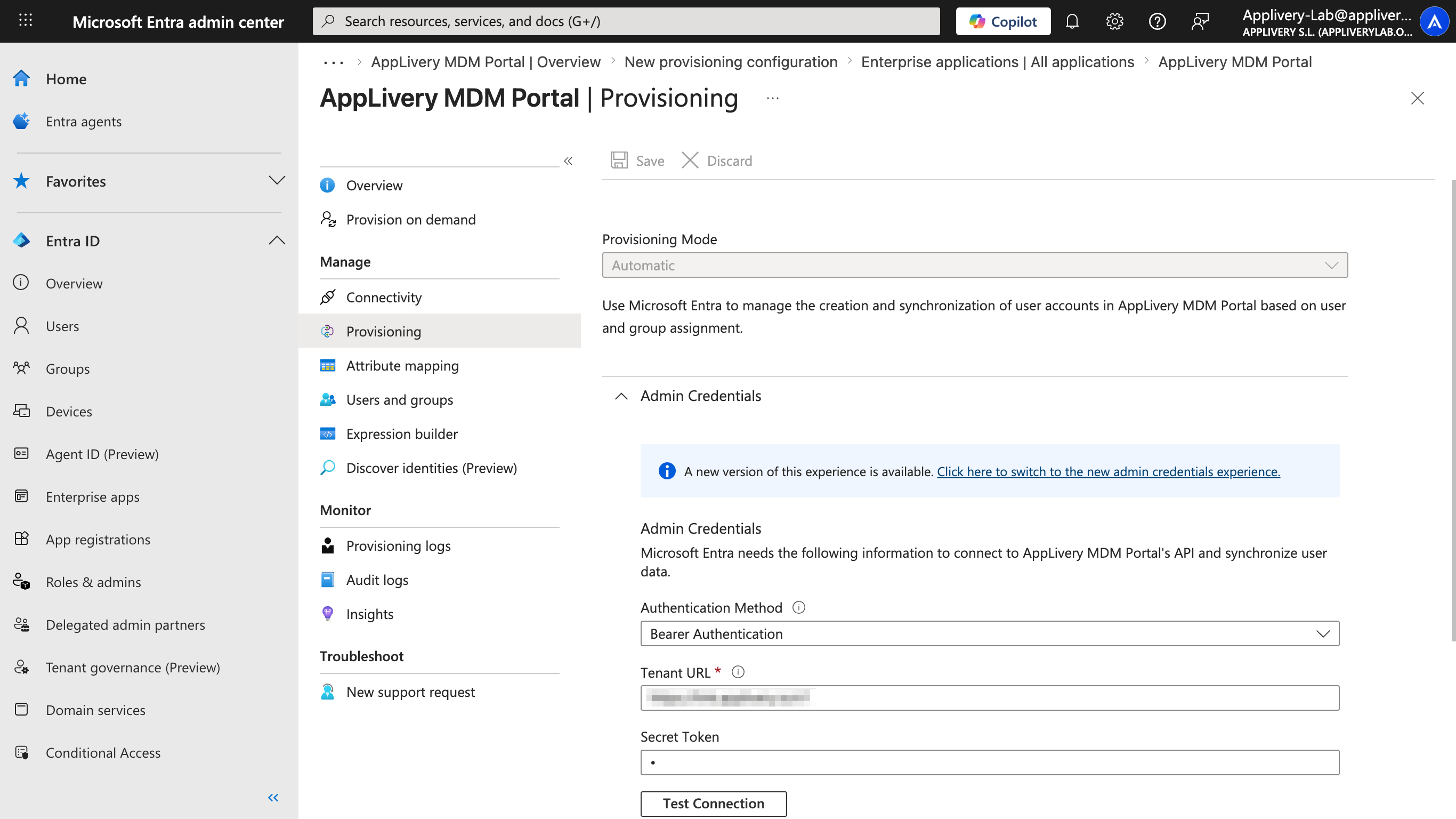
Click Test Connection to verify the credentials are correct, then click Save. If the test fails, double-check that the SCIM endpoint is enabled in Applivery and that the token hasn't been regenerated since you copied it.
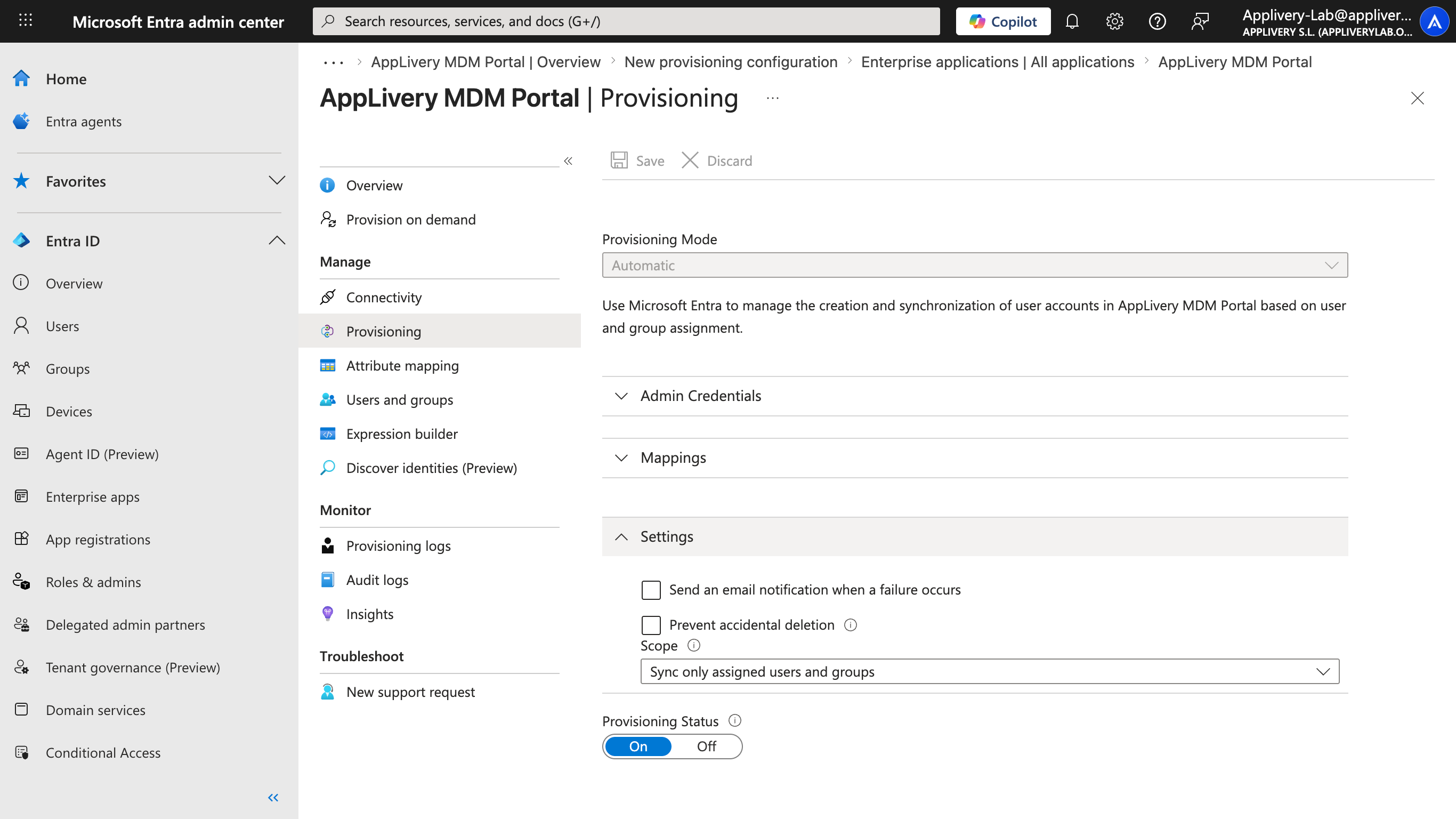
After saving the credentials, return to the provisioning settings and set Scope to Sync only assigned users and groups — this ensures Entra ID only pushes users and groups that are explicitly assigned to this application, rather than your entire directory. Then toggle Provisioning Status to On.
If the users and groups you want to provision don't exist yet in Entra ID, create them now.
To create a user, go to Users → New user → Create new user, fill in the required fields, and click Review + create. To create a group, go to Groups → New group, give it a name and description, and click Create. Once the group exists, open it, navigate to Members → Add members, search for the users you want to include, and confirm.
If your users and groups already exist in Entra ID, you can skip this step.
Entra ID only provisions users and groups that are explicitly assigned to the application. Go to Enterprise applications → your SCIM app → Users and groups, and click Add user/group. Search for and select the groups (or individual users) you want to provision into Applivery, then click Assign.
Once assigned, the next automatic provisioning cycle — which typically runs every 40 minutes — will sync the selected users and groups to Applivery.
Assigning groups is generally preferable to assigning individual users. When a group is assigned, all its members are provisioned automatically, and any future membership changes in Entra ID are reflected in Applivery on the next sync cycle.
Provision on demand
Instead of waiting for the scheduled sync cycle, you can push changes to Applivery immediately using Provision on demand. This is especially useful when onboarding new users or testing your provisioning configuration without waiting up to 40 minutes for the next automatic window.
Go to Enterprise applications → your SCIM app → Provisioning → Provision on demand. Search for the user or group you want to sync immediately and select it, then click Provision.
When provisioning a group on demand, Entra ID requires you to also select the group's individual members explicitly — they appear listed under View members only in the selection UI. Simply selecting the group alone is not sufficient for the on-demand flow; the scheduled provisioning cycle handles this automatically.
Role mapping
When SCIM is configured for the Dashboard, you can map Entra ID groups to Applivery Collaborator roles. If a user is being provisioned for the first time — meaning they don't yet exist in Applivery — their role is determined by the groups they belong to in Entra ID:
Entra ID group name | Applivery role |
|---|---|
| Admin |
| Developer / Editor |
| Viewer |
| Unassigned |
If a user belongs to more than one of these groups, the highest-privilege role takes precedence. If the user doesn't belong to any of these groups, they are created without a role, and an admin will need to assign one manually.
SAML and SCIM role mapping applies only to App Distribution. Device Management permissions are governed exclusively by Segment permissions.