

Applivery provides a powerful way to distribute Apps through Public or Private App Stores that support multiple security, access control, and branding configurations. You can also have different configurations for each App and each Audience.
App Stores
Applivery supports both Public and Private App Stores.
Public App Stores:
Your App Store is publicly available under your URL (
yourname.applivery.comor your Custom Domain).Anyone who knows the URL can access the list of published Apps, as long as they are not unlisted or inactive.
Your App Store and its content may be indexed by search engines like Google or Bing.
Private App Stores:
Your App Store is not available to the general public. Users must authenticate to access the App list.
Users can log in using their Applivery account and/or your Workspace's Single Sign-On (if configured).
The App Store homepage may be indexed by search engines, but content requires authentication.
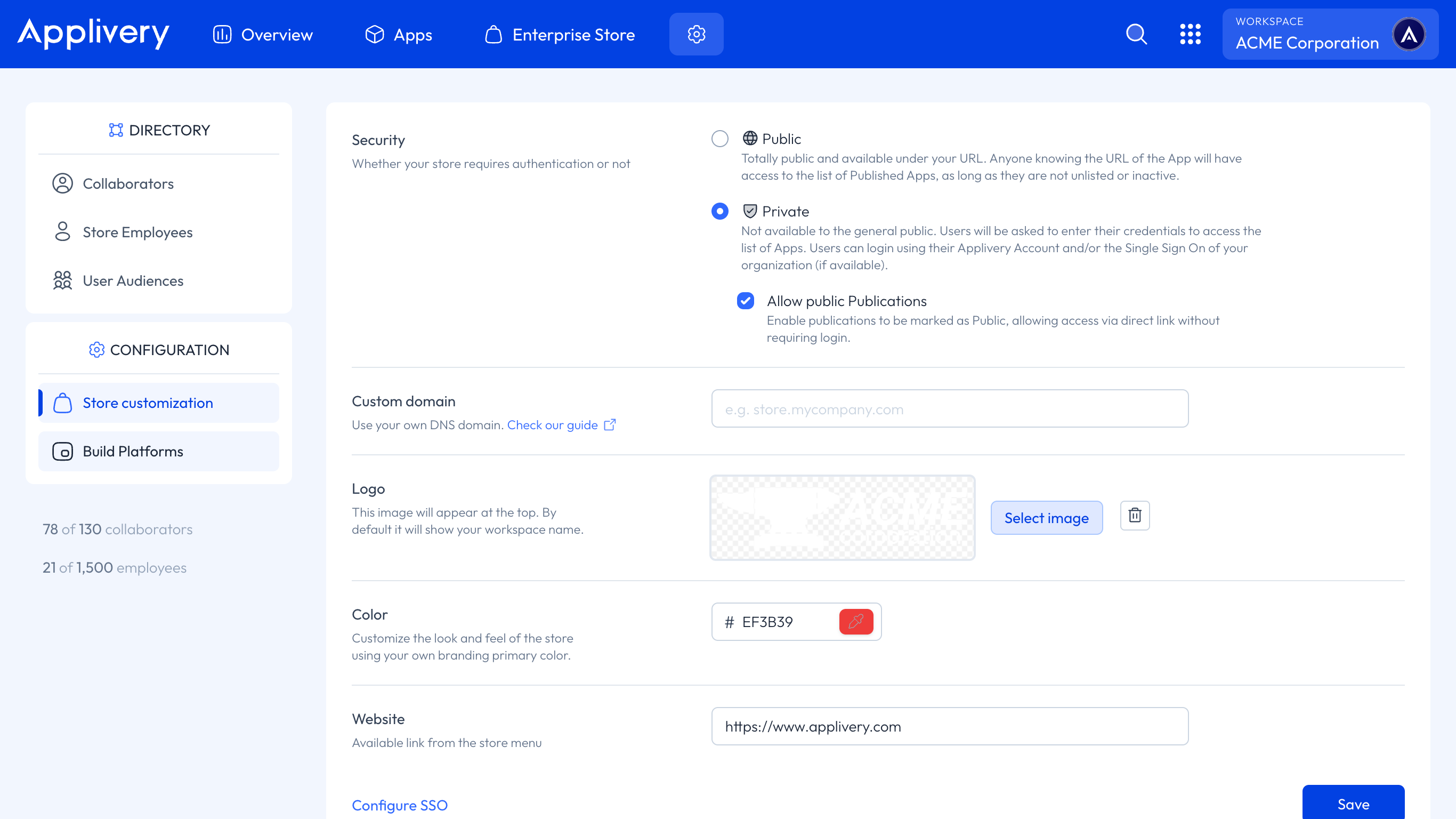
For Private App Stores, you can completely disable Public Publications. Go to Enterprise Store > Customize, find the Security section, and disable the Allow Public Publications option. If Public Publications already exist, you will be prompted to remove them.
In both cases, users will be able to add the App Store to their Home Screen to have more direct and easy access to your Workspace Apps. You can follow the steps described in our articles for both iOS and Android.
Published Apps
For each App project in Applivery, you can create one or more Published Apps to control how different Builds are made available to Collaborators, employees, and external users through the App Store.
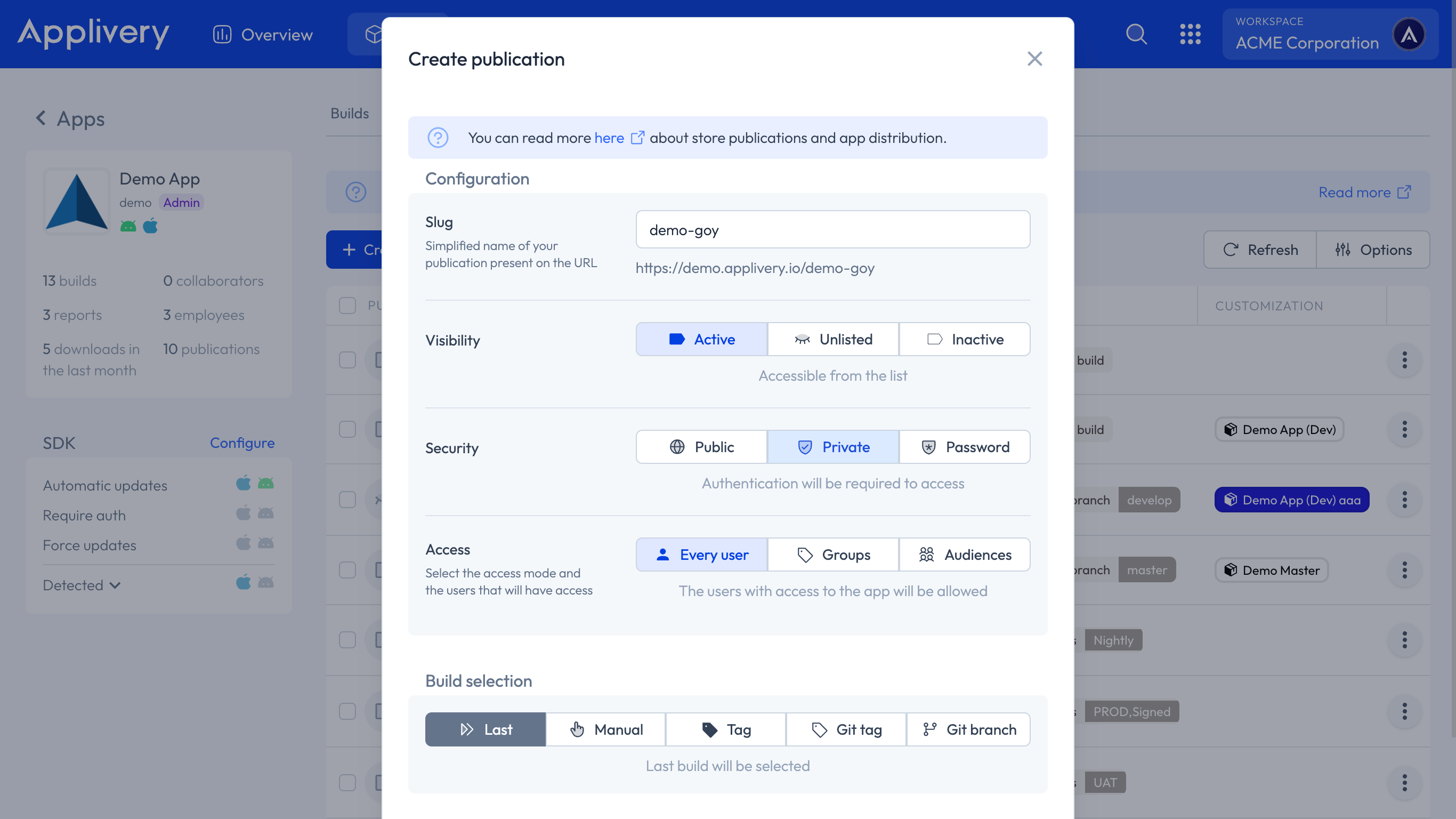
There are four key configuration areas for each Publication:
Defines which Build(s) are surfaced by the Publication:
| Mode | Behavior |
|---|---|
| Manual | Distributes a specific Build from your Build list. Build history is not available in this mode. |
| Tags | Distributes any Build matching a custom tag or set of tags. |
| Git Tag / Git Branch | Deploys Builds matching a specific git branch (e.g. develop) or git tag (e.g. 3.2.1). |
| Last | Always points to the most recent uploaded Build for each OS. |
Controls whether and how the Publication appears in the App Store:
| Option | Behavior |
|---|---|
| Inactive | Not accessible to anyone. |
| Active | Visible to everyone in the App Store. |
| Unlisted | Not listed in the App Store, but accessible to anyone with the direct URL. |
Controls the authentication method required to access the Publication:
| Option | Behavior |
|---|---|
| Public | No authentication required. Anyone with the link can access and download. |
| Private | Requires login via Applivery account or your Workspace's SSO. |
| Password | Requires a password you define. No user account needed. |
| OTP (One-Time Password) | Access is granted via a time-limited code sent by email to a pre-approved allowlist. No SSO or Applivery account required. |
Optional rules that further restrict who can access a Publication, independent of the security mode:
User Groups our Audiences: For Private Publications, limit access to specific User Groups or defined Audiences within your Workspace.
Country restrictions: Allow or block access based on the user's geographic location.
OTP (One-Time Password) access
OTP access is a security configuration available for Private Publications that allows you to share Builds securely with external users who are not part of your organization — freelancers, external studios, external QA testers, and similar collaborators — without requiring them to have an Applivery account or go through your SSO.
This is especially relevant for organizations with strict SSO-only policies that need to share Builds externally without relaxing their global authentication configuration.
OTP access is configured per Publication and does not affect any other Publication or the global App Store authentication settings.
OTP is available at the Publication level only — it is not a global login method for the App Store. A user who accesses a Publication via OTP is restricted to that Publication and cannot freely navigate to other parts of your App Store. If they navigate away, they can only return to the same Publication they originally accessed via OTP.
How it works
From the Admin side
OTP can only be configured after the Publication has been created. Open the Publication in edit mode to access OTP settings.
OTP user changes are saved immediately when you click Save inside the OTP panel. You do not need to save the Publication again afterwards.
In the Security section, enable OTP access.
In the Access Control section, select who can access the Publication. OTP works with Every User, a specific User Group, or an Audience.
Open the OTP Users panel and add the email addresses of the external users you want to grant access to.
For each user, set the Download limit: choose between unlimited downloads or a specific number. Set it to 1 to enforce single-use access. The Downloads field in the OTP Users panel shows the number of downloads remaining, not the number of downloads already made.
Combine OTP with an Expiring Publication to set an absolute deadline on access — no manual cleanup required once the deadline passes.
From the external user's side
The user visits the Publication URL and is prompted to enter their email address.
If their email is on the allowlist, they receive a time-limited OTP via email, valid for 5 minutes.
They enter the OTP to verify their identity and gain access to the Publication.
Once authenticated, their session remains active for 2 hours. After that, they will need to request a new OTP to access the Publication again.
If a download limit is configured and the user has reached it, they will not be able to download again unless an admin resets or increases their limit from the OTP Users panel.
Configuration options
| Option | Description |
|---|---|
| Allowlist | The list of email addresses authorized to request an OTP. |
| Download limit | Maximum number of downloads allowed per user. Set to 1 to enforce single-use access, or leave unlimited for unrestricted downloads. Admins can update this value at any time from the OTP Users panel. |
| OTP expiry | OTPs are valid for exactly 5 minutes and cannot be reused. |
| Session duration | After a successful OTP login, the session remains active for 2 hours. |
| New Build notifications | When a new Build is published, OTP users on the allowlist can receive a notification email that includes a fresh OTP, letting them download without having to request access again manually. |
New Build notifications is not yet available. This feature is coming soon.
When to use OTP access
| Scenario | Recommended approach |
|---|---|
| Share a Build with an external freelancer for a one-time review | OTP + download limit set to 1. |
| Share a beta with an external QA studio for a limited testing period | OTP + Expiring Publication. |
| Distribute to a list of external testers without giving them permanent accounts | OTP + temporary user lifecycle. |
| Long-term external collaborators who need ongoing access | Private Publication + Enterprise Store Audience. |
For long-term collaborators who need recurring access to multiple Builds over time, consider using a Private Publication with Audience-based access through the Enterprise Store instead of OTP. OTP is intended for temporary and controlled external sharing scenarios.
Advanced configuration
Restricting access to certain User Groups or Audiences
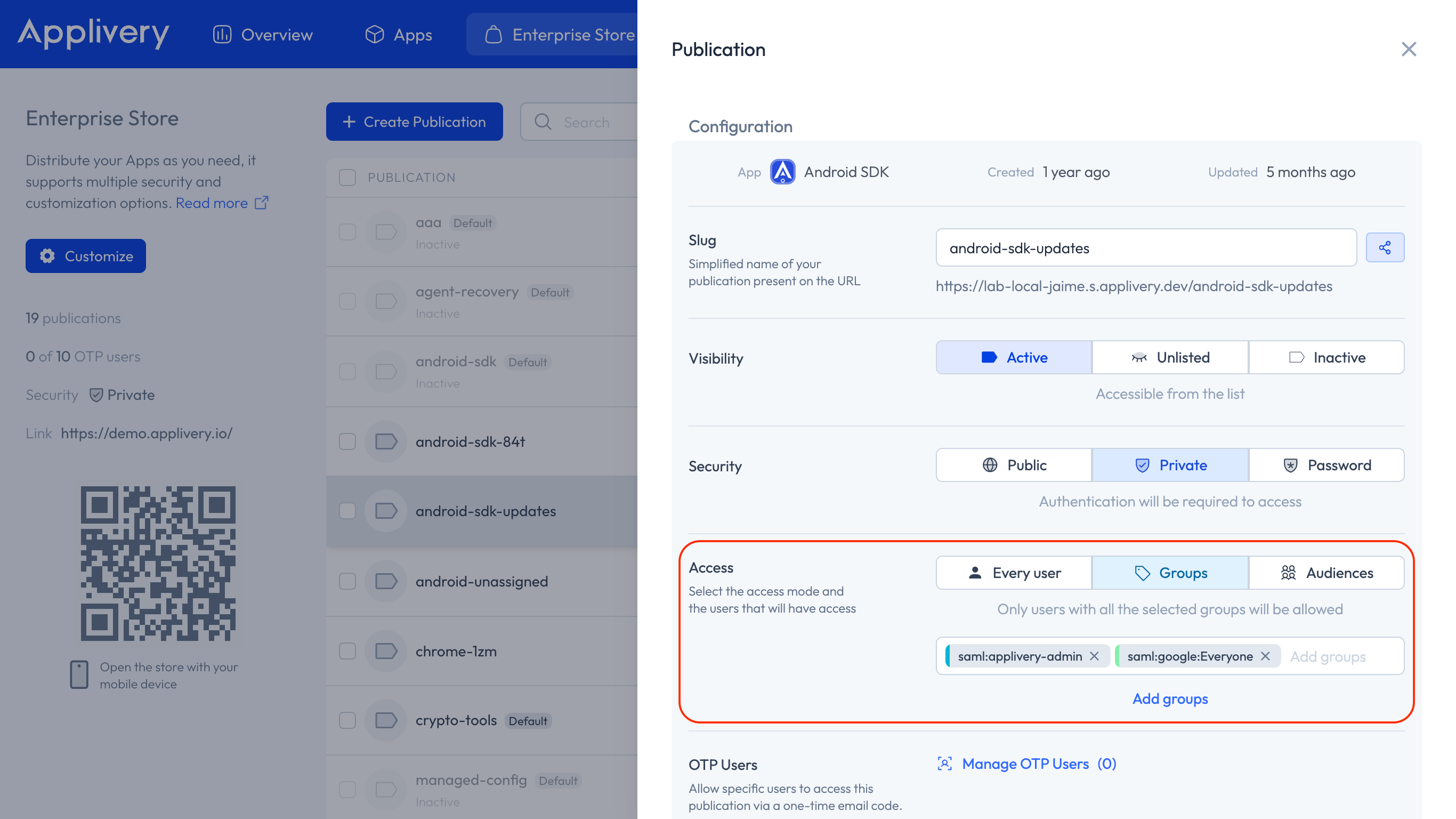
When configuring Private Published Apps (either using Applivery Login or Single Sign-On), you can also specify which User Groups or Audiences will have access to the App itself. To do so, add the list below the Access selector and then click Save.
Blocking or allowing access by Country
You can define which countries are allowed or blocked from accessing a Publication. Add the country list in the Access Control setting of the Publication and save.
Best practices
Use separate Publications for different Audiences
When distributing to different groups (internal testers, QA, customers, partners, external studios), create a separate Publication for each Audience. This keeps access control and visibility independent, and makes it easy to revoke or modify access for one group without affecting others.
Use Last Build for continuous updates
If you upload Builds frequently, avoid creating a new Publication for each one. Instead, set Build Selection = Last and enable Show build history. This gives you a single Publication that always points to the latest Build, while still providing access to previous versions through the Build history.
You can also share a specific Build directly by appending the following to the Publication URL:
demo.applivery.io/{pubSlug}/{OS}/{buildId}
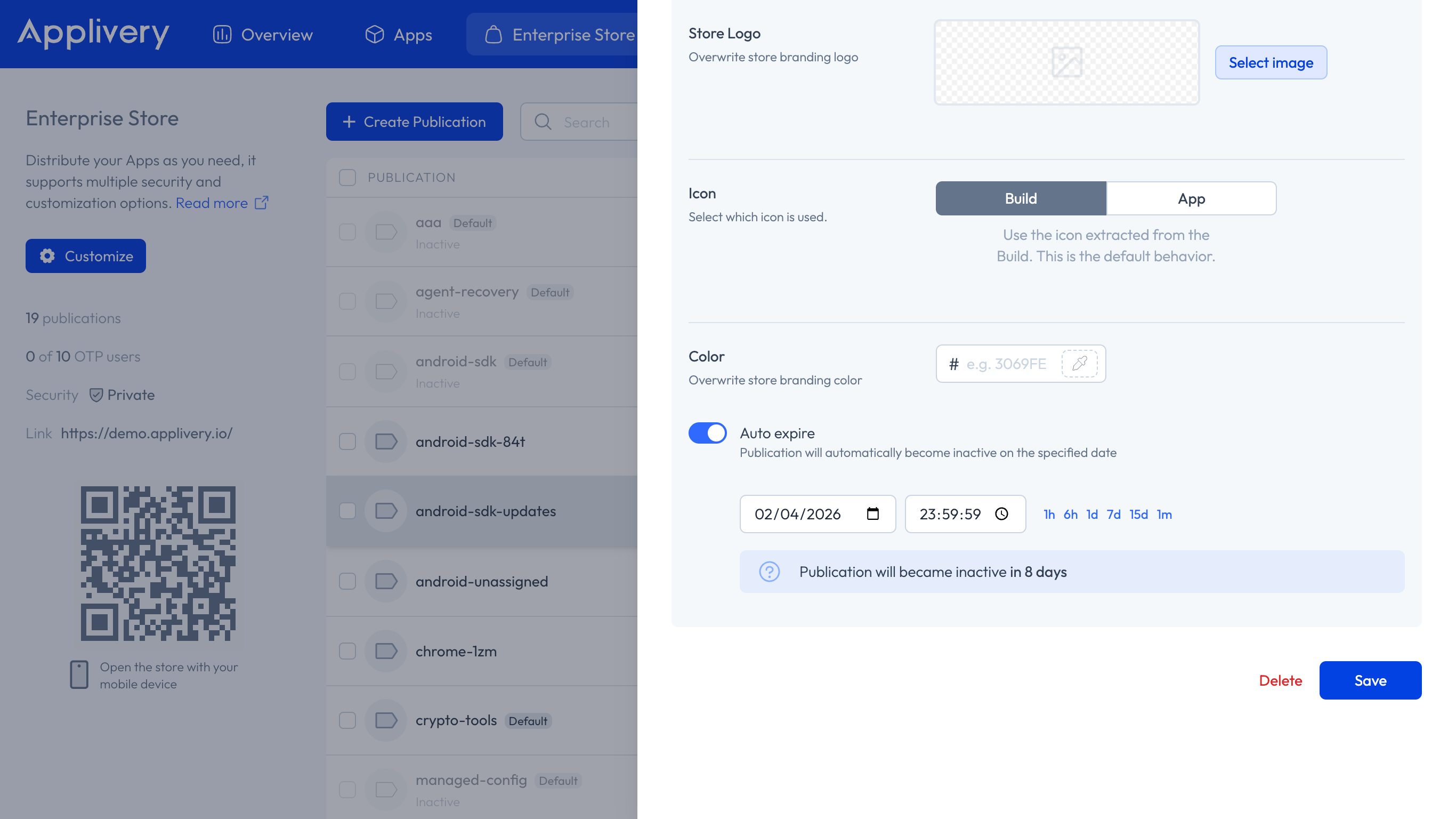
Combine OTP with Expiring Publications for time-limited external access
For maximum control when sharing with external users, combine OTP access with Expiring Publications. This ensures that access is both identity-verified (via OTP allowlist) and time-bounded (via Publication expiry) — without any manual cleanup required once the deadline passes.
Keep your SSO Policy intact when sharing externally
If your organization enforces SSO-only authentication globally, use OTP access for external collaborators rather than relaxing your SSO Policy or creating exceptions. OTP operates independently of your global authentication settings and does not interfere with how internal users authenticate.