

A Provisioning Package (PPKG) is a deployment method that lets you enroll Windows devices automatically using a file generated directly from a Windows Smart Enrollment. It is ideal for bulk or zero-touch deployments, since no manual URL entry or user credentials are needed on the device.
How to generate and deploy a Provisioning Package
Before you start, make sure you have a Windows Smart Enrollment already configured.
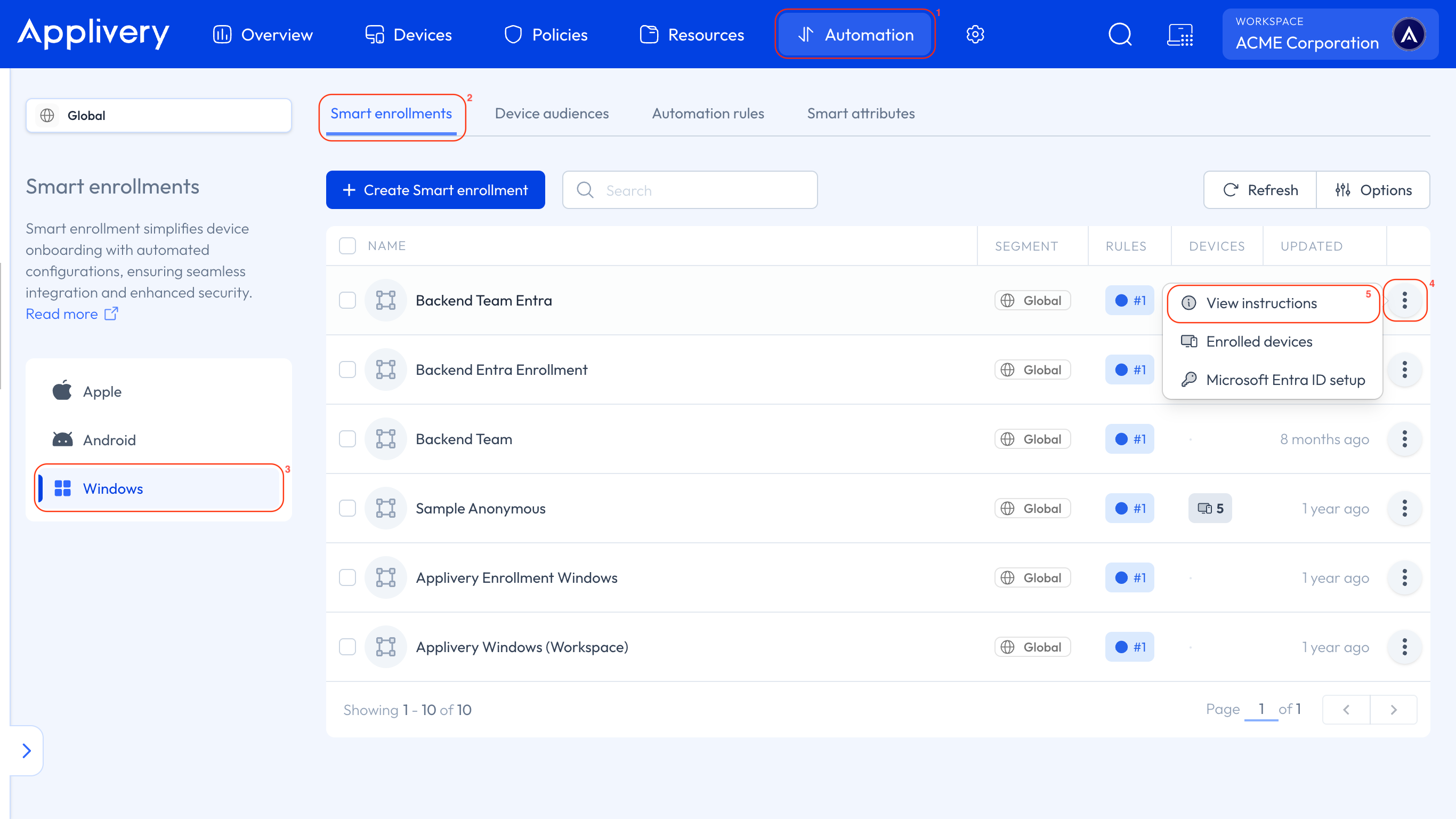
In the Applivery Dashboard, go to the Automation section 1 and select Smart Enrollments 2. From the left-hand menu, choose Windows 3 as the platform.
Click the three vertical dots 4 next to the Smart Enrollment you want to use and select View instructions 5.
In the side panel, select Provisioning Package 6 and click the + Create provisioning button 7.
Devices enrolled through this package will be initially linked to a single user or department. You can reassign them later using a script. You can create as many Provisioning Packages as you need from the same enrollment.
Once the package is generated, click Select 8.
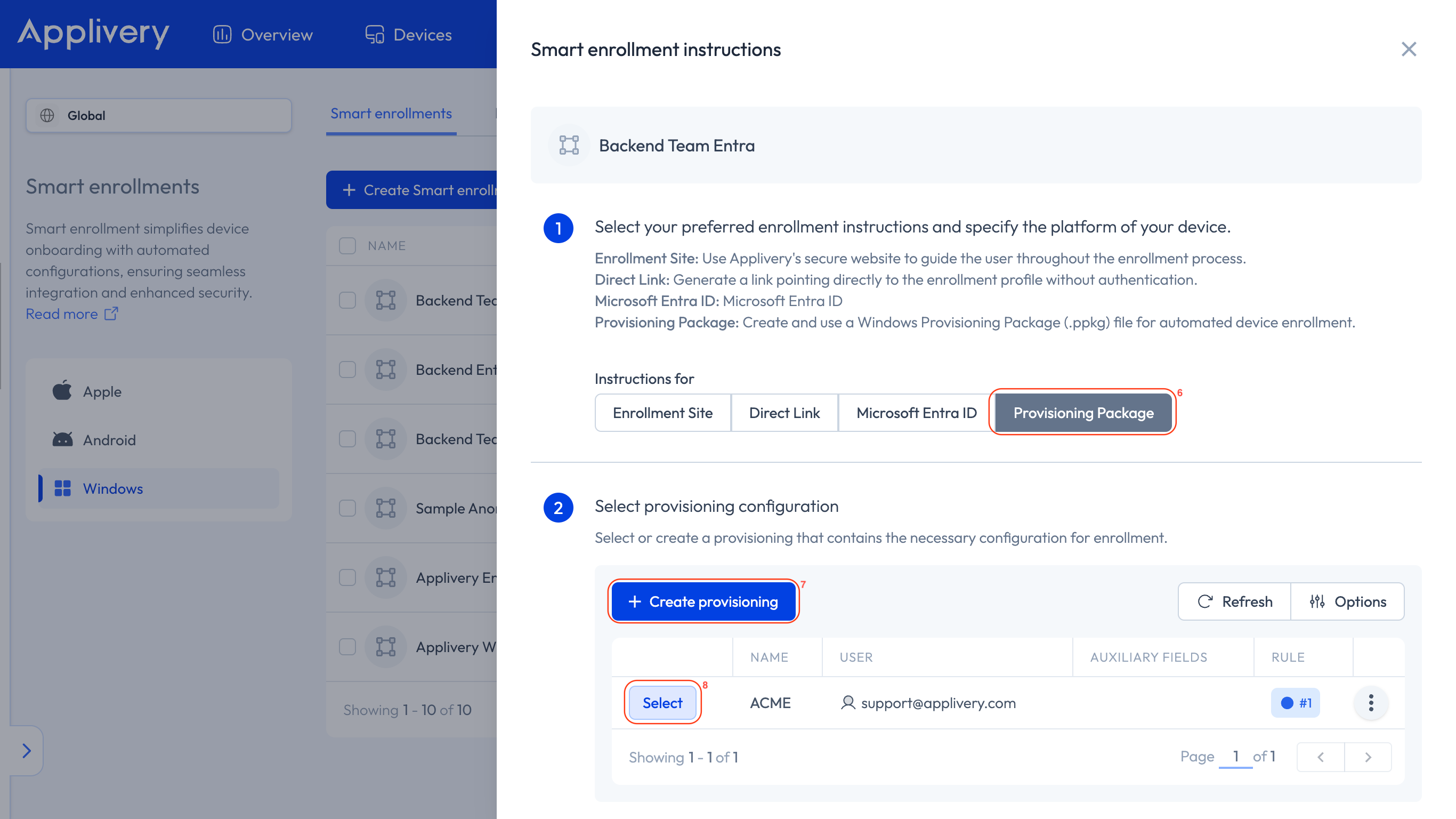
The on-screen instructions will guide you through applying the PPKG file to your Windows devices.
Enrolling during OOBE (Out-of-Box Experience)
When you apply a Provisioning Package during the Windows OOBE — the initial setup wizard that runs on a brand-new or freshly reset device — enrollment needs an extra step to stick.
During OOBE, Windows runs under a temporary session (defaultuser0) that is not persistent. If you enroll straight from that stage, the Applivery enrollment gets tied to that temporary session and is silently removed once the session is cleaned up — leaving the device unenrolled.
To avoid this, you split the process into two stages:
OOBE stage: the user account and everything unrelated to Applivery enrollment is set up on the device.
After the first Windows login: the actual Applivery enrollment runs, attached to a persistent user, so it survives reboots.
This procedure is only required when the PPKG is applied from the OOBE wizard. For devices that are already activated (past the initial setup), you only need the single Enroll.ppkg described in the section above.
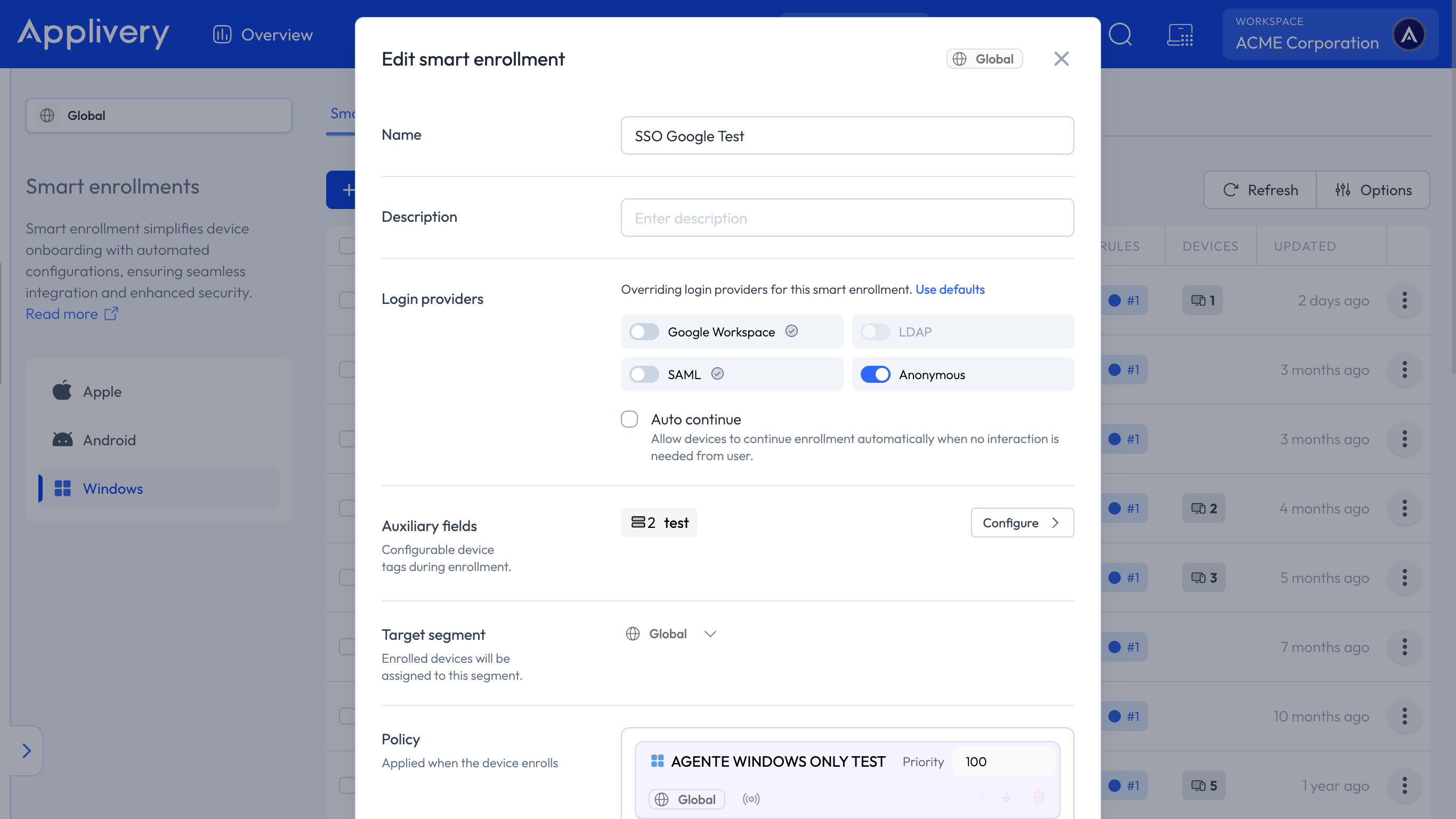
In the Applivery Dashboard, create a Windows Smart Enrollment, select Anonymous login, and add a policy.
Generate a Provisioning Package following the dashboard instructions (as in the section above), including only the Workplace configuration to enroll.
Export it as Enroll.ppkg to your desktop. Note that a .cat catalog file with the same name is created alongside it.
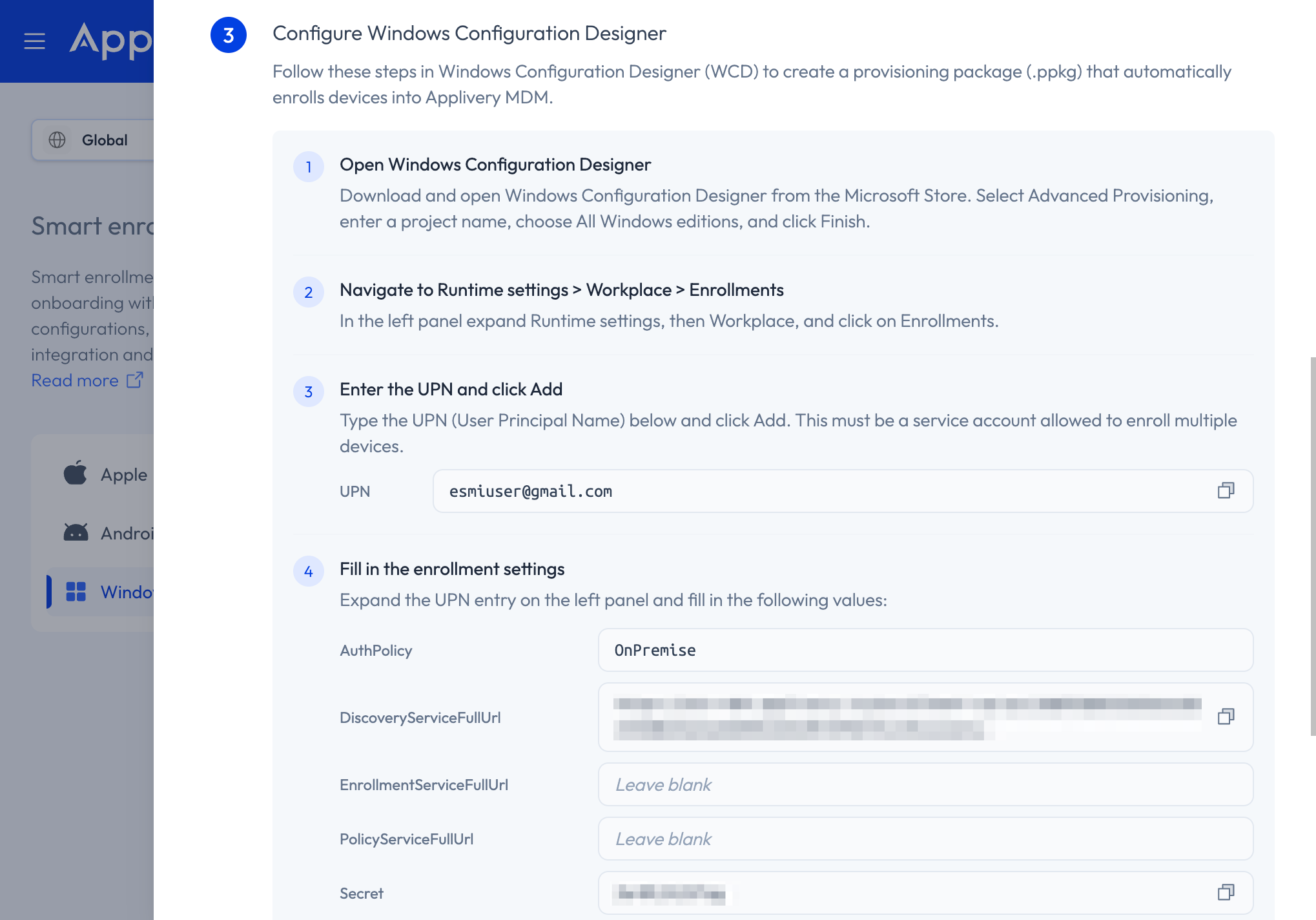
Create a new provisioning package project in Windows Configuration Designer and set up the following.
a) Create the user account
Create a user account and make sure it belongs to the local Administrators group. If it is a standard user, enrollment after RunOnce will fail due to permissions.
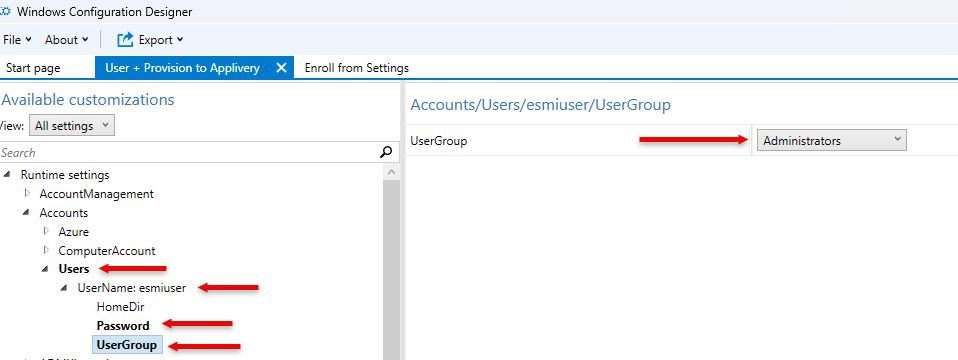
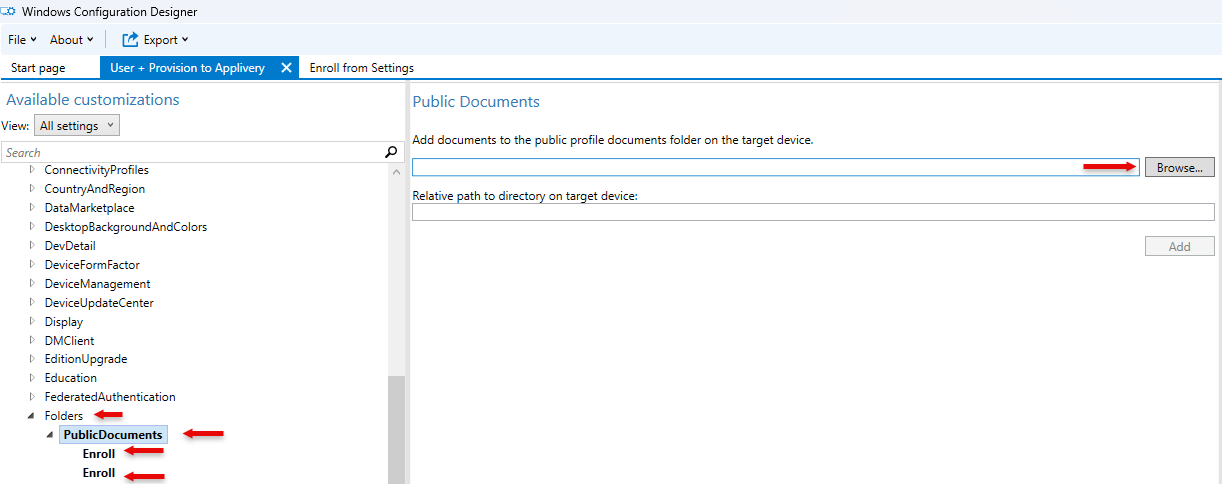
b) Add Enroll.ppkg to the delivered files
Scroll down to the Folders node under Runtime settings and expand it. Files added here are delivered to C:\Users\Public\Documents on the target device. Add the Enroll.ppkg and its .cat catalog file, then click Add. They will appear inside the Runtime tree.
c) Configure OOBE
Scroll down to the OOBE node and configure it as shown.
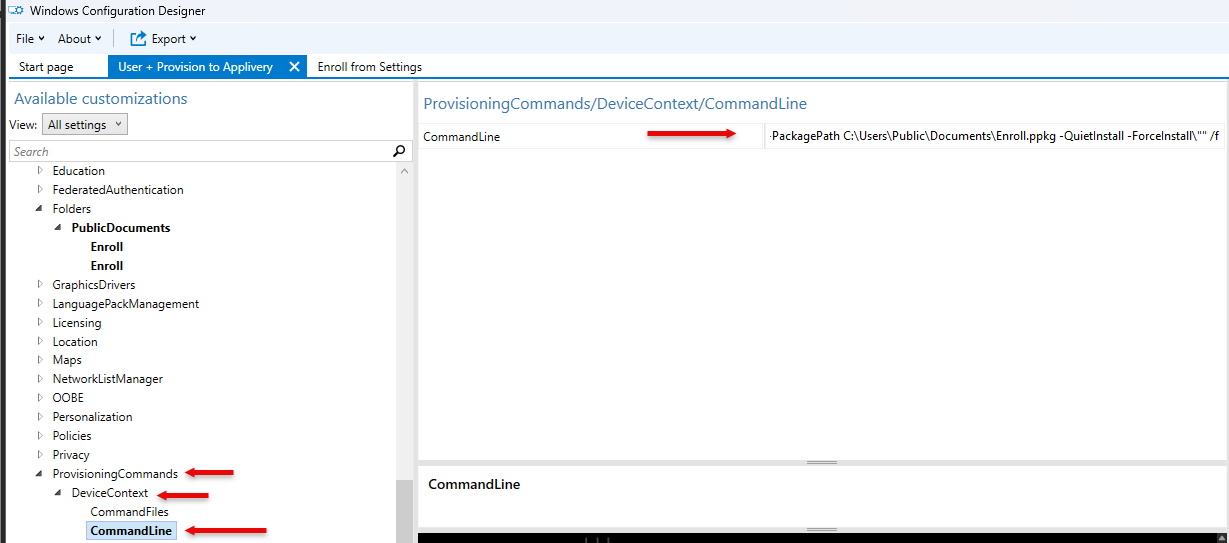
d) Add the RunOnce provisioning command
This is the key step. Scroll down to Provisioning Commands and expand it. Click Device Context and select the CommandLine field from the left tree.
Add the following one-liner command:
reg add "HKLM\SOFTWARE\Microsoft\Windows\CurrentVersion\RunOnce" /v "AppliveryOOBEEnroll" /t REG_SZ /d "powershell.exe -ExecutionPolicy Bypass -Command \"Install-ProvisioningPackage -PackagePath C:\Users\Public\Documents\Enroll.ppkg -QuietInstall -ForceInstall\"" /f
Export the PPKG, and you are good to go.
The command injects a RunOnce entry into the Windows Registry that runs silently right after the user's first login following the OOBE provisioning. This attaches the Applivery enrollment to the persistent user who has just logged in.
To confirm, go to Settings > Accounts > Access work or school — the Applivery account will already be listed. From that point, enrollment persists across reboots.