

Applivery MDM leverages the Android Management API (AMAPI) to provide robust remote Command capabilities for managing Android Devices. By relying on AMAPI’s extensive features, Applivery ensures seamless execution of remote actions, enabling IT administrators to maintain control and enforce security Policies effectively across their Device fleet.
This integration simplifies Device management by allowing remote intervention without the need for physical access.
Lock
Available for Fully Managed Devices, this Command forces an Android Device to lock its screen immediately by simulating the expiration of the screen timeout. It’s useful for ensuring Device security in situations that require an instant lock.
Once in the Applivery Dashboard, navigate to any of your Devices and click the Action button 1.
From the dropdown menu, select Lock 2.
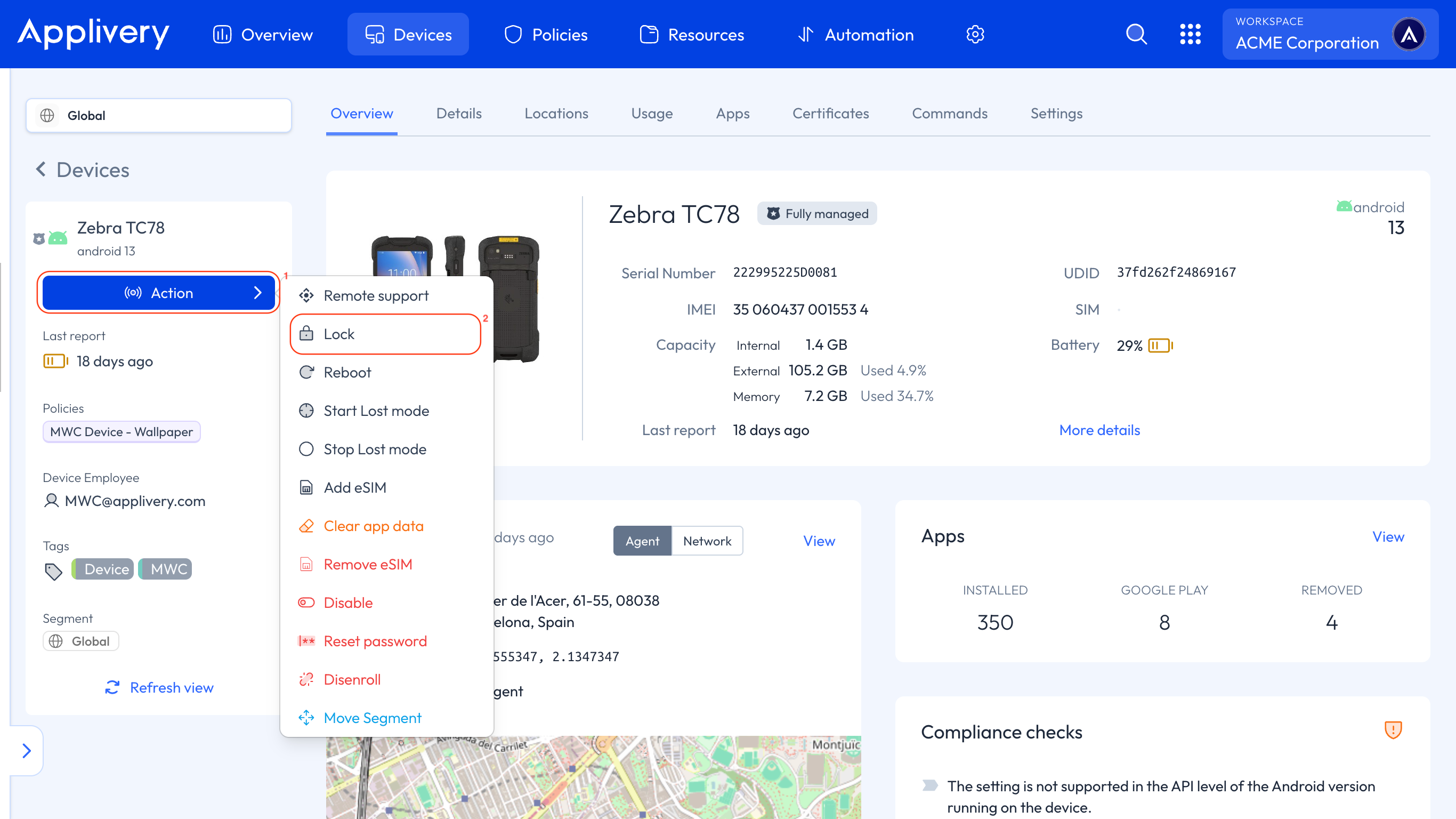
A modal window will appear asking you to enter the Duration in seconds. This sets how long the Command will remain active. It will expire if the Device doesn’t execute the Command within this time.
There is no maximum limit for the duration.
Reset password
Available for Fully Managed Devices.
Resetting the password is useful when a user has forgotten it, when the Device changes users, if there are suspicions of unauthorized access, or when new security Policies are applied. It is also recommended for lost or stolen Devices to prevent unauthorized access and protect sensitive information.
Once in the Applivery Dashboard, navigate to any of your Devices and click the Action button 1.
From the dropdown menu, select Reset password 2.
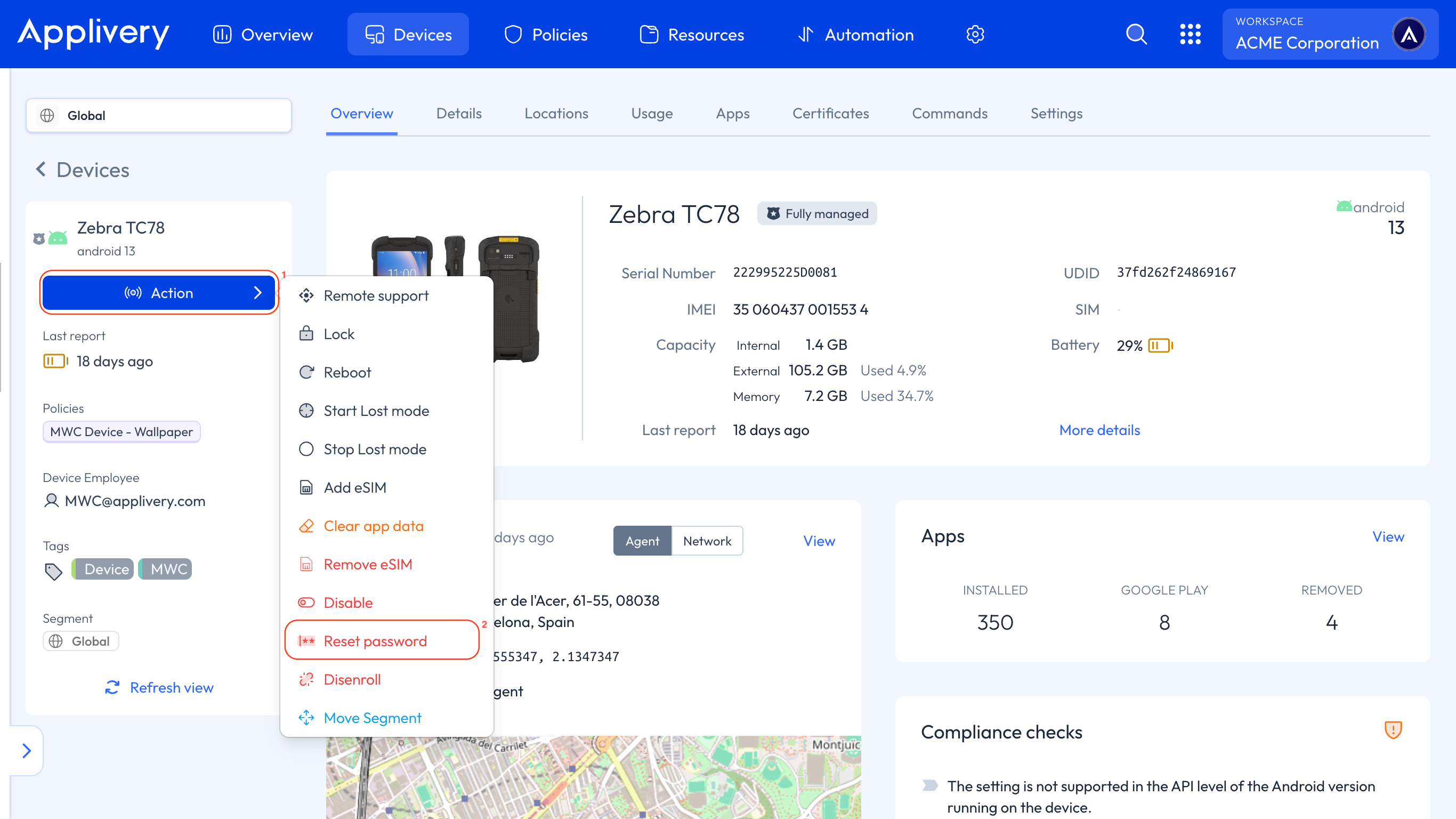
A modal window will prompt you to specify the Duration parameter in seconds. This defines how long the Command remains valid; if the Device does not execute the Command within this time, it will expire.
There is no maximum duration limit.
You can configure additional settings to enhance security and control following a password reset:
Don’t allow other admins to change the password again until the user has entered it: This ensures that no other admin can modify the password once it has been reset, forcing the user to enter the new password before any further changes are allowed.
Don’t ask for user credentials on Device boot: Allows the Device to boot without immediately prompting the user to enter the new password after a restart.
Lock the Device after password reset: Automatically locks the Device following the password reset, increasing security until the user enters the new password.
Set new password: Allows you to directly specify the new password to be applied to the Device. For Android 14 Devices, the new password must be at least 6 characters long if it is numeric; otherwise, the Command will fail with an
Invalid valueerror.
If you do not enable the Set new password option, the Command will, by default, disable the Device password.
On a Device already locked with an unknown password, this Command cannot work. Since Android 8, the old reset method throws a security exception, so the DPC has to use a reset token that was both provisioned beforehand and activated — activation meaning the user unlocked the Device at least once after the token was provisioned. Tokens that were never activated live only in memory and are lost on reboot.
It is a platform limitation that affects every MDM equally, not something specific to Applivery. In those cases, check whether the lock came from Google's Find My Device, which can set a new PIN remotely.
Troubleshooting: Reset password fails instantly
If you send a Reset password command and it fails almost immediately — even though the device appears online and connected to Wi-Fi — the device is likely in a Before First Unlock (BFU) state.
What is the BFU state?
When encryptionPolicy is set to ENABLED_WITH_PASSWORD in your policy, the device requires the PIN to be entered at boot before the encrypted storage can be decrypted. If the device was restarted and the user cannot enter their PIN, it gets stuck in BFU.
In BFU state, the entire Android user space is frozen — including Android Device Policy, the component responsible for communicating with Applivery. The device can see the Wi-Fi network at the OS level (which is why it appears connected in the Dashboard), but the MDM layer is completely dormant: no process is running that can receive or execute commands from Applivery. This is why the Reset password command fails instantly — the device never receives it.
Resolution
There is no remote solution in this scenario. Physical access to the device is required:
Physical PIN entry: if there is any chance the user remembers their PIN, this is the simplest path forward.
Factory reset from recovery mode: hold the hardware button combination at boot to access recovery mode and perform a factory reset. The device will lose all local data but will become manageable again.
Prevention
To avoid this scenario, set encryptionPolicy to ENABLED_WITHOUT_PASSWORD in your Android policy. This still enforces full-disk encryption on the device, but does not require the PIN at boot — meaning Android Device Policy starts normally after a reboot, and remote commands like Reset password will work as expected.
For a full explanation of all available encryption values and how to choose between them, see Encryption Policy.
Reboot
Available for Fully Managed Devices.
Sending a restart Command is useful in several key situations. It helps resolve performance issues by freeing up RAM, applies system updates that require a reboot to take effect, and fixes minor errors such as unresponsive Apps or driver conflicts. It’s also recommended when a Device has been running for extended periods without restarting, which can impact stability. Additionally, when new security settings or Policies are applied through Applivery, a restart may be necessary for these changes to take effect.
Once in the Applivery Dashboard, navigate to any of your Devices and click the Action button 1.
From the dropdown menu, select Reboot 2.
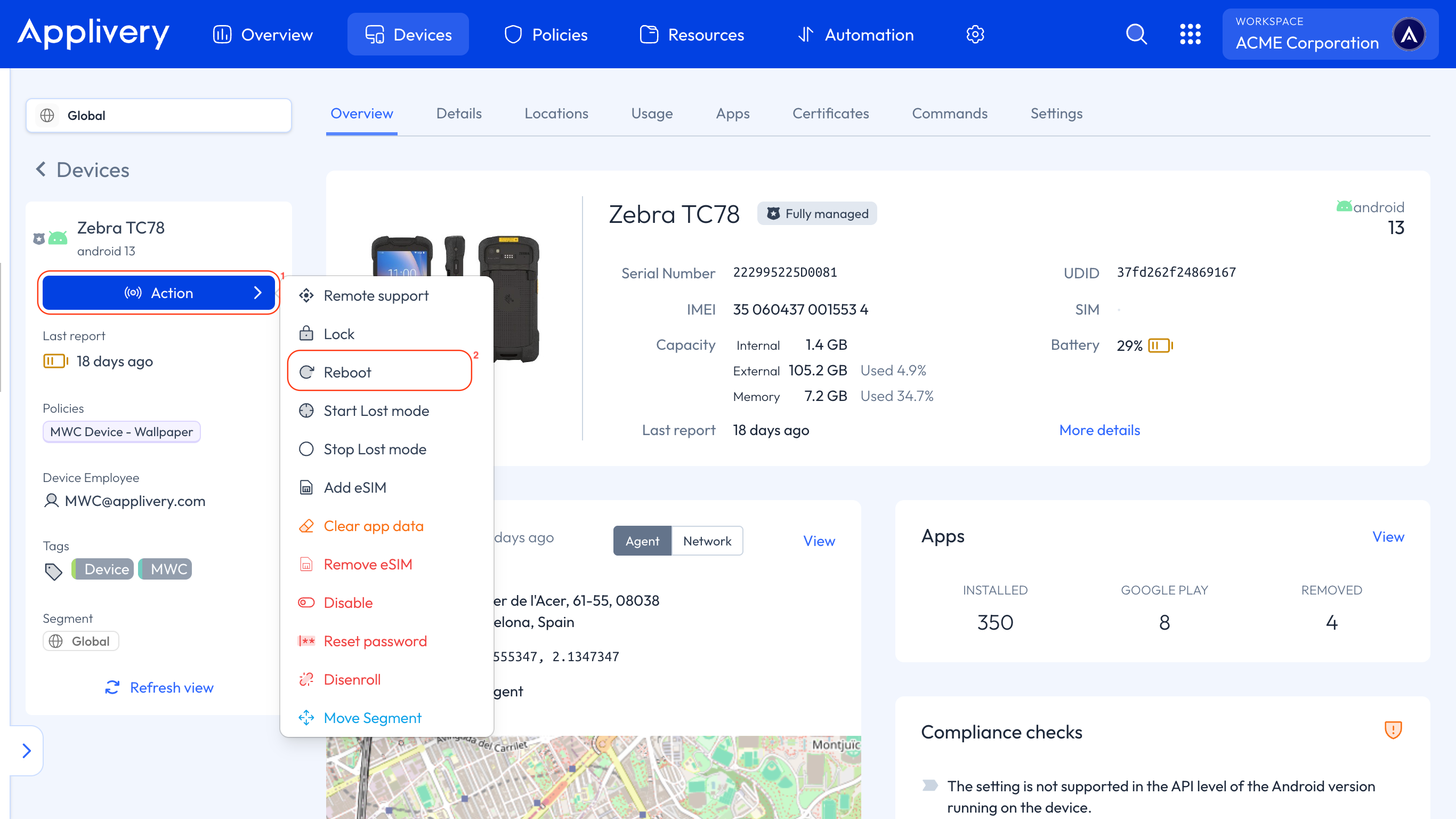
A modal window will prompt you to specify the Duration parameter in seconds. This defines how long the Command remains valid; if the Device does not execute the Command within this time, it will expire.
There is no maximum duration limit.
eSim
These Commands provide the ability to remotely add or remove eSIM profiles on compatible Android Devices (Android 15 and above), removing the reliance on physical SIM cards.
This simplifies Device setup and maintenance, allowing for faster deployment and better control over mobile network access, all managed remotely from a centralized Dashboard.
Once in the Applivery Dashboard, navigate to any of your Devices and click the Action button 1.
From the dropdown menu, select either Add eSim 2 or Remove eSim 3.
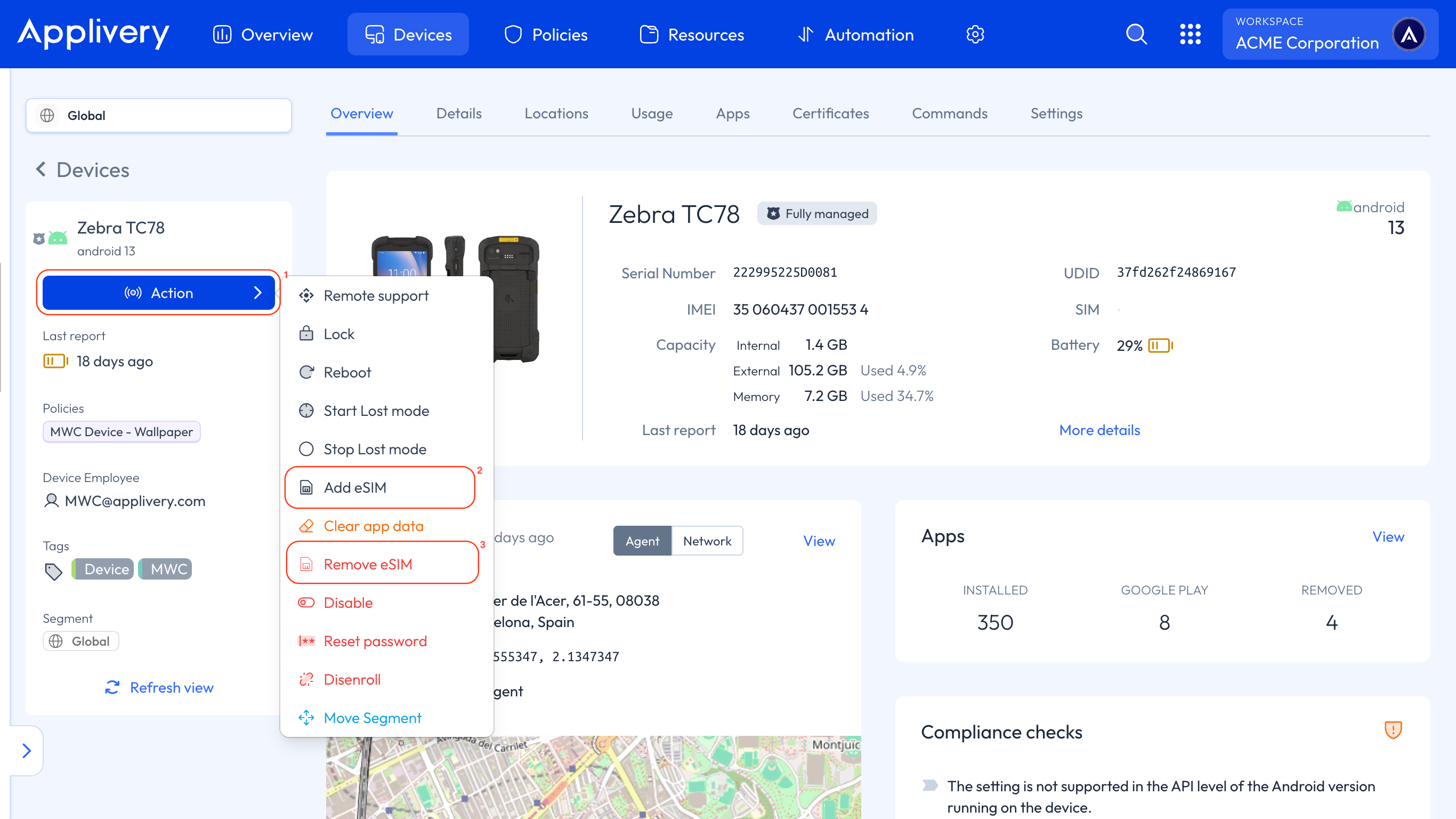
Add eSim
When you select the Add eSIM Command, a modal window will prompt you to specify additional configurations, such as the eSIM activation code and activation state, as well as the Duration parameter described in previous commands.
Remove eSim
When you select the Remove eSIM command, a modal window will prompt you to specify additional configurations, such as the ICCID of the eSIM to remove, as well as the Duration parameter described in previous commands.
Request info (Device EID)
Available for personally-owned Devices with a Work Profile (Android 13 and above). This Command retrieves the Device's EID (eUICC Identifier) — the unique identifier of the eSIM chip that mobile carriers need to provision an eSIM profile.
Because these Devices are personally owned, the user must approve sharing the information before it can be returned. Select Request info from the Action menu. The Command reports one of these statuses:
Succeeded: the Device info was delivered and the EID (one per eUICC chip) is returned.
Pending user action: the user hasn't completed the required approval yet.
User declined: the user declined to share the Device info.
Unsupported: the requested info isn't supported — for example, the Device doesn't support eSIM.
All of these Commands above can also be executed from the Device’s Commands tab.
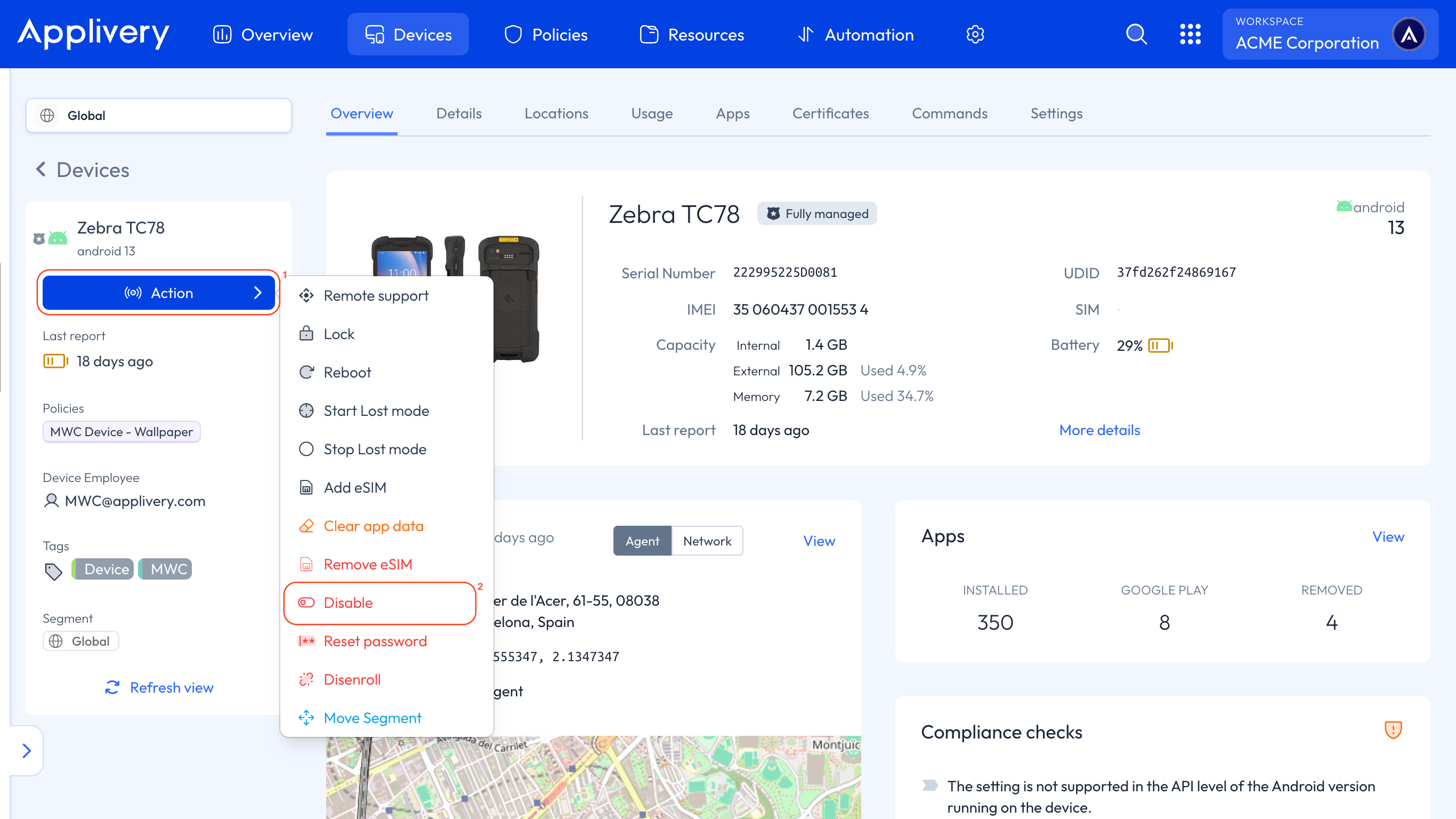
Disable
Available for all management modes, this command allows you to remotely disable an Android Device by locking it down and disabling all Apps and features.
While disabled, the Device becomes inaccessible for regular use, helping to prevent unauthorized access and enhance security in cases of loss, theft, or Policy enforcement. Additionally, it can be used to restrict device usage outside of scheduled working hours.
The Device can be re-enabled later to restore full functionality.
Once in the Applivery Dashboard, navigate to any of your Devices and click the Action button 1.
From the dropdown menu, select Disable 2.
Relinquish ownership
Available for COPE (Company-Owned, Personally Enabled) Devices, this command allows you to remotely remove the Work Profile and all corporate management Policies from a Device. It effectively returns the Device to a personal-use state while preserving any data, Apps, and settings associated with the user’s Personal Profile(s).
This action is particularly useful in scenarios such as offboarding employees, transferring ownership of a Device, or repurposing Devices for non-corporate use. It ensures that corporate data is securely wiped, without impacting the user’s personal content.
Once executed, the Device will no longer be managed by Applivery and will behave as a standard, unmanaged Android Device.
Go to the Commands 1 tab of any of your Android COPE Devices.
Select Relinquish ownership 2.
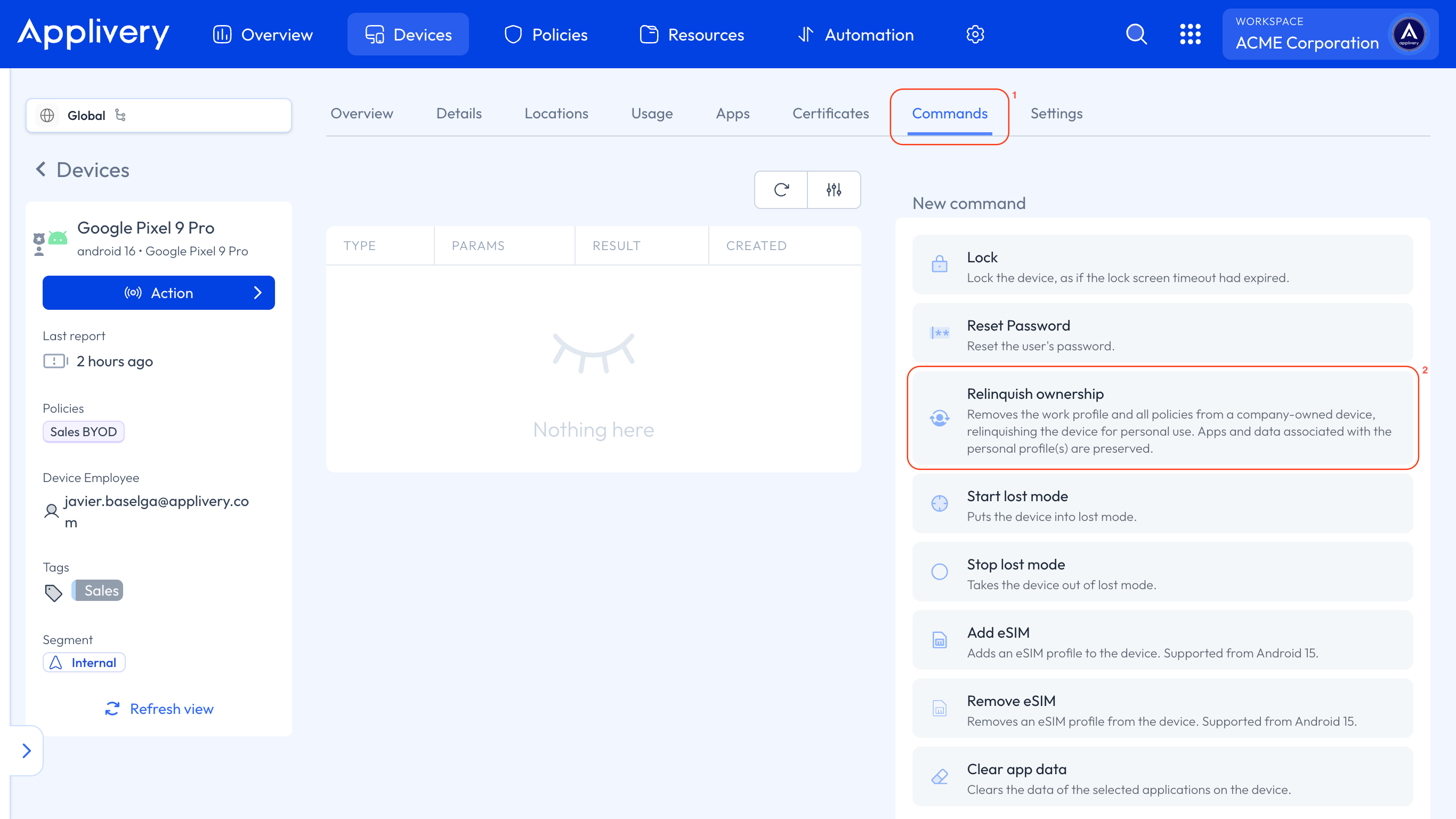
A modal window will prompt you to specify the Duration parameter in seconds. This defines how long the Command remains valid; if the Device does not execute the Command within this time, it will expire.
There is no maximum duration limit.
All of the Commands mentioned above can also be executed from the Danger zone section within the Settings tab, depending on the Device’s management mode.
AOSP Devices Support
On AOSP Devices, remote commands are dispatched through Pushy (not AMAPI) and executed by the Applivery DPC against the native Android APIs. Commands are acknowledged on receipt and again on completion, so the Dashboard always shows the full lifecycle.
The following commands are supported on AOSP:
Command | Effect |
|---|---|
Lock device | Locks the device immediately. |
Reset password | Resets the lock-screen password. Sub-options: Don’t ask for credentials on boot, Lock after reset, Set new password. |
Reboot | Reboots the device. |
Clear app data | Clears data and cache for one or more managed packages. |
Disenroll | Removes the Applivery DPC as Device Owner and clears stored state from the device. |
Commands are accessible from the device detail page under the Action menu or the Commands tab.
eSIM management, Lost mode, and Relinquish ownership are AMAPI-based commands and are not available on AOSP Devices.