
Favicon

You are here: Home > Device Management > Android > App Management > Untrusted App Installs

Android Unknown Sources: How to Allow App Installs

Allow Android App installs from unknown sources by configuring Applivery Policies and Device settings — bypass default security restrictions.

5 min read

TL;DR

Learn how to enable app installations from unknown sources on Android devices using Applivery MDM policies and device settings.

unknown-sources

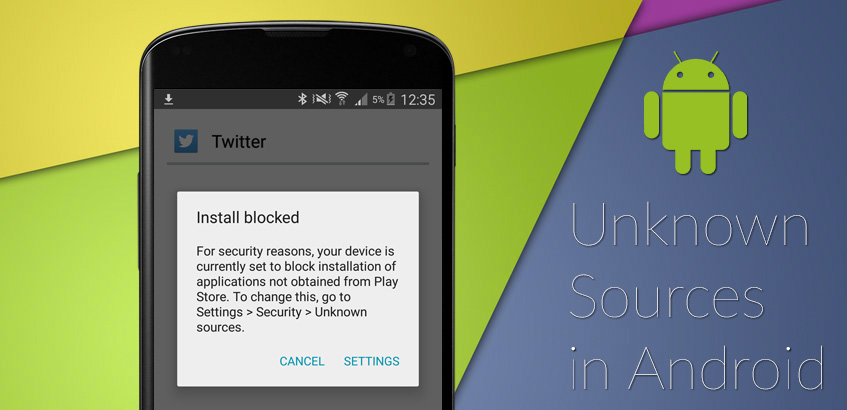
Android’s operating system includes a built-in security feature that blocks the installation of Apps from sources outside the Google Play Store. This means that if you’re trying to install an App downloaded from a source other than the Google Play Store, you may encounter various warning messages.

By default, the permission to install Apps from sources other than the Google Play Store is disabled. This means that no device will be able to download, configure, or install an unauthorized App unless explicitly allowed through a Policy.
blocked by it admin
Caution

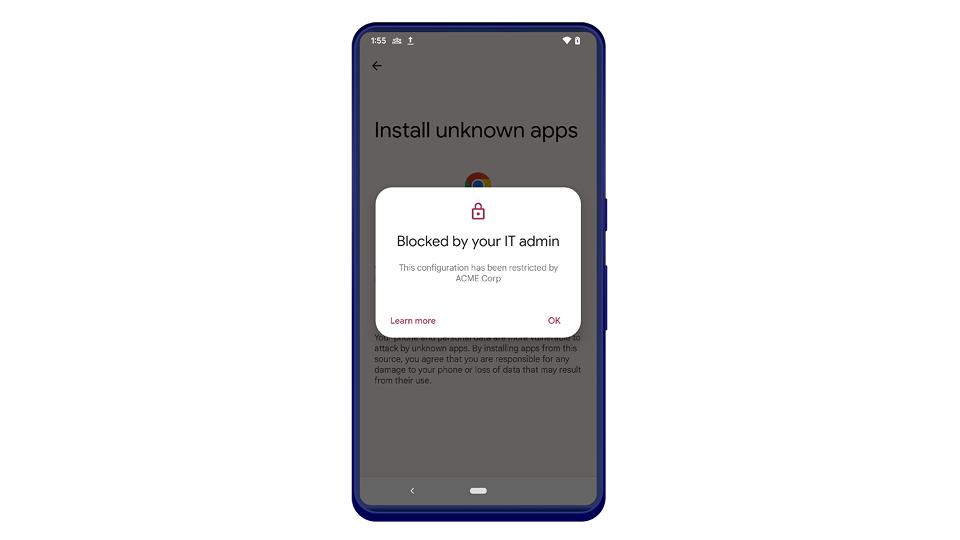
Blocked by your IT admin. If you have questions, contact your IT admin.

If a user attempts to enable this setting on their Device, they will encounter a block message from their IT admin and will not be able to enable it.

Note

These messages can be customized using the Short Support Message property.

Configuring your Policy

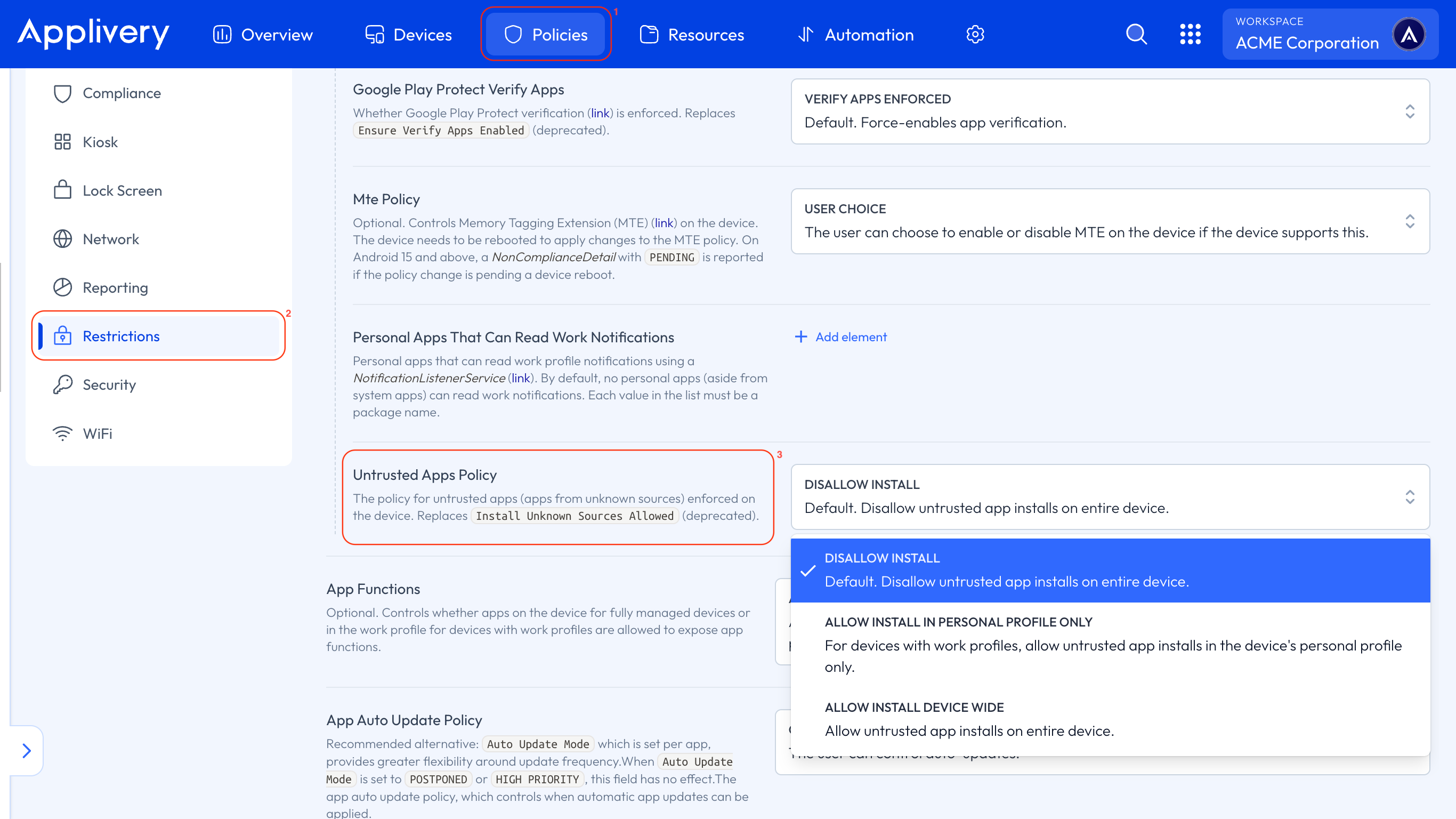
Once in the Applivery Dashboard, go to any of your Policies 1. From the left side menu, select Restrictions 2, locate the App section, then search for the Advanced Security Overrides > Untrusted Apps Policy 3 configuration.

Warning

For Devices with Work Profiles, untrusted App installations can only be allowed within the Personal Profile. Alternatively, they can be enabled across the entire Device.
untrusted Apps

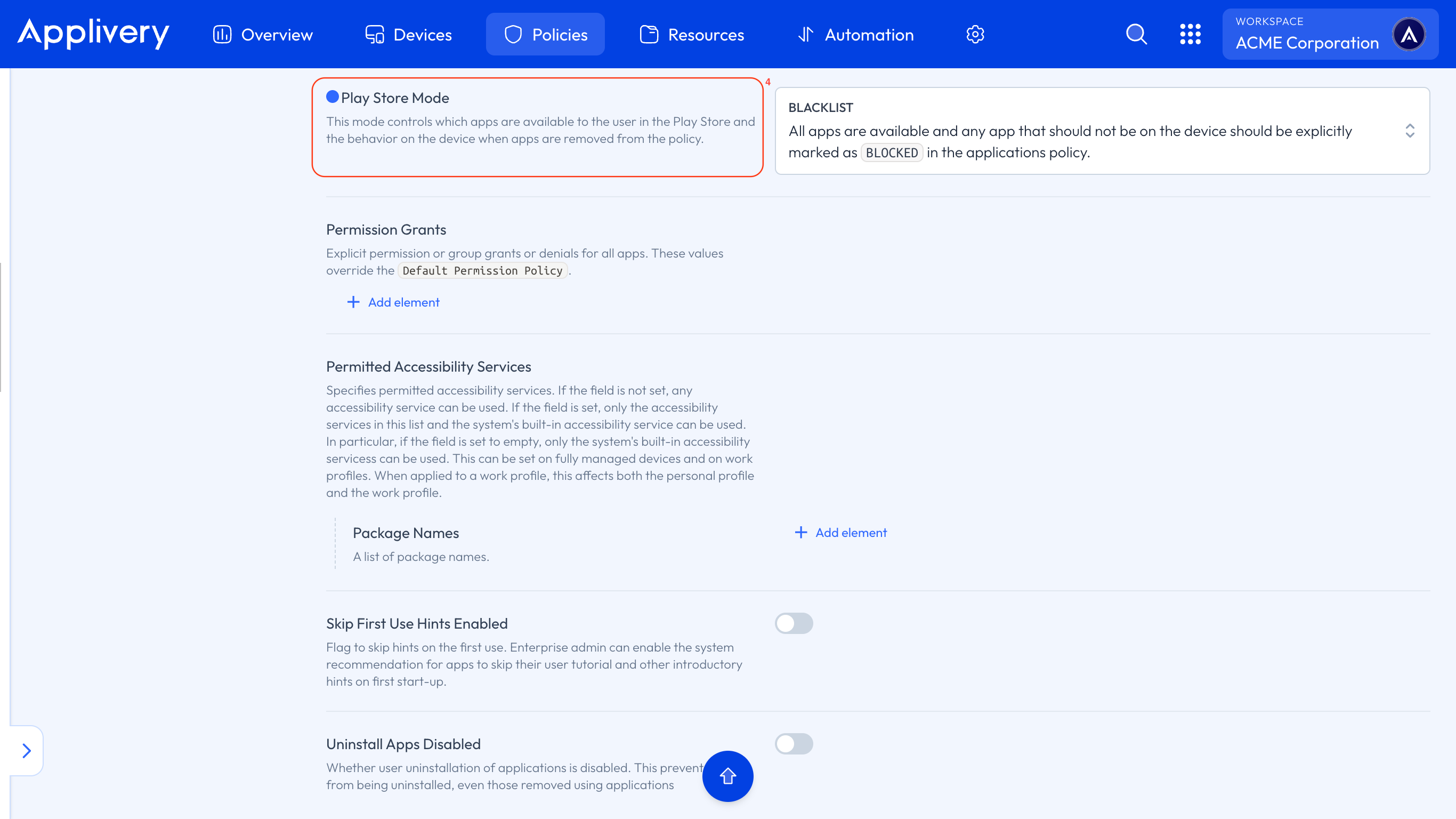
Now, locate the Play Store Mode 4 configuration (not to be confused with Personal Play Store Mode) and set it to Blacklist. With this configuration, all Apps are available, and any App that should not be on the Device must be explicitly marked as BLOCKED in the applications Policy.
play store mode

Additional Device-side configurations

As mentioned earlier, the permission to install Apps from sources other than the Google Play Store is disabled by default.

Even if the installation of Apps from unknown sources is allowed through Policy, the user must still grant the necessary permissions directly on their Device.

To learn how to grant these permissions, please refer to our documentation on installing Apps from unknown sources.

Key Takeaways

  • Android blocks app installs from unknown sources by default.
  • Applivery's Untrusted Apps Policy can be configured to allow these installs.
  • Users must grant permissions on their device, even with policy configurations.
  • The Play Store Mode setting in Applivery controls app availability.
  • Custom support messages can be displayed when app installs are blocked.

Android blocks apps from unknown sources as a built-in security feature to protect against unauthorized app installations.

Configure the 'Untrusted Apps Policy' in your Applivery policy settings under Device Management > Policies.

The 'Play Store Mode' setting allows you to manage app availability. Setting it to 'Blacklist' makes all apps available unless explicitly blocked.

If your IT admin blocks enabling unknown sources, you'll encounter a block message and won't be able to enable the setting. Contact your IT admin for assistance.

Yes, you can customize the block message using the 'Short Support Message' property in Applivery.

Yes, even if allowed by policy, users must still grant the necessary permissions on their device to install apps from unknown sources.

Refer to the Applivery documentation on installing apps from unknown sources for instructions on granting device permissions.

For devices with work profiles, untrusted app installations can be allowed within the personal profile or across the entire device.

Last updated: June 9, 2026