Favicon

You are here: Home > Device Management > Windows > Get Started > Sleep Timeout

How to Configure Automatic Sleep Timeout on Windows Devices

Configure automatic sleep timeout settings on Windows Devices using Applivery Policies to enhance security and optimize power management.

5 min read

TL;DR

Configure Windows sleep timeout settings using Applivery to optimize power management and enhance security across managed devices.

Controlling power management settings is essential for optimizing device performance, conserving energy, and enhancing security in enterprise environments. One key setting is the automatic sleep timeout, which determines how long a Windows device should remain idle before transitioning to sleep mode.

Using Applivery, administrators can enforce this behavior by applying a Policy that specifies the number of seconds of inactivity allowed before sleep is triggered. This ensures consistency across all managed Devices and prevents users from overriding critical energy or security configurations.

Configure Sleep Timeout

Applivery allows you to manage power settings on Windows Devices using the Power configuration group policy. This includes settings like suspension, sleep behavior, and other energy-related controls.

1
Access Device Management and Policies

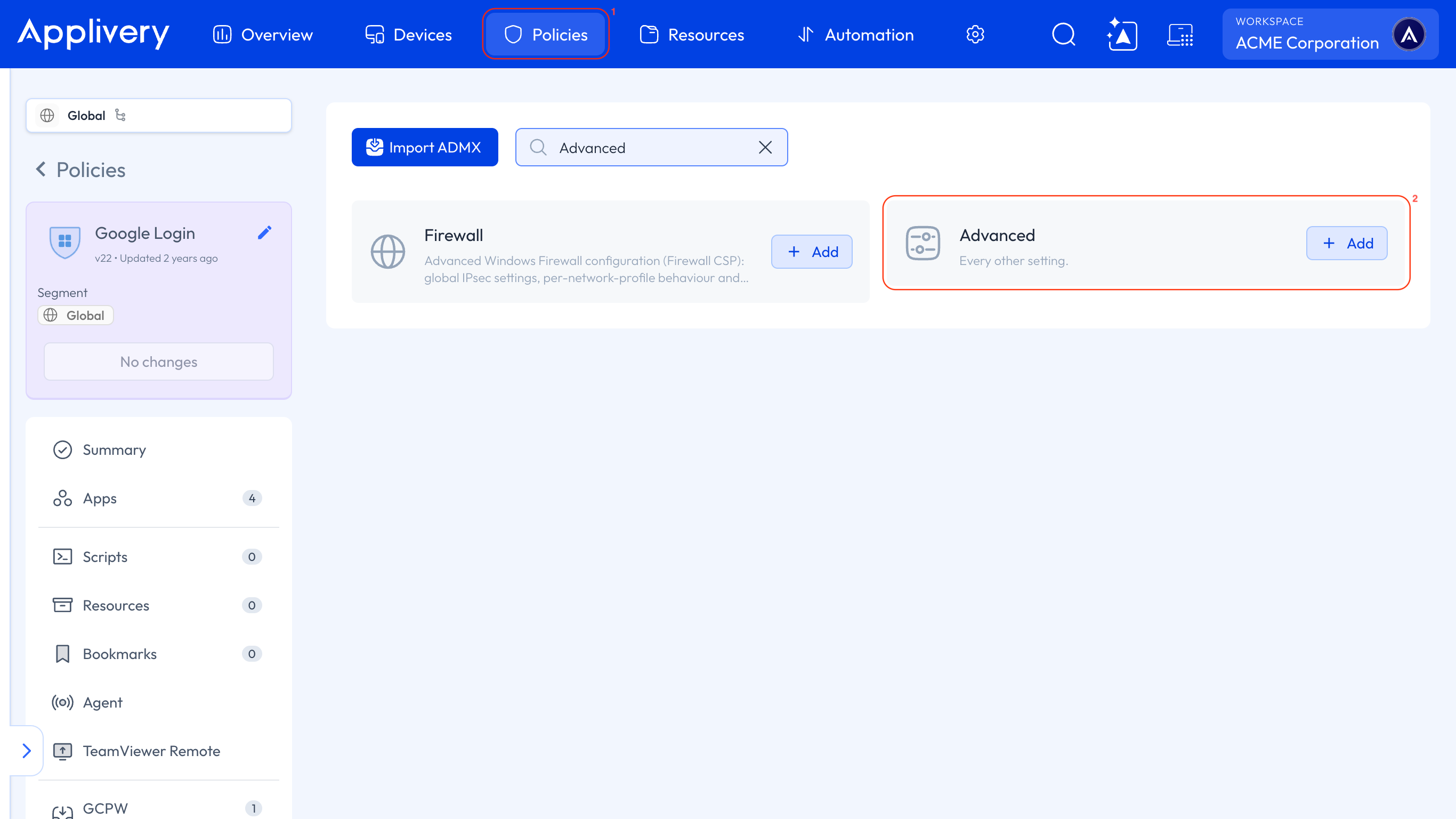
Once in the Applivery Dashboard, head to Policies 1. Choose the Policy where you want to configure the sleep timeout.

2
Add Power Configuration

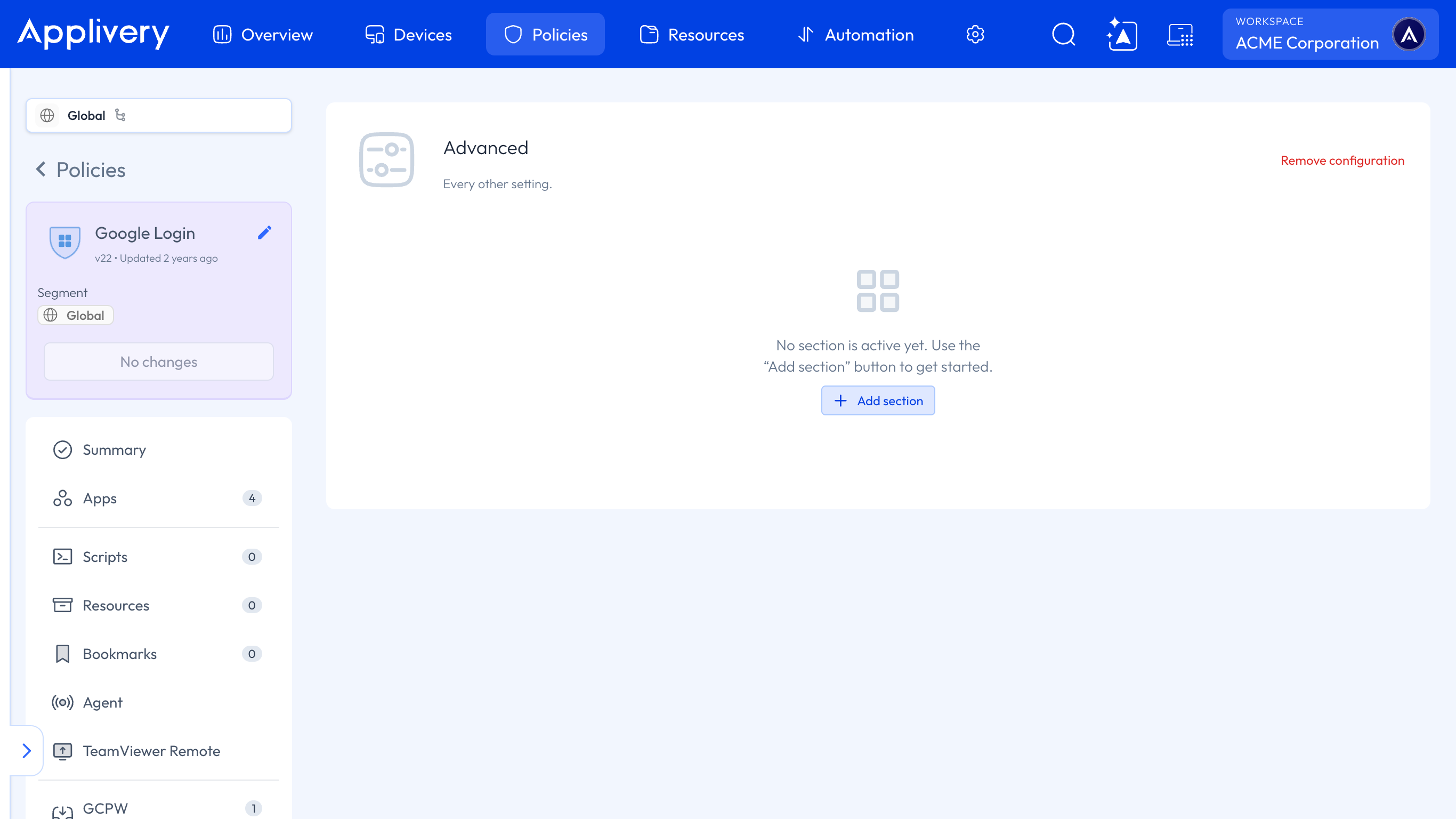
Next, in the left-hand menu, select + Add configuration 2, and search for Power 3.

power
3
Specify Unattended Sleep Timeout

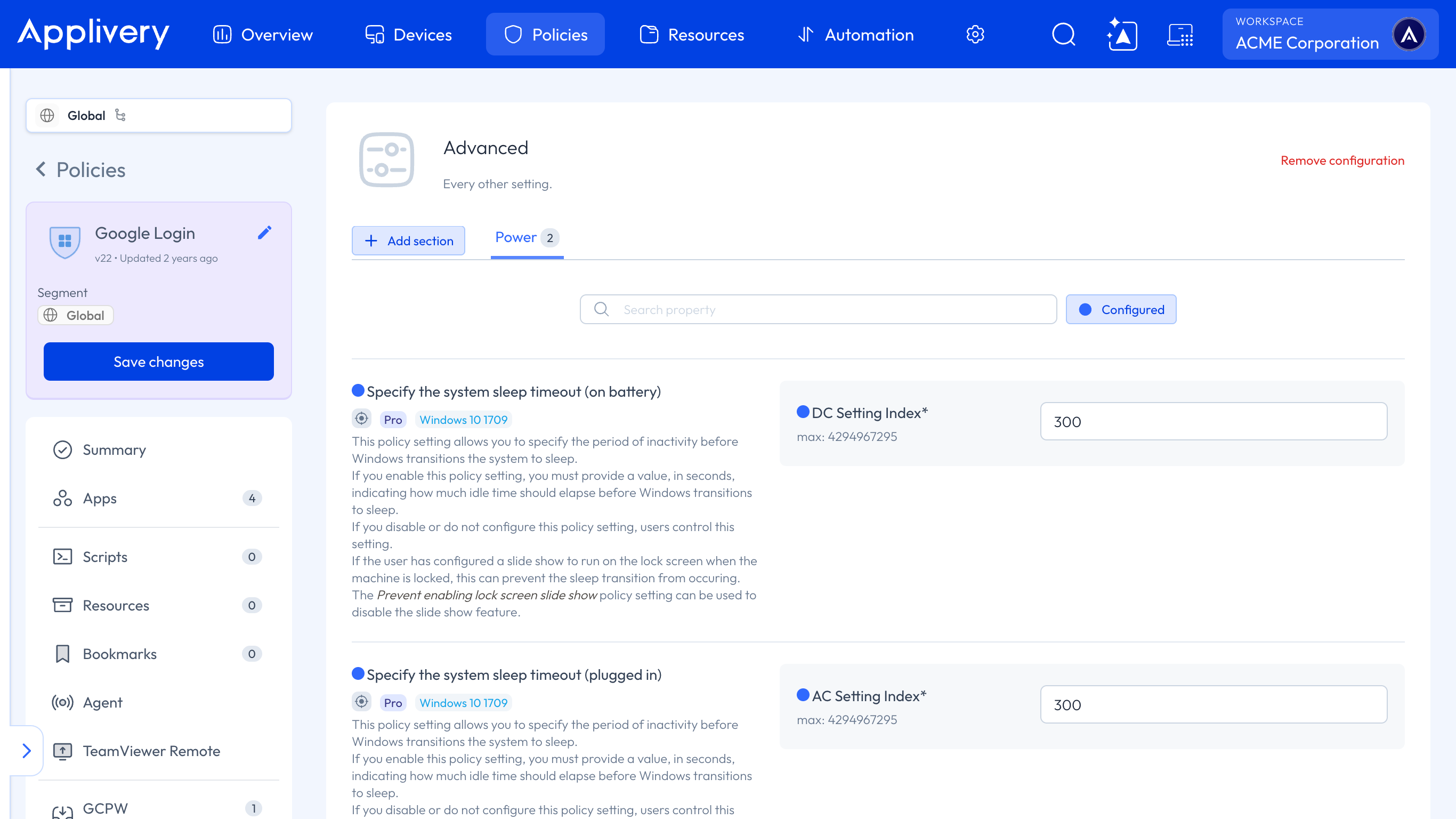
Locate the Specify the unattended sleep timeout (on battery and plugged in) configuration and enter the desired timeout value in seconds.

For example, to put the Device to sleep after 5 minutes of inactivity, set the value to 300 seconds.
sleep timeout

Add Password Prompt on Wake

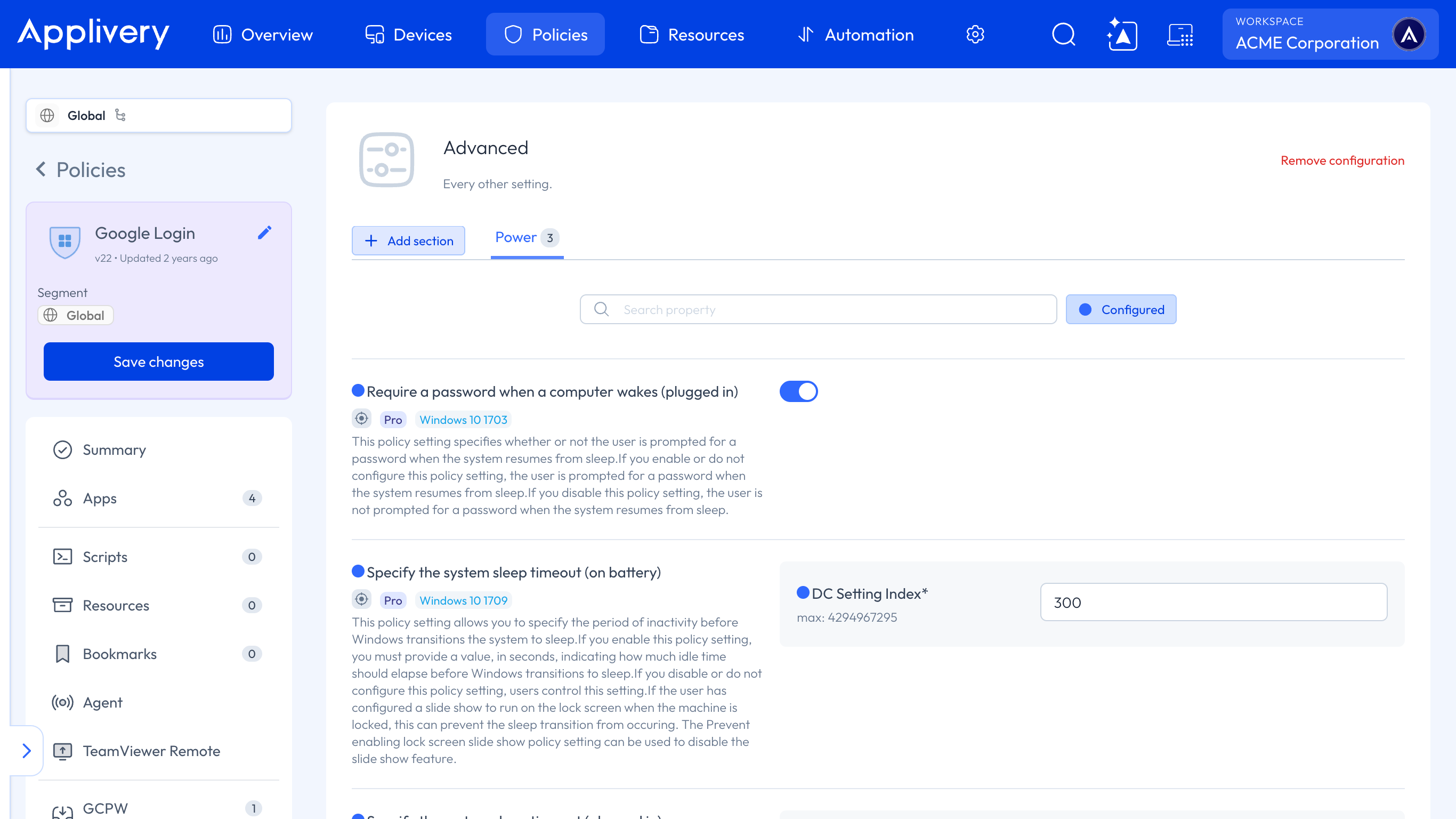
To enhance security when a Device resumes from sleep, you can combine the previous setting with the Require a password when a computer wakes (on battery and plugged in) configuration.

By enabling this Policy, users will be prompted to enter their password every time the Device wakes from sleep, whether it’s running on battery or plugged in. This ensures that unattended Devices remain secure after going to sleep.
require password

Key Takeaways

  • Administrators can control Windows sleep timeout settings using Applivery.
  • Setting a sleep timeout policy ensures consistent power management across devices.
  • Requiring a password on wake enhances security for unattended devices.
  • Applivery simplifies the process of configuring power settings on Windows devices.
  • Optimizing power management improves device performance and conserves energy.

In Applivery, go to Device Management > Policies, select a policy, add a Power configuration, and specify the unattended sleep timeout in seconds.

In the Applivery Dashboard, navigate to Device Management > Policies, select a policy, and then add a new configuration by searching for 'Power'.

The sleep timeout value in Applivery's Power configuration is specified in seconds.

In the Power configuration, set the 'Specify the unattended sleep timeout' value to 300 seconds (5 minutes).

In the Power configuration, enable the 'Require a password when a computer wakes' setting.

Configuring sleep timeout settings in Applivery helps optimize device performance, conserve energy, and enhance security in enterprise environments.

Yes, the 'Specify the unattended sleep timeout' setting applies to both battery and plugged-in devices.

Last updated: March 24, 2026