

Automatic App installation allows IT admins to remotely deploy applications to managed Android Devices without requiring user interaction. With Applivery, applications can be installed silently and efficiently across any size fleet—ideal for ensuring all employees have the critical tools they need for work, security compliance, or kiosk environments. Apps are assigned within Policies and pushed directly from the Dashboard, simplifying rollout and reducing support needs.
Admins gain total control over which Apps are installed, updated, or removed, and can automate deployments for new Devices, role changes, or updates, guaranteeing consistent configurations across the organization. Applivery supports both system and third-party Apps, with advanced features to configure managed properties, automate updates, and enforce App compliance—making Device management effortless and robust for enterprise environments.
Managed Google Play
The secret behind automatic App installation in Android Enterprise—and of course with Applivery—is Managed Google Play. Think of it as a special version of the Google Play Store, designed specifically for your organization.
With Managed Google Play, you control which Apps are available to your employees and how they get installed.
Applivery connects directly to your Managed Google Play account, allowing you to manage and distribute Apps centrally and automatically—no manual installs needed!
How to set up automatic App installation
To ensure everything runs smoothly, your Android Devices must already be registered and managed under Android Enterprise in Applivery. This means your Android Enterprise account is properly set up and your Devices are enrolled—whether they’re Company-Owned Devices, Work Profiles, or otherwise.
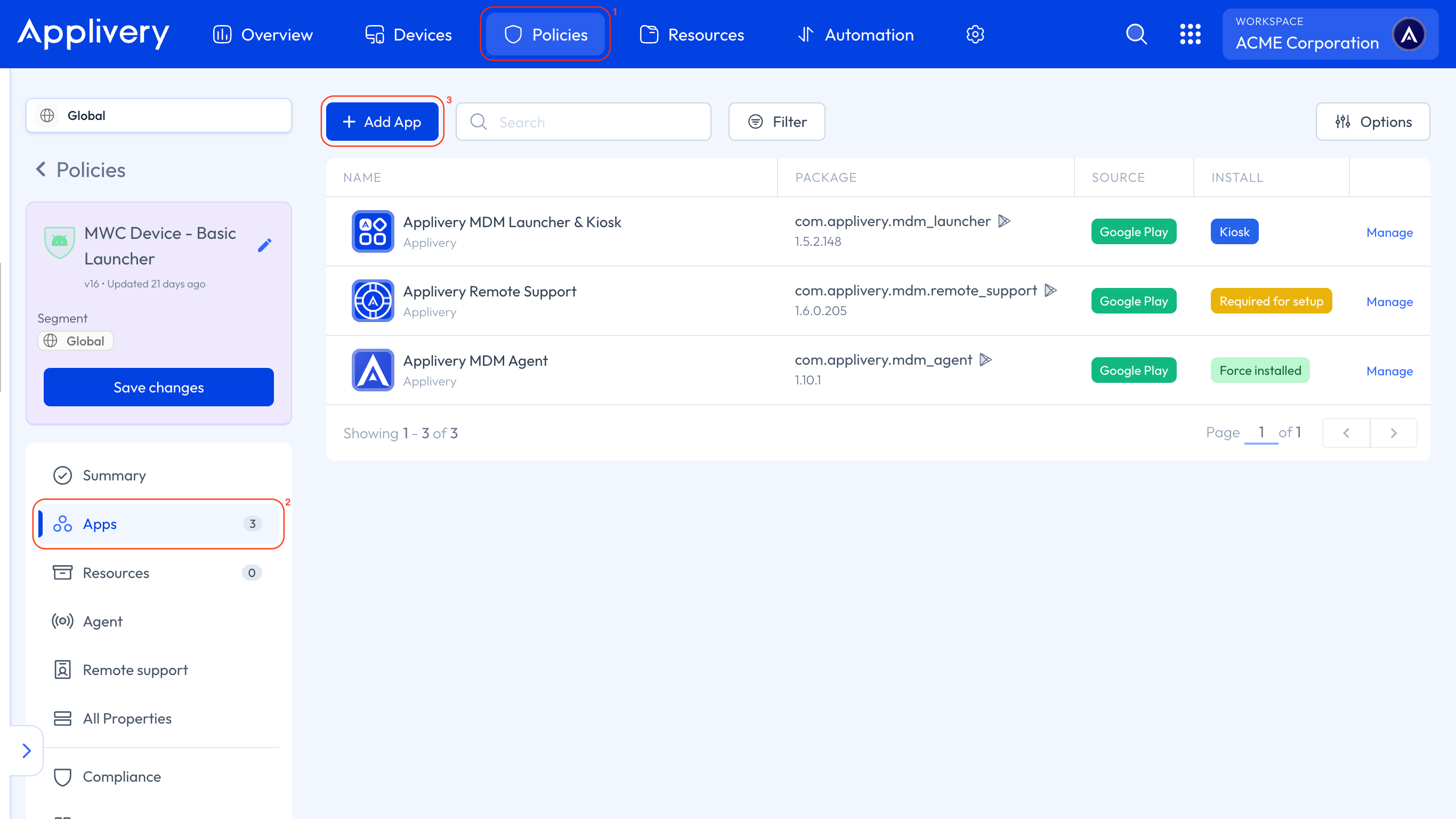
Once in the Applivery Dashboard, go to any of your Policies 1. From the left side menu, go to Apps 2 and click the + Add App button 3.
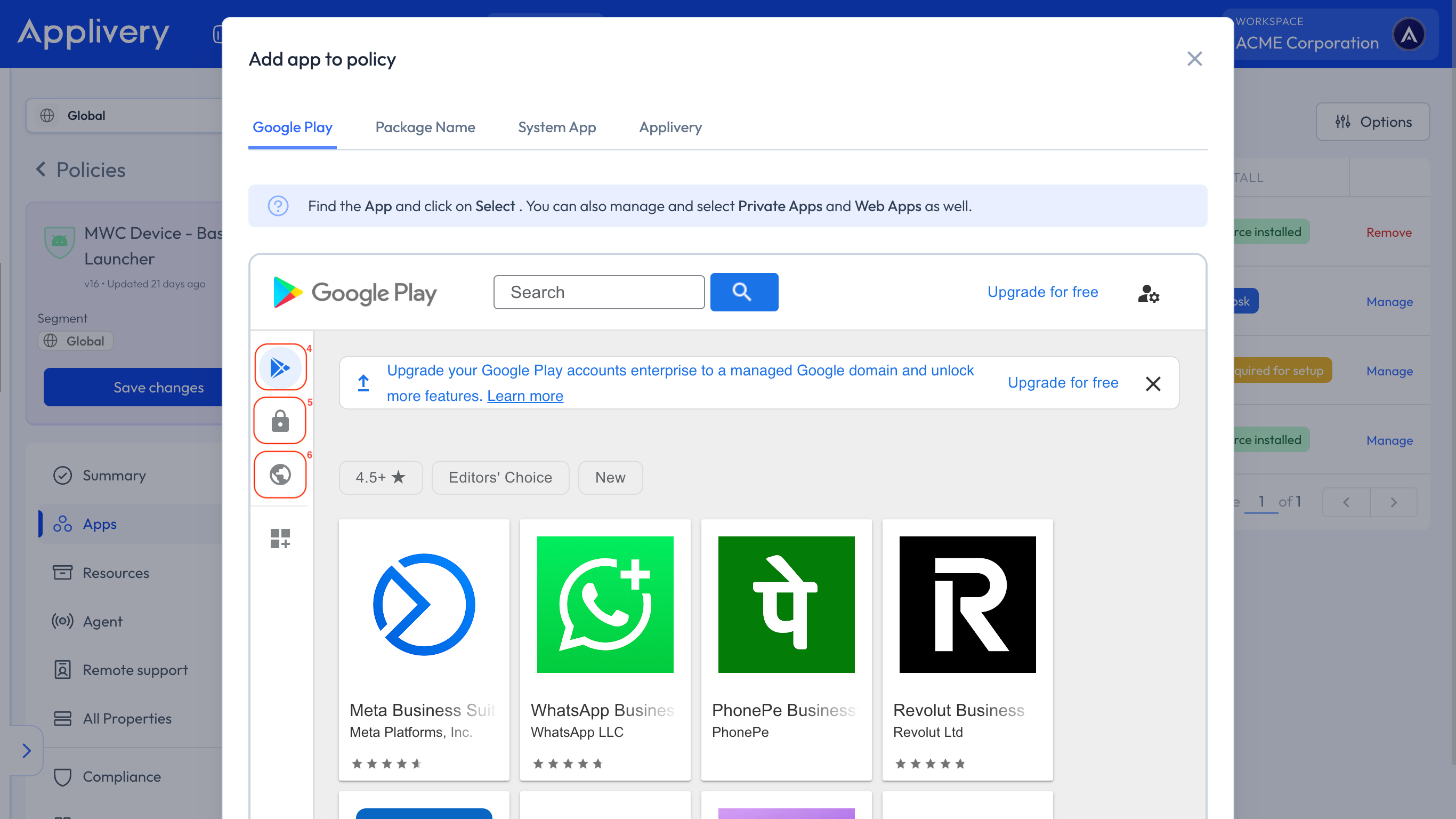
The Managed Google Play iFrame will open, allowing you to select from the following App types:
Public Apps 4: If the Apps are available on the regular Google Play Store, simply search for them and approve them directly from the Managed Google Play section in your Applivery Dashboard. Once approved, you can manage and assign them to your Devices.
Private Apps 5: For Apps developed internally for your company, you can upload them as private Apps to Managed Google Play directly from Applivery. Only your organization will have access to these Apps.
Web Apps 6: You can also turn your favorite websites into Web Apps within Managed Google Play, then deploy them automatically to Devices as if they were native Apps.
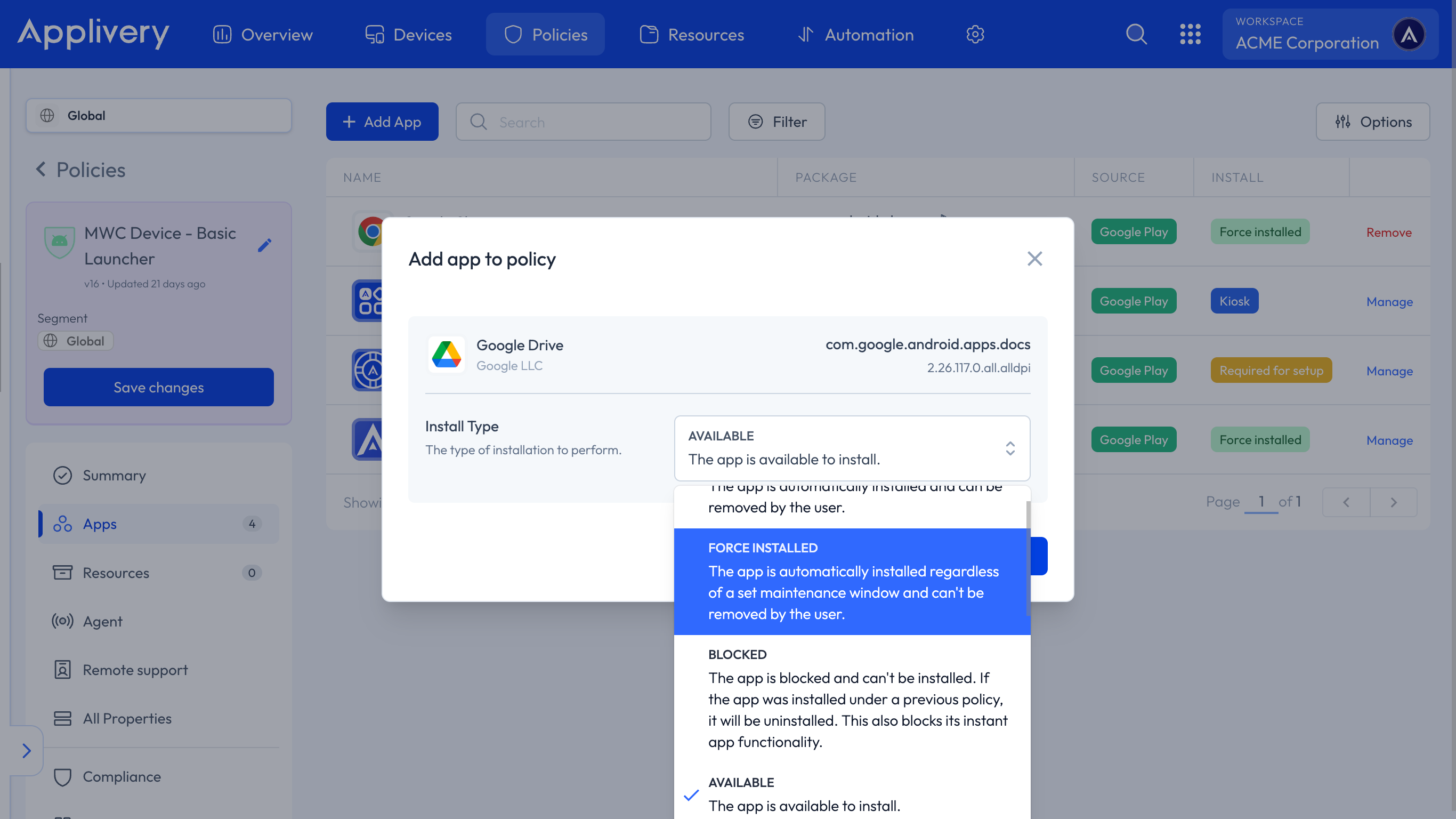
The install type decides whether the App lands on the Device on its own, whether the user can get rid of it, and whether setup waits for it. These are Android Enterprise install types, so the behavior below is Android's, not Applivery's.
Install type | Installed automatically | Behavior |
|---|---|---|
Force installed | Yes | Installed regardless of any maintenance window, and the user cannot remove it. |
Preinstalled | Yes | Installed automatically, but the user can remove it afterwards. |
Available | No | Offered in Managed Google Play for the user to install. This is the default when no install type is set. |
Blocked | No | Cannot be installed, even if the user searches for it in Managed Google Play. If it was installed under a previous Policy it is uninstalled, and its instant app functionality is blocked too. |
Required for setup | Yes | Installed automatically and not removable, and Device setup does not finish until the install completes. |
Kiosk | Yes | Set as the preferred home intent and allowlisted for lock task mode. Setup waits for it, the user cannot remove it, and the status bar is disabled automatically. Only one App per Policy can use it. |
Preinstalled is sent once, and never re-sent. If the App later disappears from the Device — the user removed it, or anything else — the Policy does not put it back. That is the logical consequence of letting the user remove it in the first place.
To recover missing Preinstalled Apps, switch them temporarily to Force installed, let the Devices sync, and switch them back. Returning them to Preinstalled does not uninstall anything.
Keep in mind that there’s also an important Policy-level setting that affects how the Available installation option behaves.
The Play Store Mode controls which Apps are visible to users in the Play Store and how the Device handles Apps that are removed from the Policy. By default, it is set to WHITELIST, meaning only Apps included in the Policy are available, and any App not in the Policy will be automatically uninstalled.
You can also set it to BLACKLIST, where all Apps are available by default, and only the Apps you explicitly mark as Blocked will be restricted or removed from the Device.
Applivery’s automatic App installation via Managed Google Play makes managing Android Devices much easier. By setting Apps as mandatory, you can ensure that your business applications are deployed quickly, efficiently, and consistently across all Devices.
AOSP Devices Support
Automatic App installation through Managed Google Play requires Google Mobile Services and is not available on AOSP Devices.
On AOSP Devices, Apps are force-installed through the Applivery Self-Service instead. To force-install an App:
Refer to our documentation, How to Distribute Private Android Apps via MDM, and follow the steps described there.
Refer to our documentation, How to Distribute Private Android Apps via MDM, and follow the steps described there.
Set Install Type to Force Installed or Kiosk. The DPC will silently download and install the APK during the next Policy sync.
The install types available on AOSP are:
Install Type | Behavior |
|---|---|
Force Installed | App is installed silently at first sync and kept installed. Users cannot uninstall it. |
Kiosk | App is force-installed and pinned to the screen in Single App kiosk mode. |
There is no Available or Blocked concept through Google Play on AOSP — Apps not in the Policy are simply not distributed to the Device.