
Favicon

You are here: Home > Device Management > Apple > macOS > Policies > Remote Shutdown Policy

Remotely Configure macOS Shutdown Policies

Configure a macOS Remote Shutdown Policy in Applivery to ensure Devices shut down at defined times for improved security and energy efficiency.

3 min read

TL;DR

Configure a macOS shutdown policy in Applivery to schedule device shutdowns for improved security and energy efficiency.

Ensuring macOS Devices shut down properly at defined times or days is critical in environments where security, energy efficiency, and operational discipline are priorities. Whether it’s to prevent unauthorized access after hours, preserve battery health, or enforce company-wide power Policies, a controlled shutdown process is essential.

With Applivery, you can remotely configure and deploy a Policy that initiates Device shutdown automatically.

Configure a shutdown Policy

1
Navigate to Policies

Once in the Applivery Dashboard, head to any of your Policies or create a new one. From the left-hand menu, navigate to the + Add configuration section and then choose Energy Saver.
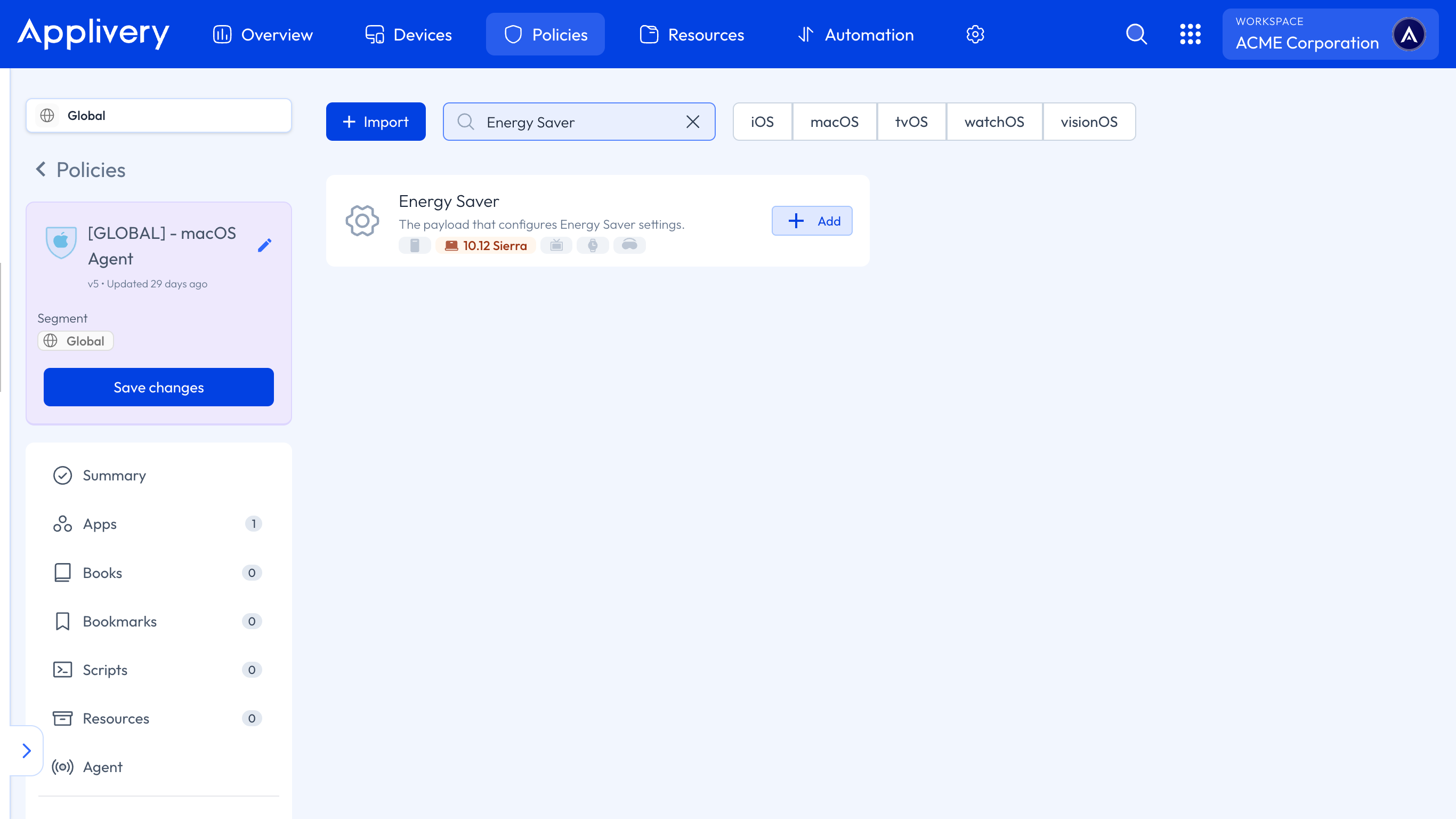
energy saver
2
Configure Desktop Power Schedule

Locate the Desktop Power Schedule and make the following configuration:

  • Event Type: In this case, select Shutdown. Other available options include Wake, Power On, Wake Power On, Sleep,  and Restart.

  • Time: The scheduled time, expressed in minutes since midnight. For example: 690 = 11:30 AM (11 x 60 + 30).

  • Weekdays: Defines the days when the shutdown applies, using a bitmask:

    • 1 = Monday.

    • 2 = Tuesday.

    • 4 = Wednesday.

    • 8 = Thursday.

    • 16 = Friday.

    • 32 = Saturday.

    • 64 = Sunday.

      You can combine values to select multiple days, for example, 1 + 2 + 4 + 8 + 16 = 31 → Monday to Friday

Key Takeaways

  • Configuring a macOS shutdown policy improves security and energy efficiency.
  • Applivery allows remote configuration and deployment of shutdown policies.
  • The Energy Saver policy offers various event types for scheduling.

Scheduling shutdowns prevents unauthorized access, preserves battery health, and enforces company power policies.

In the Applivery Dashboard, navigate to Policies, add an Energy Saver configuration, and configure the Desktop Power Schedule.

You can schedule Shutdown, Wake, Power On, Wake Power On, Sleep, and Restart events.

The time is expressed in minutes since midnight. For example, 690 represents 11:30 AM.

Use a bitmask where each day has a value (e.g., 1=Monday, 2=Tuesday). Combine values to select multiple days.

31 represents Monday to Friday (1+2+4+8+16).

Navigate to Policies, then '+ Add configuration' and choose 'Energy Saver'.

Last updated: June 9, 2026