
Favicon

You are here: Home > Device Management > Android > App Management > Google Play Customization

How to Customize Managed Google Play: App Collections

Customize the Managed Google Play layout with App collections to simplify access on Android Devices and reduce security risks.

3 min read

TL;DR

Customize Managed Google Play through Applivery to organize work apps into collections, making it easier for employees to find and install the tools they need.

Warning

Managed Google Play layout customization requires Google Mobile Services and is not available on AOSP Devices. AOSP Devices do not have access to Google Play — Apps are distributed through the Applivery Self-Service instead.

Customizing the layout of Managed Google Play lets organizations create a structured and user-friendly App storefront for their Android fleet. IT admins can organize approved Apps into collections, pages, and clusters, ensuring employees can quickly find and install relevant tools. This tailored approach boosts productivity and clarity, enabling businesses to present work Apps by category and simplify navigation—providing a branded, intuitive experience for end users across all managed Devices.

Play Store setup

Once in the Applivery Dashboard, go to any of your Policies 1. From the left-side menu, go to Apps 2 and click the + Add App button 3.
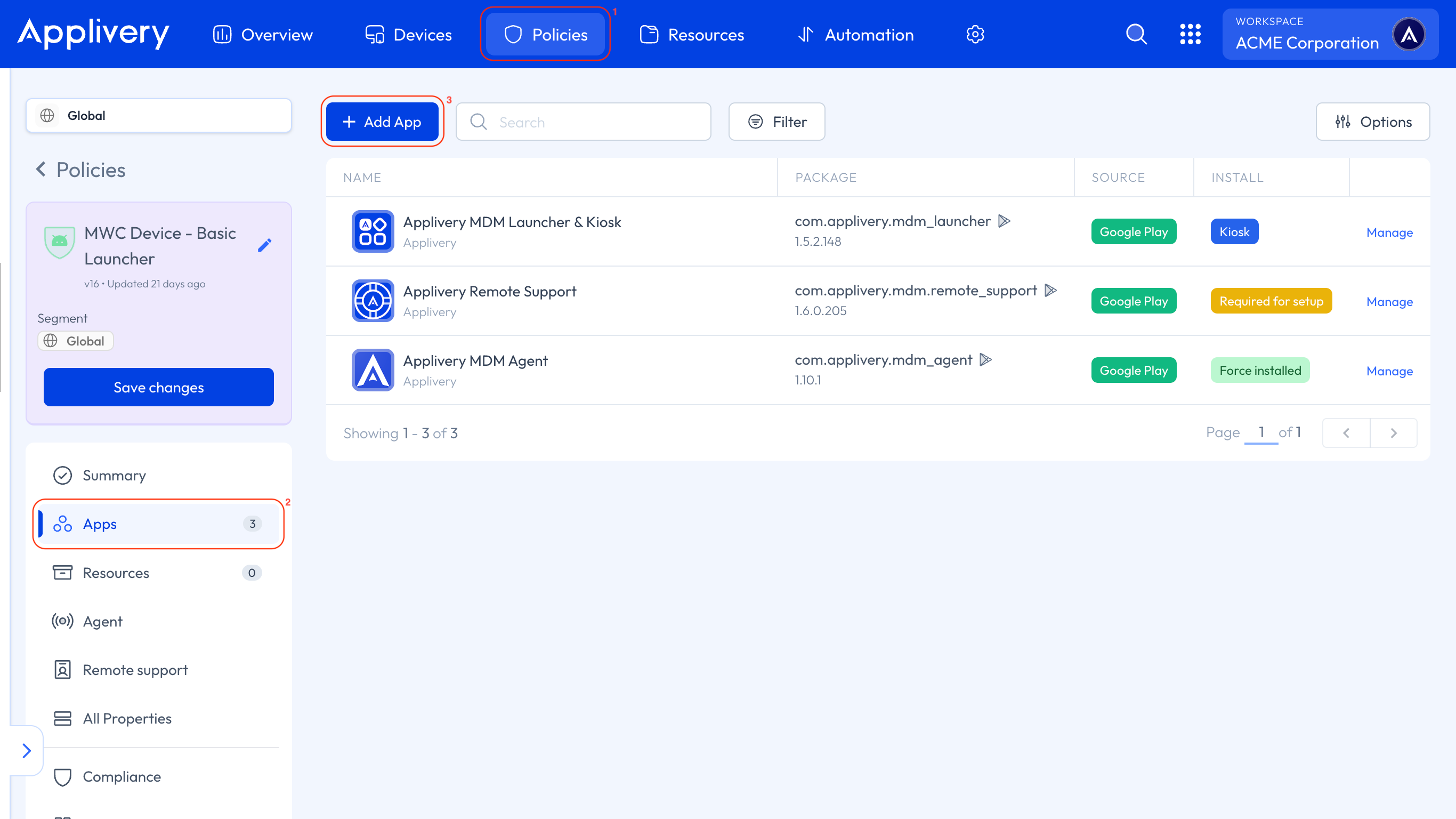
add app

This will open your Managed Google Play iFrame. Once it loads, click Organize Apps 4 to start arranging your App layout, then select Create a collection 5.
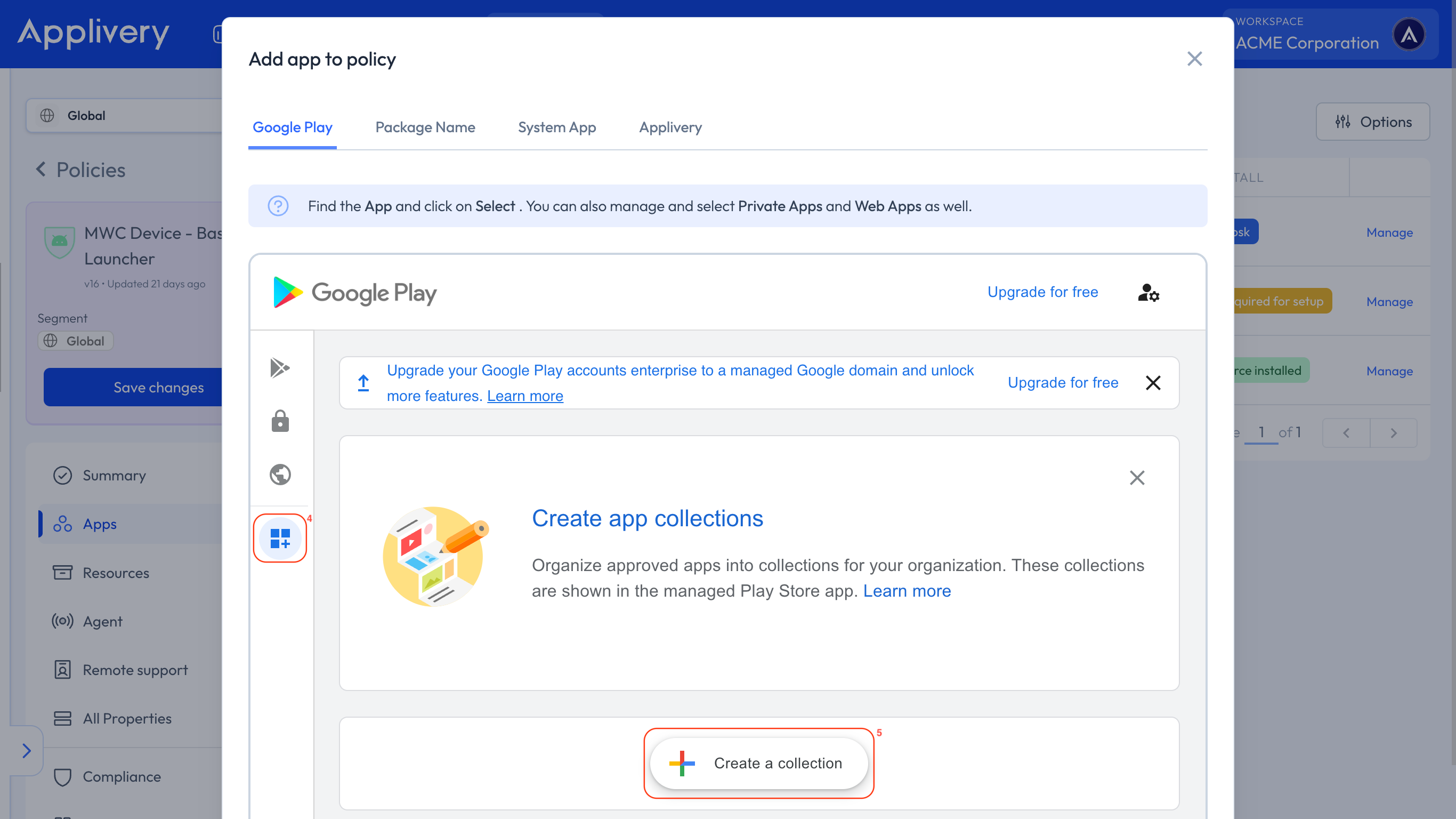
organize Apps

Enter the name you want for the collection and click Next. Then, select the applications you’d like to include and click Add Apps 6. Your collection will now appear in the list of created collections. Finally, click Save.
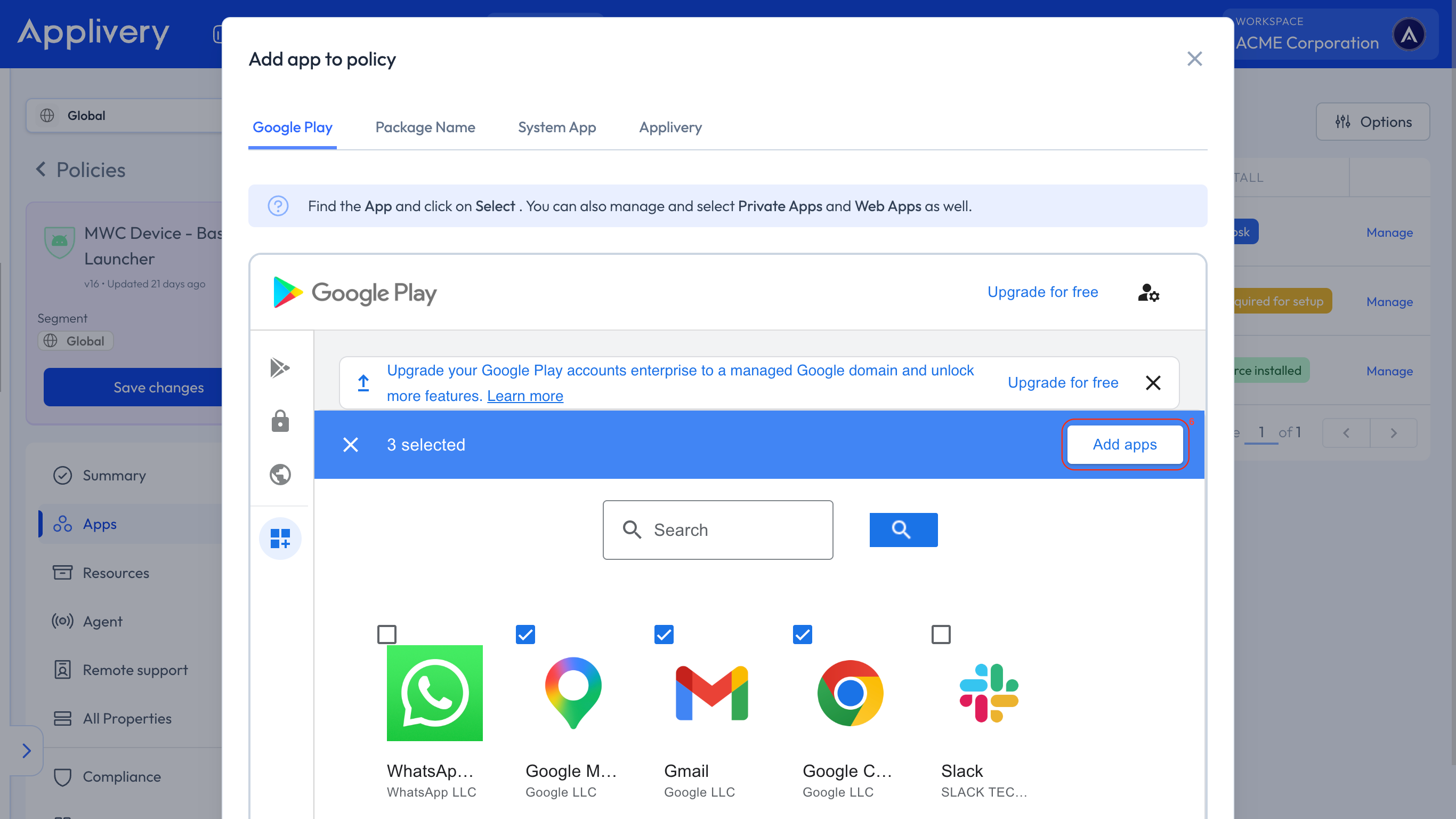
create collection

Once the Policy is saved, employees accessing Managed Google Play from their Devices will see a dedicated Work Apps section. There, they’ll find the collections you’ve created and can directly download the applications included in each one.
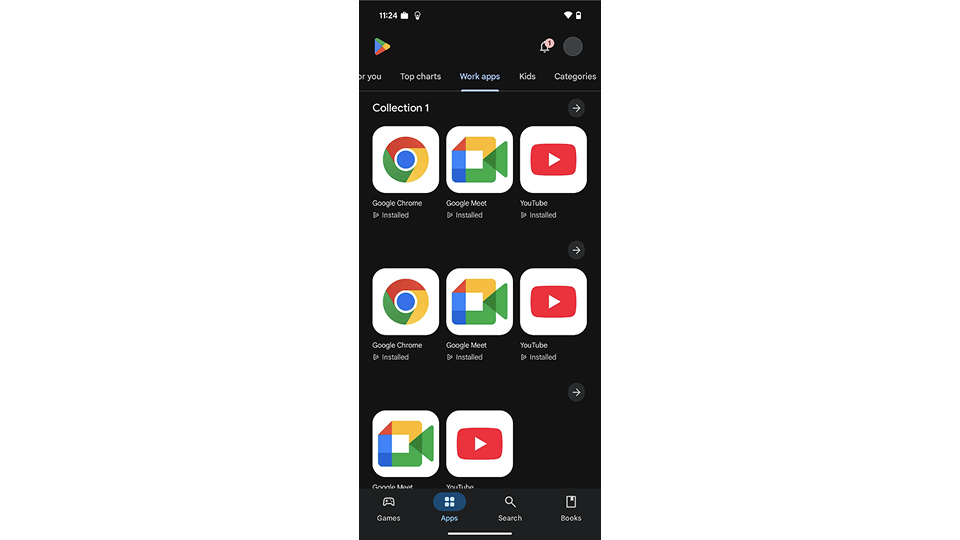
device play store

Collections in Managed Google Play allow organizations to centralize and simplify access to work-related applications. This feature helps administrators ensure employees can easily find the tools they need, boosting productivity and minimizing security risks. With just a few steps, you can create a more organized, secure, and efficient workspace.

Tip

Regularly review and update your Managed Google Play collections to ensure employees have access to the most relevant and up-to-date Apps.

Key Takeaways

  • Customizing Managed Google Play improves app discoverability.
  • Collections help organize apps by category or purpose.
  • A structured app storefront enhances user experience and productivity.

No, Managed Google Play layout customization requires Google Mobile Services and is not available on AOSP devices. Apps on AOSP are distributed via Applivery Self-Service instead.

Customizing the layout creates a structured, user-friendly App storefront, boosting productivity and clarity. It allows IT admins to organize apps by category for an intuitive employee experience.

In the Applivery Dashboard, navigate to a Policy, then go to Apps from the left-side menu, and click the "+ Add App" button to open the Managed Google Play iFrame.

After opening the Managed Google Play iFrame from the Applivery Dashboard, click "Organize Apps," then select "Create a collection" to begin arranging your app layout.

Employees will see a dedicated "Work Apps" section in Managed Google Play on their devices. Here, they can find and download applications organized within the collections you've created.

Collections centralize and simplify access to work apps, helping employees easily find tools. This boosts productivity and minimizes security risks by ensuring access to approved applications.

It's recommended to regularly review and update your Managed Google Play collections. This ensures employees always have access to the most relevant and up-to-date applications.

Last updated: June 9, 2026