

A computer script is essentially a sequence of instructions (commands) that the computer executes, making it an excellent tool for automating repetitive tasks. Scripts are highly scalable and versatile.
Because scripts can be deployed to user Devices through device management solutions (such as Applivery), they are invaluable for IT teams. They enable you to perform complex tasks quickly, accurately, and effortlessly:
Quickly: By using scripts alongside mobile device management, you can automate tedious processes. For example, you can access a computer program on 100 company Devices with zero clicks instead of doing it manually 100 times.
Accurately: A well-written script will consistently execute the same defined action every time, reducing the risk of errors that might occur if a human administrator were to perform the task manually, which can lead to inconsistencies and confusion.
Easily: You can achieve complex and detailed tasks by breaking them down into smaller, manageable scripts, making the overall process much simpler.
Go to the Applivery Dashboard and navigate to Resources 1, then navigate to the Scripts 2 section and click on + Create Script 2.
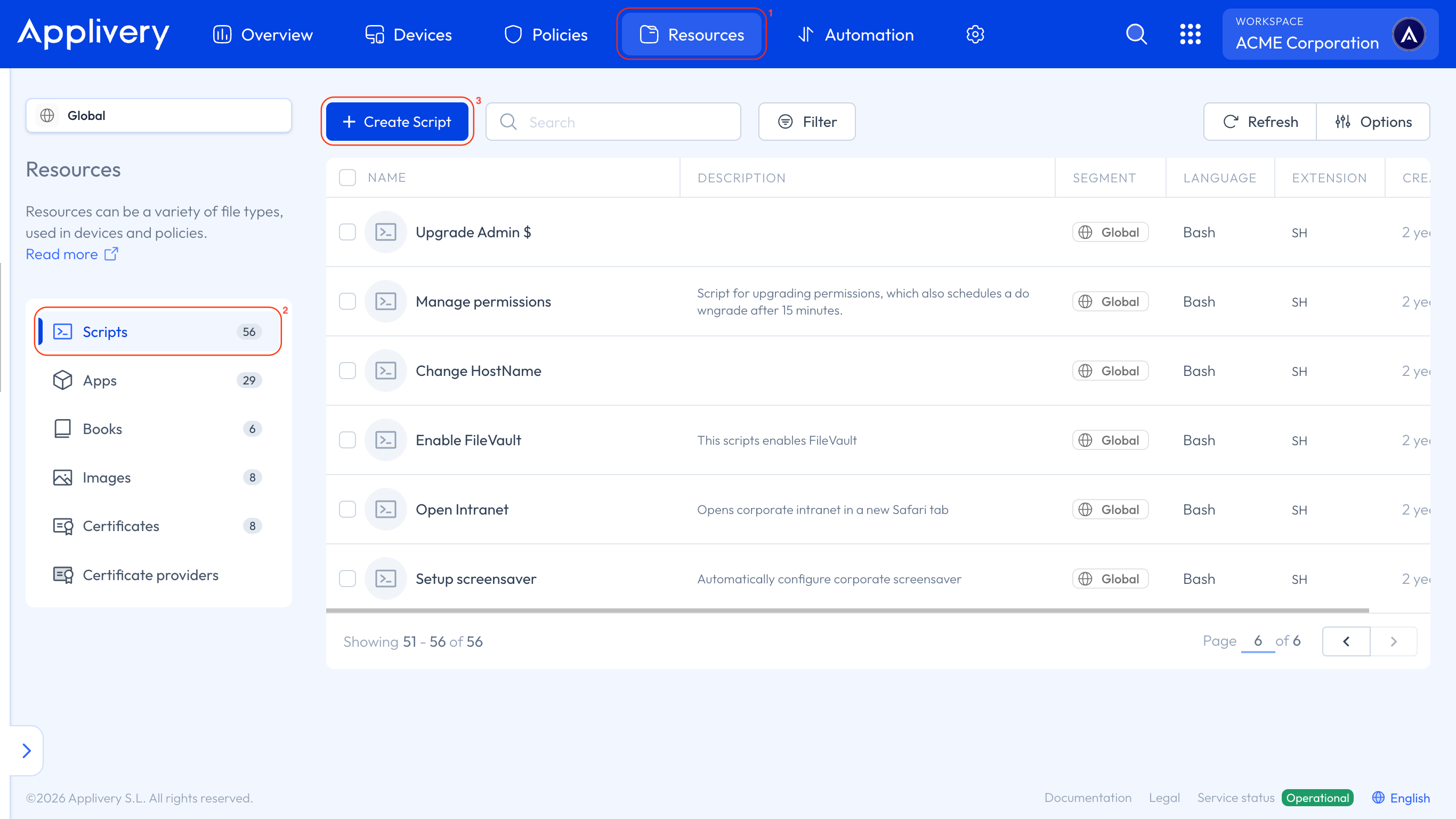
A code editor will appear on the screen.
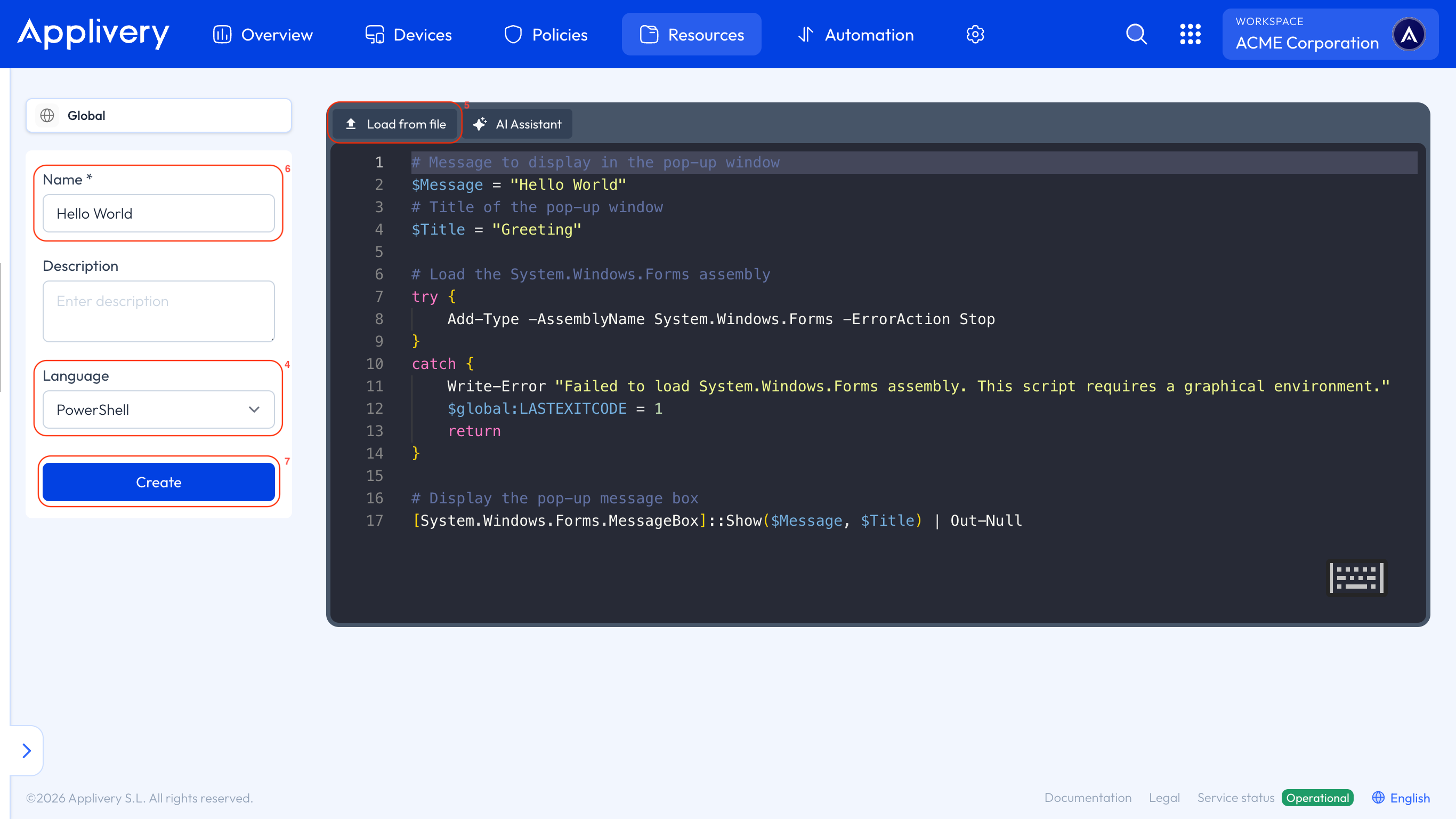
Within the editor, you can either create a new script or upload an existing one from your Device, allowing you to easily tailor scripts to your needs.
To create a new script, use the editor interface and start typing. First, select the desired language—PowerShell 4 in this case.
To upload an existing script, click Load from file 5, select your script, and it will be ready to use.
Finally, provide a Name 6 (and optionally a description), then click Create 7.
If you need help creating a script, you can also use our AI Assistant. Just click the corresponding button, and a dialog box will appear where you can describe the script you need. Our assistant will then generate it for you.
Note that the AI Assistant is a premium feature that might not be available in your current plan. Check the availability on our pricing page.
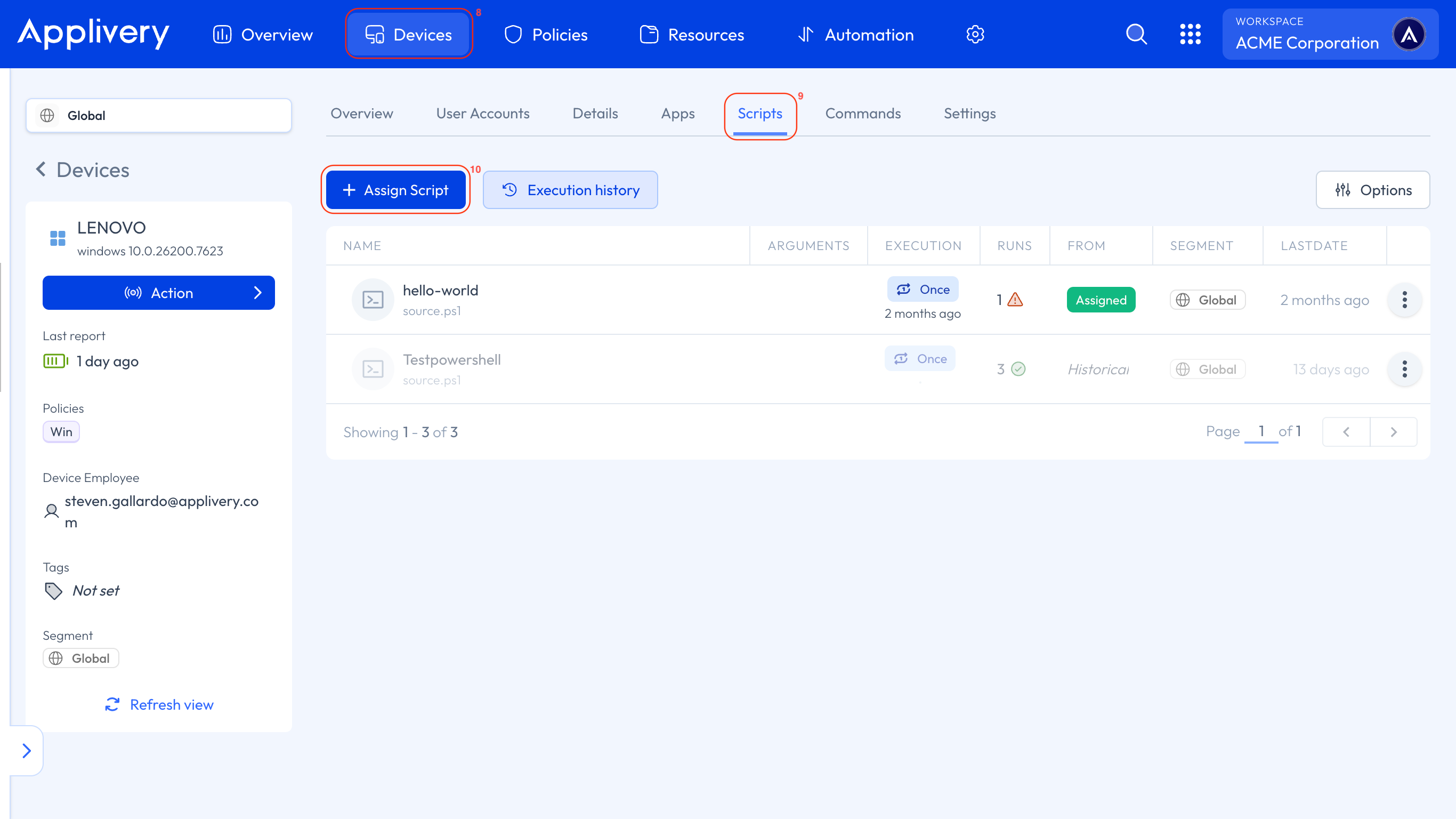
Now, navigate to the Devices 8 section, choose the Device to which you want to assign a script, go to the Scripts 9 tab, and click on the + Assign Script 10 button.
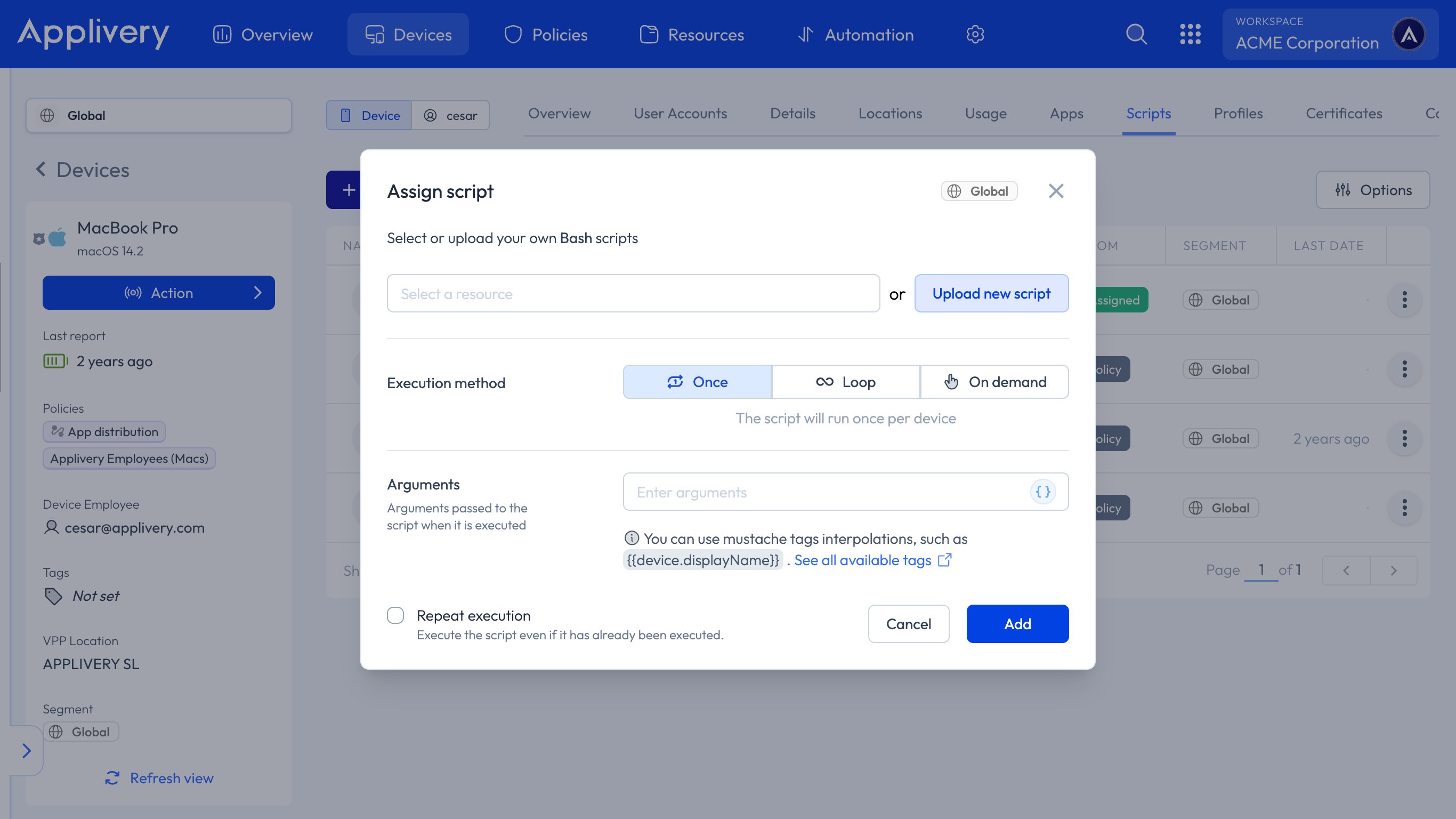
A modal view will appear, allowing you to choose a script from the script section or upload it from your Device.
You will also have the option to select the execution method and add the script’s arguments:
Once: The script will run once per device. You will also have the option to repeat the execution, even if it has already been executed.
Loop: The script will run cyclically at the chosen time interval.
On-demand: The script will never be run automatically and will only be offered as an optional item from Self-Service.
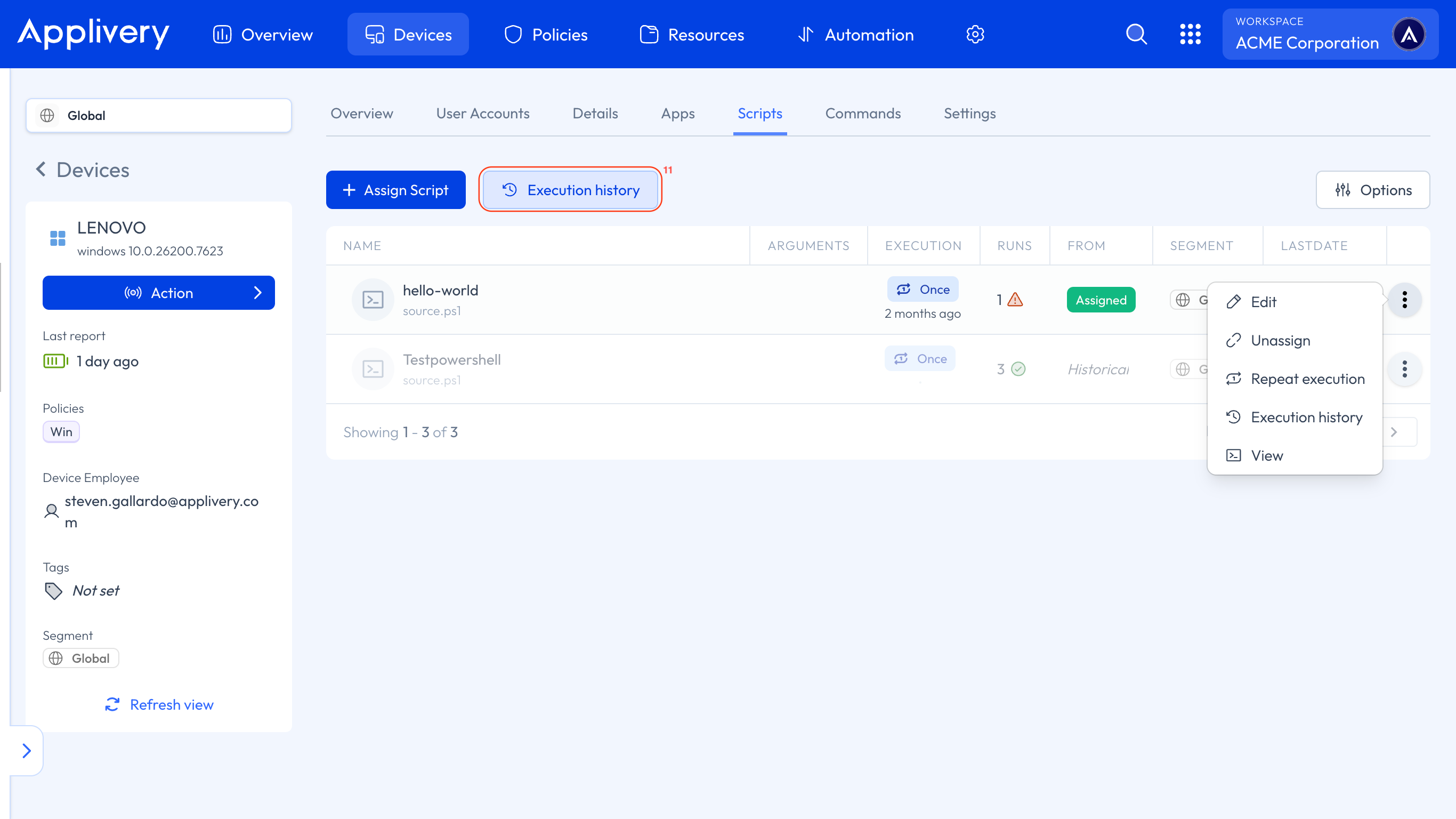
By clicking the Execution history 11 button, you can view the execution history of all your scripts.
You can also access the execution history of a specific script by clicking on the script itself or the three vertical dots at the end of the script. Clicking these dots will also display additional actions:
Edit: Edit the script.
Unassign: Unassign the script from the Device.
View: View the original script in the asset section.
For scripts with the Once execution method, you will also see the Repeat execution option. In addition to allowing a script to be retried after a failure, this option also determines whether a script with the same ID can be executed again on a Device where it has already run, even if that execution took place in the past.
This ensures that the script will be sent again, regardless of its prior execution history on that Device.
Scripts don't have to be assigned Device by Device. Assigning one to a Policy covers every Device that Policy applies to, which is the practical route for anything meant to run across a fleet rather than on a single machine.
From any of your Policies 12, go to the Scripts 13 section in the left-side menu and click + Add Script 14. The same modal described in the previous step appears, with the same execution methods and arguments.
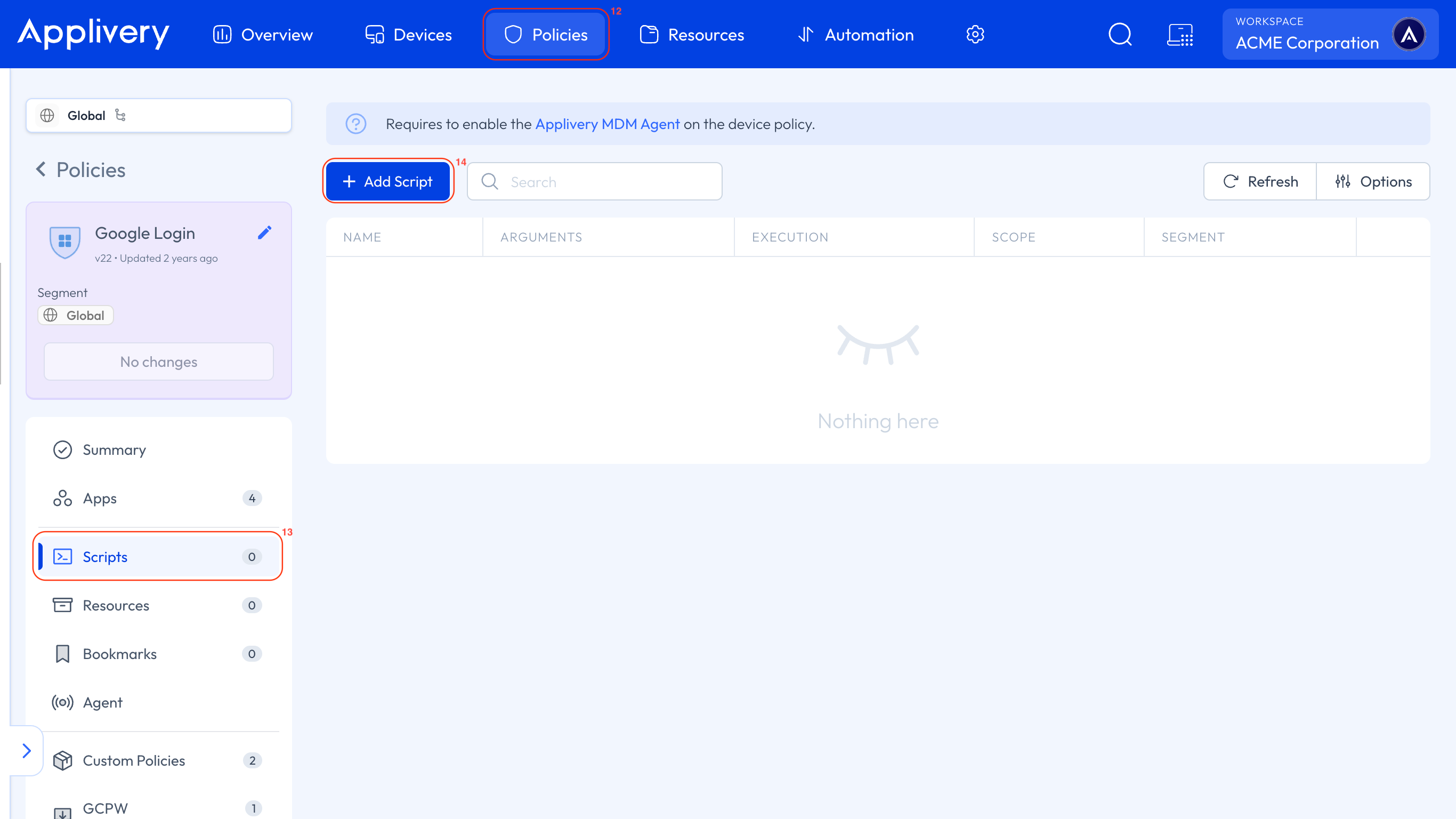
Once you save the changes, the Scripts assigned to that Policy are deployed to every Device carrying it on their next sync.
Script arguments
When assigning a script, the Arguments field lets you pass parameters to your script at execution time. Applivery splits the field by whitespace, so every space-separated value is treated as a separate parameter.
Multi-word parameters
If a parameter contains spaces, wrap it in double quotes so Applivery treats it as a single value:
--label “My Application”
Without the quotes, My and Application would be passed as two separate parameters instead of one.
Interpolated variables
Applivery supports mustache-style variables that are replaced at execution time with real device or user data. Because a variable can expand to a value that contains spaces, always wrap interpolated variables in double quotes when you need them treated as a single parameter:
“{{user.name}}”
If {{user.name}} resolves to John Doe, the quotes ensure it is passed as one parameter instead of two. Without them, John and Doe would reach your script as separate arguments.
The following variables are available:
Variable | Resolves to |
|---|---|
| Unique device identifier |
| Device display name |
| Device serial number |
| Operating system version |
| Processor/chip type |
| Device hostname |
| Unique identifier of the assigned user |
| Email address of the assigned user |
| Full name of the assigned user |
Escaping special characters
To include a special character literally in an argument, prefix it with a backslash (\). This is useful when passing values like Windows paths or strings that contain double quotes:
C:\\Program Files\\MyApp
This passes C:\Program Files\MyApp as the argument value. To include a literal double quote inside a quoted parameter:
“He said \”hello\””
Reviewing what a Script actually did
Assigning a Script tells the Device what to run. The Scripts tab of that Device tells you what happened when it did.
Every assigned Script is listed there with its settings and a running tally of its results:
Column | What it shows |
|---|---|
Name | The Script's name and file, for example |
Arguments | The arguments passed to it at execution time, if any. |
Execution | Its execution method — Once, Loop with its configured interval, or On-demand. |
Scope | Whether it runs as Machine, under the SYSTEM account, or as the logged-in user. |
Runs | How many times it has executed on this Device so far. |
From | Whether it comes from a Policy or was assigned directly to this Device. |
Segment | The Segment the assignment belongs to. |
Last Date | When it last ran. |
Between Runs and Last Date you can usually tell at a glance whether something is stuck: a Loop Script whose last run is days old, or a Once Script still showing zero runs, is a Script that never reached the Device.
Is it a delivery problem or an execution problem?
The Scripts tab of the Device answers that in one glance, through the Executions and Last date columns:
Executions at zero — the Script never reached the Device. It is a delivery problem, so check the assignment and the Device's sync.
Executions with an old date — it did reach the Device and ran, then something stopped it afterwards.
Four causes cover most of it:
Execution method Once never runs again on a Device that already ran it, unless you turn on Repeat execution.
Execution method On-demand never runs on its own. It only runs from the Self-Service.
Scope: a Script that needs the user's profile fails silently when it runs as Machine (SYSTEM), and the other way round.
Arguments are split on spaces, so compound values need double quotes.
Reading the execution history
The Execution history button shows every run for the Device. Opening it from a specific Script's ⋮ menu instead scopes it to that Script alone, along with the arguments and scope it ran with.
Each entry gives you:
Status — a green circle with a check when the run succeeded, an orange triangle when it failed.
Script — its name and file.
Summary — a snippet of the run's actual console output, taken straight from what the Script printed.
Created — how long ago the run happened.
The summary is the part worth paying attention to: it's your Script's own output, so anything you print is what you'll read back here. Scripts that log a clear line per phase are far easier to diagnose later than Scripts that run silently.
If a PowerShell Script writes to the error stream, the summary can show CLIXML instead of plain text — a #< CLIXML marker followed by a serialized <Objs Version="1.1.0.1" …> block.
That isn't a display problem in Applivery: it's PowerShell's native format for serializing objects sent to the error stream. When you see it, read it as this run produced error output, and check the Script for whatever is writing to that stream.
Changing how a Script runs
Edit, in the same ⋮ menu, changes how an already-assigned Script runs without unassigning and reassigning it:
Execution method — switch between Once, Loop and On-demand.
Loop time — when Loop is selected, how often it repeats.
Arguments — the same field described in Script arguments, interpolated variables included.
Do It Yourself!
To help administrators accelerate common configurations and operational tasks, Applivery provides a Public Script Repository containing ready-to-use Windows scripts.
This repository includes useful scripts for quick actions and standard configurations, allowing IT teams to deploy common solutions without having to build scripts from scratch.
The goal of this initiative is not only to provide reusable resources, but also to encourage collaboration. The community can actively contribute by submitting scripts that address real-world use cases, helping expand and improve the shared library over time.
By leveraging the Public Script Repository, organizations can reduce implementation time, standardize operational procedures, and benefit from collective expertise.