

Applivery App Distribution enables organizations to securely manage and distribute Private Apps on Fully Managed Android Devices without relying on external App Stores such as Google Play. By combining App Distribution with Device Management in an Android Enterprise (Fully Managed) deployment model, administrators can maintain full control over application versioning, access permissions, and deployment workflows from a centralized Dashboard.
AOSP Devices can also distribute private Apps through the Applivery Self-Service using the same workflow — no Google Play account needed.
This approach is especially valuable when:
Distributing internal or enterprise-only applications.
The App is not intended for publication in Google Play.
Strict control over build versions and staged rollouts is required.
Applications must be deployed to specific Device Groups, Segments, or Policies.
With Applivery, Private Apps can be created and configured directly within the platform, updated through controlled build uploads, distributed automatically via Policies, and managed alongside other enterprise Resources and configurations—ensuring a secure, compliant, and fully integrated Android Enterprise mobility strategy.
You can follow the instructions on how to create your first application by following this link.
You can follow the instructions on how to upload your first build by following this link.
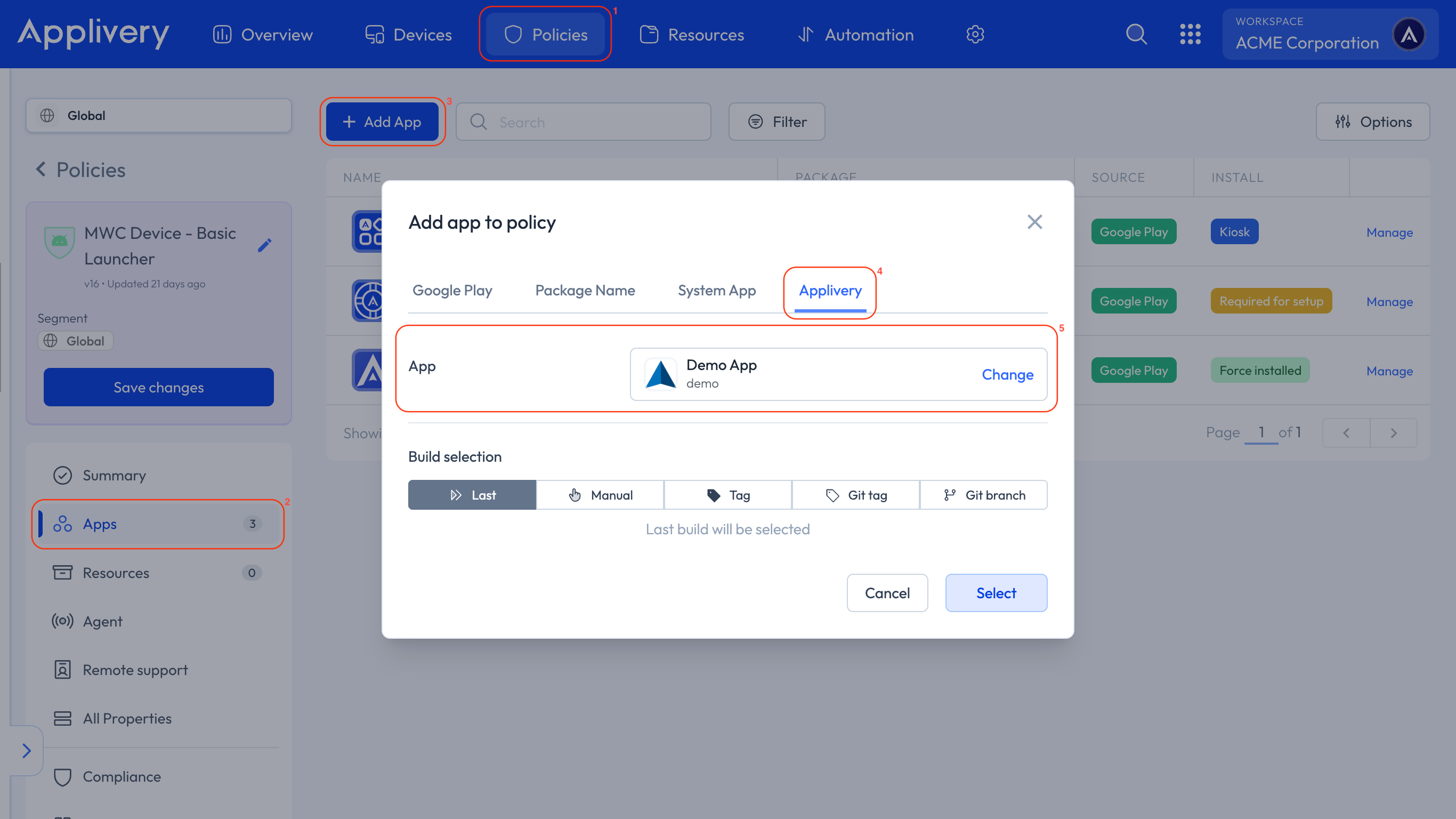
Now, navigate to any of your Policies 1. From the left side menu, go to Apps 2 and click the + Add App 3 button.
Then select the Applivery 4 tab and select the App 5 you just uploaded. After selecting the App, you will be able to choose the specific Build according to your requirements and define the installation type.
This feature requires the Applivery MDM Agent to be enabled at the Policy level, the App to have been opened at least once, and all permissions to be granted.
Managing and distributing Private Apps through Applivery App Distribution provides organizations with a secure, centralized, and fully controlled deployment workflow. By creating your application, uploading Builds, and assigning the App through Policies or direct Device deployment, you can ensure that the right users receive the right version at the right time.
This approach eliminates dependency on external App Stores, simplifies version management, and enables controlled rollouts across your Device fleet. With Applivery’s integrated Device Management capabilities, Private App distribution becomes a seamless part of your overall Enterprise Mobility strategy, improving operational efficiency while maintaining governance and security.