

Packages are like neatly wrapped parcels for your software – they come with all the necessary bits and bobs to install or update applications on your Device. These files often end in .pkg or .mpkg, contain everything needed for smooth installations, updates, and removals of your Apps.
Moreover, you may find yourself needing these application packages (PKGs) to deploy Apps on Devices running macOS version 10.13.6 or above.
Depending on your subscription plan, you can either distribute them to individual Devices or manage deployment through Policies for a more streamlined approach. Review the available pricing options to see which features are included here.
Let’s now explore how to achieve this.
Once in the Applivery Dashboard, locate the Device you want to install the PKG to in the Devices section. Navigate to the Apps tab and click on the Install from file button. This will allow you to select the PKG from your drive and install it on your Device.
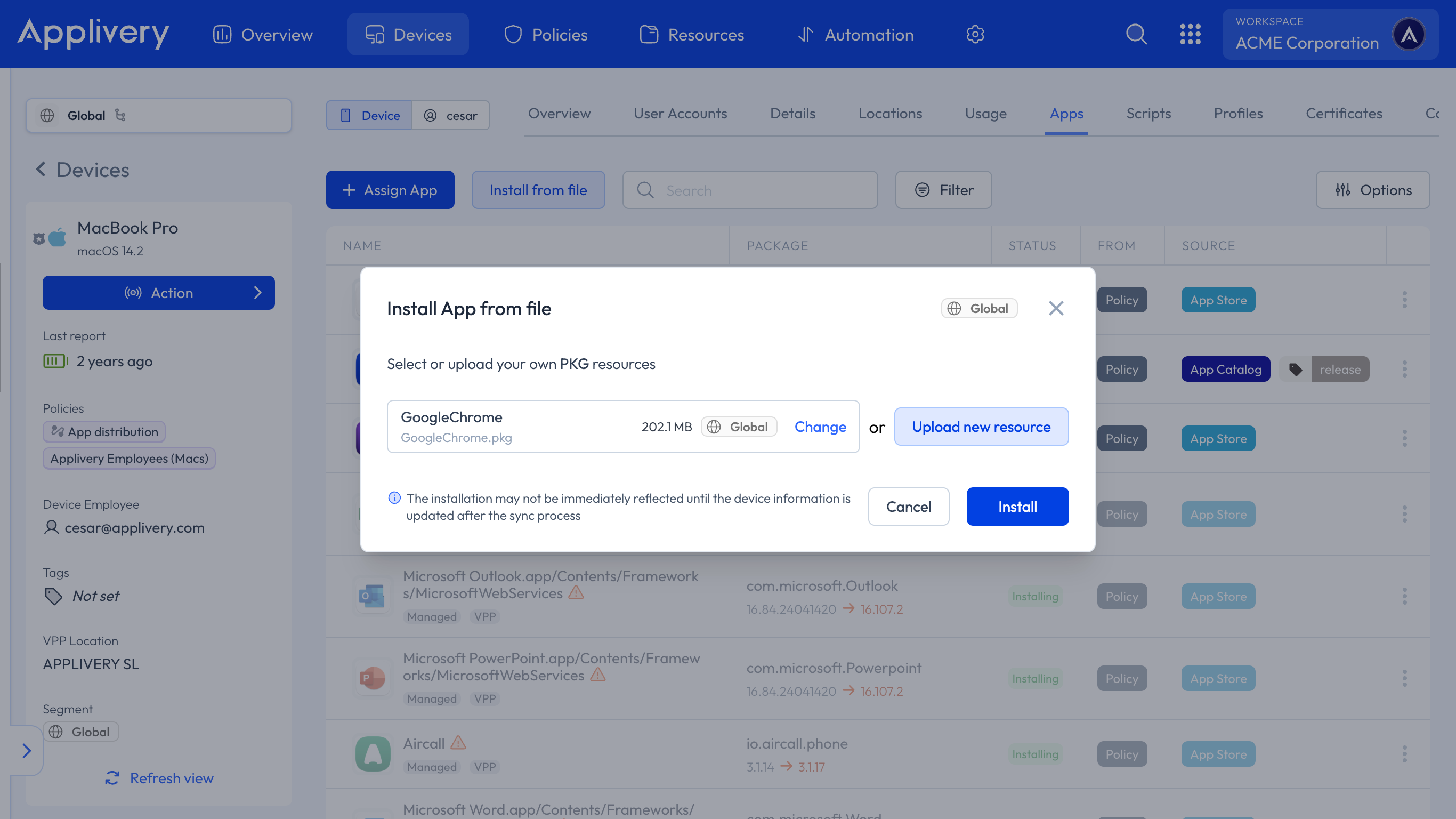
Alternatively, PKGs can be managed through Applivery App Distribution.
This feature enables you to deploy packages from Applivery at the Policy level, in addition to maintaining updated versions of PKGs.
Once in the Applivery Dashboard, navigate to the App Distribution section and follow the steps outlined in our documentation to create your first App and upload your first Build.
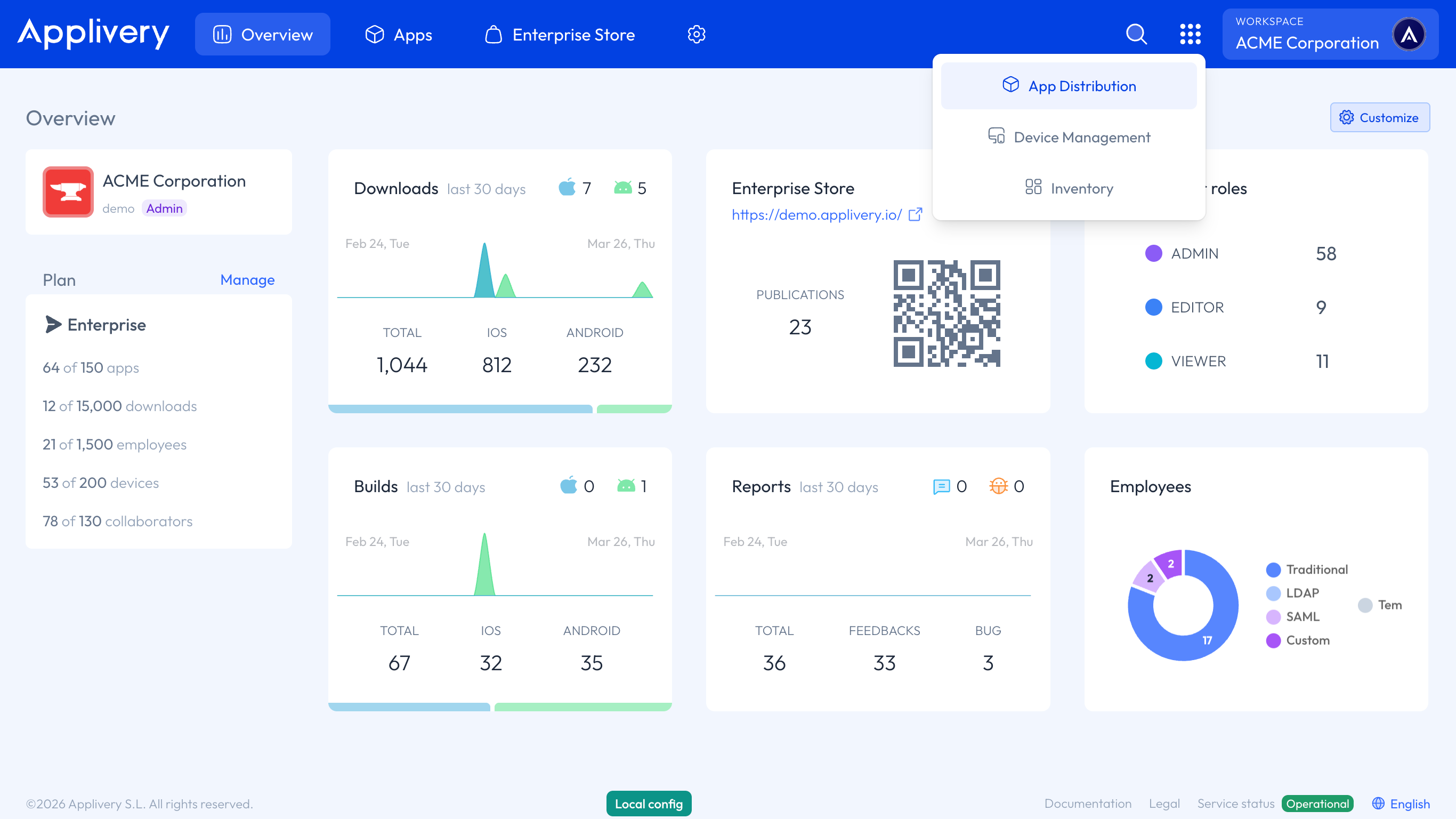
After uploading your PKG, head to any of your Policies or create a new one. Navigate to the Apps section from the left side menu and click the + Add App button.
In the modal view, navigate to the Applivery tab. Set the platform to macOS, choose Your Workspace as the App origin, and search for the App you want to deploy to your Devices. For the Build selection, choose Last to ensure the latest version is always deployed.
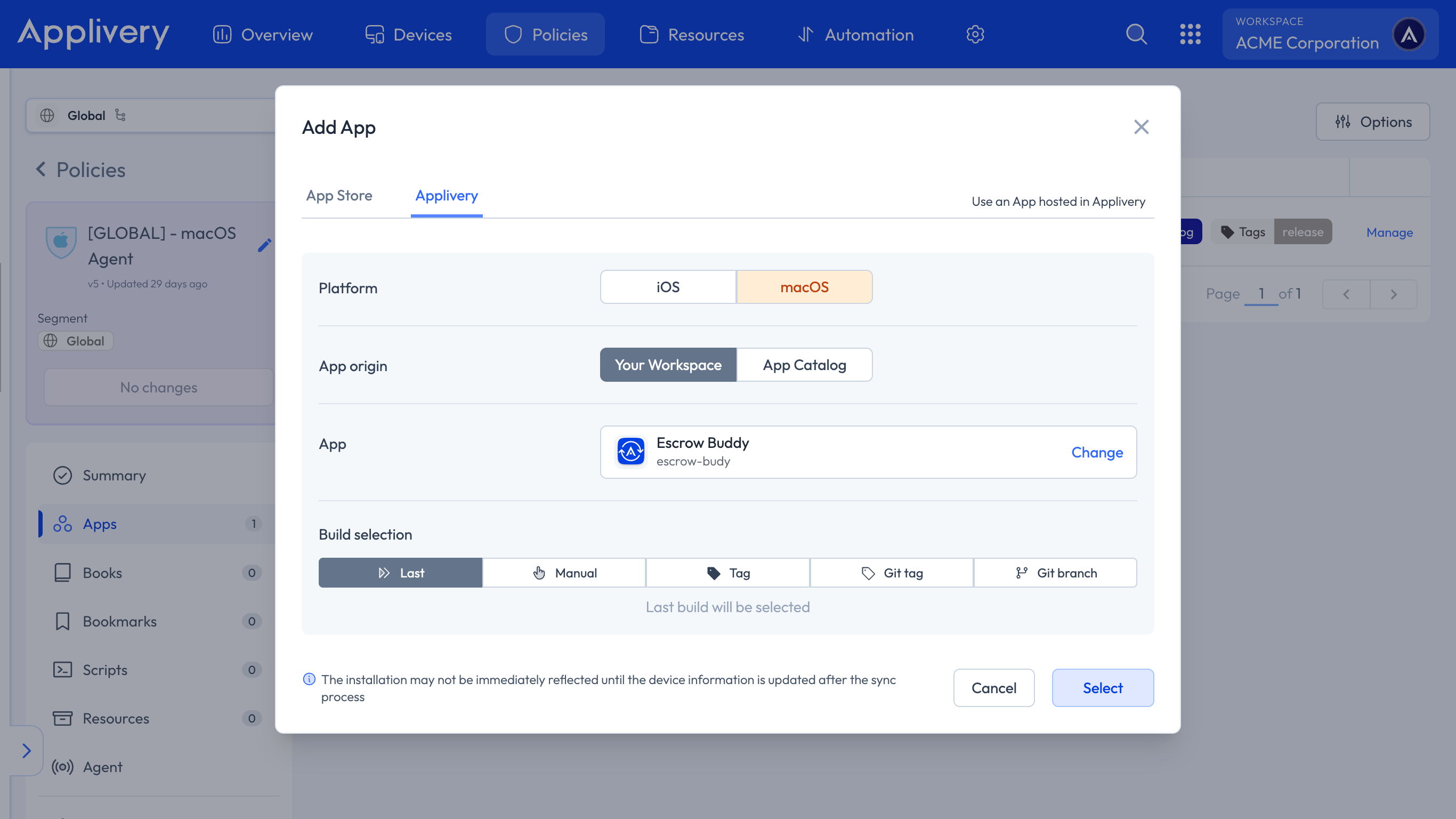
You can also deploy Apps not available on the App Store to your macOS Devices using the Applivery macOS App Catalog. By selecting App Catalog as the App origin, you gain access to a repository with up-to-date applications and automated patch management for macOS.
For more details, refer to our in-depth documentation here.