
Favicon

You are here: Home > Device Management > Android > Policies > Disable USB Data Transfer

Secure Android Devices by Disabling USB Data Transfer

Disable USB data transfer on Android Devices with Applivery MDM to prevent unauthorized data access and enforce security Policies.

2 min read

TL;DR

Disable USB data transfer on Android devices via Applivery MDM to prevent data leaks and unauthorized access.

Disabling USB ports on Android Devices is an increasingly common security practice in corporate environments, particularly in industries where data protection and physical access control are critical. With MDM solutions like Applivery, organizations can restrict USB port functionality to prevent unauthorized file transfers, the use of external storage Devices, or charging from untrusted sources. This capability enhances the organization’s security posture and helps safeguard against data leaks and malware infections introduced through physical connections.

Disabling USB Data Transfer

1
Navigate to Policies

Once in the Applivery Dashboard, navigate to Policies 1.

2
Select the Android Policy

Select the Android Policy where you want to perform this configuration.

3
Go to Network Settings

From the left-hand menu, click on the Network section.

4
Disallow USB Data Transfer

In the Device Connectivity Management 3 configuration, choose DISALLOW USB DATA TRANSFER under USB Data Access 4.
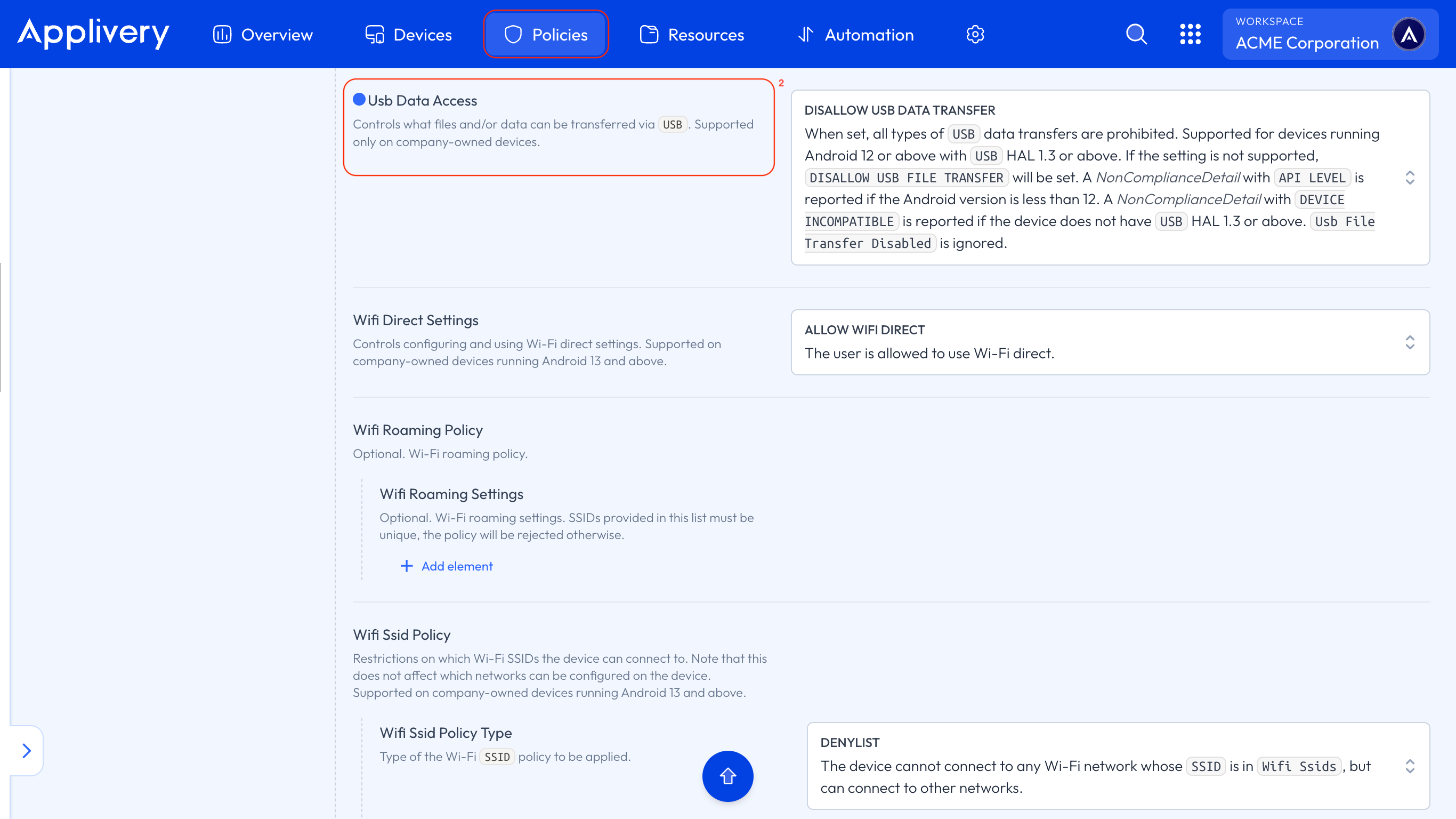
disallow usb data transfer

Disabling USB ports on Android Devices adds an important layer of protection against external threats and unauthorized usage. Applied remotely and centrally, this measure ensures that corporate Devices are used strictly in line with organizational security Policies. When implemented effectively, it not only minimizes operational risks but also reinforces compliance with regulatory standards, particularly in environments where information security is paramount.

AOSP Devices Support

Disabling USB data transfer is fully supported on AOSP — same steps, no Google services required. Especially useful for rugged and industrial deployments where physical port security is a priority.

Key Takeaways

  • Disabling USB data transfer enhances Android device security.
  • Applivery MDM provides centralized control over USB data access.
  • This measure helps prevent data leaks and malware infections.

Disabling USB ports prevents unauthorized file transfers, use of external storage, and charging from untrusted sources, enhancing data protection and security against malware.

With Applivery MDM, navigate to Policies, select your Android Policy, go to Network settings, and choose "DISALLOW USB DATA TRANSFER" under "USB Data Access."

In the Applivery Dashboard, navigate to Policies, select your Android Policy, then go to the Network section. The setting is under "Device Connectivity Management" in "USB Data Access."

It adds protection against external threats, prevents unauthorized usage, minimizes operational risks, and reinforces compliance with regulatory standards by ensuring secure device use.

Yes, disabling USB data transfer is fully supported on AOSP devices using Applivery, following the same steps, and does not require Google services.

It helps safeguard against data leaks, malware infections introduced through physical connections, and the use of unauthorized external storage or untrusted charging sources.

Last updated: May 26, 2026