
Favicon

You are here: Home > Device Management > Apple > Get Started

Setting up Apple Push Certificates

Set up Apple Push Certificates for Applivery MDM to enable your Workspace to interact with Apple services and manage Devices.

5 min read

TL;DR

Configure Apple Push Certificates in Applivery MDM to enable iOS device management by downloading a CSR, creating a certificate in the Apple Push Certificate Portal, and uploading it back to Applivery.

Before starting using Applivery Apple Device Management, there are a few steps you must go through in order to enable your Workspace to interact with Apple services and register your Apple Enterprise organization. The next steps will guide you through the process:

1
Download Applivery's Certificate Signing Request (CSR)

Sign-in to the Applivery Dashboard and navigate to the Settings section, and locate the Apple Setup section in the left-hand menu. Besides step 1, click the Download CSR button.
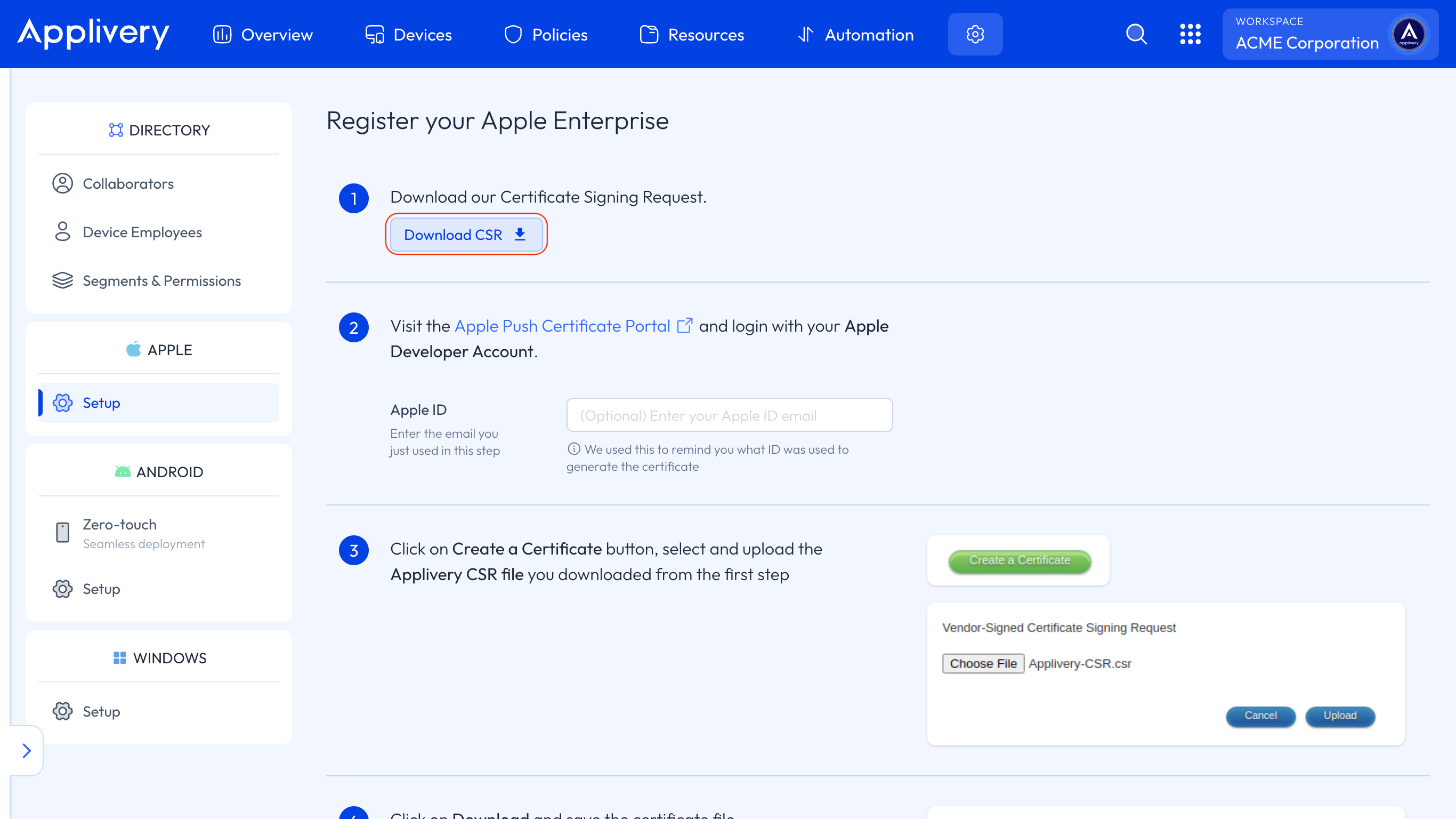
apple enterprise setup

A file named Applivery-CSR.csr will be downloaded to your computer.

2
Create an Apple Push Certificate

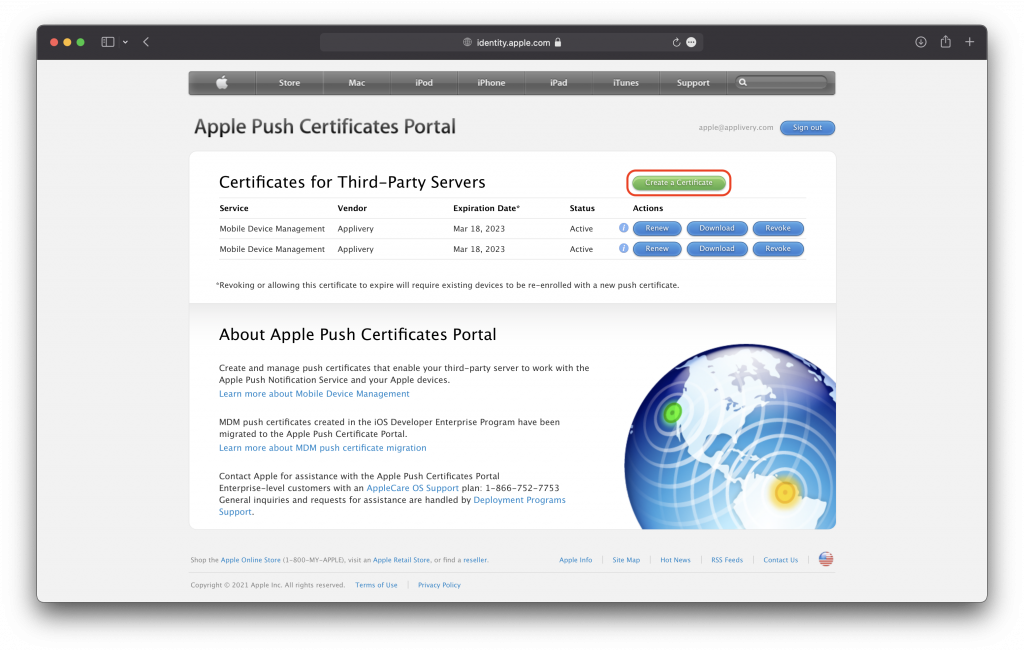
Now visit Apple Push Certificate Portal and log in with your Apple ID. Once inside the portal, click on the Create a Certificate button.
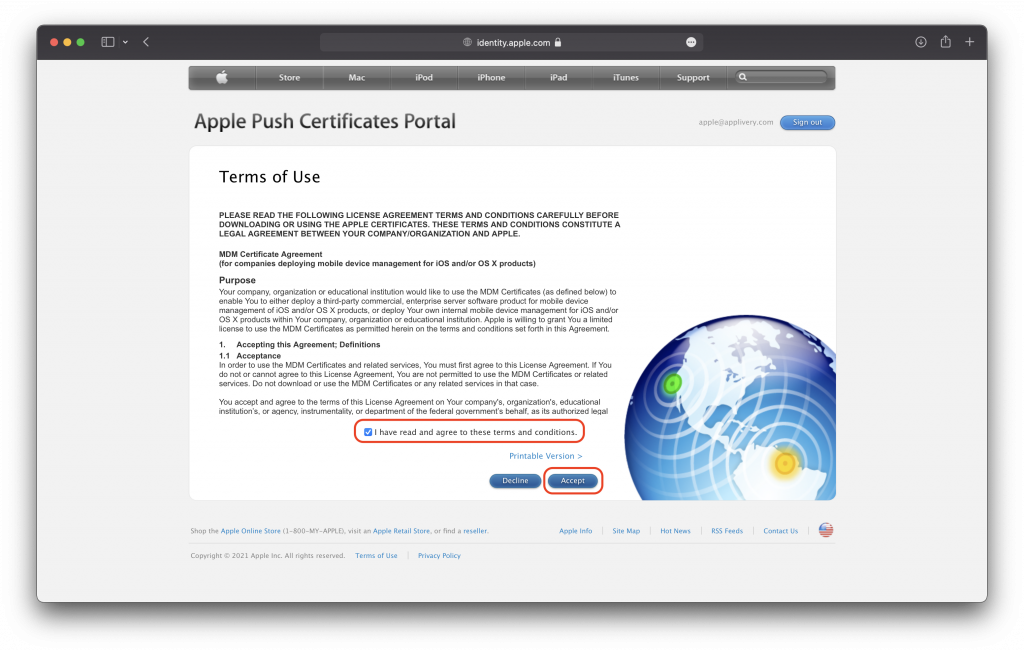
Read and accept the Terms of Use.
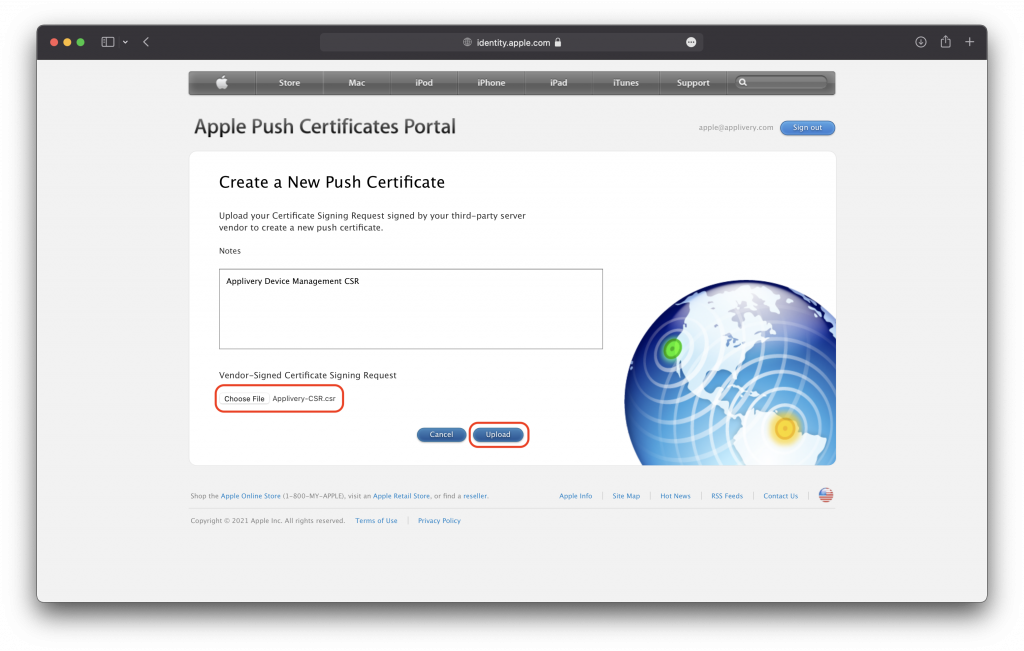
Select and upload the Applivery-CSR.csr file you downloaded in Step 1 and click Upload.
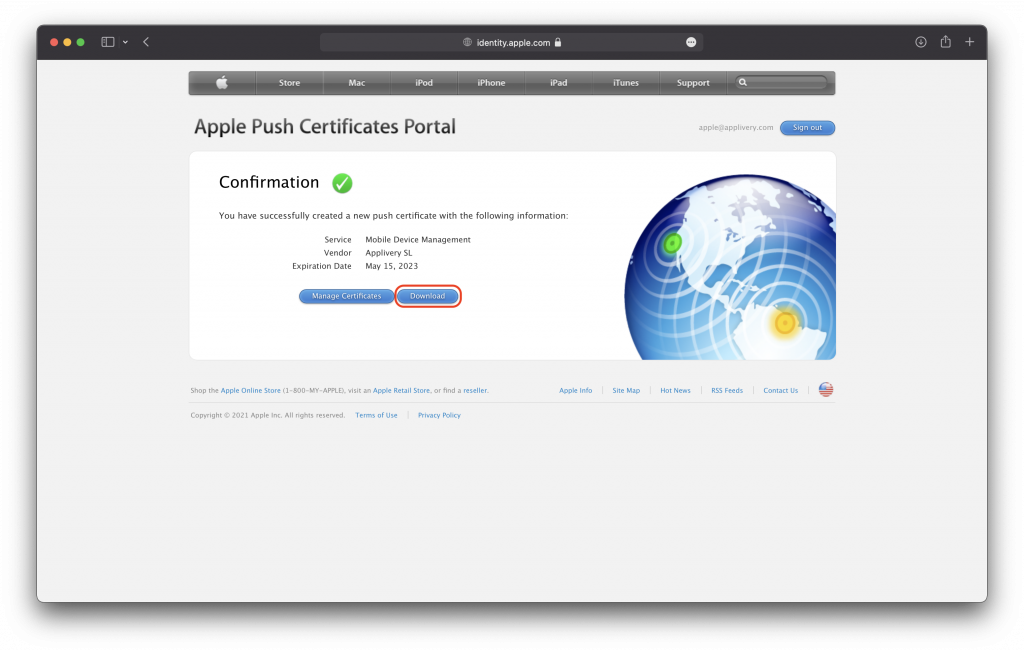
Click on Download and save the certificate .pem file.
3
Upload your Apple Push Certificate to Applivery

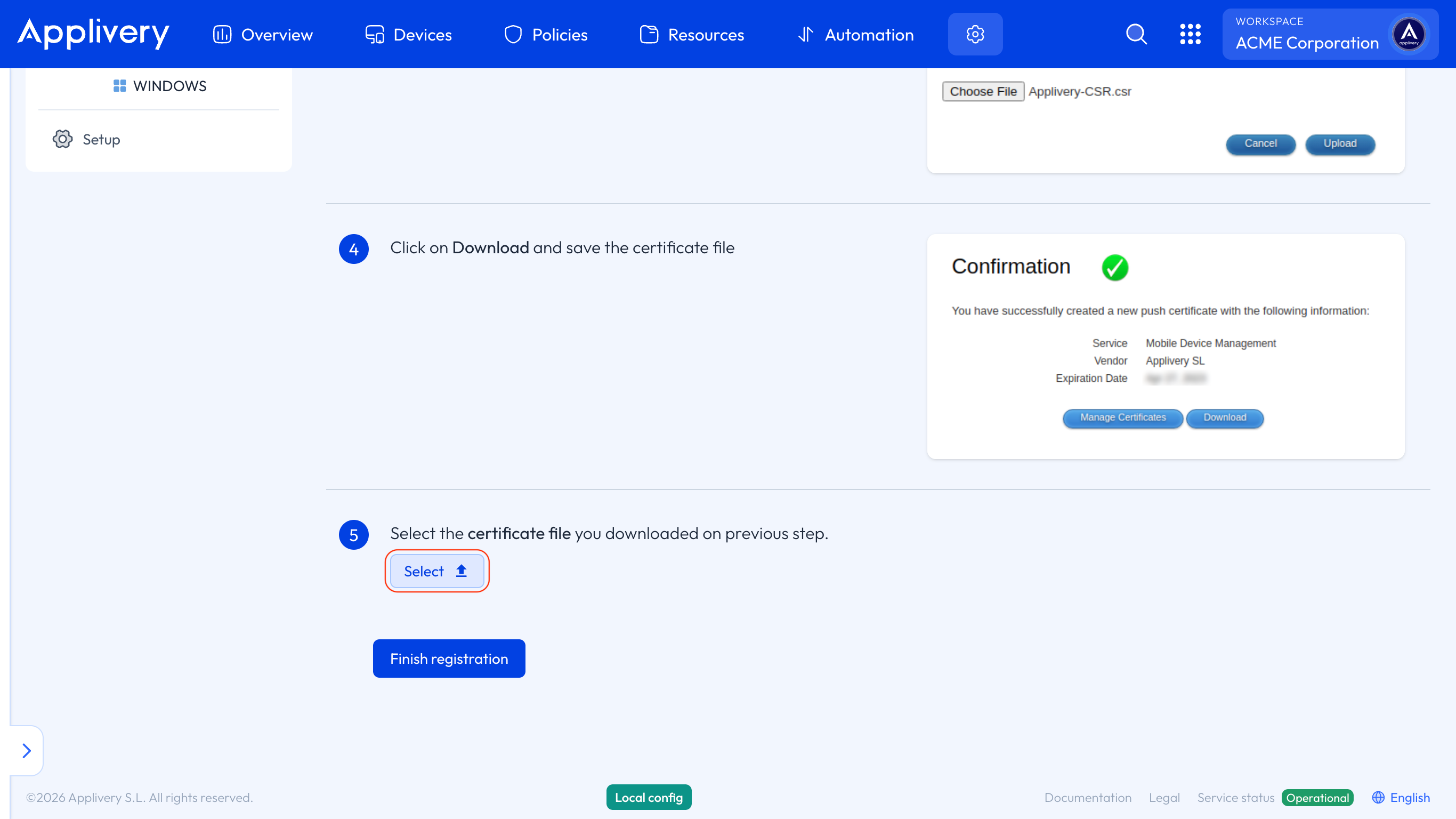
Now get back to Applivery’s dashboard and, beside step 5, click Select and upload the certificate (.pem file) downloaded from the previous step. Then click Finish registration button to finish.
finish setup
Warning

We highly recommend filling in the Apple ID field in Step 2, as the Apple Push Certificate must be renewed annually using the same account to ensure uninterrupted device management. Otherwise, you may lose control over enrolled Devices.

Key Takeaways

  • Apple Push Certificates are required for Applivery to manage iOS devices.
  • The certificate must be renewed annually using the same Apple ID.
  • Failing to renew the certificate can result in loss of control over enrolled devices.

Sign in to the Applivery Dashboard, navigate to Settings > Apple Setup, and click the Download CSR button. A file named `Applivery-CSR.csr` will be downloaded.

Visit the Apple Push Certificate Portal and log in with your Apple ID to create a certificate.

Upload the `Applivery-CSR.csr` file that you downloaded from the Applivery Dashboard.

Download the certificate `.pem` file from the Apple Push Certificate Portal after uploading the CSR.

Upload the `.pem` file to the Applivery Dashboard in the Apple Setup section.

Renewing the certificate annually with the same Apple ID ensures uninterrupted device management and prevents loss of control over enrolled devices.

The Apple Setup section is located in the Settings section of the Applivery Dashboard.

Last updated: April 18, 2026