

Cortex XDR by Palo Alto Networks is an advanced endpoint protection platform that integrates detection, prevention, and response capabilities. Installing Cortex XDR on macOS Devices via your MDM solution enables centralized deployment and ensures all endpoints are secured without requiring manual installation.
Requirements
Before deploying Cortex XDR on macOS Devices through Applivery, make sure you have the following:
Cortex XDR client package (
.pkg).Distribution ID and Cloud ELB Address (from your Cortex XDR dashboard).
Activation Script (for agent licensing).
Full Disk Access policy (via configuration profile).
Custom Cortex XDR
.mobileconfigprofile.1 Applivery license for App Distribution.
To deploy Cortex XDR using Applivery, you will need to upload the compressed app package (.zip) to your App Distribution section and configure it with a pre-installation activation script.
First, download the Cortex XDR .pkg installer from your Cortex XDR Dashboard and make sure to copy your Distribution ID and Cloud ELB Address, as you’ll need these later for the activation script.
Once downloaded, compress the .pkg file by right-clicking on it and selecting Compress, which will generate a .zip file.
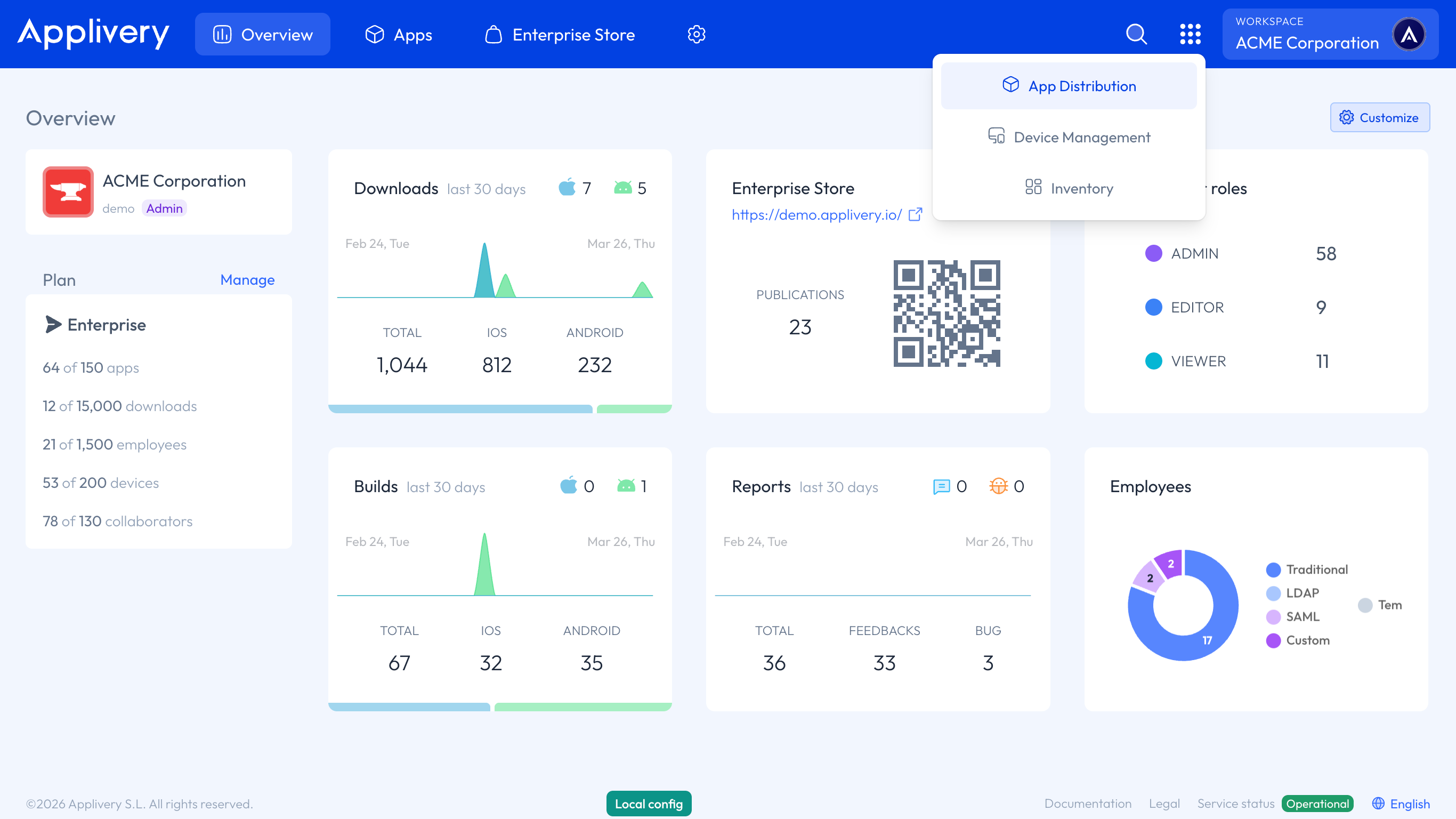
Next, log in to the Applivery Dashboard and navigate to the App Distribution section. From there, follow the steps outlined in our documentation:
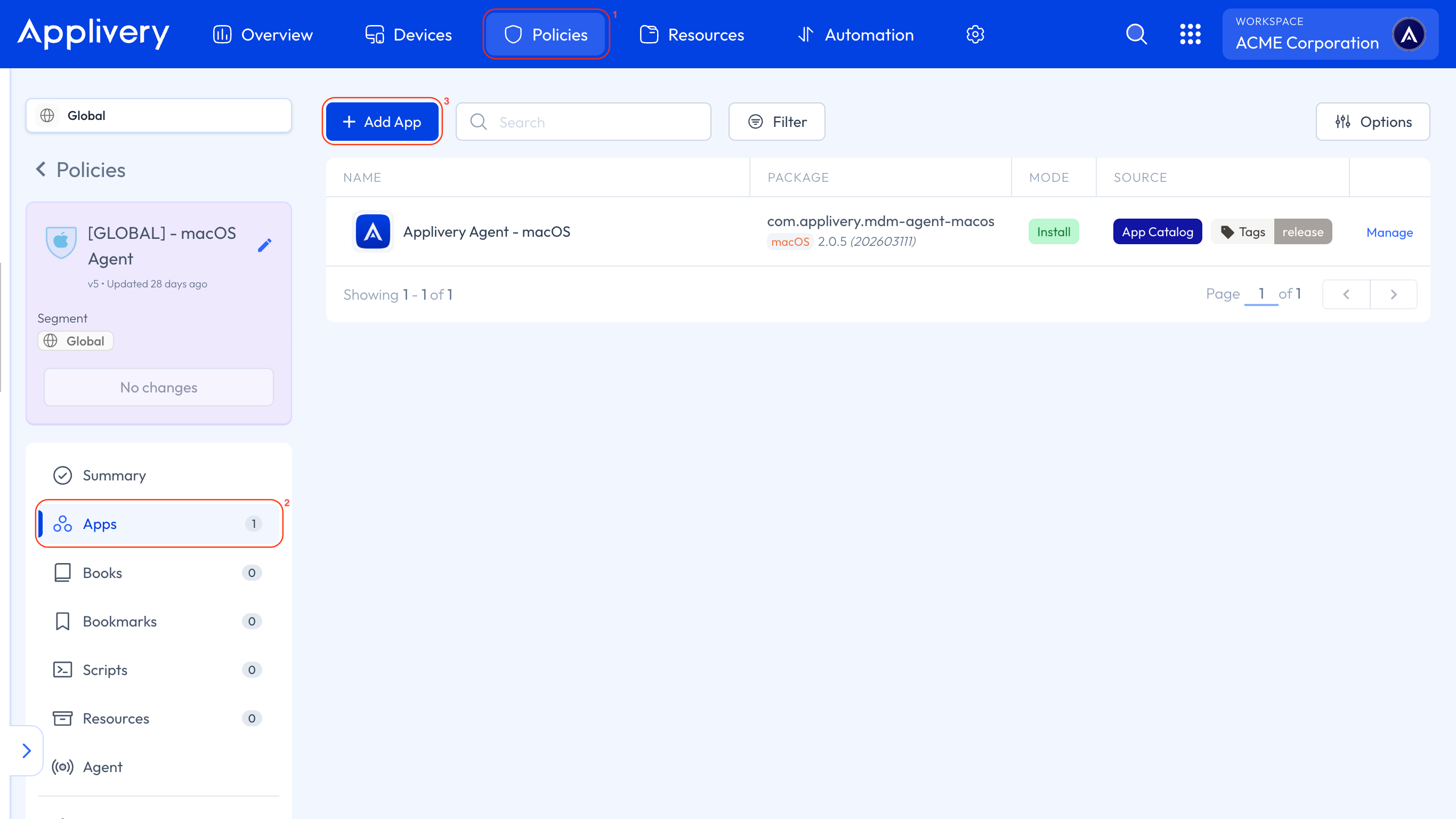
Next, head to the Device Management section and select any of your Policies 1 or create a new one. From the left-hand menu, select the Apps 2 section and click the + Add App 3 button.
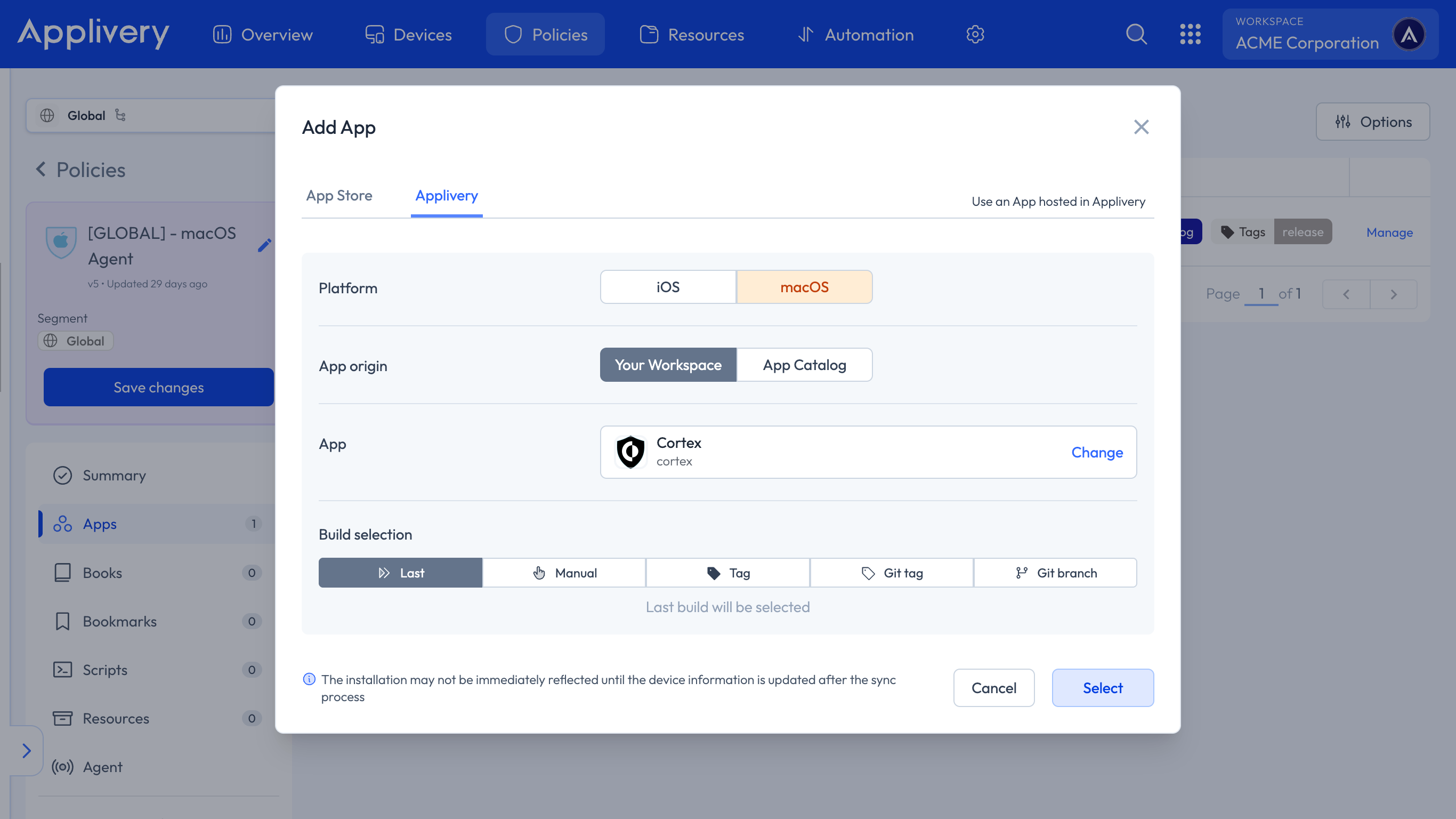
In the modal view, navigate to the Applivery tab. Set the platform to macOS, choose Your Workspace as the App origin, and search for the Cortex XDR App you previously created. For the Build selection, choose Last to ensure the latest version is always deployed.
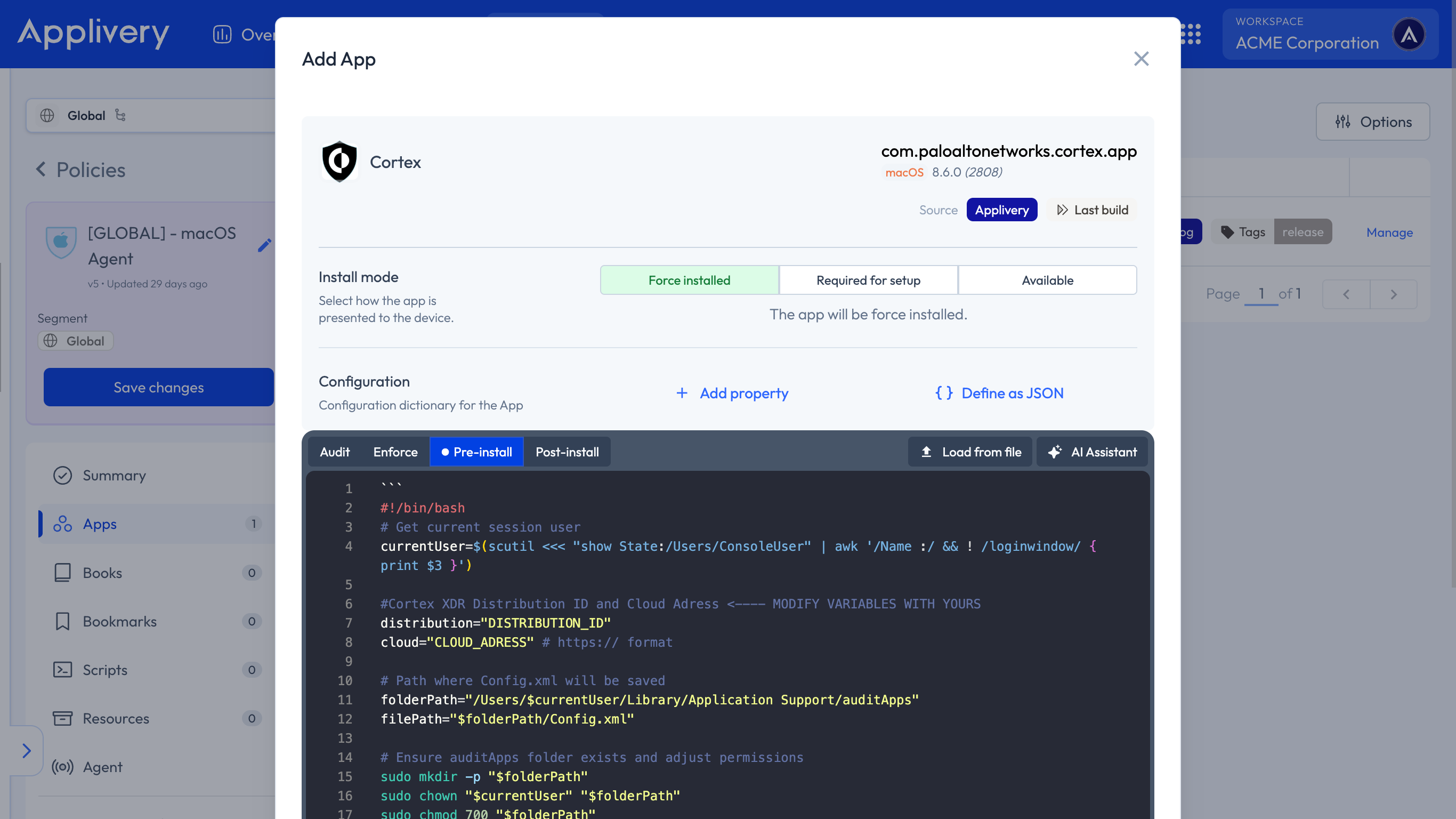
Continue to the next step and select your preferred install mode—Force Install, Required for setup, or Available—depending on your deployment strategy.
In the Configuration section, select Pre-install and paste your Activation Script, making sure to replace the placeholder values with your actual Distribution ID and Cloud ELB Address.
#!/bin/bash
# Get current session user
currentUser=$(scutil <<< "show State:/Users/ConsoleUser" | awk '/Name :/ && ! /loginwindow/ { print $3 }')

#Cortex XDR Distribution ID and Cloud Address <---- MODIFY VARIABLES WITH YOURS
distribution="DISTRIBUTION_ID"
cloud="CLOUD_ADDRESS" # https:// format

# Path where Config.xml will be saved
folderPath="/Users/$currentUser/Library/Application Support/auditApps"
filePath="$folderPath/Config.xml"

# Ensure auditApps folder exists and adjust permissions
sudo mkdir -p "$folderPath"
sudo chown "$currentUser" "$folderPath"
sudo chmod 700 "$folderPath"

# Write content to Config.xml using cat
sudo cat << EOF > "$filePath"

    $distribution
    $cloud

EOF

# Adjust file permissions
sudo chown "$currentUser" "$filePath"
sudo chmod 600 "$filePath"

sudo installer -applyChoiceChangesXML "/Users/$currentUser/Library/Application Support/auditApps/Config.xml" -pkg "/Users/$currentUser/Library/Application Support/auditApps/Cortex XDR.pkg" -target /

# Verify if the file was created successfully
if [[ -f "$filePath" ]]; then
    echo "Config.xml created at $filePath"
else
    echo "Error creating Config.xml"
    exit 1
fi
To apply the custom configuration, navigate to the desired Policy and click + Add configuration from the menu on the left-hand side. Then, select the + Import button and paste the provided .xml content into the editor:
<?xml version="1.0" encoding="UTF-8"?>
<!DOCTYPE plist PUBLIC "-//Apple//DTD PLIST 1.0//EN" "http://www.apple.com/DTDs/PropertyList-1.0.dtd">
<plist version="1.0">
<dict>
	<key>PayloadContent</key>
	<array>
		<dict>
			<key>PayloadDisplayName</key>
			<string>Cortex XDR Privacy Preferences Policy Control</string>
			<key>PayloadIdentifier</key>
			<string>com.apple.TCC.configuration-profile-policy.7388C706-49BA-4067-BADE-8D031B084B69</string>
			<key>PayloadType</key>
			<string>com.apple.TCC.configuration-profile-policy</string>
			<key>PayloadUUID</key>
			<string>7388C706-49BA-4067-BADE-8D031B084B69</string>
			<key>PayloadVersion</key>
			<integer>1</integer>
			<key>Services</key>
			<dict>
				<key>Accessibility</key>
				<array>
					<dict>
						<key>Allowed</key>
						<true/>
						<key>CodeRequirement</key>
						<string>identifier "com.paloaltonetworks.cortex.agent" and anchor apple generic and certificate 1[field.1.2.840.113635.100.6.2.6] /* exists */ and certificate leaf[field.1.2.840.113635.100.6.1.13] /* exists */ and certificate leaf[subject.OU] = PXPZ95SK77</string>
						<key>Identifier</key>
						<string>com.paloaltonetworks.cortex.agent</string>
						<key>IdentifierType</key>
						<string>bundleID</string>
						<key>StaticCode</key>
						<false/>
					</dict>
				</array>
				<key>SystemPolicyAllFiles</key>
				<array>
					<dict>
						<key>Allowed</key>
						<true/>
						<key>CodeRequirement</key>
						<string>identifier "com.paloaltonetworks.traps.securityextension" and anchor apple generic and certificate 1[field.1.2.840.113635.100.6.2.6] /* exists */ and certificate leaf[field.1.2.840.113635.100.6.1.13] /* exists */ and certificate leaf[subject.OU] = PXPZ95SK77</string>
						<key>Identifier</key>
						<string>com.paloaltonetworks.traps.securityextension</string>
						<key>IdentifierType</key>
						<string>bundleID</string>
						<key>StaticCode</key>
						<false/>
					</dict>
					<dict>
						<key>Allowed</key>
						<true/>
						<key>CodeRequirement</key>
						<string>identifier pmd and anchor apple generic and certificate 1[field.1.2.840.113635.100.6.2.6] /* exists */ and certificate leaf[field.1.2.840.113635.100.6.1.13] /* exists */ and certificate leaf[subject.OU] = PXPZ95SK77</string>
						<key>Identifier</key>
						<string>/Library/Application Support/PaloAltoNetworks/Traps/bin/pmd</string>
						<key>IdentifierType</key>
						<string>path</string>
						<key>StaticCode</key>
						<false/>
					</dict>
				</array>
			</dict>
		</dict>
		<dict>
			<key>AllowUserOverrides</key>
			<true/>
			<key>AllowedSystemExtensions</key>
			<dict>
				<key>PXPZ95SK77</key>
				<array>
					<string>com.paloaltonetworks.traps.securityextension</string>
					<string>com.paloaltonetworks.traps.networkextension</string>
				</array>
			</dict>
			<key>PayloadDisplayName</key>
			<string>Cortex XDR System Extensions</string>
			<key>PayloadIdentifier</key>
			<string>com.apple.system-extension-policy.93526FBD-2421-4402-9CAF-210780E2D0FF</string>
			<key>PayloadType</key>
			<string>com.apple.system-extension-policy</string>
			<key>PayloadUUID</key>
			<string>93526FBD-2421-4402-9CAF-210780E2D0FF</string>
			<key>PayloadVersion</key>
			<integer>1</integer>
		</dict>
		<dict>
			<key>FilterDataProviderBundleIdentifier</key>
			<string>com.paloaltonetworks.traps.networkextension</string>
			<key>FilterDataProviderDesignatedRequirement</key>
			<string>identifier "com.paloaltonetworks.traps.networkextension" and anchor apple generic and certificate 1[field.1.2.840.113635.100.6.2.6] /* exists */ and certificate leaf[field.1.2.840.113635.100.6.1.13] /* exists */ and certificate leaf[subject.OU] = PXPZ95SK77</string>
			<key>FilterGrade</key>
			<string>firewall</string>
			<key>FilterPacketProviderBundleIdentifier</key>
			<string>com.paloaltonetworks.traps.networkextension</string>
			<key>FilterPacketProviderDesignatedRequirement</key>
			<string>identifier "com.paloaltonetworks.traps.networkextension" and anchor apple generic and certificate 1[field.1.2.840.113635.100.6.2.6] /* exists */ and certificate leaf[field.1.2.840.113635.100.6.1.13] /* exists */ and certificate leaf[subject.OU] = PXPZ95SK77</string>
			<key>FilterPackets</key>
			<false/>
			<key>FilterSockets</key>
			<true/>
			<key>FilterType</key>
			<string>Plugin</string>
			<key>PayloadDescription</key>
			<string>Content Filter for the Cortex XDR agent network extension</string>
			<key>PayloadDisplayName</key>
			<string>Cortex XDR Network Content Filter</string>
			<key>PayloadIdentifier</key>
			<string>com.apple.webcontent-filter.CA9C208A-EC6D-4565-864D-02B30DE9D56A</string>
			<key>PayloadType</key>
			<string>com.apple.webcontent-filter</string>
			<key>PayloadUUID</key>
			<string>CA9C208A-EC6D-4565-864D-02B30DE9D56A</string>
			<key>PayloadVersion</key>
			<integer>1</integer>
			<key>PluginBundleID</key>
			<string>com.paloaltonetworks.cortex.app</string>
			<key>UserDefinedName</key>
			<string>Cortex XDR Network Filter</string>
		</dict>
		<dict>
			<key>NotificationSettings</key>
			<array>
				<dict>
					<key>AlertType</key>
					<integer>1</integer>
					<key>BadgesEnabled</key>
					<true/>
					<key>BundleIdentifier</key>
					<string>com.paloaltonetworks.traps-agent</string>
					<key>CriticalAlertEnabled</key>
					<true/>
					<key>GroupingType</key>
					<integer>0</integer>
					<key>NotificationsEnabled</key>
					<true/>
					<key>PreviewType</key>
					<integer>0</integer>
					<key>ShowInCarPlay</key>
					<true/>
					<key>ShowInLockScreen</key>
					<true/>
					<key>ShowInNotificationCenter</key>
					<true/>
					<key>SoundsEnabled</key>
					<true/>
				</dict>
				<dict>
					<key>AlertType</key>
					<integer>1</integer>
					<key>BadgesEnabled</key>
					<true/>
					<key>BundleIdentifier</key>
					<string>com.paloaltonetworks.cortex.agent</string>
					<key>CriticalAlertEnabled</key>
					<true/>
					<key>GroupingType</key>
					<integer>0</integer>
					<key>NotificationsEnabled</key>
					<true/>
					<key>PreviewType</key>
					<integer>0</integer>
					<key>ShowInCarPlay</key>
					<true/>
					<key>ShowInLockScreen</key>
					<true/>
					<key>ShowInNotificationCenter</key>
					<true/>
					<key>SoundsEnabled</key>
					<true/>
				</dict>
			</array>
			<key>PayloadDisplayName</key>
			<string>Cortex XDR Notifications</string>
			<key>PayloadIdentifier</key>
			<string>com.apple.notificationsettings.FE495ADF-1E68-4486-9BB6-0E75D6C3177E</string>
			<key>PayloadType</key>
			<string>com.apple.notificationsettings</string>
			<key>PayloadUUID</key>
			<string>FE495ADF-1E68-4486-9BB6-0E75D6C3177E</string>
			<key>PayloadVersion</key>
			<integer>1</integer>
		</dict>
		<dict>
			<key>PayloadDisplayName</key>
			<string>Cortex XDR Managed Login Items</string>
			<key>PayloadIdentifier</key>
			<string>com.apple.servicemanagement.1645DB60-CBC6-4AE2-A679-BC52DD4C85CE</string>
			<key>PayloadType</key>
			<string>com.apple.servicemanagement</string>
			<key>PayloadUUID</key>
			<string>1645DB60-CBC6-4AE2-A679-BC52DD4C85CE</string>
			<key>PayloadVersion</key>
			<integer>1</integer>
			<key>Rules</key>
			<array>
				<dict>
					<key>Comment</key>
					<string>Allows Cortex XDR launch daemons and launch agents</string>
					<key>RuleType</key>
					<string>LabelPrefix</string>
					<key>RuleValue</key>
					<string>com.paloaltonetworks.cortex</string>
					<key>TeamIdentifier</key>
					<string>PXPZ95SK77</string>
				</dict>
			</array>
		</dict>
	</array>
	<key>PayloadDescription</key>
	<string>Cortex XDR Config: PPPC + SE + Content Filter + Notifications + BTM</string>
	<key>PayloadDisplayName</key>
	<string>Cortex XDR Agent Unified Config Profile v5</string>
	<key>PayloadIdentifier</key>
	<string>com.paloaltonetworks.cortex.AA16E926-D153-4B2E-B4CC-342BB</string>
	<key>PayloadOrganization</key>
	<string>Palo Alto Networks</string>
	<key>PayloadRemovalDisallowed</key>
	<true/>
	<key>PayloadScope</key>
	<string>System</string>
	<key>PayloadType</key>
	<string>Configuration</string>
	<key>PayloadUUID</key>
	<string>AA16E926-D153-4B2E-B4CC-342BB</string>
	<key>PayloadVersion</key>
	<integer>1</integer>
	<key>TargetDeviceType</key>
	<integer>5</integer>
</dict>
</plist>
Once done, make sure to Save changes to apply the configuration.