

Managing App permissions on Android Devices is a critical part of Enterprise Mobility, ensuring security, compliance, and predictable behavior across corporate fleets.
With Applivery, organizations can centrally configure permissions for any managed App using Managed Properties, applying granular control aligned with business, security, and regulatory needs.
Accessing App permission settings
Once in the Applivery Dashboard, go to any of your Policies 1. From the left side menu, go to Apps 2 and select the App 3 whose permissions you want to manage.
A side panel will open showing the App’s Managed Properties, including the Permissions 4 section.
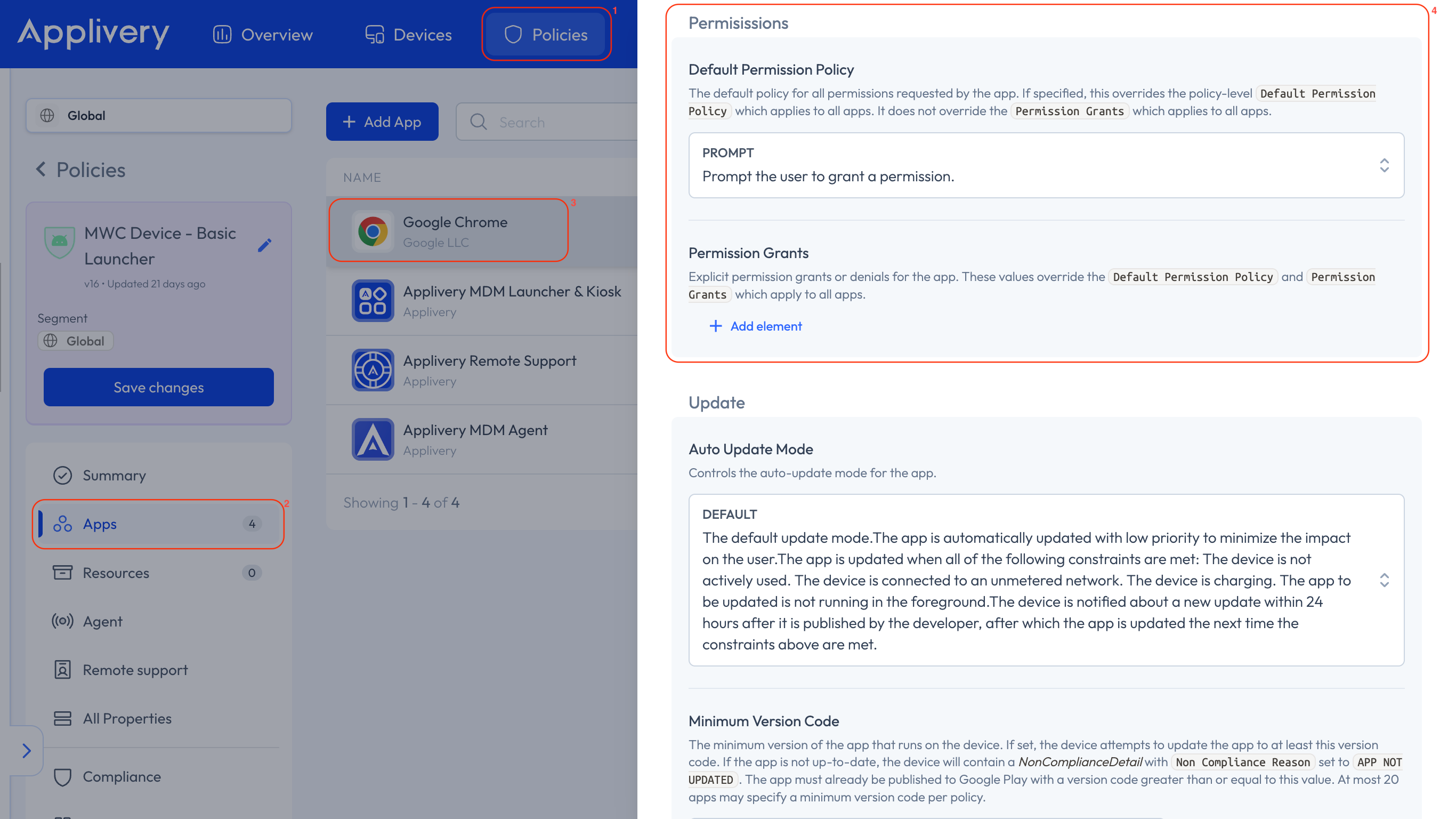
Applivery provides two complementary ways to control permissions.
Default Permission Policy
This option sets the global behavior for all permissions required by the App:
Prompt: The user is asked whether to allow or deny each permission.
Grant: All required permissions are automatically granted.
Deny: All required permissions are automatically denied.
Use this option when you want a simple, uniform rule applied across the entire App.
Permission Grants (Granular Control)
For more advanced cases, you can configure specific permissions individually:
Click + Add element to add a new permission rule.
Choose the Permission from the dropdown list (e.g., camera, location, contacts).
Set the Policy for that specific permission:
- Prompt: User decides whether to allow or deny.
- Grant: The permission is automatically granted.
- Deny: The permission is automatically denied.
You can add as many granular permissions as needed—ideal for complex Apps that require differentiated access.
Some permissions behave differently depending on the management mode. Location, for example, can be pre-granted silently on Fully Managed and Dedicated Devices, but not inside the work profile on COPE or BYOD. See Location Management on Android Devices for the full picture.
Why use granular permission management?
With Applivery, organizations gain:
Stronger security, by blocking unnecessary or risky permissions.
Better compliance, ensuring Apps behave within Policy limits.
A more predictable and controlled deployment.
Reduced user intervention, thanks to automated permission handling.
Flexible adaptation to any App’s operational needs.
Configuring App permissions with Managed Properties in Applivery provides precise control and minimizes risk, ensuring that Apps on corporate Devices operate securely and in full alignment with organizational requirements.
AOSP Devices Support
App permission management works the same way on AOSP — same Default Permission Policy (Prompt / Grant / Deny) and Per-App Permission Grants, same configuration steps. The DPC applies them using DevicePolicyManager.setPermissionGrantState(...), no Google services required. Granular grants apply to Apps targeting API 23 or above.