Whether you’re aiming to enhance security or streamline productivity, the ability to manage which applications can or cannot run on enrolled Devices is crucial.
App blocking involves the selective restriction of certain applications from executing on managed Devices. This can be particularly useful to mitigate security risks. By creating a block list, administrators can prevent specified Apps from launching, thereby safeguarding sensitive data.
Conversely, App allowing, often referred to as whitelisting, centers around permitting only a predefined list of applications to operate on enrolled Devices. This method is employed when organizations seek to optimize productivity by ensuring users have access to only the essential tools. By creating an App whitelist, administrators can ensure that only approved applications are available for use, minimizing potential security vulnerabilities.
Allow a List of Apps
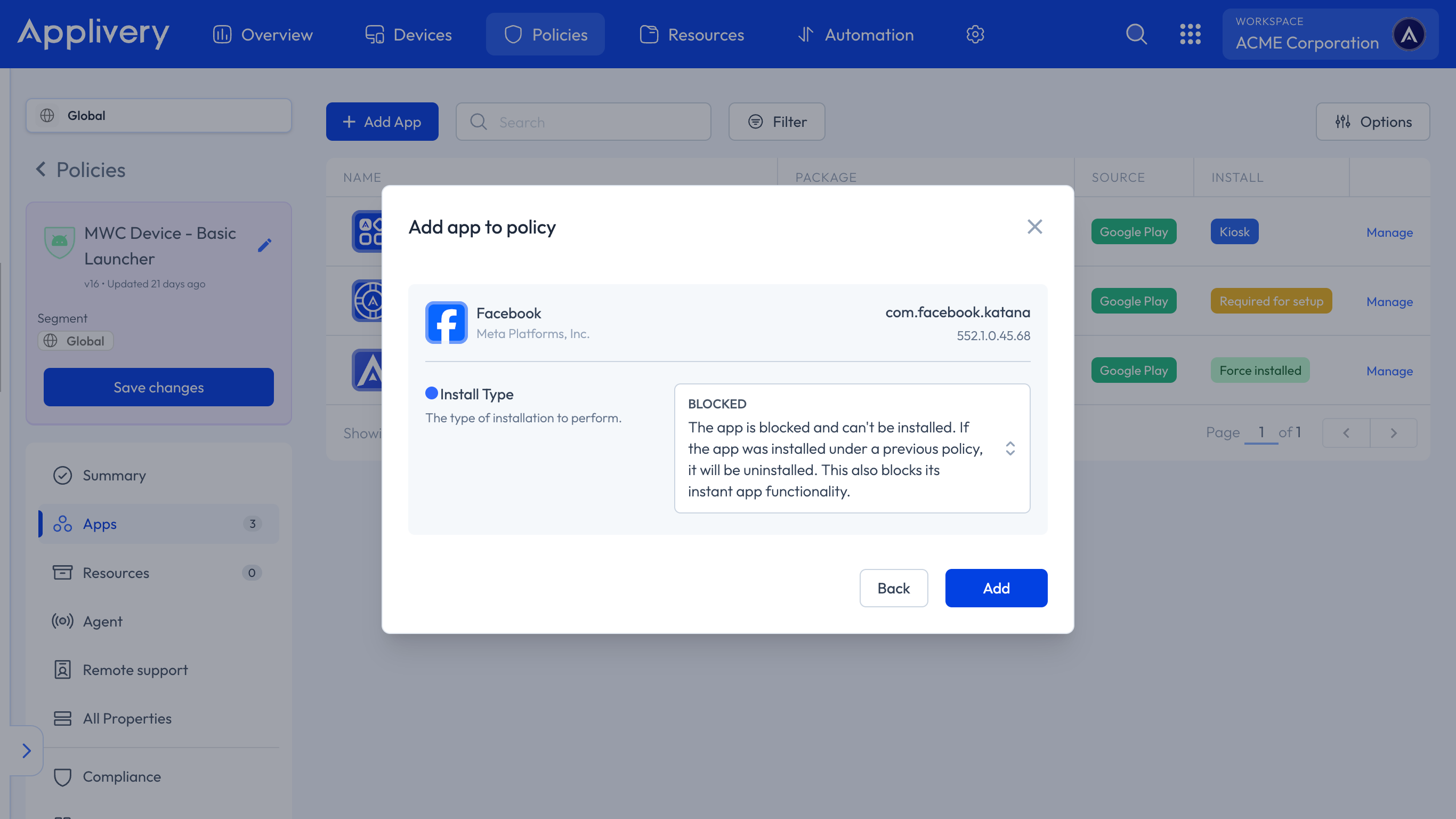
Once in the Applivery Dashboard, go to any of your Policies 1.
From the left side menu, go to Apps 2 and click the + Add App button 3.
Through any of the available tabs (Google Play, Package Name, or System App), you can search for and add the applications that will be part of your whitelist of applications.
It will only be necessary to select the desired installation mode:
Preinstalled: The App is automatically installed and can be removed by the user.
Force installed: The App is automatically installed and cannot be removed by the user.
Available: The App is available to install.
Required for setup: The App is automatically installed and can’t be removed by the user, and will prevent setup from completion until installation is complete.
Block a List of Apps
Just like if you were configuring a whitelist of Apps, in the Applivery Dashboard, go to any of your Policies.
From the left side menu, go to Apps and click the + Add App button.
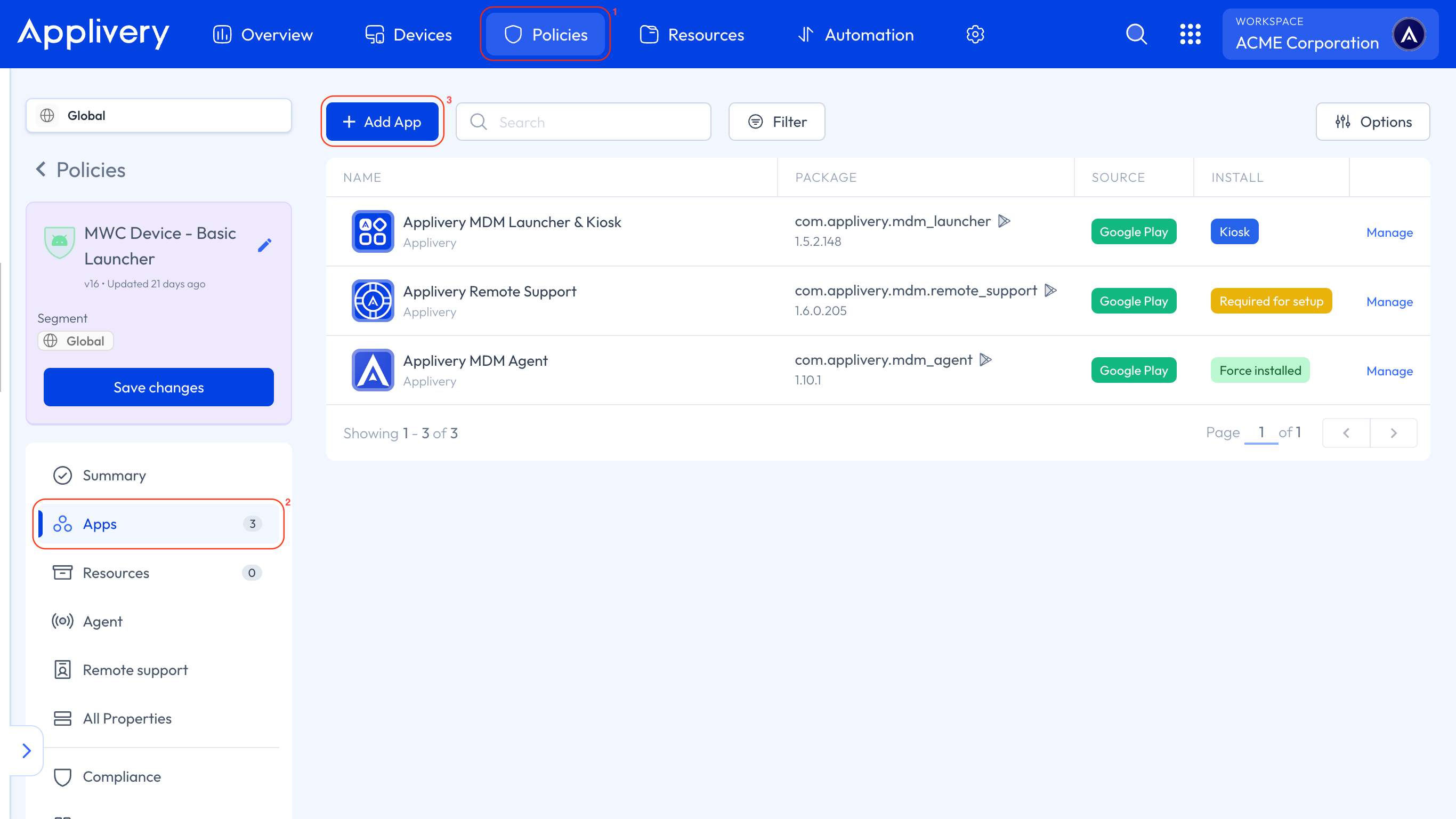
This time, when choosing the install type of the application, you will need to select the Blocked option. The App will be blocked, and users won’t be able to install it. If the App was installed under a previous Policy, it will be uninstalled.