

Keeping Apps on your Android Devices up to date is essential—not only to access the latest features but also to ensure security and optimal performance. Updates often include security patches that protect against vulnerabilities, bug fixes that enhance stability, and optimizations that make Apps run more efficiently.
In corporate environments or when managing a large number of Devices, manually handling these updates can be time-consuming and impractical. This is where Applivery becomes invaluable.
Control App updates and update time
Regularly updating applications on your organization’s Devices ensures that users benefit from the newest functionalities, enhanced security, and greater reliability.
App updates are managed by Google through the Google Play Services, and Applivery can not force the update of an App (you can read more about this here).
Many factors may affect the update timings.
Default update behavior: In the default setting, applications automatically update when specific conditions are fulfilled:
The Device connects to a Wi-Fi network.
The Device is in charging mode.
The Device is not in active use.
The application scheduled for an update is not open in the foreground.
Google Play usually conducts checks for application updates daily. Therefore, it might take a maximum of 24 hours for an application update to enter the update queue. Once an application is queued, it will automatically update the next time the above conditions are satisfied.
You can override the update settings to further customize the App update behavior on the Devices you manage:
- High Priority: This mode guarantees that your App stays up-to-date, updating it immediately upon approval by Google Play. In case your Device is offline when an update is released, it will update automatically the moment you reconnect to the internet.
If the App is in use when the update is ready to install, the App will be closed during the update, which could affect your users.
- Postpone mode: Use this option if you want to pause updates for an App that prevents the App to automatically updating for an initial 90 days after it first became out of date. After this 90-day period, the latest available version of the App is automatically installed using the default update mode. After the App is updated to the latest available version, a new 90 day postponement period will begin from the next time that the developer publishes a new version of the App.
Postpone mode does not prevent your users from manually updating the App. During the 90-day postponement period, your users can manually update the App by visiting the Google Play Store on their Devices.
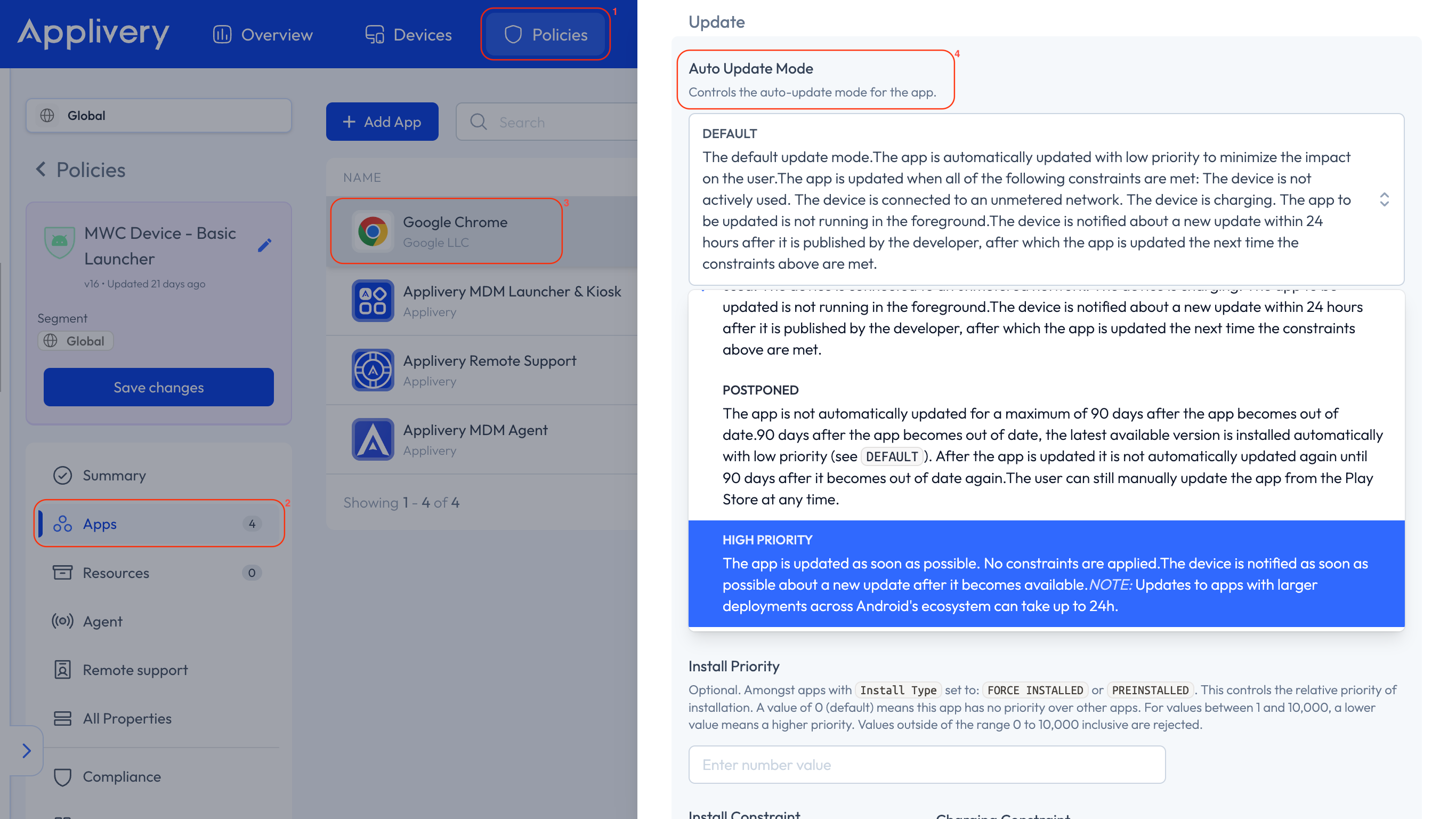
To modify the update mode, go to any of your Policies 1, look for the Apps 2 section from the left side menu, and then click the App you want to modify 3 the update mode.
Find the Auto Update Mode 4 option under the right side appearing slide and choose your preferred option.
App auto update Policy
As an alternative, for default configurations under Auto Update Mode, you can specify when updates should occur by configuring the App Auto Update Policy. You can find this setting by navigating to your Policy, selecting Restrictions from the left-hand menu, opening the Apps tab, and locating the App Auto Update Policy 5 configuration.
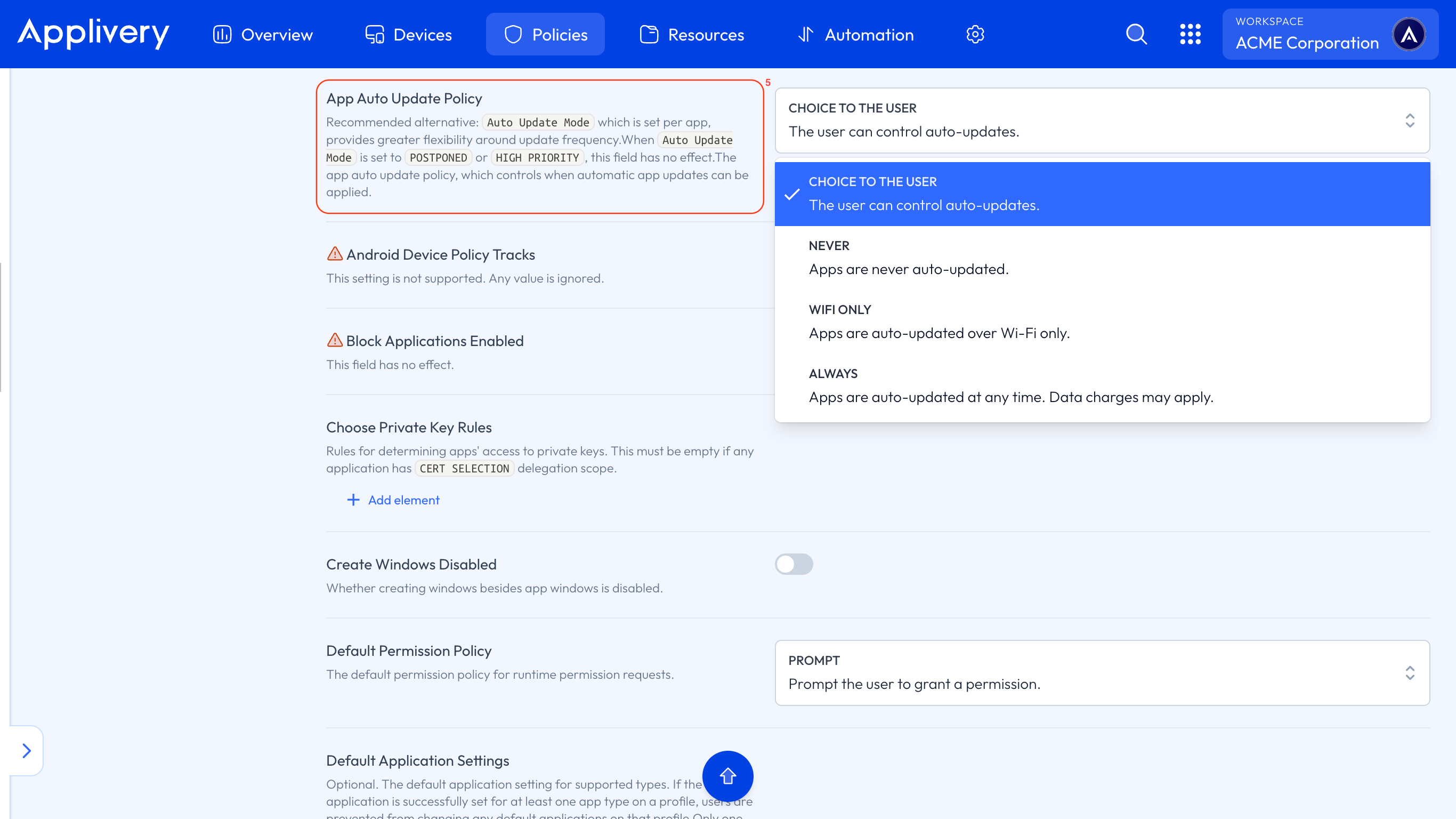
Here, you’ll have several options to tailor App updates to your needs:
CHOICE TO THE USER: This option gives the end user full control over automatic updates. The Policy administrator does not impose any restrictions, allowing the user to decide when and how to update Apps.
NEVER: This mode completely disables automatic updates. Apps will not update on their own; the only way to update an App is manually through the App Store.
Wi-Fi ONLY: Apps will update automatically only when the Device is connected to a Wi-Fi network. This helps avoid using mobile data for large updates.
ALWAYS: Apps update automatically as soon as a new version is available, regardless of the network connection (Wi-Fi or mobile data). This is the most aggressive option and may incur mobile data charges if not monitored.
Managing App updates is a key part of maintaining a secure and efficient Android environment, especially across large Device fleets.
By leveraging different update modes along with user-control options, you can strike the right balance between security and operational flexibility. A strategic approach to updates ensures Devices are protected against the latest threats, benefit from performance improvements, and minimize disruptions to end-user productivity.
Ultimately, a well-defined update management Policy gives you complete control over your Android ecosystem, keeping every App up to date and fully optimized without compromising efficiency or security.
AOSP Devices Support
On AOSP Devices, App updates work differently — there is no Google Play and no Play Services involved. Updates are entirely driven by the Applivery Dashboard.
Upload a new version of the App (with a higher versionCode) to the Applivery Self-Service, or update the externally-hosted APK URL.
The Applivery DPC detects the new version on the next Policy sync.
The DPC downloads and installs the updated APK. The App keeps its user data unless you also explicitly clear it with the **Clear app data** remote command.
There is no concept of "Play Store auto-update mode" on AOSP. You decide when a version becomes available by uploading it — the DPC then enforces the install automatically across all enrolled Devices assigned to that Policy.
Apps that fail to install (due to signature mismatch, ABI incompatibility, or minimum SDK not met) are flagged as non-compliant in the next Device status report.