

A Device Audience is a saved group of Devices. You define who's in it with filters, and its membership updates automatically as device and employee data changes. Device Audiences let you target Policies, configurations, and deployments to exactly the right Devices through Automation Rules.
You can learn more about Automation Rules by following this link.
How Device Audiences work
A Device Audience is defined by a tree of filters and groups:
A filter is a single condition, for example Device tag is any of madrid.
A group is a set of filters and/or nested groups, joined by ALL or ANY.
Label | Logic | What it means | What you see in the tree |
|---|---|---|---|
ALL | AND | Every filter or nested group in this group must match. | An ALL badge on the group header, and AND connectors between children. |
ANY | OR | At least one filter or nested group in this group must match. | An ANY badge on the group header, and OR connectors between children. |
This flexible, rules-based approach ensures that audiences automatically adjust as device or employee attributes change, keeping your configurations up to date without manual intervention.
Nested groups
Add a group inside another group when part of your logic needs a different join than its parent — for example, an outer ANY group that contains an inner ALL group. Nested groups stay visible in the tree, so you can see the full logic at a glance.
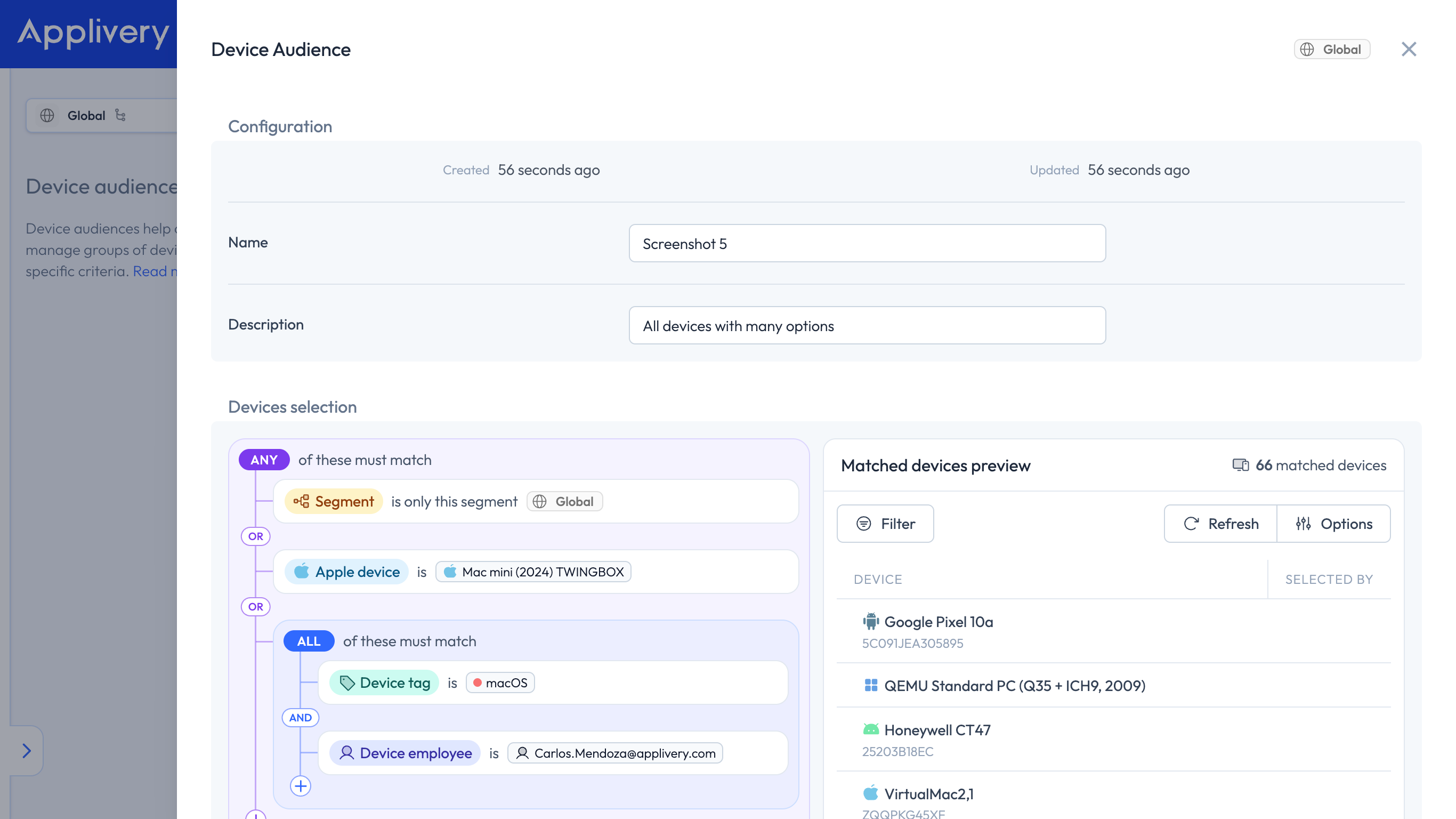
Outer group: joins its filters and nested groups.
Nested group: has its own ALL or ANY join.
+: adds filters or further groups inside the nested group.
There's no limit on how many groups you can nest. Still, keep trees as shallow as possible and nest only when you need to mix AND and OR — it makes the audience easier to read and maintain.
Creating a Device Audience
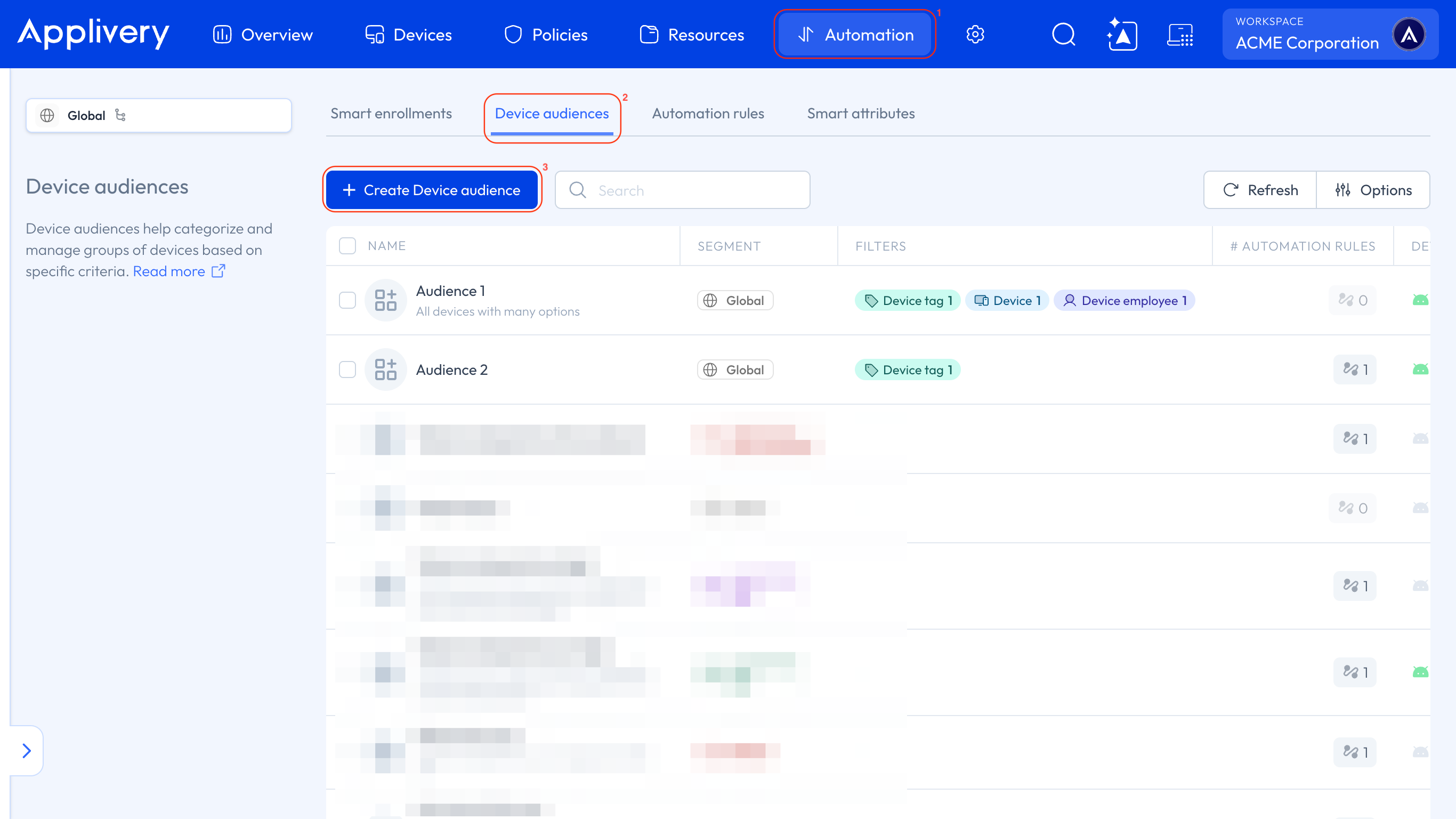
Once in the Applivery Dashboard, navigate to the Automation 1 section. Select Device Audiences 2 and click the + Create Device Audience button 3, or open an existing audience to edit it.
The configuration form includes the following sections, all on the same page:
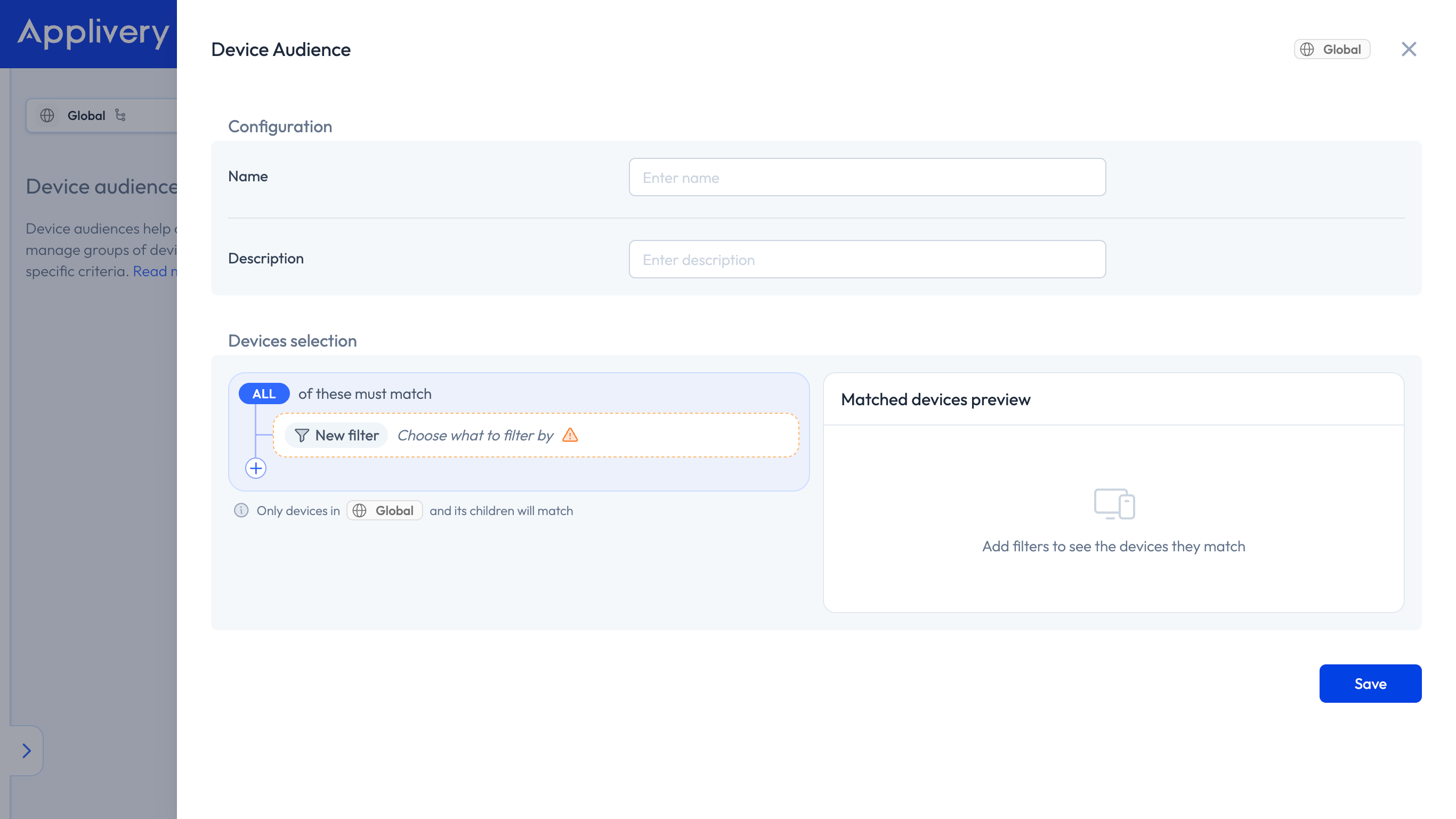
Configuration
Name: enter a descriptive name for the audience.
Description (optional): add context about the audience's purpose.
Devices selection
Devices selection is the tree editor where you add filters and groups. It starts with a single root group set to ALL or ANY of these must match.
Use the ALL / ANY control to choose how the root group joins its children.
Click New filter or the + control.
From the + menu, select Add filter to add a condition, or Add group to add a nested group.
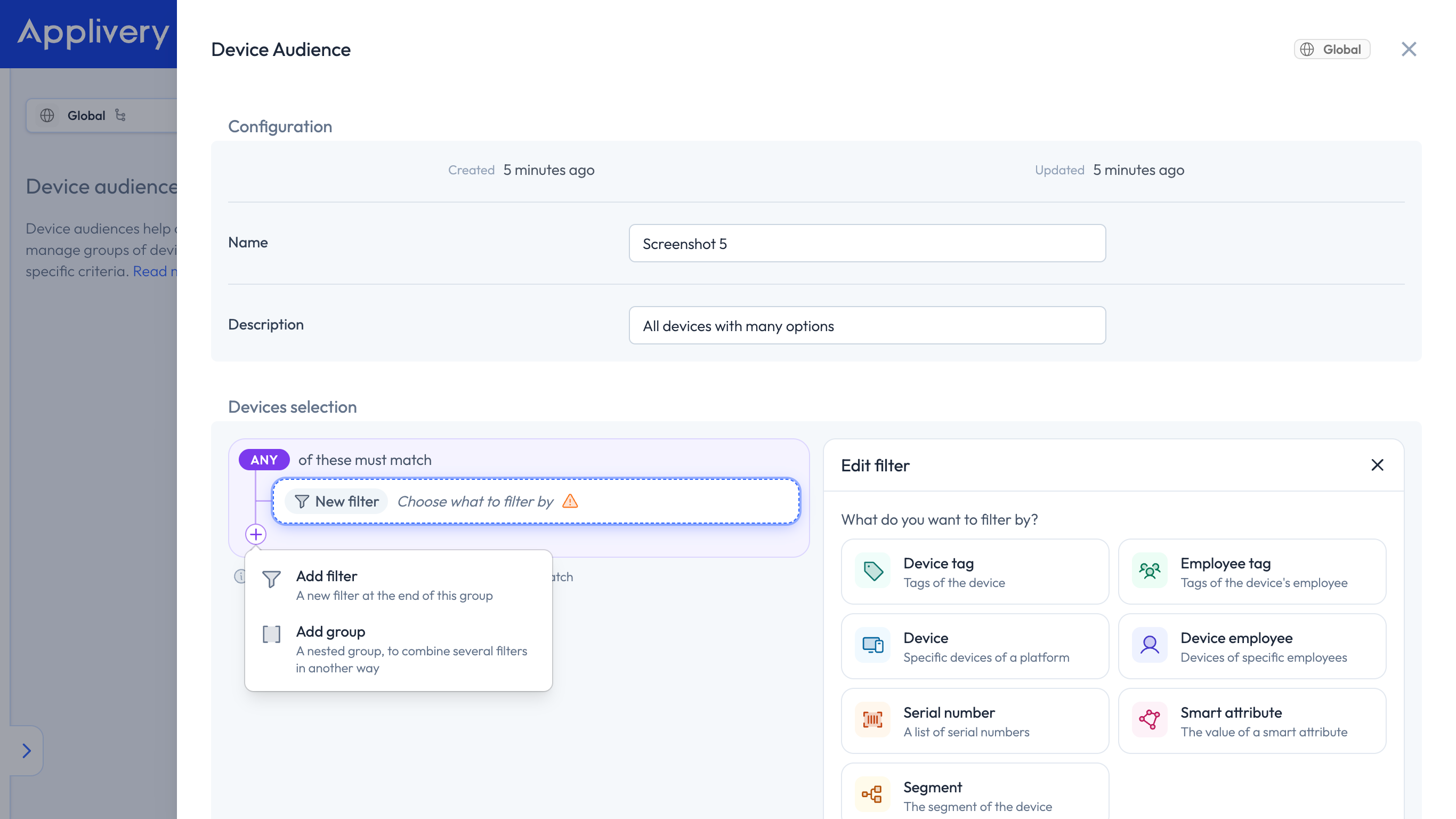
- In What do you want to filter by?, choose a filter type: Device tag, Employee tag, Device, Device employee, Serial number, Smart attribute, or Segment.
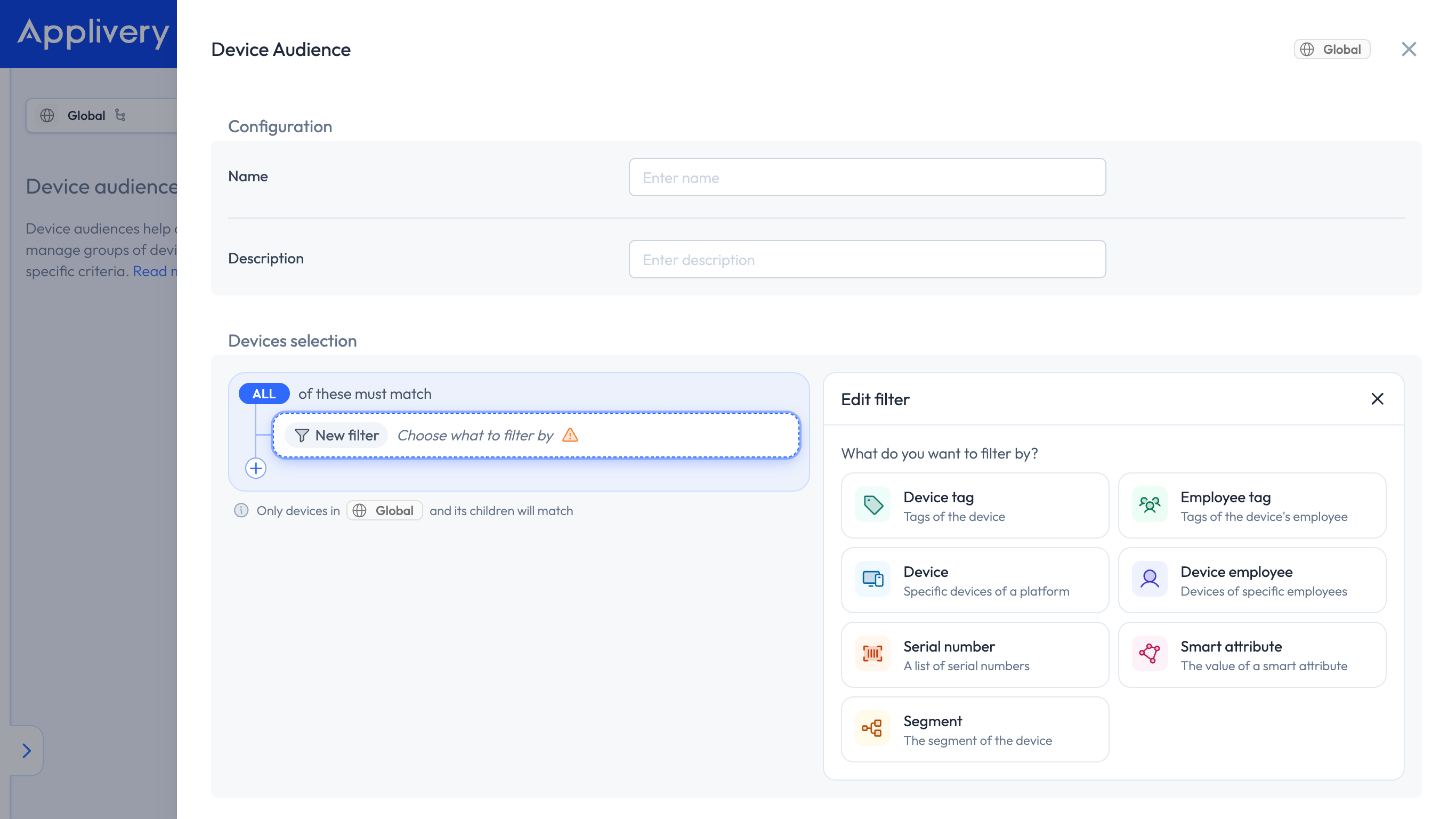
- In the Edit filter panel, set the condition (operator) and the values.
You can click any filter to open Edit filter again. If you picked the wrong filter type, click Change type in the top right of Edit filter to switch that row to another type, without deleting it and starting over.
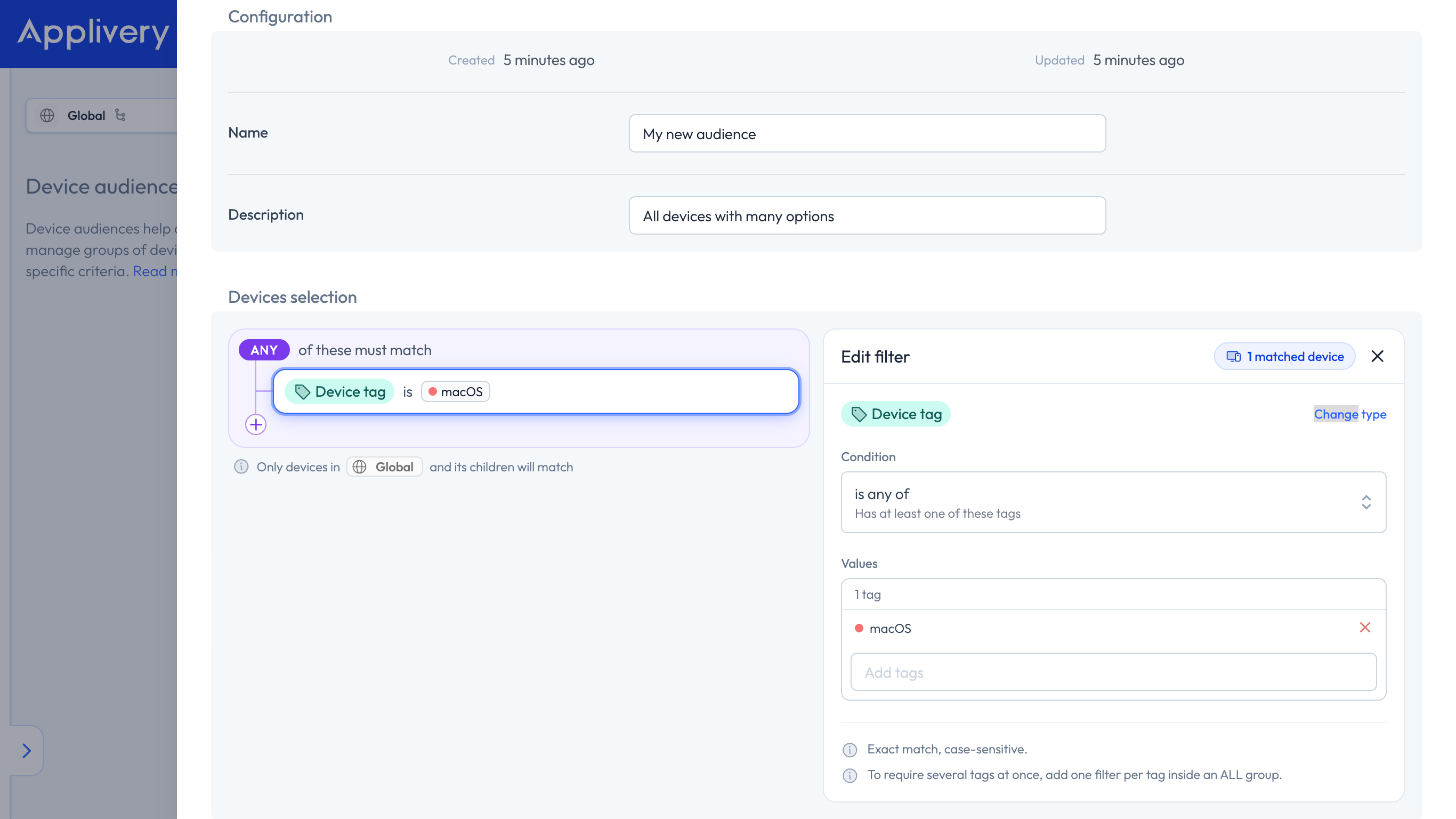
The footer under Devices selection reminds you that only Devices in the segment where the audience is created, and in its child segments, can match. This is the scope of the audience itself, and it's separate from the Segment filter you can add inside the tree.
Matched Devices preview
As you edit, the Matched devices preview panel on the right shows a live list and count of the Devices that currently match the whole audience tree.
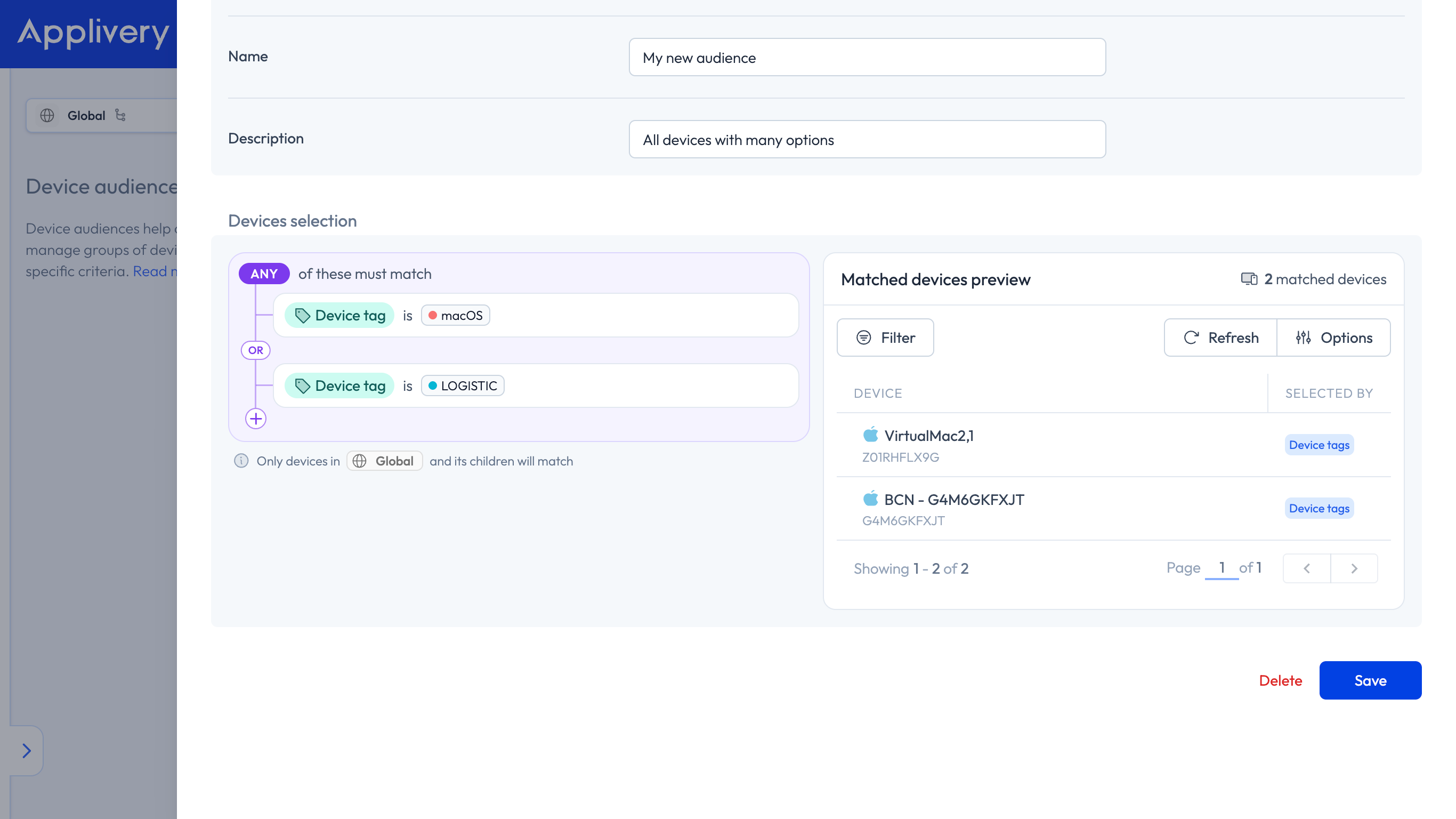
Filters: the conditions you've built in Devices selection.
Matched count: the total number of Devices that currently match.
Selected by: a column that shows which filter caused each Device to match.
Use this preview to confirm your filters work as intended before you save. If no Devices appear, review your operators and values.
Working with groups and filters
Groups
Select a group row to show its toolbar on the group header. From there you can:
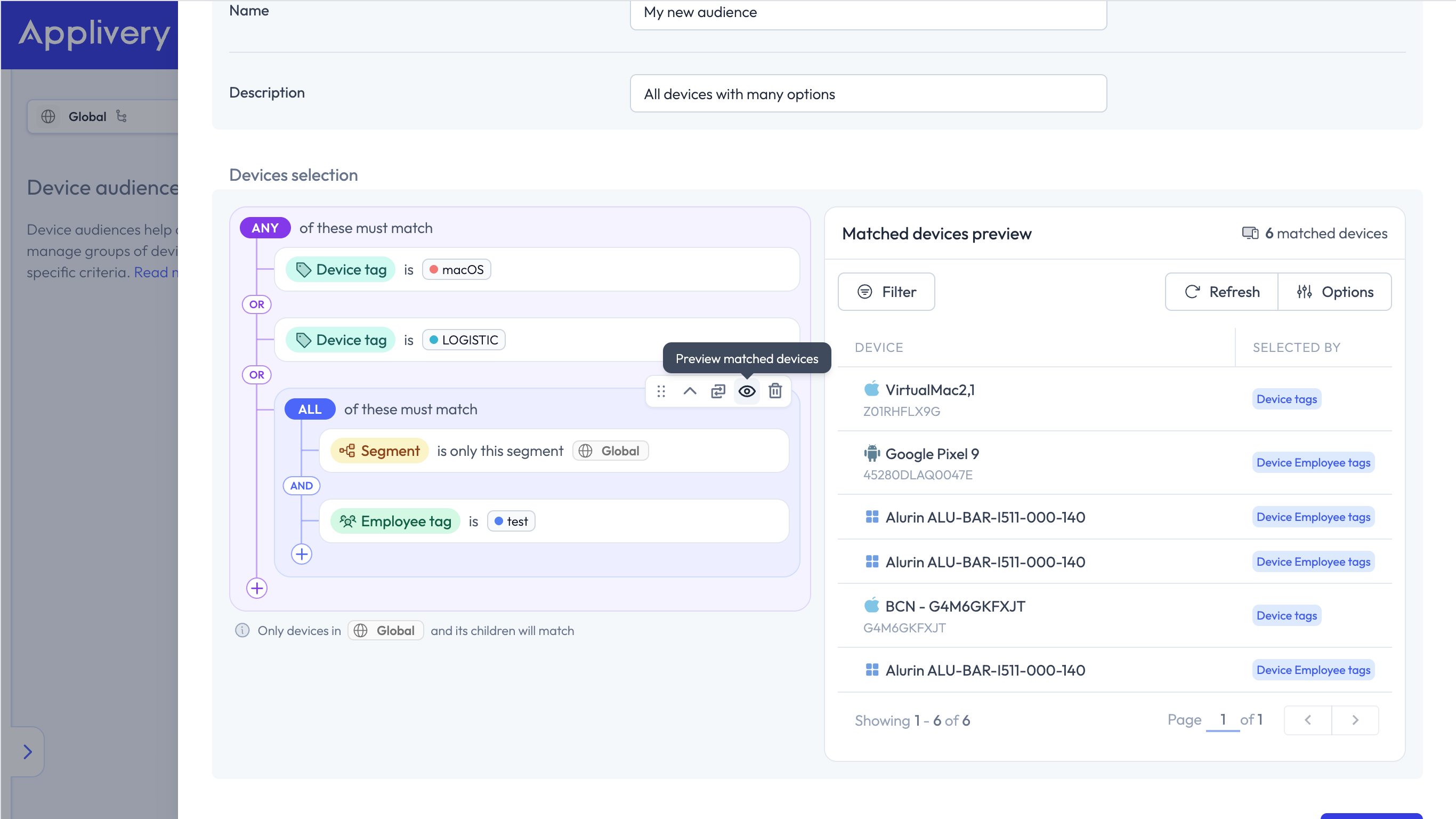
Move: drag the group, or use the arrow, to move it up or down within its parent.
Switch ALL / ANY: change how that group joins its children.
Visualize: click the eye icon to see the Devices that match only this group. This doesn't replace the full audience preview.
Delete: click the trash icon to remove the group.
When a collapse control is shown, you can also collapse the group to hide its children.
Filters
Select a filter row to show its toolbar. From there you can:
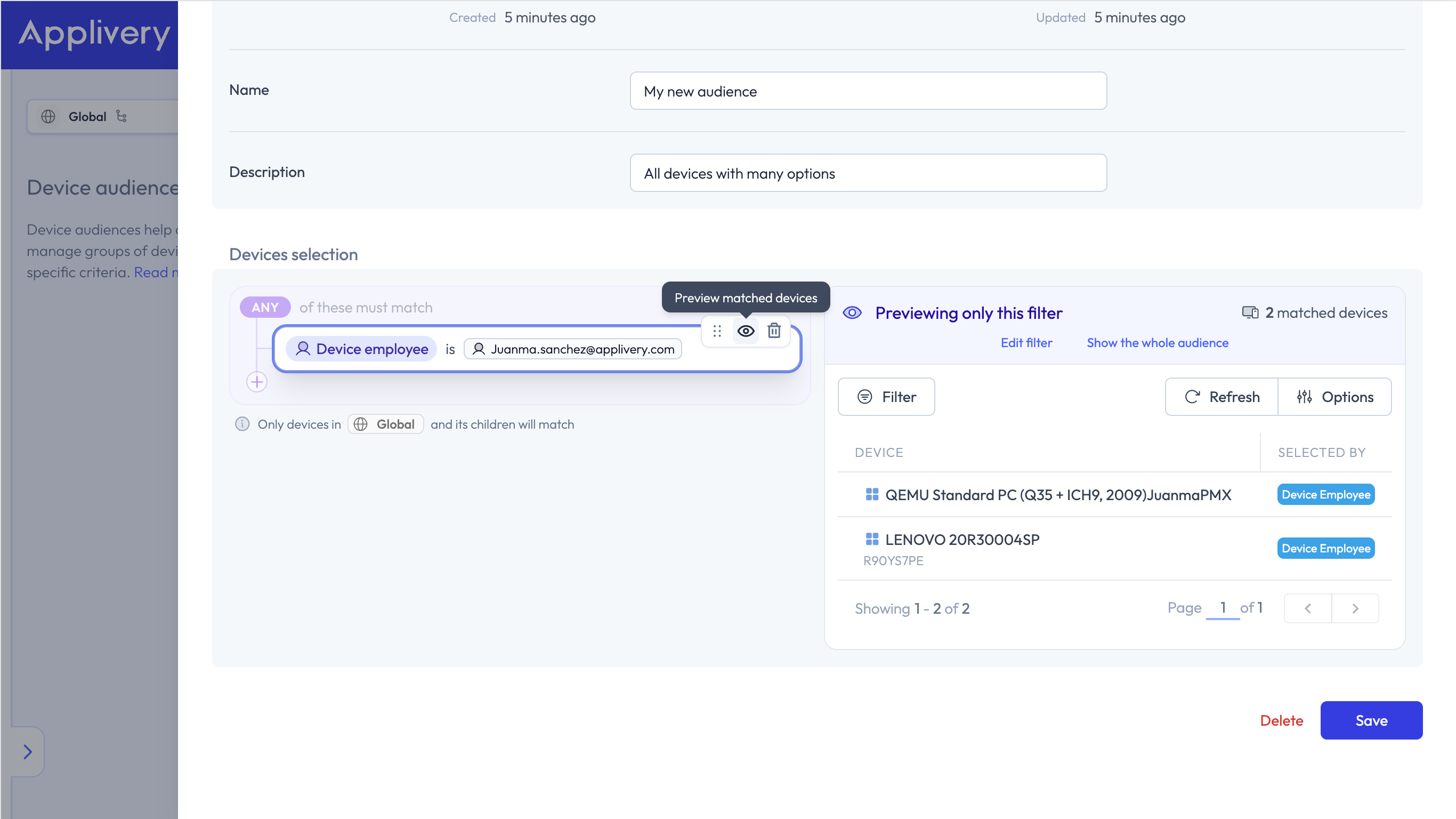
Edit: click the filter to open Edit filter and change the field, operator, or values.
Move: move the filter up or down among the other items in the same group.
Visualize: click the eye icon to see the Devices that match this filter.
Delete: click the trash icon to remove the filter.
Filter types and operators
Exclusion operators such as is none of let you keep Devices out of the audience directly inside the tree.
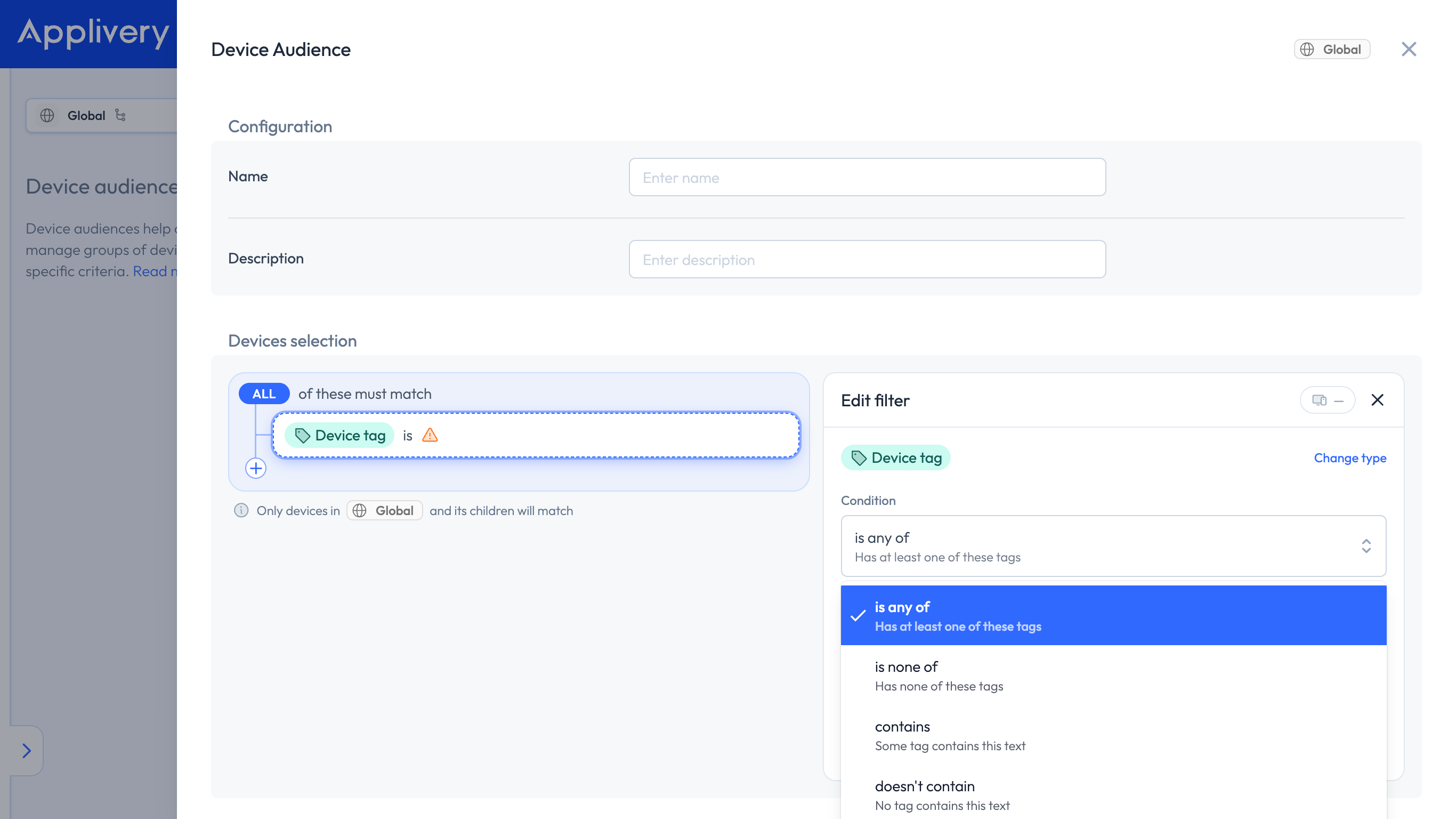
Device tag
Matches Devices by their tags.
is any of: the Device has at least one of these tags.
is none of: the Device has none of these tags.
contains: some tag on the Device contains this text.
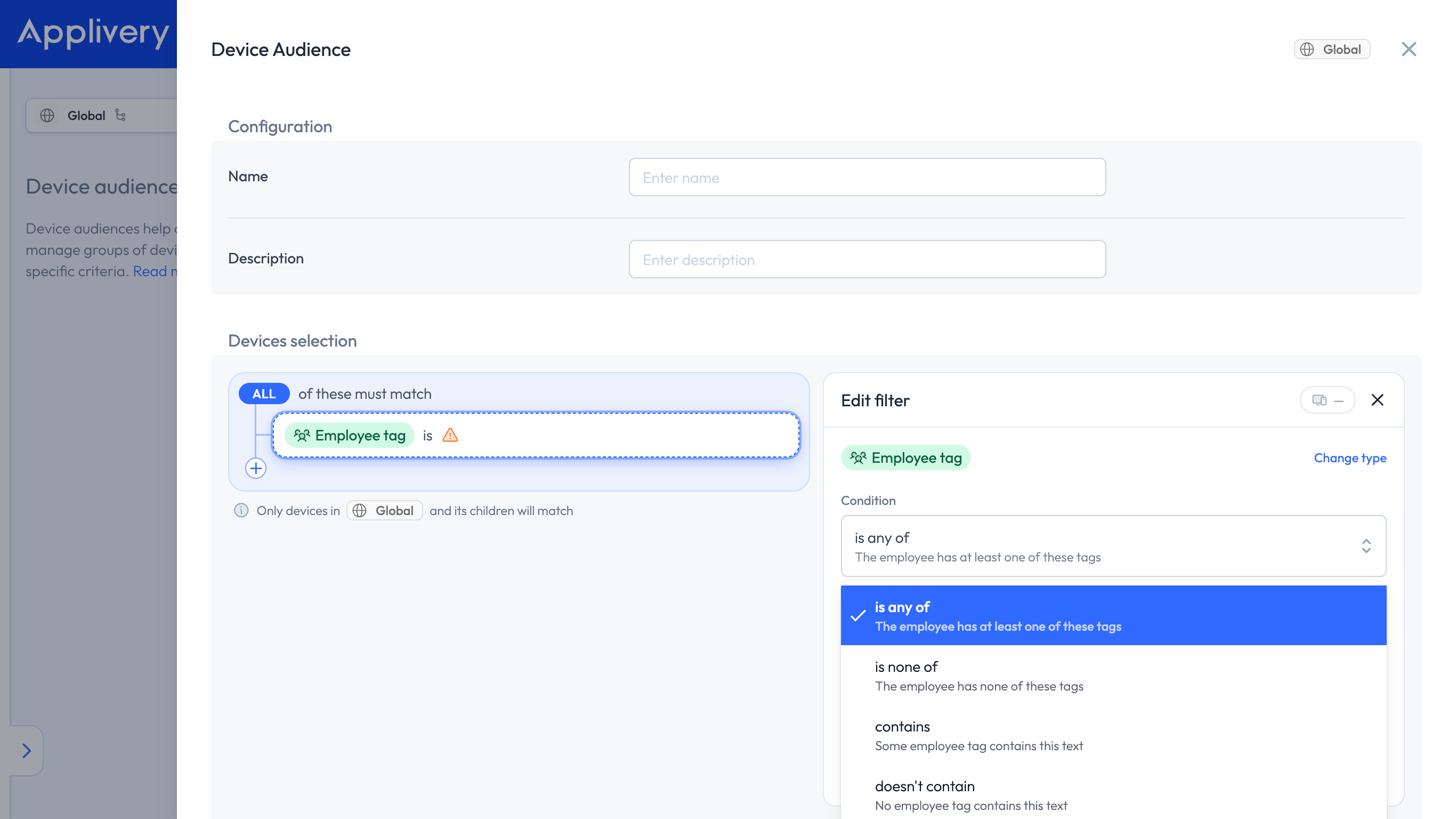
Employee tag
Matches Devices by the tags of their assigned employee.
is any of: the employee has at least one of these tags.
is none of: the employee has none of these tags.
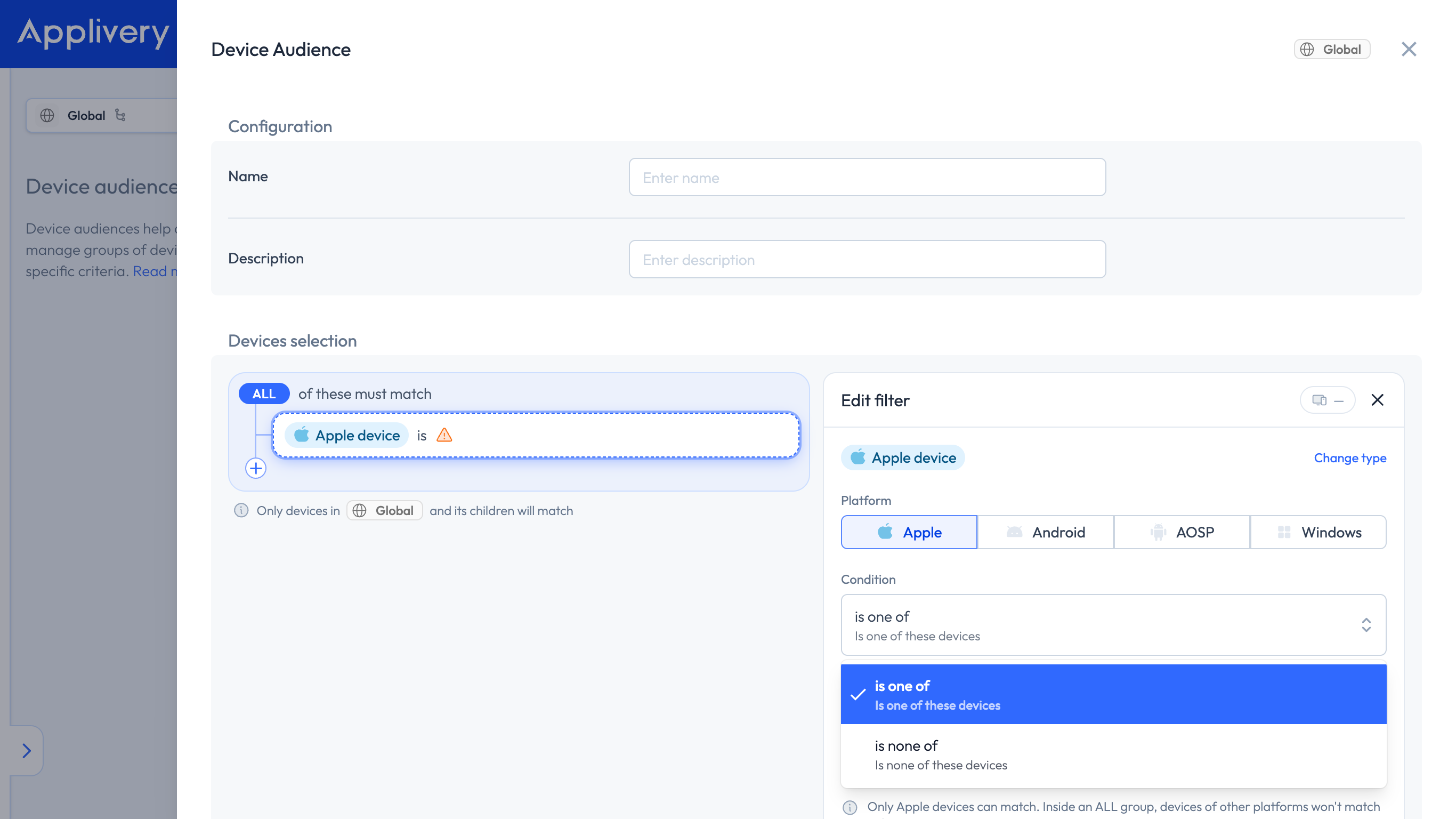
Device
Matches specific Devices. First pick the platform (Apple, Android, AOSP, or Windows), then the condition:
is one of: the Device is one of the selected Devices.
is none of: the Device is none of the selected Devices.
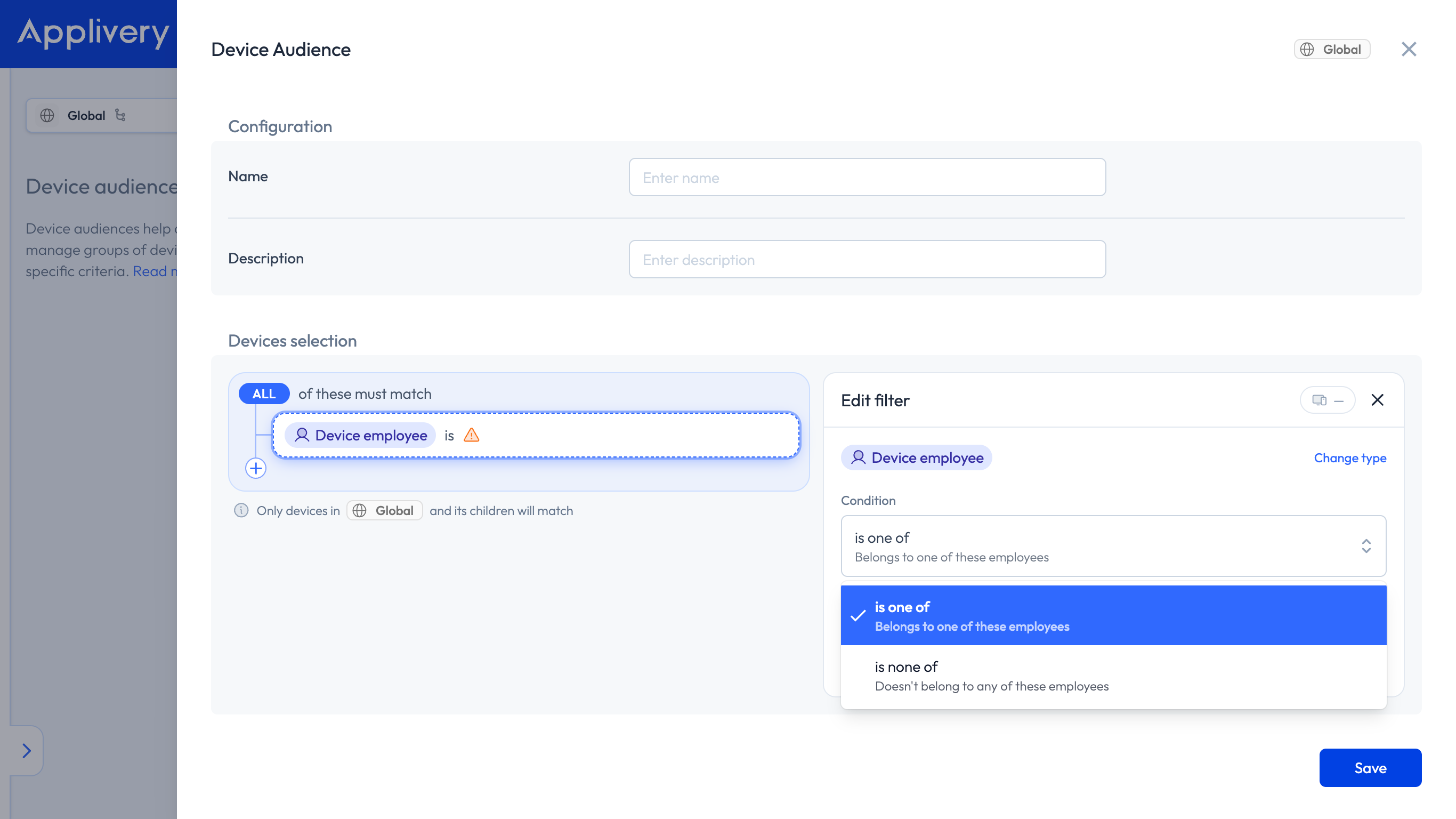
Device employee
Matches Devices by their assigned employee.
is one of: the Device belongs to one of these employees.
is none of: the Device doesn't belong to any of these employees.
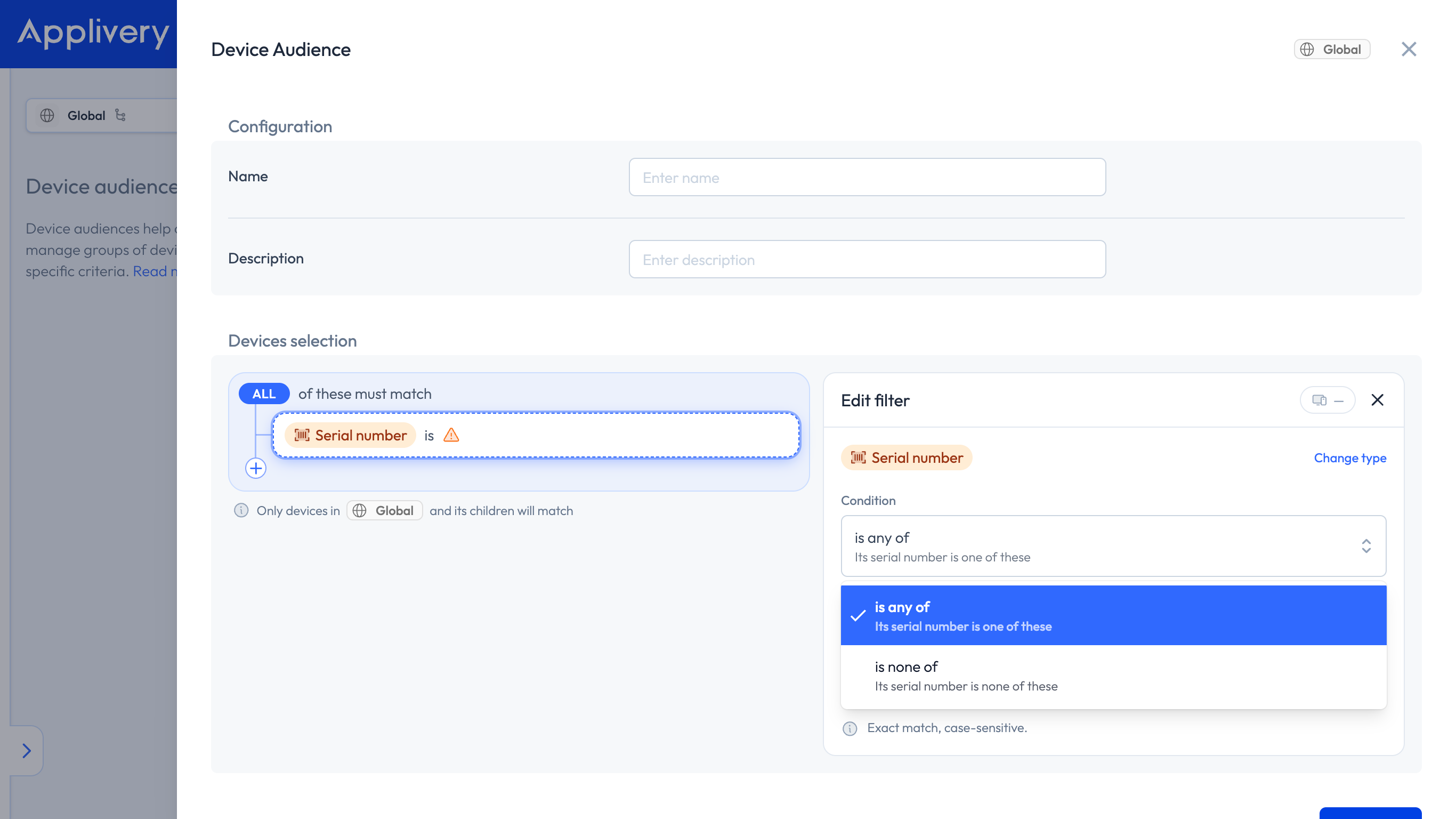
Serial number
Matches Devices by serial number.
is any of: the serial number is one of the values you enter.
is none of: the serial number is none of those values.
Serial numbers are an exact, case-sensitive match, as noted in Edit filter.
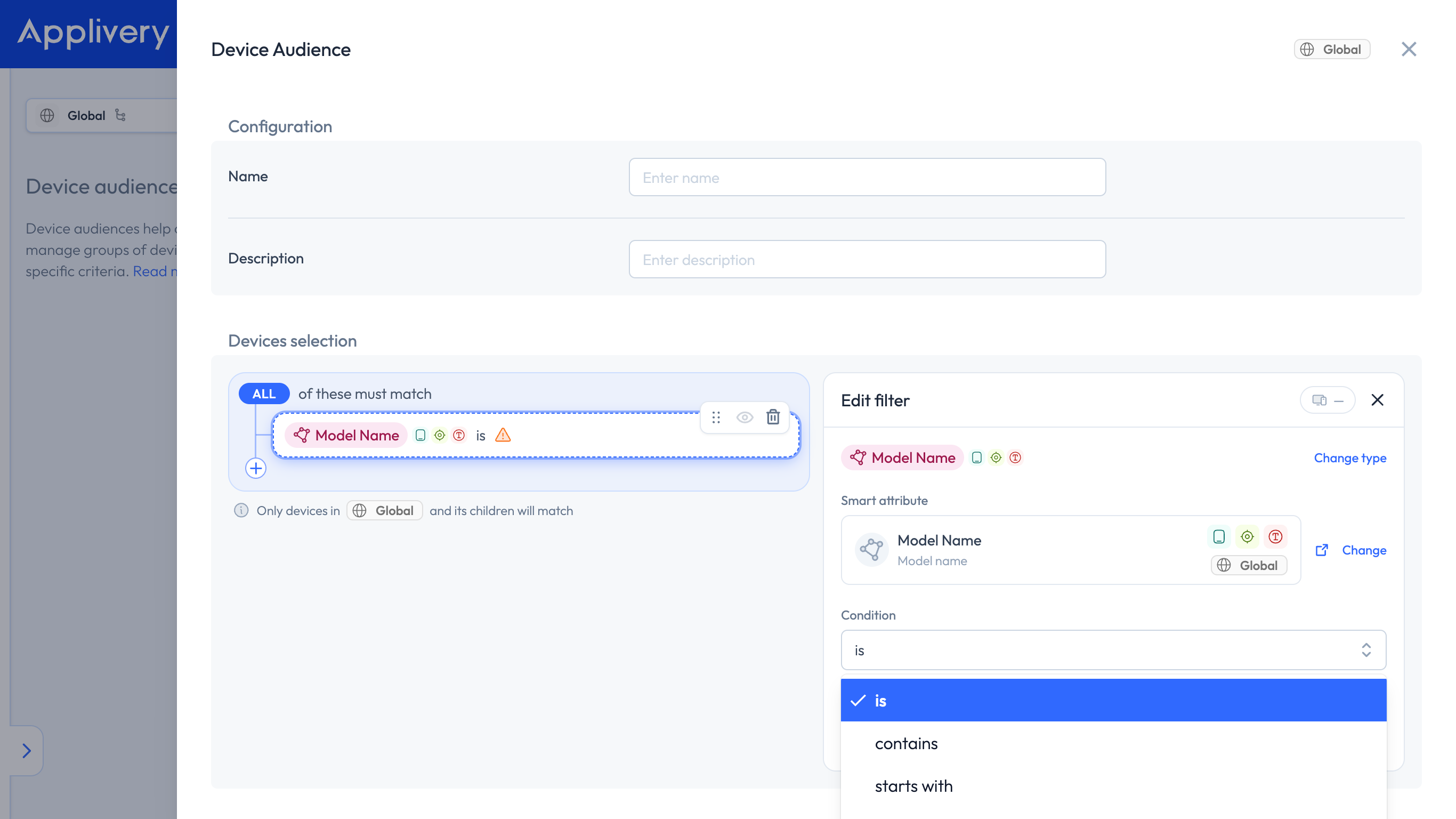
Smart attribute
Matches Devices by the value of a Smart Attribute. Pick the attribute first: the options in the Condition dropdown depend on the attribute's type (string, number, date, boolean, or enum), so not every attribute offers the same operators.
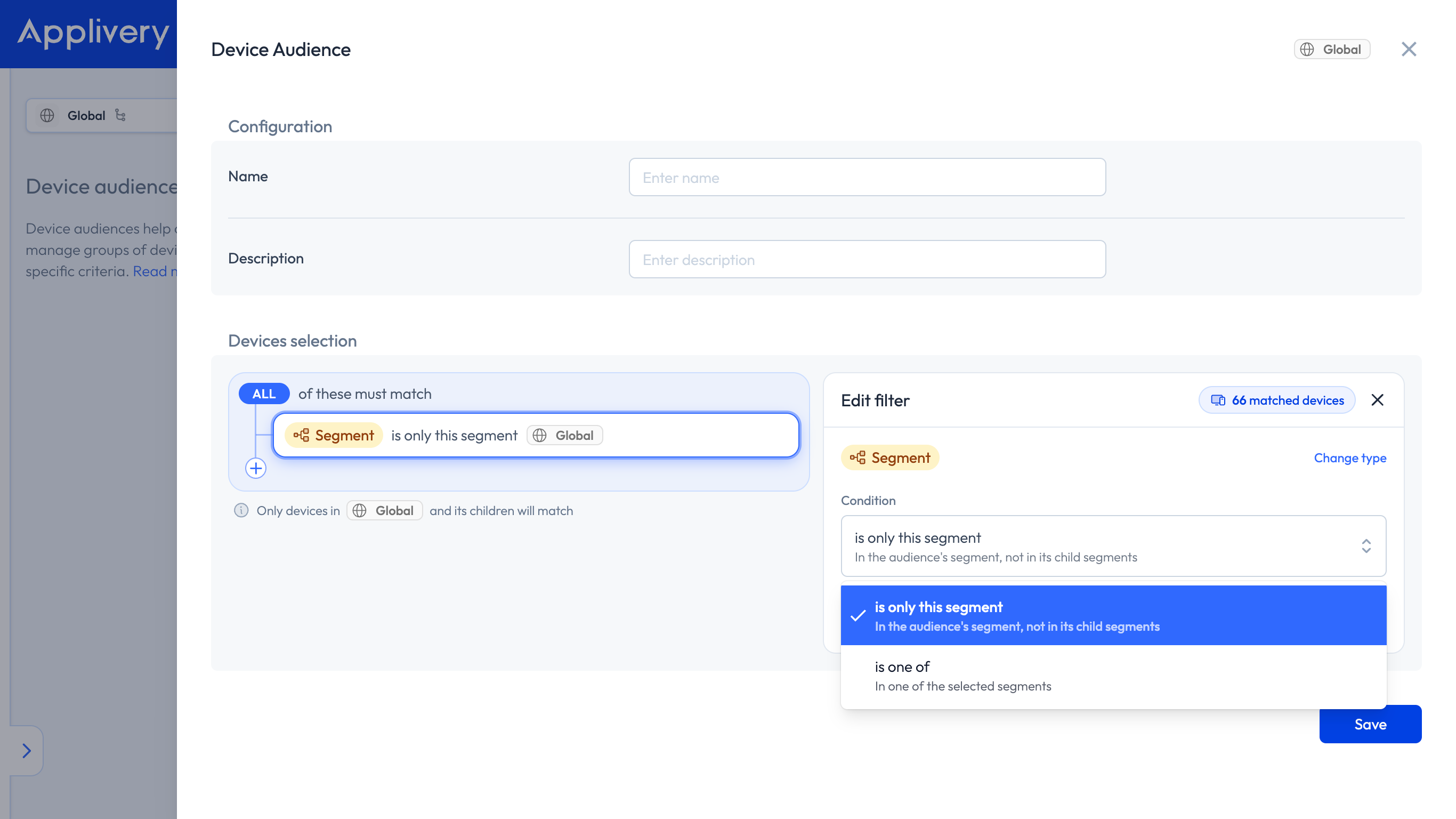
Segment
Matches Devices by the Segment they belong to.
is only this segment: the Device is in this segment itself, not only in one of its child segments.
is one of: the Device is in one of the selected segments.
Examples
Devices with a tag
A simple group of Devices for a location or platform:
Root ALL
- Device tag is any of
madrid
- Device tag is any of
Rollout with an exclusion
Target Devices tagged for a rollout, but keep VIP Devices out:
Root ALL
Device tag is any of
shippingDevice tag is none of
vip
You can use the same pattern with Device is none of to keep specific Devices out of the audience.
Mixed logic with Segment
Match a specific employee's Devices, all Android-tagged Devices, or a list of Apple Devices that are directly in the Global segment:
Root ANY
Device employee is one of
user@company.comDevice tag is any of
androidNested ALL
Device (Apple) is one of [your list of Devices]
Segment is only this segment
Global
Migrated audiences
Device Audiences created before the filter tree editor are migrated automatically. You don't need to rebuild them.
When you open a migrated audience, its membership appears as filters in the Devices selection — for example, Device tag is windows under the Windows segment scope. The Matched devices preview works the same as for new audiences.
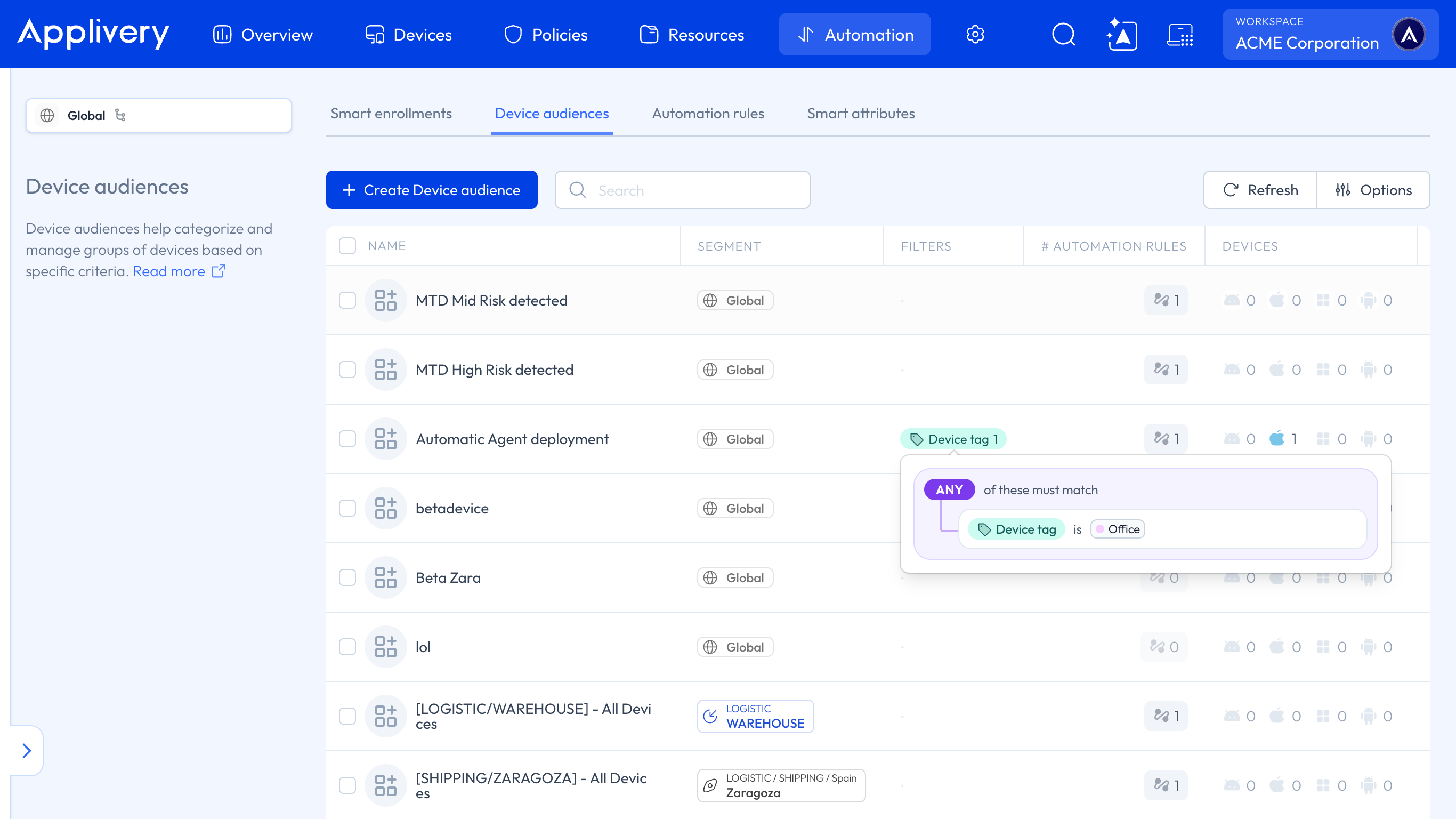
The migration keeps the audience's original membership. If an audience is critical, check the Matched devices preview the first time you open it.
Device Audiences and Automation Rules
Automation Rules still select a Device Audience exactly as before, and so do other features that use an audience, such as Smart Attribute assignment. There's no new step to configure inside Automation Rules: you build and update the membership in the audience itself, and every rule that uses it picks up the change.
Device Audiences are dynamic — once created, they continuously update based on the most recent device and employee data. This keeps your Policies and configurations aligned with your organization's current structure.