

In corporate environments where Android Devices are centrally managed, applying restrictions is a common practice to reinforce security and ensure compliance with company Policies. However, when users attempt to access a blocked feature without understanding why, the experience can become confusing or frustrating. Clear, personalized messages help guide the user in real time, improving communication without compromising the security controls established by the organization.
Support messages types
Once in the Applivery Dashboard, go to any of your Policies. From the left side menu, locate the Lock screen, where you will find the options that allow you to configure the different message types associated with blocked features.
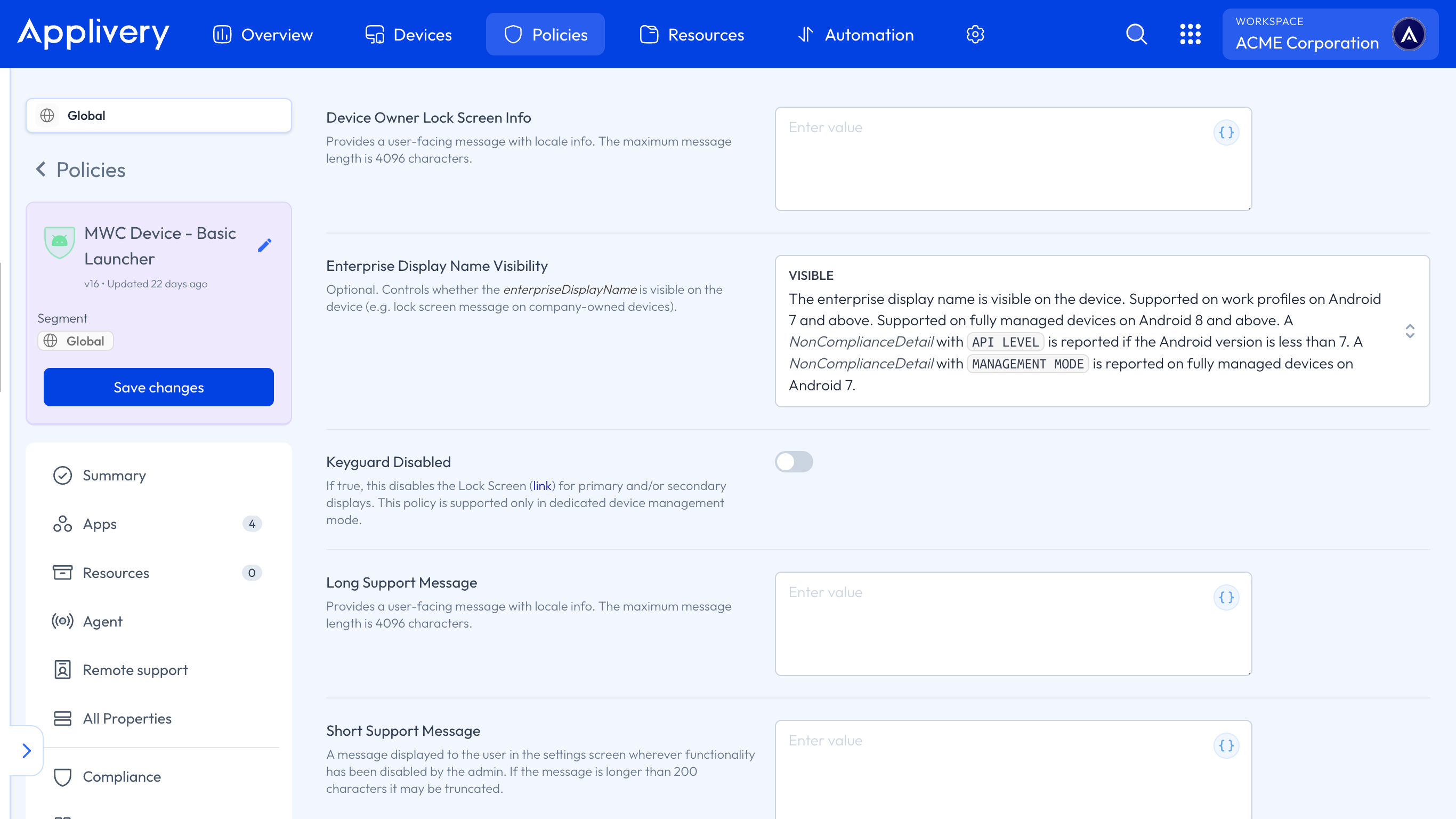
The available options are:
Device Owner Lock Screen Info: Allows you to display customized information directly on the lock screen. It is useful for showing instructions, company identification, or contact details in case of loss or support needs while the Device is locked.
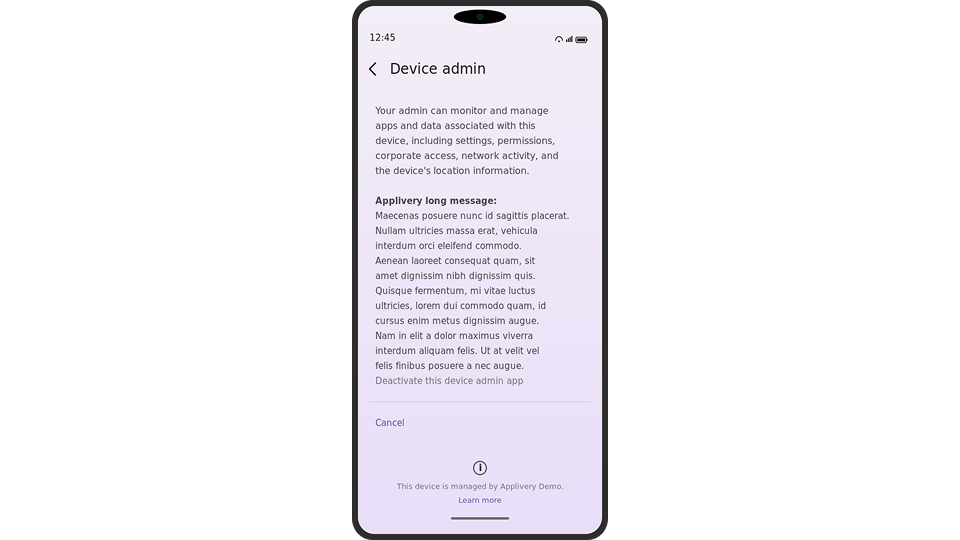
Long Support Message: An extended message intended for cases where the operating system allows longer descriptions. It is ideal for more detailed explanations or support guidance, such as instructions for unlocking issues or steps to follow when a configuration screen is restricted by policy. This message can include contextual information or step-by-step instructions (e.g., “If you are unable to proceed, contact Applivery technical support…”).
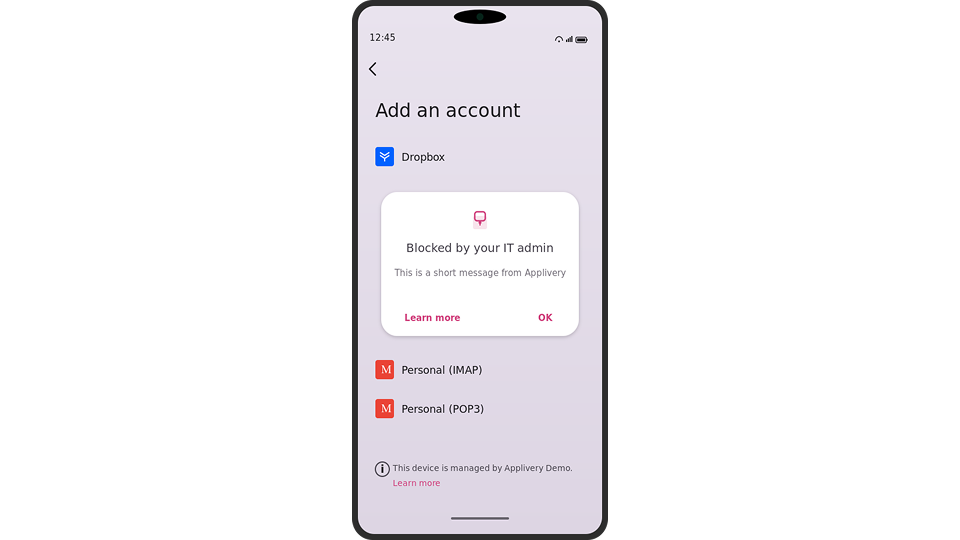
- Short Support Message: A brief message shown when only limited text can be displayed on the lock screen. It is commonly used for quick instructions or essential contact details when the Device only supports minimal information (e.g., “Device property of Applivery. Contact: support@applivery.com”).
Managing personalized messages for restricted features not only improves the user experience but also strengthens internal communication and support. Offering clear explanations—whether short or detailed—helps users understand the restrictions applied, reduces uncertainty, and provides direct guidance on what to do next. This proactive communication reduces incidents, speeds up support resolution, and reinforces trust in the Device management strategy.
Personalized support messages are key to a positive user experience when managing Android Device restrictions.
Thanks to Applivery’s tools, it is possible to transform a potentially frustrating moment into an opportunity to inform, guide, and support the user while maintaining the highest level of security and compliance across managed Android Devices.
AOSP Devices Support
All message types work the same on AOSP — same configuration, same behavior. Because the Applivery DPC runs as Device Owner across the full Device, messages are shown at Device level — there is no Work Profile context.