
Favicon

You are here: Home > Device Management > Android > App Management > Managed App Properties

How to Configure Managed App Properties on Android

Configure managed App properties on Android Devices using Applivery MDM — customize App behavior remotely and ensure a consistent user experience for IT admins.

5 min read

TL;DR

Configure Android app settings remotely with Applivery's Managed Properties feature for consistent and secure user experiences.

When managing Android Devices with Applivery, it’s not just about installing or blocking Apps. Many applications allow you to adjust their behavior through what are known as Managed Properties. These properties let you preconfigure certain aspects of Apps (such as URLs, permissions, default behavior, etc.) even before the user opens them for the first time. Everything is done from the Applivery Dashboard—no need to touch the Device.

What are Managed Properties?

Managed Properties are configuration options that an App offers when it is managed through an MDM system. For example, an email App might allow you to preconfigure the server, port, and whether SSL is required.

Applivery automatically detects these properties in compatible Apps and allows you to modify them from the Dashboard.

How to configure them?

1
Navigate to Policies

Once in the Applivery Dashboard, go to any of your Policies 1. Select the Apps 2 section in the left-hand menu, and click the + Add App button 3.
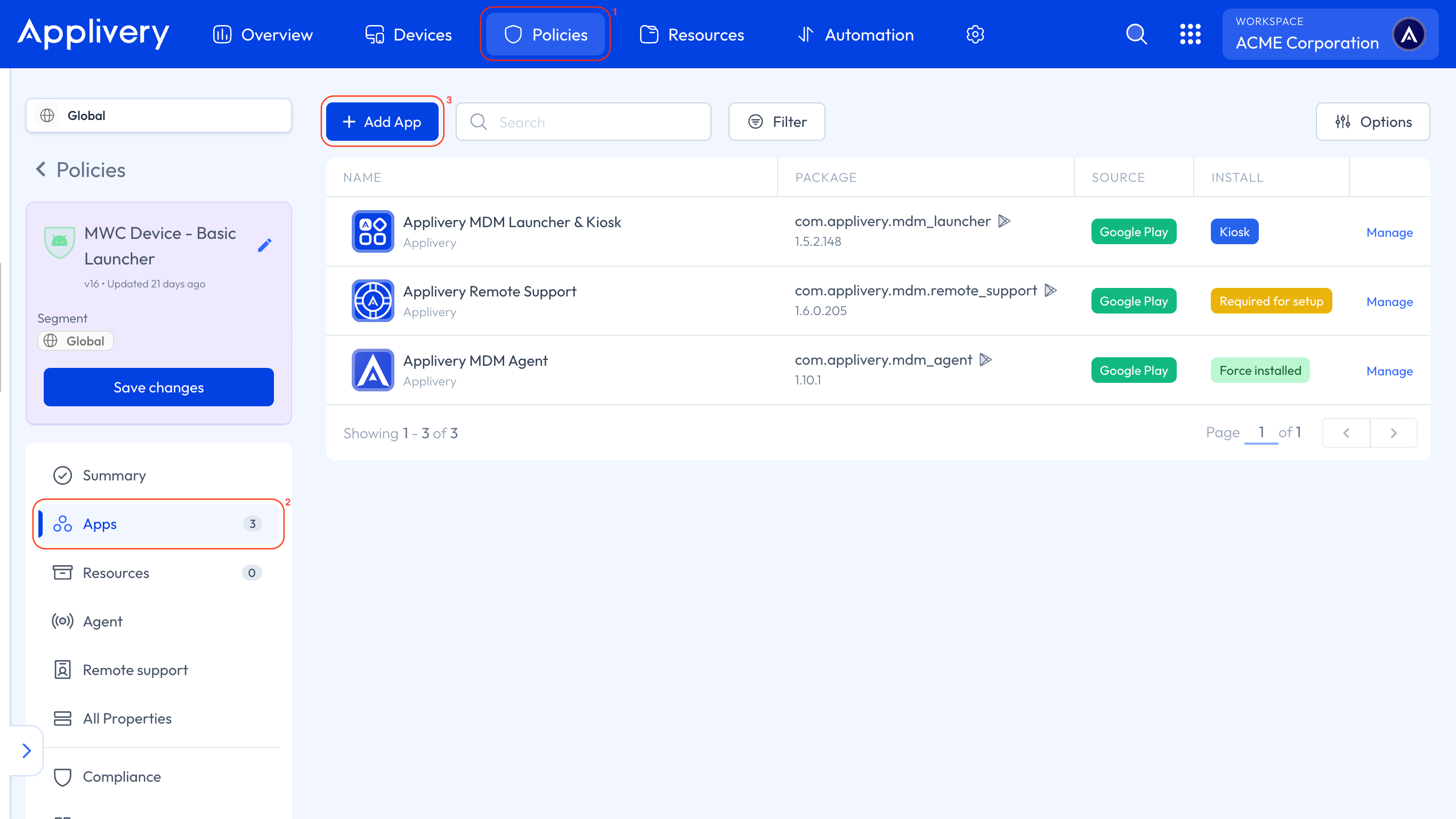
add app
2
Choose an App

Choose an App 4 from the list, and when you click on it, a side menu will appear displaying all the configurable properties available 5.

3
Configure Managed Properties

Simply fill in the fields based on the settings you want to apply.

4
Save and Deploy

Once you’re done, click the Save changes button 6 and deploy the Policy to the selected group of Devices—the settings will be applied automatically.
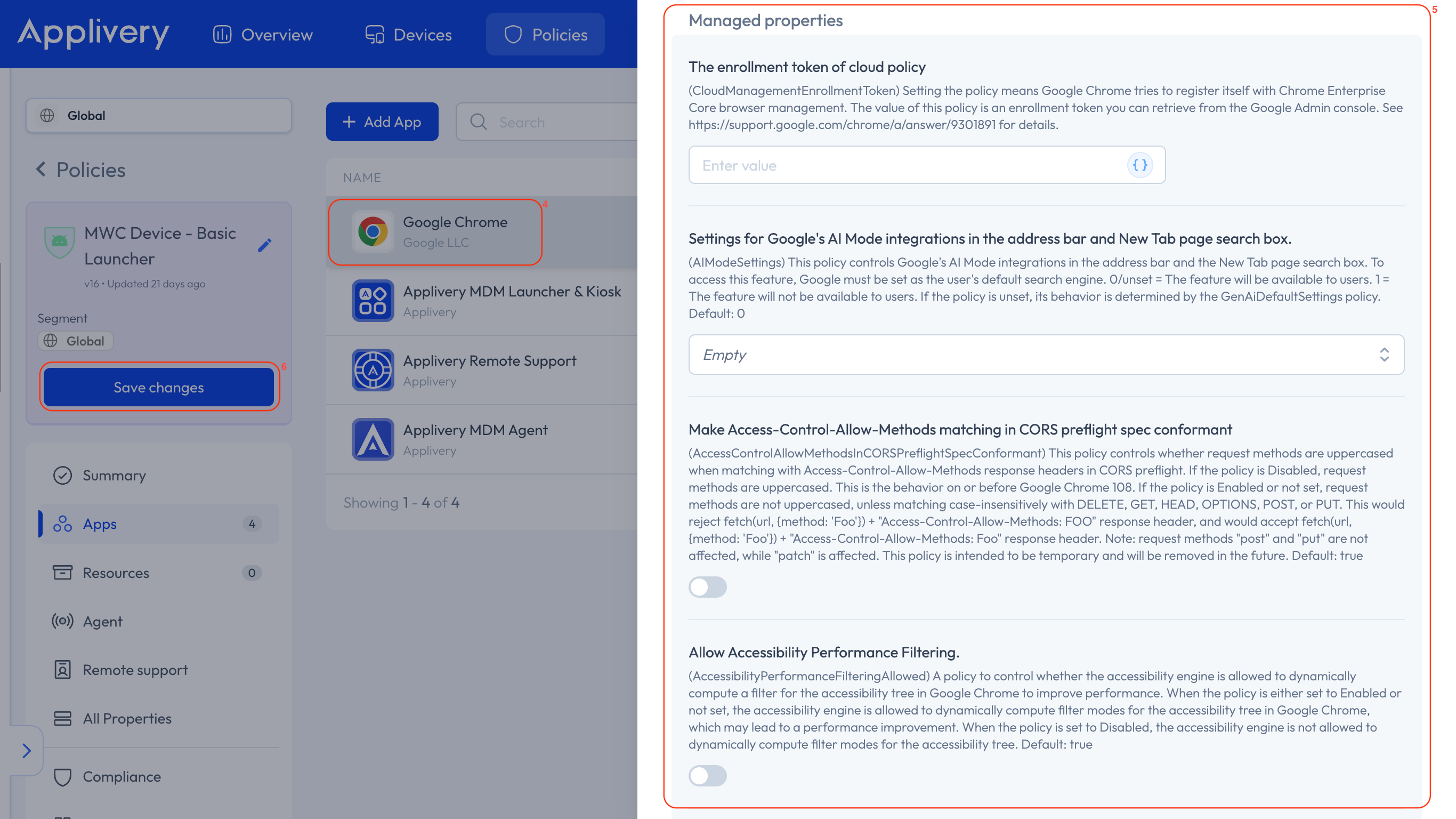
managed properties

Managed Properties are a powerful tool for customizing how Apps behave on managed Devices, without relying on the end user. They help save time, reduce configuration errors, and ensure a more consistent and secure user experience. All from the Applivery Dashboard, with just a few clicks.

AOSP Devices Support

Managed App properties are fully supported on AOSP — same steps, same experience. The Applivery DPC applies them at install time using DevicePolicyManager.setApplicationRestrictions(...), no Google services required. Any App that exposes a managed configuration schema (<restrictions> in its manifest) works the same way.

Key Takeaways

  • Managed Properties allow remote configuration of app settings.
  • Applivery simplifies the configuration of Managed Properties.
  • Managed Properties ensure consistent app behavior across devices.
  • Configuration is done through the Applivery portal, no device interaction needed.

Managed Properties are configuration options that allow you to preconfigure an App's behavior, such as URLs or permissions, when managed through an MDM system like Applivery. This is done from the Applivery Dashboard before the user opens the app.

From the Applivery Dashboard, go to Policies, select Apps, and click "+ Add App". Choose an App, and a side menu will display its configurable properties. Fill them in, save changes, and deploy the Policy.

You can adjust various aspects like URLs, permissions, and default behavior. For example, an email app might allow preconfiguring server details, port, or SSL requirements.

They allow customizing app behavior without user interaction, saving time, reducing configuration errors, and ensuring a consistent, secure user experience across managed devices.

Yes, Managed Properties are fully supported on AOSP devices. Applivery's DPC applies them at install time using `DevicePolicyManager.setApplicationRestrictions(...)`, without requiring Google services.

Managed Properties are configured directly from the Applivery Dashboard, under the Policies section for each specific App. This eliminates the need to interact with the physical device.

Managed Properties are configuration options that an App offers when it is managed through an MDM system. For example, an email App might allow you to preconfigure the server, port, and whether SSL is required.

Read full answer

Once in the Applivery Dashboard , go to any of your Policies 1 . Select the Apps 2 section in the left-hand menu, and click the + Add App button 3 .

Read full answer

Last updated: June 9, 2026