
Favicon

You are here: Home > Device Management > Windows > Get Started > Delete Inactive User Profiles

Automatically Delete Inactive User Profiles

Automatically delete inactive User profiles on Windows Devices with Applivery to improve system performance and reduce storage consumption.

3 min read

TL;DR

Automatically delete inactive Windows user profiles to optimize system performance and storage using Applivery's device management policies.

Windows User Profile Management includes a setting that allows admins to automatically delete user profiles that have been inactive for a specified number of days upon system restart. This feature helps organizations maintain cleaner systems by removing old, unused profiles, which can reduce storage consumption and improve overall system performance.

When enabled, the User Profile Service will check all profiles on the Device during the next restart and delete those that have not been accessed within the configured time frame, measured in 24-hour periods since their last use. This automatic cleanup ensures that only active users maintain profiles on the system, reducing clutter and potential security risks associated with stale profiles.

If this Policy is disabled or not configured, user profiles will remain unchanged, meaning all profiles, regardless of activity, will persist on the system.

In managed environments, this Policy can be centrally configured and deployed across Windows Devices, enabling IT teams to enforce consistent user profile maintenance and optimize device health and storage management effectively.

Automatic deletion of inactive profiles

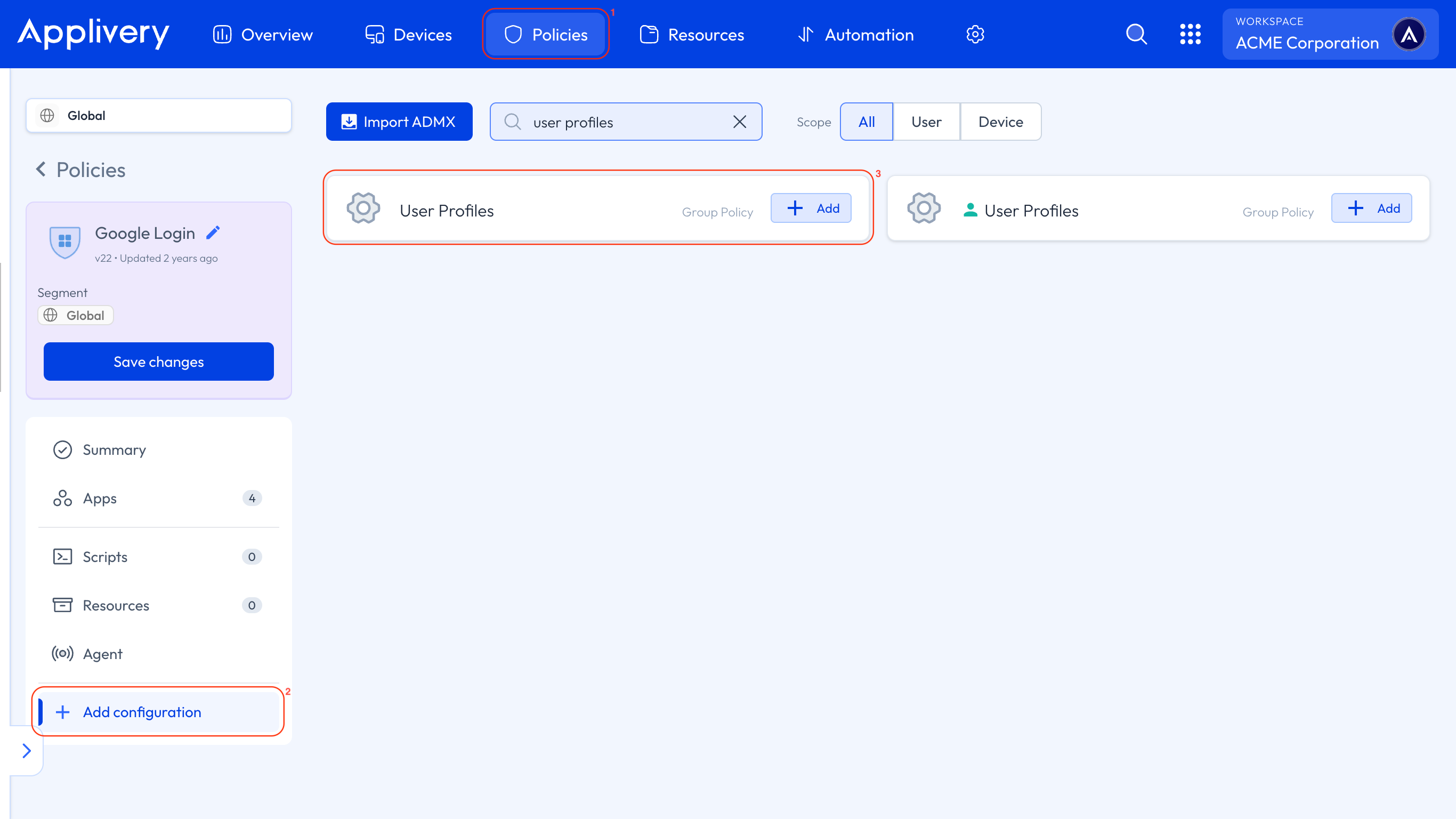
Once in the Applivery Dashboard, head to Policies 1. Choose the Policy where you want to add this configuration.

Next, in the left-hand menu, select + Add configuration 2, and search for User Profiles 3.
user profiles

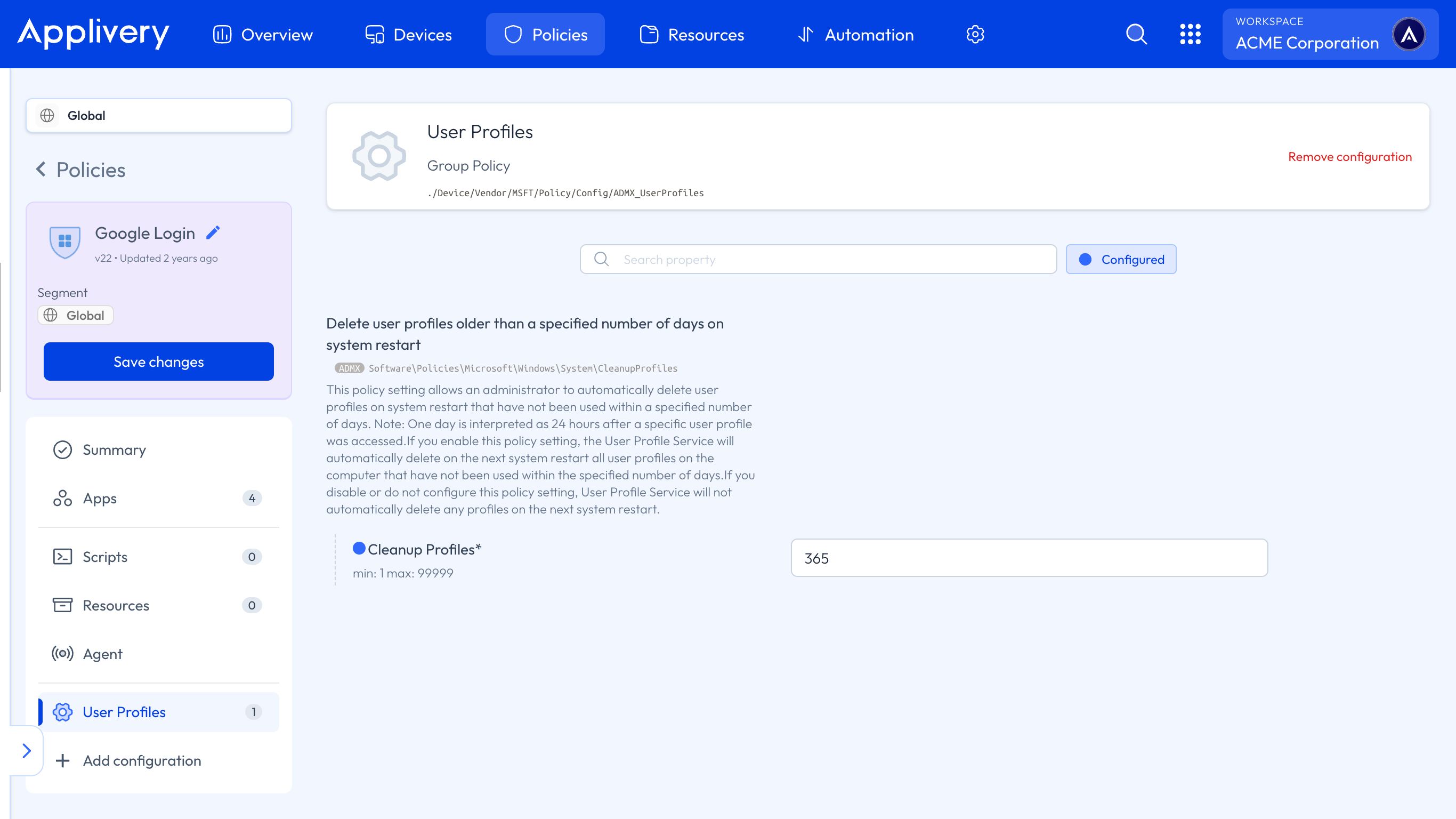
Locate the Delete user profiles older than a specified number of days on system restart > Cleanup Profiles setting, and specify the number of days after which inactive user profiles will be deleted automatically on system restart.
delete user profiles

Key Takeaways

  • Deleting inactive user profiles improves system performance.
  • Automatic deletion can be configured using Applivery's device management policies.
  • This process helps reduce storage consumption on Windows devices.
  • Regular profile maintenance enhances system security.

Deleting inactive user profiles removes old, unused profiles to reduce storage consumption and improve system performance.

Windows checks the last access time of each profile and considers it inactive if not accessed within the configured time frame (in days).

If disabled, all user profiles, regardless of activity, will remain on the system.

In Applivery, go to Device Management > Policies, add a User Profiles configuration, and set the 'Cleanup Profiles' setting.

The inactivity period is measured in 24-hour periods (days) since the profile's last use.

Deleting old profiles reduces clutter, potential security risks, and optimizes device storage and performance.

Navigate to Device Management > Policies, add a User Profiles configuration, and specify the number of days for the 'Cleanup Profiles' setting.

Last updated: March 24, 2026