
Favicon

You are here: Home > Device Management > Windows > Get Started > Wallpaper Configuration

How to Configure Custom Wallpaper for Corporate Branding

Configure custom desktop and lock screen wallpapers on Windows Devices using Applivery Policies to reinforce corporate branding.

5 min read

TL;DR

Configure custom Windows wallpapers on company devices using Applivery to reinforce corporate branding by setting image URLs and enabling EDU policies.

Customizing the desktop wallpaper is often seen as a way to reinforce corporate branding on Devices managed by the organization. Windows wallpaper settings allow businesses to ensure that every company-owned device displays the enterprise’s logo or trademark.

Administrators can configure the wallpaper with the organization’s logo or any image they choose and apply it to an entire fleet of Devices. This customization also allows them to set wallpapers for all users on a Device and decide if they should be updated periodically.

Configure a wallpaper

1
Personalization

Once in the Applivery Dashboard, head to Policies 1. Choose the Policy where you want to add this configuration.

Next, in the left-hand menu, select + Add configuration 2, and search for Personalization 3.
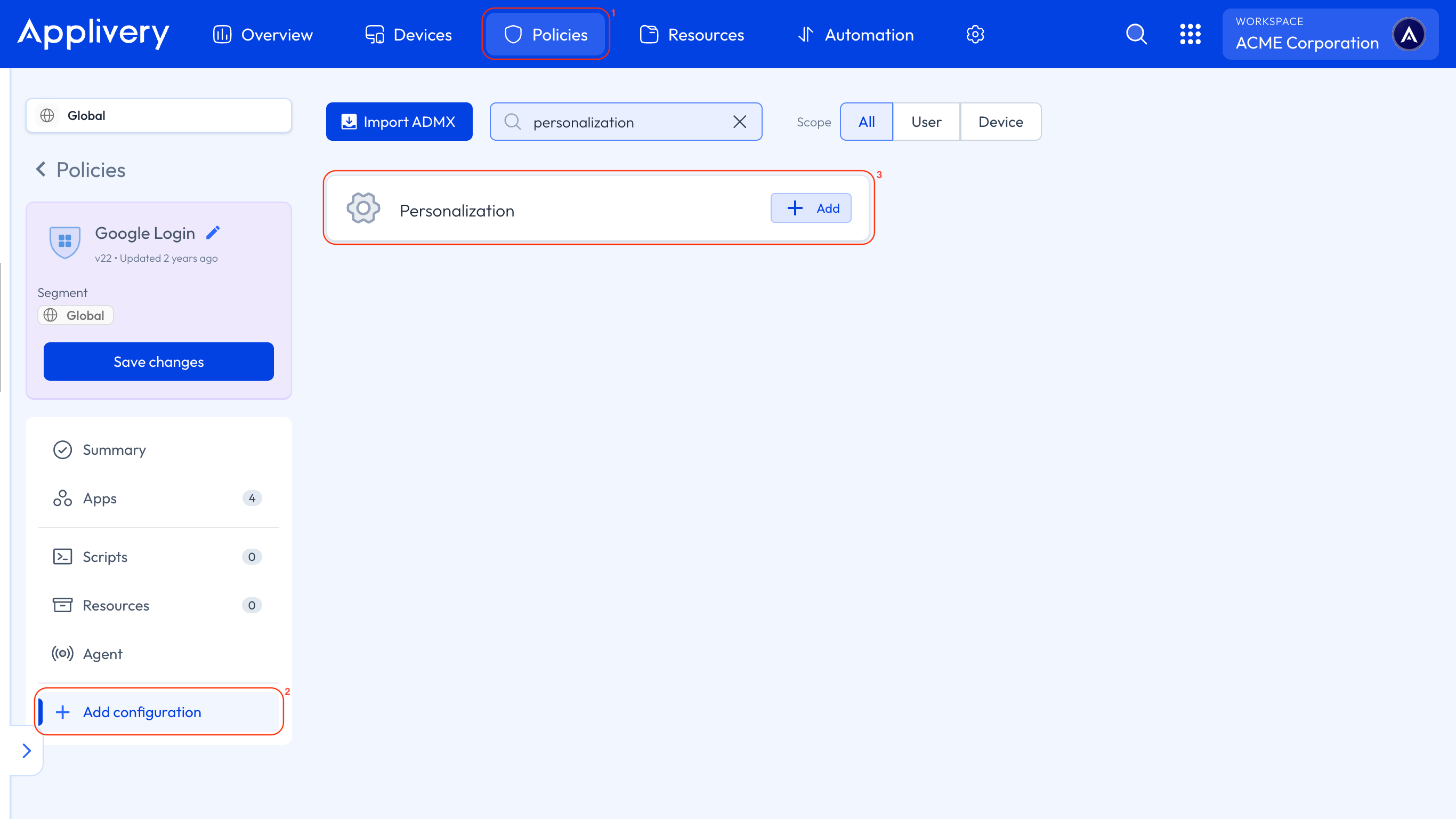
personalization

Locate the Desktop Image URL and Lock Screen Image URL settings to configure wallpapers for the desktop and lock screen. Add an HTTP or HTTPS URL pointing to a .jpg, .jpeg, or .png image file.
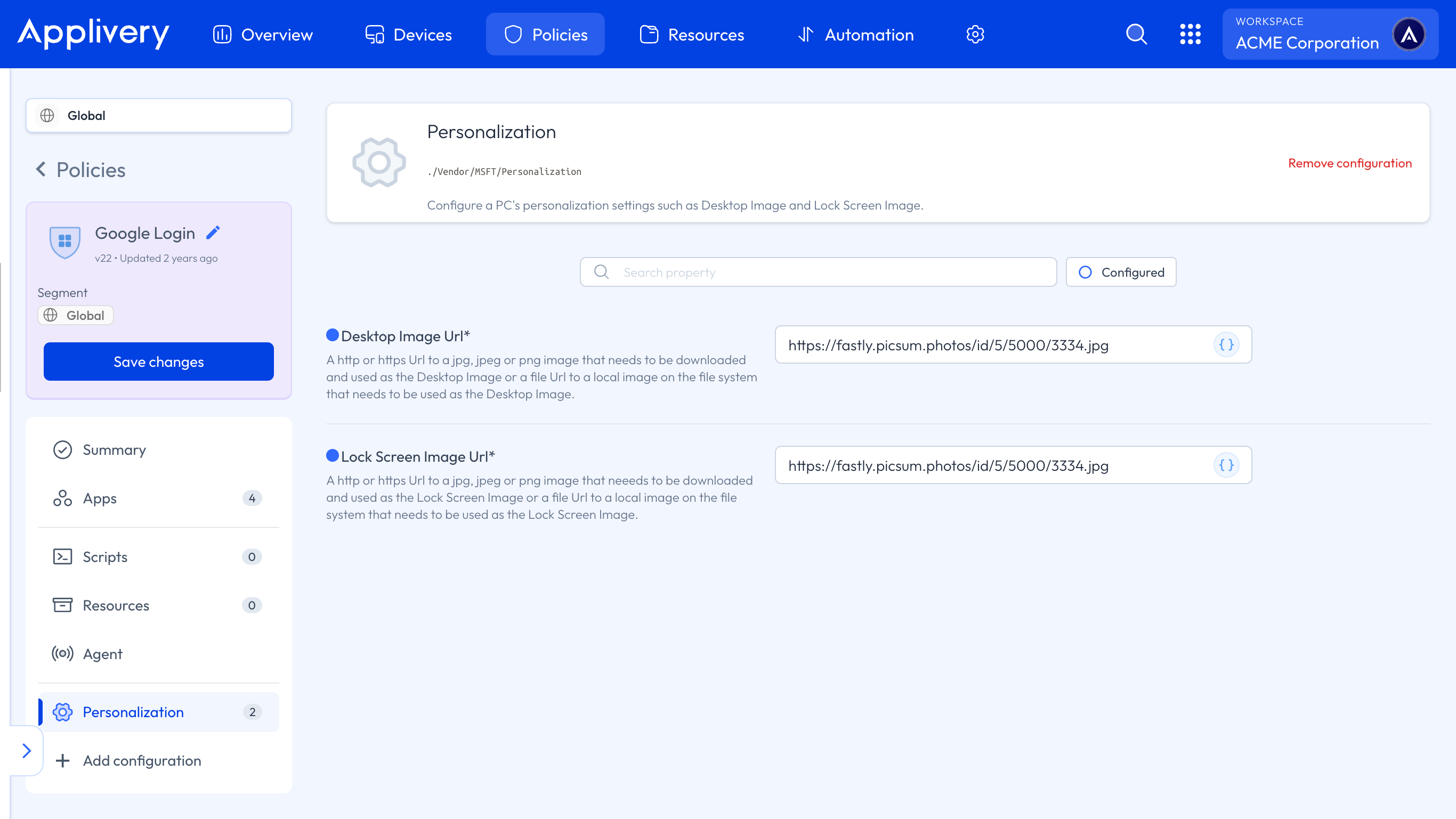
personalization settings
2
Logon

Now, in the left-hand menu, select + Add configuration 4, and search for Logon 5.
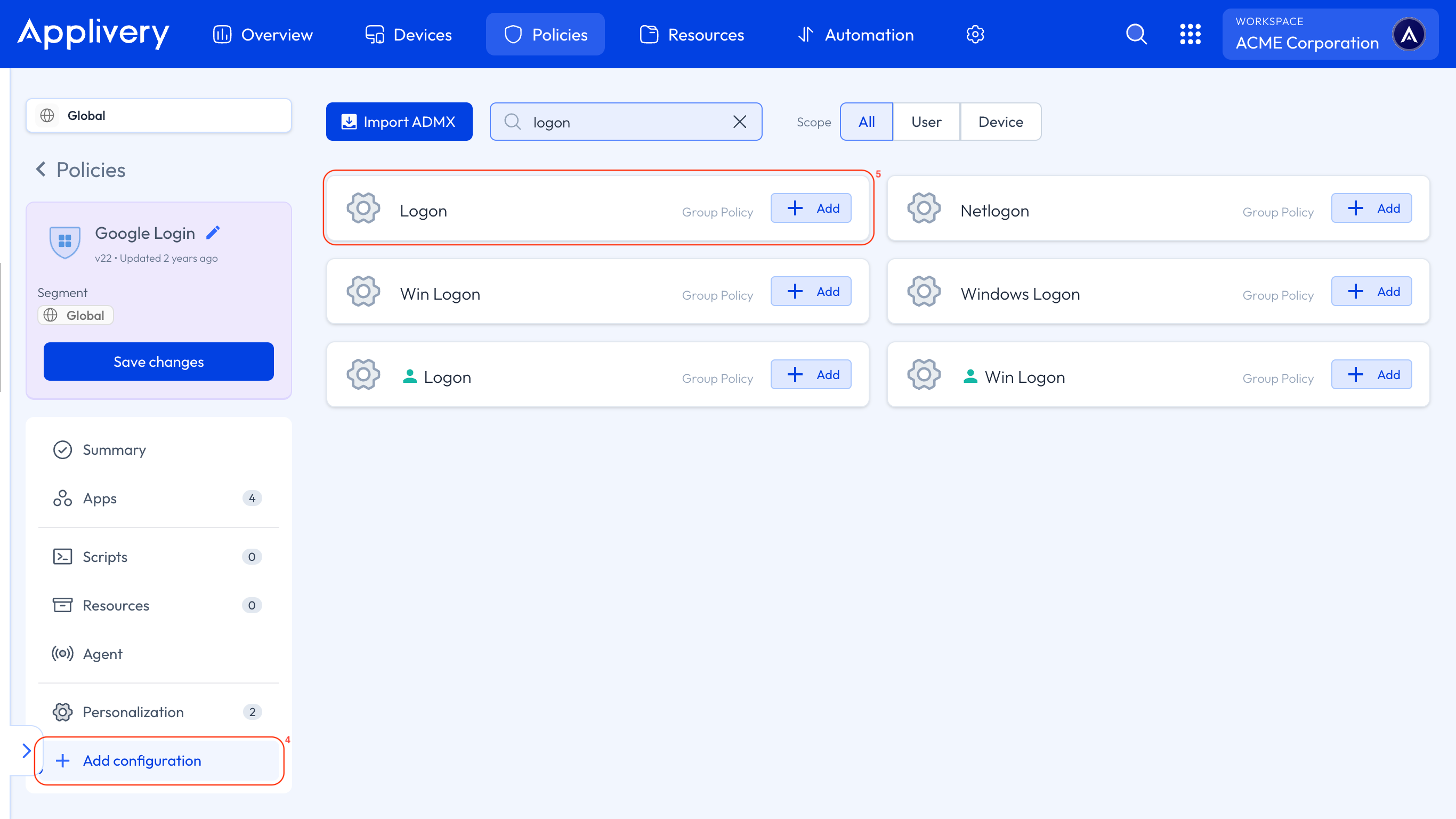
logon

Locate the Always use custom logon background setting and enable it to ensure the custom desktop and lock screen wallpapers you configure are applied consistently.

This setting enforces the use of your specified images, overriding default or user-chosen backgrounds.
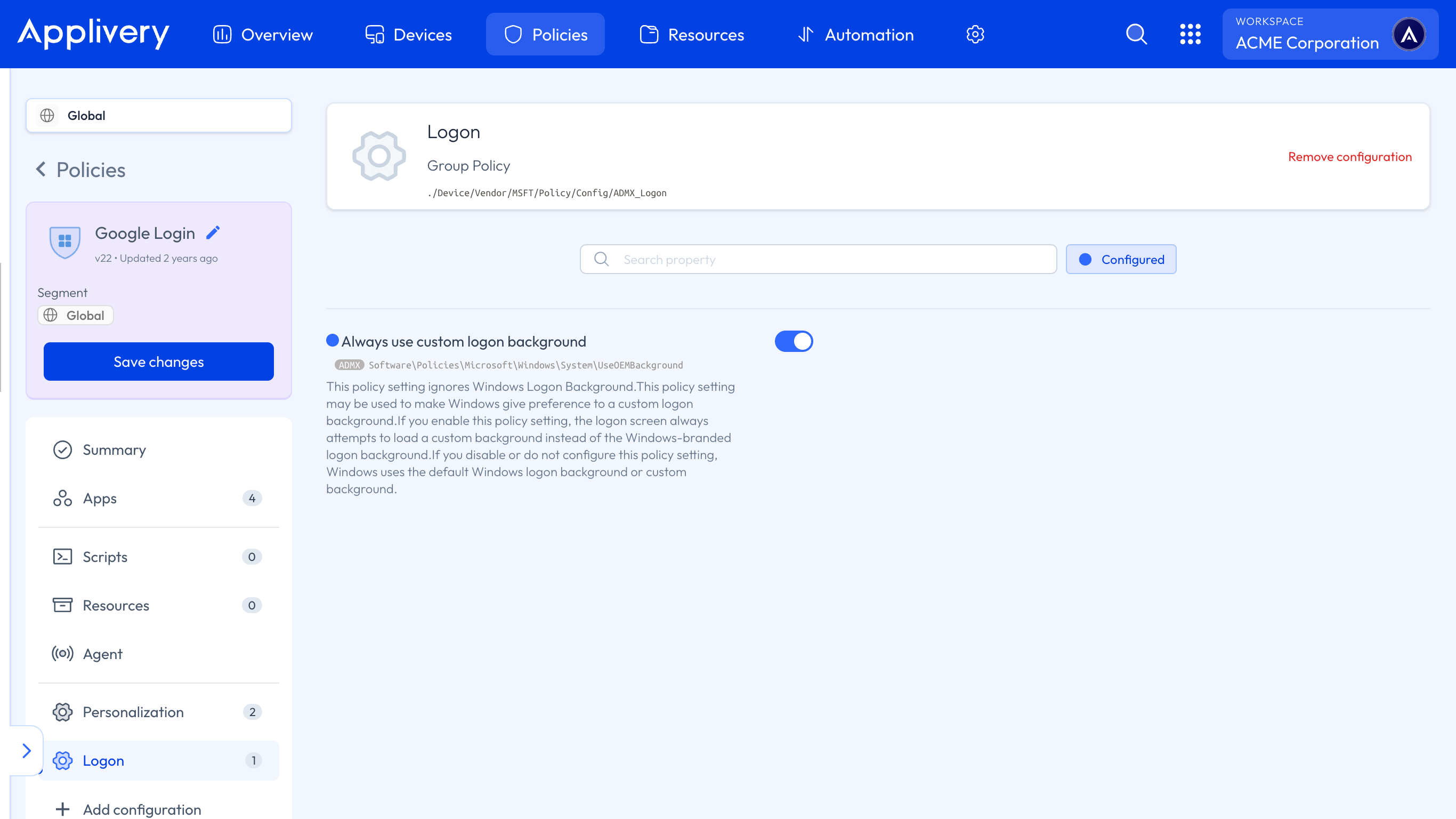
always use custom logon background
3
Shared PC

Now, in the left-hand menu, select + Add configuration 6, and search for Shared PC 7.
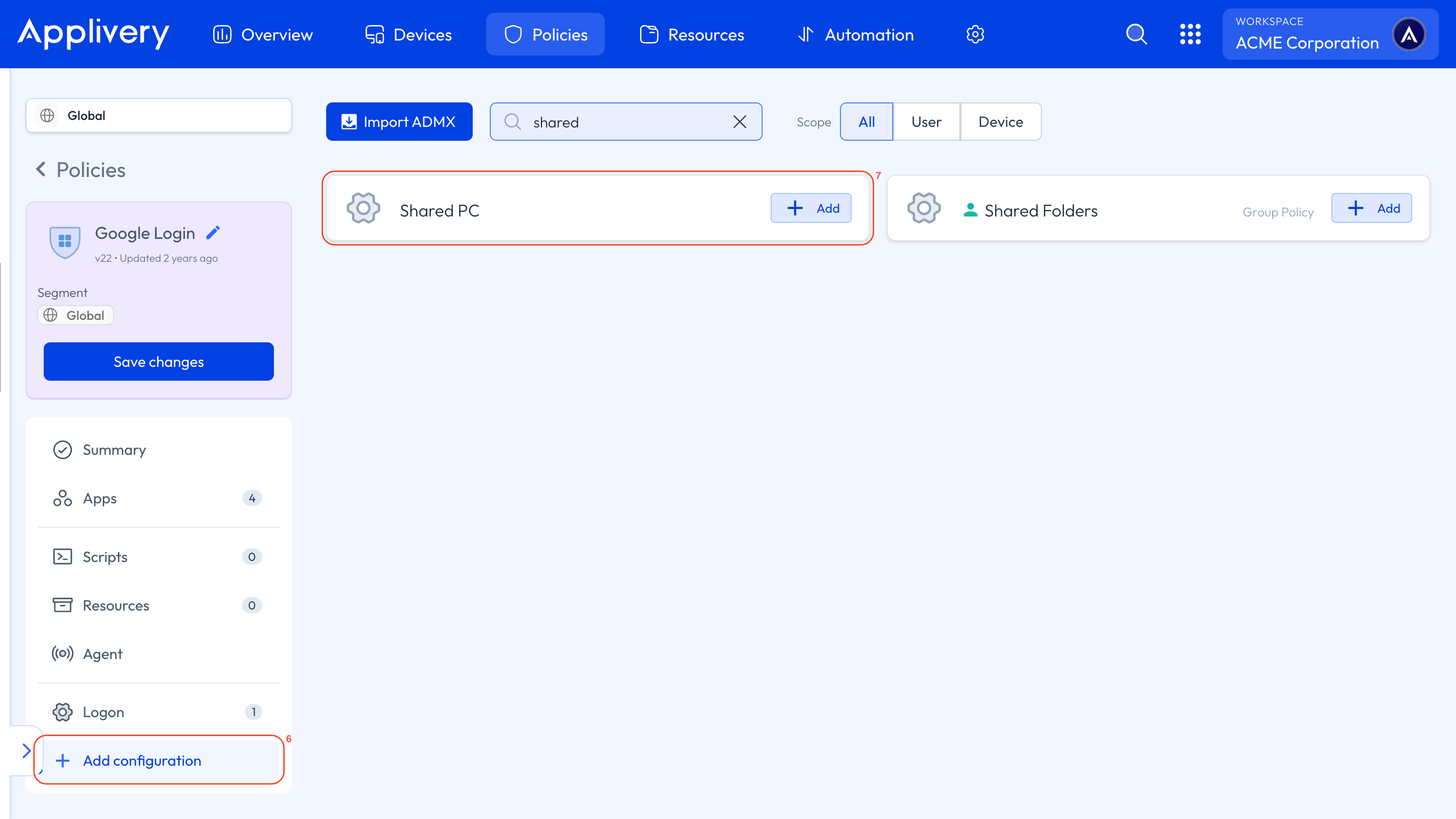
shared pc

To ensure custom desktop and lock screen wallpapers are properly enforced on Windows Devices, you must enable the Set EDU Policies setting.

Windows applies wallpaper restrictions through EDU policy controls. If this setting is not enabled, the wallpaper configuration may not be applied consistently or could be overridden by users.
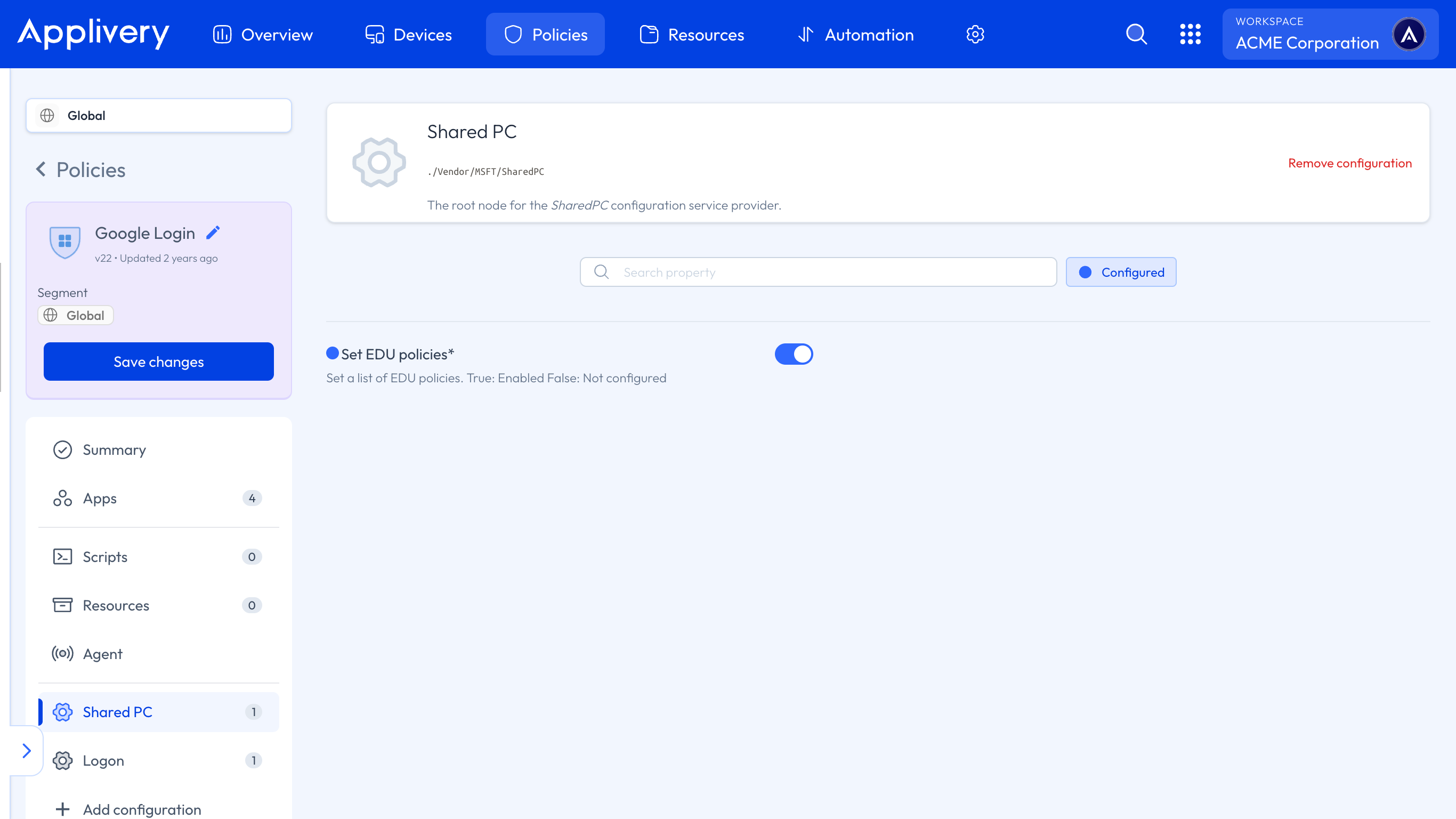
set edu Policies
Note

This configuration is only required for Windows Devices running Pro licenses.

Key Takeaways

  • Custom wallpapers reinforce corporate branding on managed devices.
  • Applivery allows administrators to configure desktop and lock screen wallpapers.
  • Enabling EDU policies is crucial for consistent wallpaper application on Windows Pro.
  • Using HTTP or HTTPS URLs, administrators can specify image files for wallpapers.

In the Applivery Dashboard, go to Policies, add a Personalization configuration, and specify the Desktop Image URL with an HTTP or HTTPS link to a .jpg, .jpeg, or .png image.

In the Applivery Dashboard, go to Policies, add a Personalization configuration, and specify the Lock Screen Image URL with an HTTP or HTTPS link to a .jpg, .jpeg, or .png image.

In the Applivery Dashboard, add a Logon configuration and enable the 'Always use custom logon background' setting to override default or user-chosen backgrounds.

For Windows devices, ensure the 'Set EDU policies' setting is enabled in the Shared PC configuration within Applivery to enforce wallpaper restrictions.

No, the 'Set EDU policies' configuration is only required for Windows devices running Pro licenses.

In the Applivery Dashboard, navigate to Policies, select '+ Add configuration' in the left-hand menu, and search for 'Personalization'.

The Desktop Image URL and Lock Screen Image URL settings support .jpg, .jpeg, and .png image formats.

In the Applivery Dashboard, navigate to Policies, select '+ Add configuration' in the left-hand menu, and search for 'Logon'.

Last updated: June 9, 2026