

Managing user accounts with the appropriate privilege levels is essential for maintaining both security and operational efficiency in corporate environments. Standard (non-administrator) users help reduce security risks by preventing unauthorized system-level changes, while still allowing employees to perform everyday tasks without restrictions.
Through Applivery, IT teams can automate the creation of these standard accounts across all managed macOS Devices, ensuring consistency, reducing manual work, and enforcing a strong least-privilege security model.
The Applivery Agent App for macOS must be enabled on the Device. You can learn more about it here.
To begin, learn how to create scripts by following this link
Assign a descriptive name to the script and copy and paste the following script into the editor, then adjust the necessary parameters:
USERNAME (
username): The short name of the account to be created.FULLNAME (
Full Name): The full display name of the user.PASSWORD (
password): The password that will be assigned to the user.
#!/bin/sh
export PATH=/usr/bin:/bin:/usr/sbin:/sbin

#User details
USERNAME="User"
FULLNAME="Full Name"
PASSWORD="Password"

# Create the user with the specified username, full name and password
sysadminctl -addUser "$USERNAME" -fullName "$FULLNAME" -password "$PASSWORD"
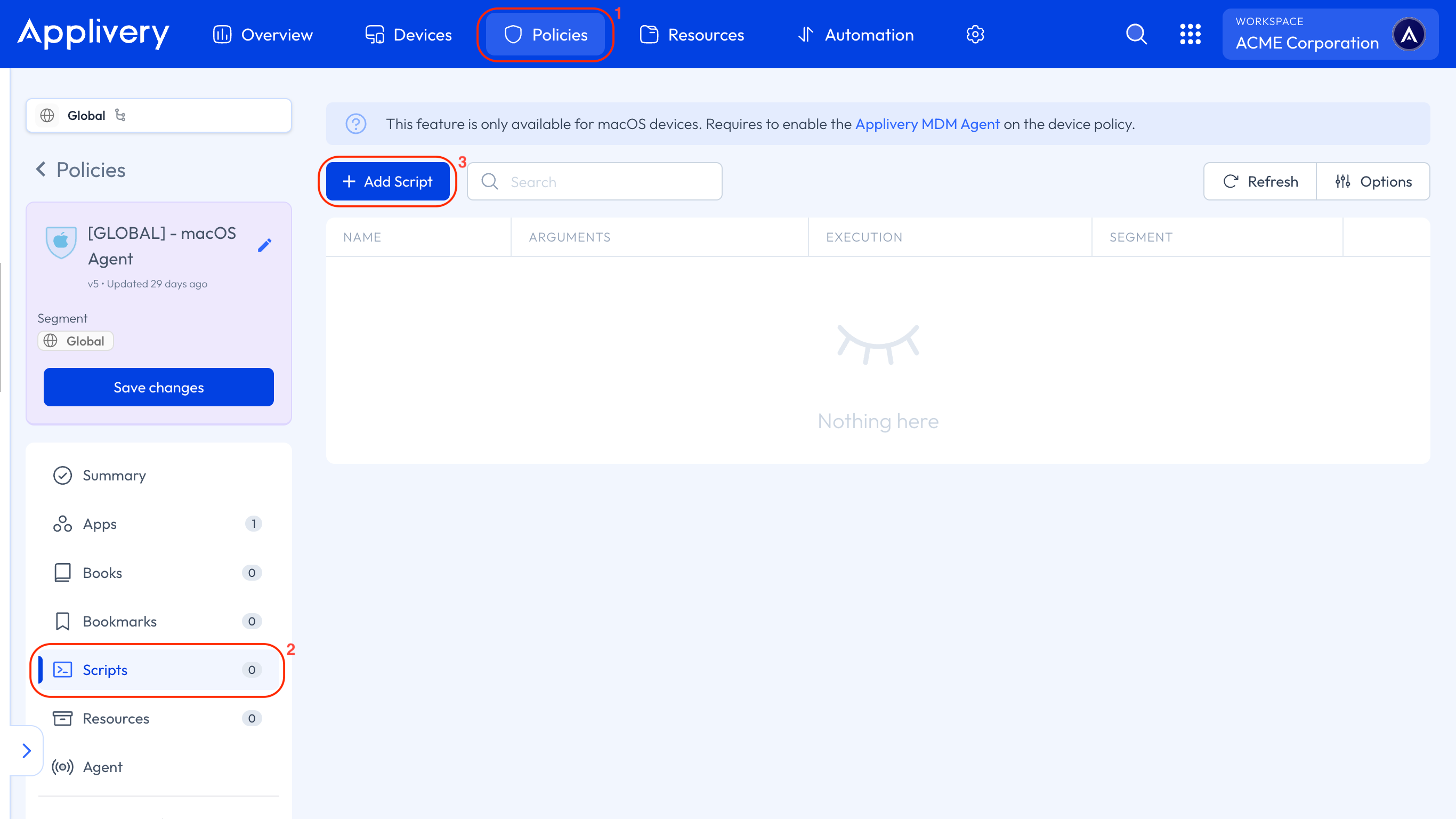
Next, go to any of your Policies 1 and select the Scripts 2 section from the left-hand menu. Click the + Add Script 3 button.
Next, select the script by typing its name, choose the execution method, and add any required arguments.
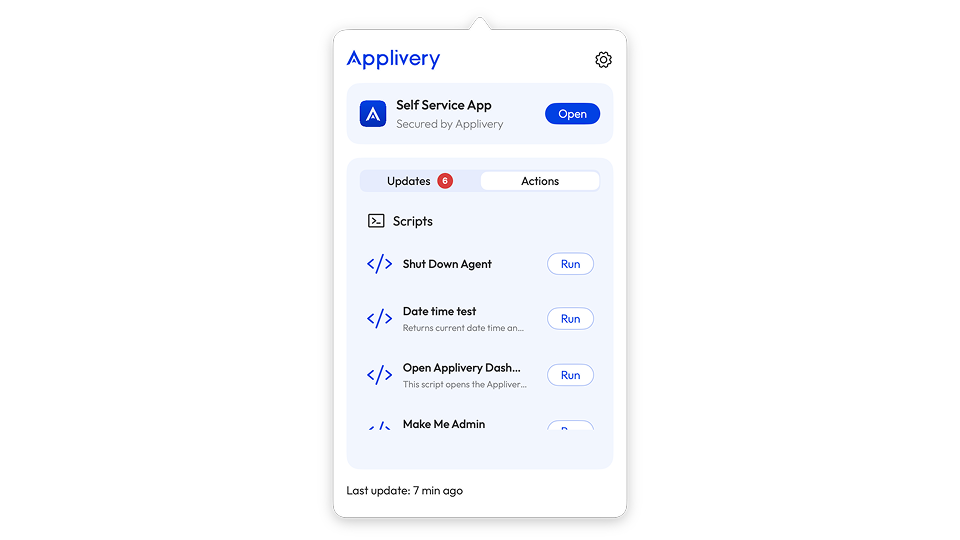
Depending on the selected execution method, the script will run automatically in Loop, or Once mode, or it can be manually triggered from the Actions section within the Applivery Agent when configured as On-demand.
Creating standard users with limited privileges is a recommended security practice that helps safeguard macOS Devices against unintended modifications or unauthorized access. Automating this process through Applivery ensures consistent configuration across the entire Device fleet, supports compliance with internal Policies, and minimizes operational overhead.
By leveraging Applivery’s scripting capabilities, IT teams can efficiently deploy standard user accounts at scale, maintain system integrity, and streamline the onboarding and management of macOS Devices. This approach offers a simple, reliable, and repeatable method to enforce least-privilege access across your organization.