
Favicon

You are here: Home > Device Management > Android > App Management > Configure Microsoft Defender

How to Configure Microsoft Defender Using Managed Properties

Configure Microsoft Defender for Android on managed devices using Applivery's Managed Properties — no user interaction required.

3 min read

TL;DR

Add Microsoft Defender to your Android Policy in Applivery, configure its Managed Properties, and deploy — Defender will be set up automatically on enrolled Devices before the User ever opens it.

Microsoft Defender for Android supports remote configuration through Managed Properties, which means you can control its behavior directly from the Applivery Dashboard — no user interaction required. The configuration is pushed to the Device before the User opens the App for the first time.

1
Add Microsoft Defender to your Policy

Once in the Applivery Dashboard, go to any of your Policies 1 or create a new one, and select the Apps 2 section from the left-hand menu. Click + Add App 3 and search for Microsoft Defender: Antivirus from the Managed Google Play tab.
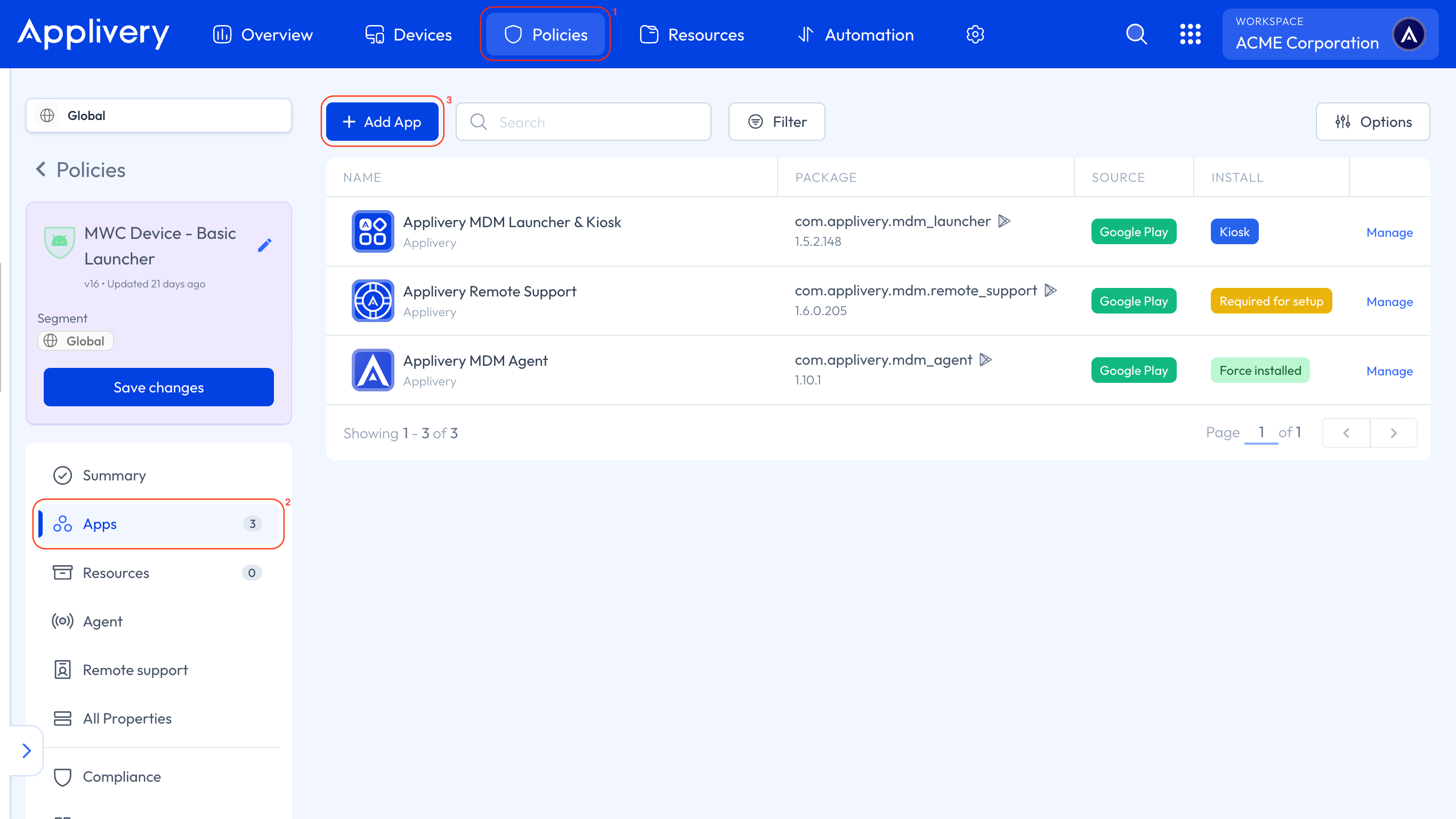
add app
2
Configure Managed Properties

Once you select the App, a side panel will open with all available Managed Properties.
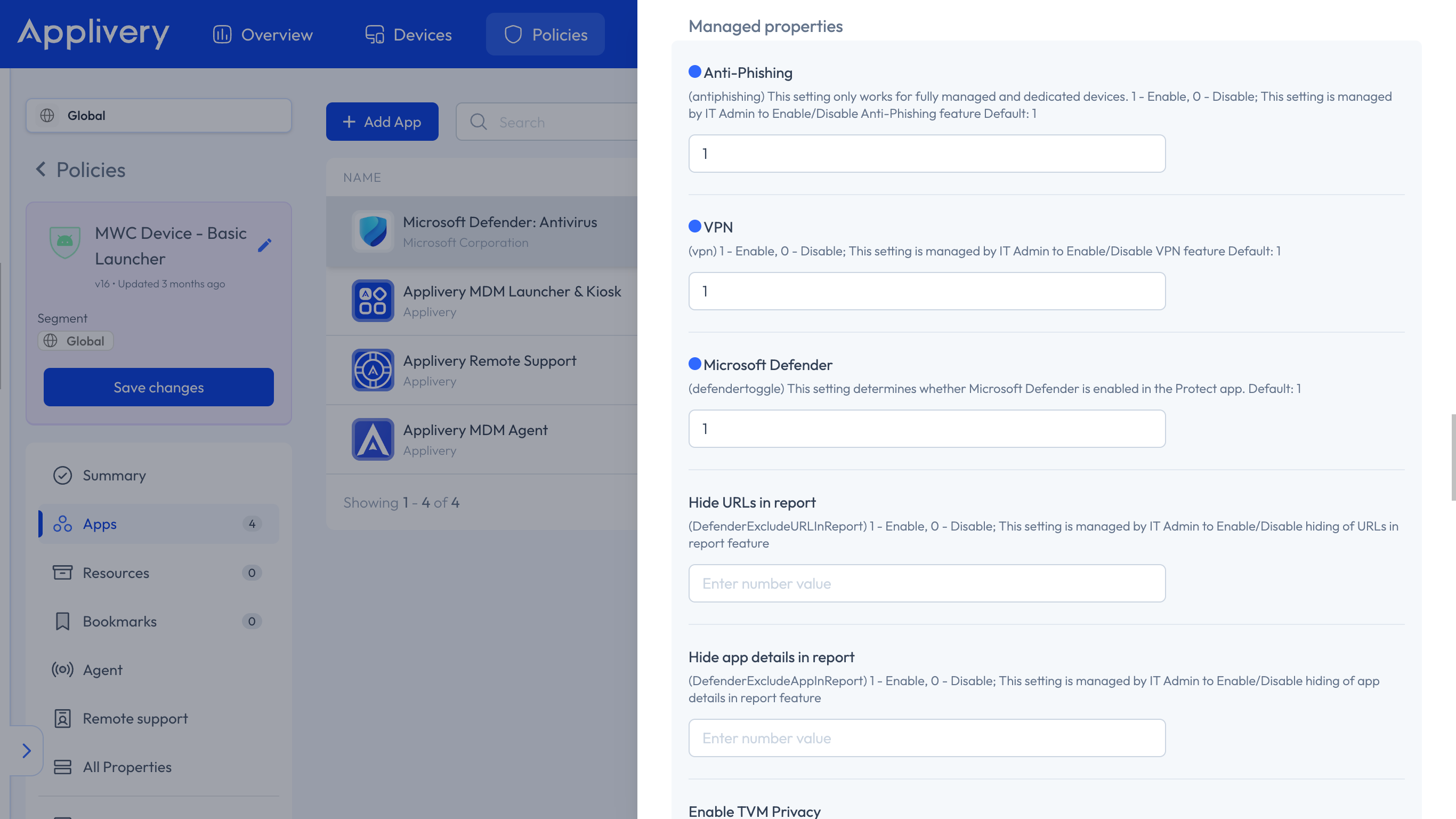
microsoft defender managed properties

Fill in the parameters according to your organization's needs:

Parameter

Default

Description

Anti-Phishing

1 (enabled)

Protects against malicious URLs. Available on Fully Managed and Dedicated Devices only.

VPN

1 (enabled)

Routes Device traffic through Defender for real-time threat inspection.

Microsoft Defender

1 (enabled)

Main protection toggle. Disabling this turns off all active Defender features.

Defender on Personal Profile (COPE)

Not configured

Extends Defender protection to the personal profile on COPE-enrolled Devices.

Hide URLs in Reports

Not configured

Prevents URLs from being logged in Defender's security reports.

Note

Keep Anti-Phishing and Defender Protection set to 1. Disabling either would leave Devices without active threat detection and phishing coverage.

Warning

Anti-Phishing and VPN protection only apply to Fully Managed and Dedicated Devices. On COPE Devices, use the Defender on Personal Profile setting to extend coverage to the personal profile.

3
Save and deploy

Click Save changes and deploy the Policy to your target Devices. Defender will be fully configured automatically — before the user opens the App for the first time.

Key Takeaways

  • Microsoft Defender for Android can be fully configured remotely through Applivery's Managed Properties, with no user interaction.
  • Anti-phishing and the main protection toggle should remain enabled (1) for effective security coverage.
  • Some settings — such as anti-phishing and VPN — only apply to Fully Managed and Dedicated Devices.
  • Configuration is pushed before the User opens the App for the first time.

You can configure Microsoft Defender for Android remotely through Managed Properties in the Applivery Dashboard. Add the app to a Policy, set the desired parameters, and save changes. The configuration is pushed before the user opens the app.

Key options include Anti-Phishing, VPN, the main Microsoft Defender toggle, Defender on Personal Profile for COPE devices, and Hide URLs in Reports. These control protection features and data logging.

Anti-Phishing and VPN protection are only available on Fully Managed and Dedicated Devices. For COPE devices, you need to enable "Defender on Personal Profile" to extend coverage.

To extend Defender protection to the personal profile on COPE-enrolled devices, set the "Defender on Personal Profile (COPE)" managed property. This ensures comprehensive coverage.

Disabling Anti-Phishing or the main Microsoft Defender toggle (`Microsoft Defender` parameter) will leave devices without active threat detection and phishing coverage, significantly reducing protection.

The configuration is pushed to the device and applied automatically before the user opens the Microsoft Defender app for the first time. No user interaction is required.

Yes, you can prevent URLs from being logged in Defender's security reports by configuring the "Hide URLs in Reports" managed property. This enhances privacy.

Last updated: May 27, 2026