

Applivery deploys BitLocker through the Applivery Windows Agent, which handles encryption and recovery-key escrow itself, with no need to join the Device to Entra ID or Active Directory. You encrypt the volume from a Policy, and the recovery key lands in the Applivery Dashboard where you can read it whenever you need it.
Prerequisites
BitLocker synchronization here is carried out by the Windows Agent.
Without the Agent installed on the Device, BitLocker cannot be used through this configuration. Make sure the Agent is enabled for the Device's Segment before you configure anything.
A TPM (Trusted Platform Module) is recommended, though not strictly required, for stronger key protection and secure device startup.
Enabling BitLocker
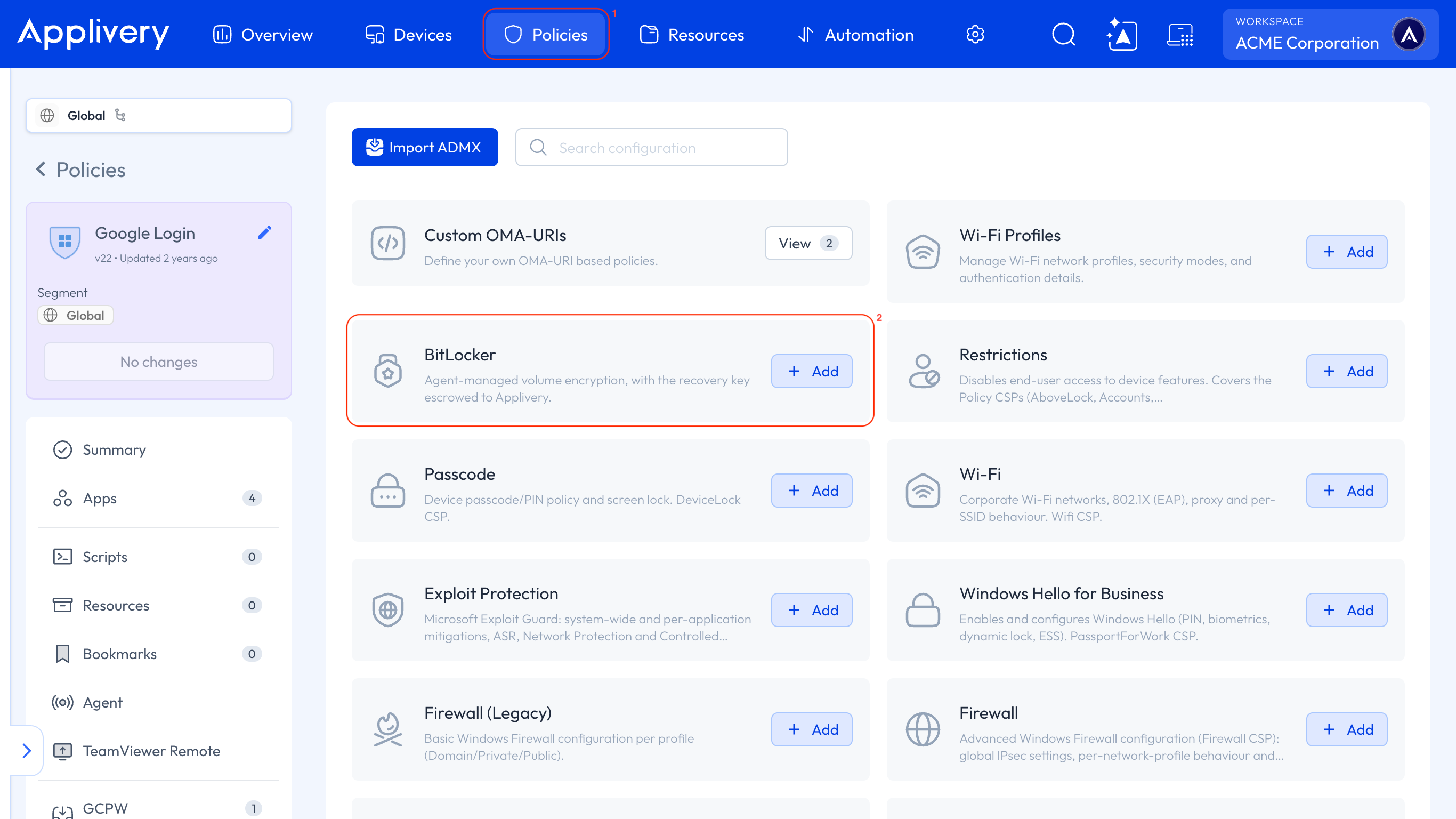
Once in the Applivery Dashboard, head to Policies 1 and choose the BitLocker 2 configuration.
Set BitLocker encryption to one of these:
Option | Effect |
|---|---|
Not configured | No action taken. Leaves the Device's current encryption state unchanged. |
Encrypted | Activates BitLocker encryption and securely backs up the recovery key to Applivery. |
Unencrypted | Decrypts the Device — the opposite of Encrypted. |
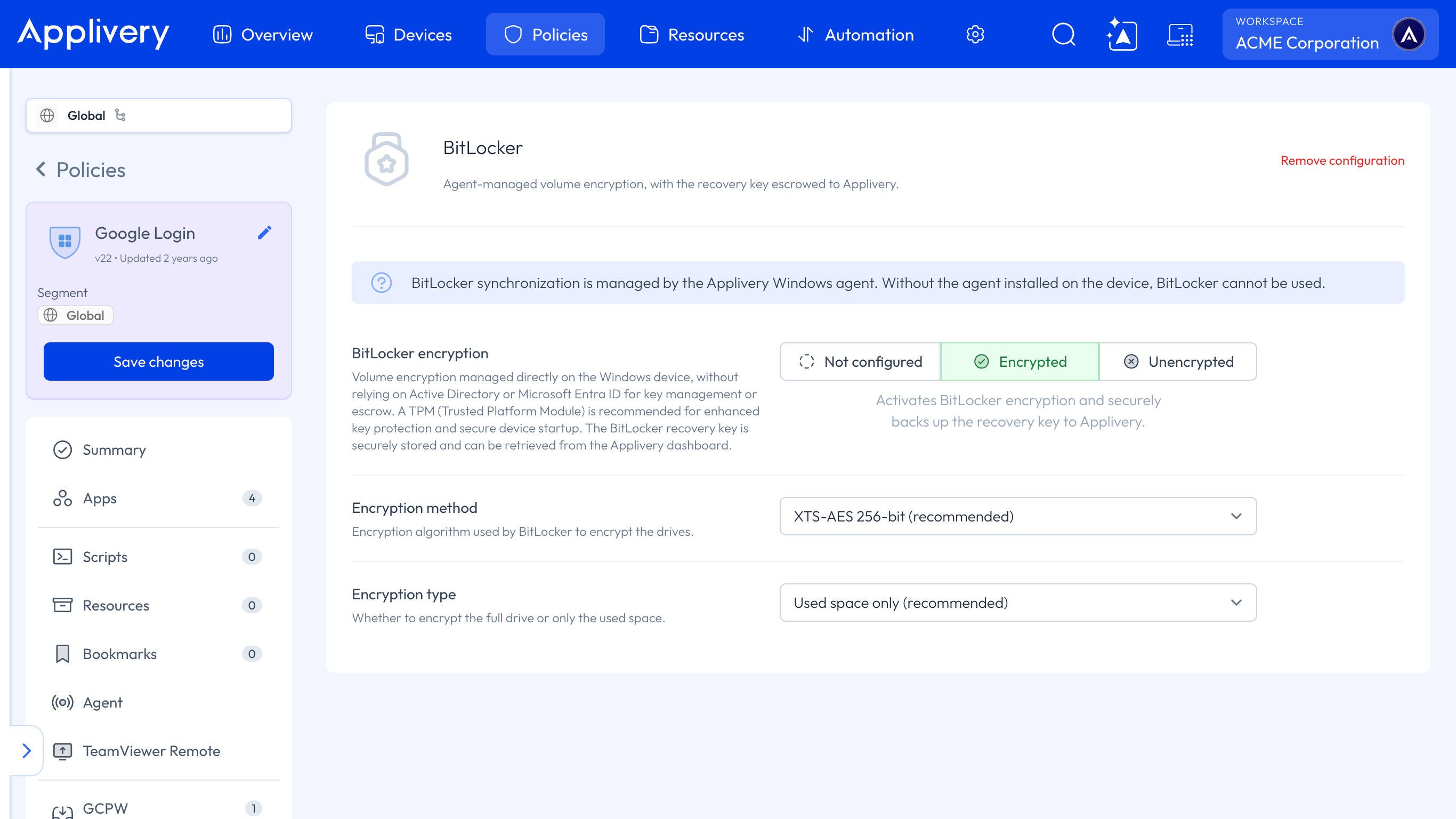
When you set it to Encrypted, two more settings appear:
Encryption method: the algorithm BitLocker uses to encrypt the drives —
AES-CBC 128-bit,AES-CBC 256-bit,XTS-AES 128-bit, orXTS-AES 256-bit, which is the recommended option and the default.Encryption type: whether to encrypt the full drive or used space only, which is the recommended option and the default.
Click Save changes.
Retrieving the recovery key
Once a Device reports back as encrypted, open that Device's Settings tab and select BitLocker from the left-hand menu.
State: a status badge (
Encrypted) plus the raw protector status line, which distinguishes aPERMANENTprotector from aONETIMEone, and when it was last updated.Recovery keys: the permanent recovery key for the Device, with a one-click copy button.
Temporary recovery keys: a separate, one-time recovery key, also copyable.
There is no dependency on Entra ID or Active Directory to look any of this up. It is stored and retrieved directly through Applivery.
Avoiding conflicts with native BitLocker settings
If the same Policy — or another one affecting the same Device — also configures BitLocker natively, Applivery warns you right in the configuration screen. That includes a Custom ADMX Configuration and the built-in native Bit Locker CSP category.
Also configured natively — The "Encryption" section configures 1 native BitLocker properties that Windows enforces on its own. Settings that contradict the ones below make the Device report an encryption mismatch — keep them aligned or manage BitLocker from only one of the two places.
In practice: pick one method per Device, agent-managed BitLocker or the native CSP-based one, rather than configuring both. That is what keeps the Device from reporting an encryption mismatch.