Favicon

You are here: Home > App Distribution > Getting Started > Create Your First App

How to Create Your First App

Create your first App in Applivery. Set up the App profile, upload Builds, and configure analytics and distribution settings.

3 min read

TL;DR

Learn how to quickly create your first app in Applivery to start managing builds and distribution.

Applivery is about Apps and Devices. Apps represent one of the most important elements in Applivery. You can manage them on your own which means that you can for instance:

  • Create a separate App for each different project

  • Create more than one App for the same project to better manage different versions of the same App or team-level segregation.

  • Create an App for each different environment you might have to better differentiate between Development, Staging, Quality, or Production Apps.

Inside the Apps you’ll find everything related to them: Builds, analytics, user permissions, version management, and distribution options.

Let’s start creating a new App.

1
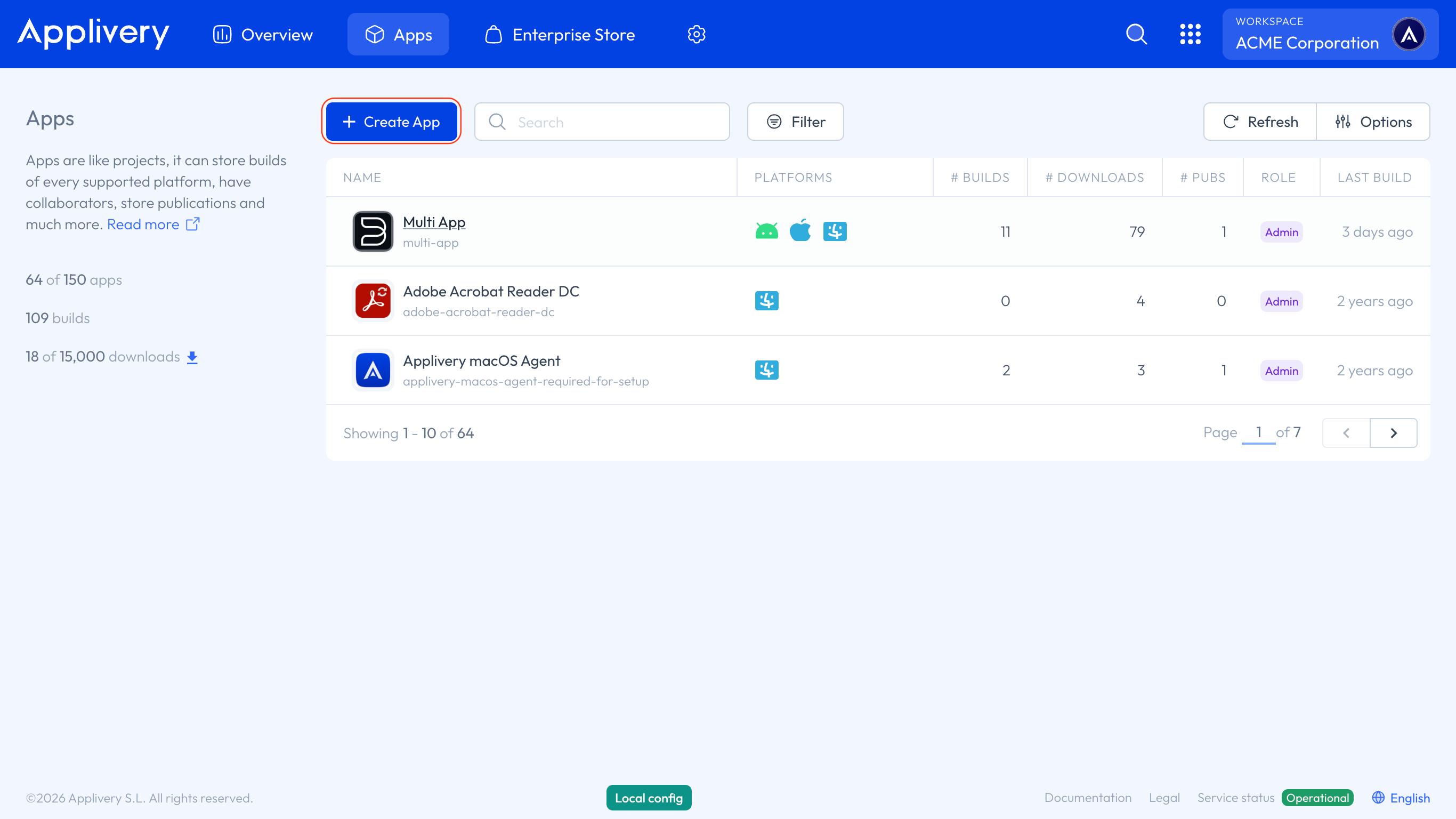
The Apps section

Click the + Create App button.

create app
2
Choose App name

Choose an easy-to-identify App name and click Save.
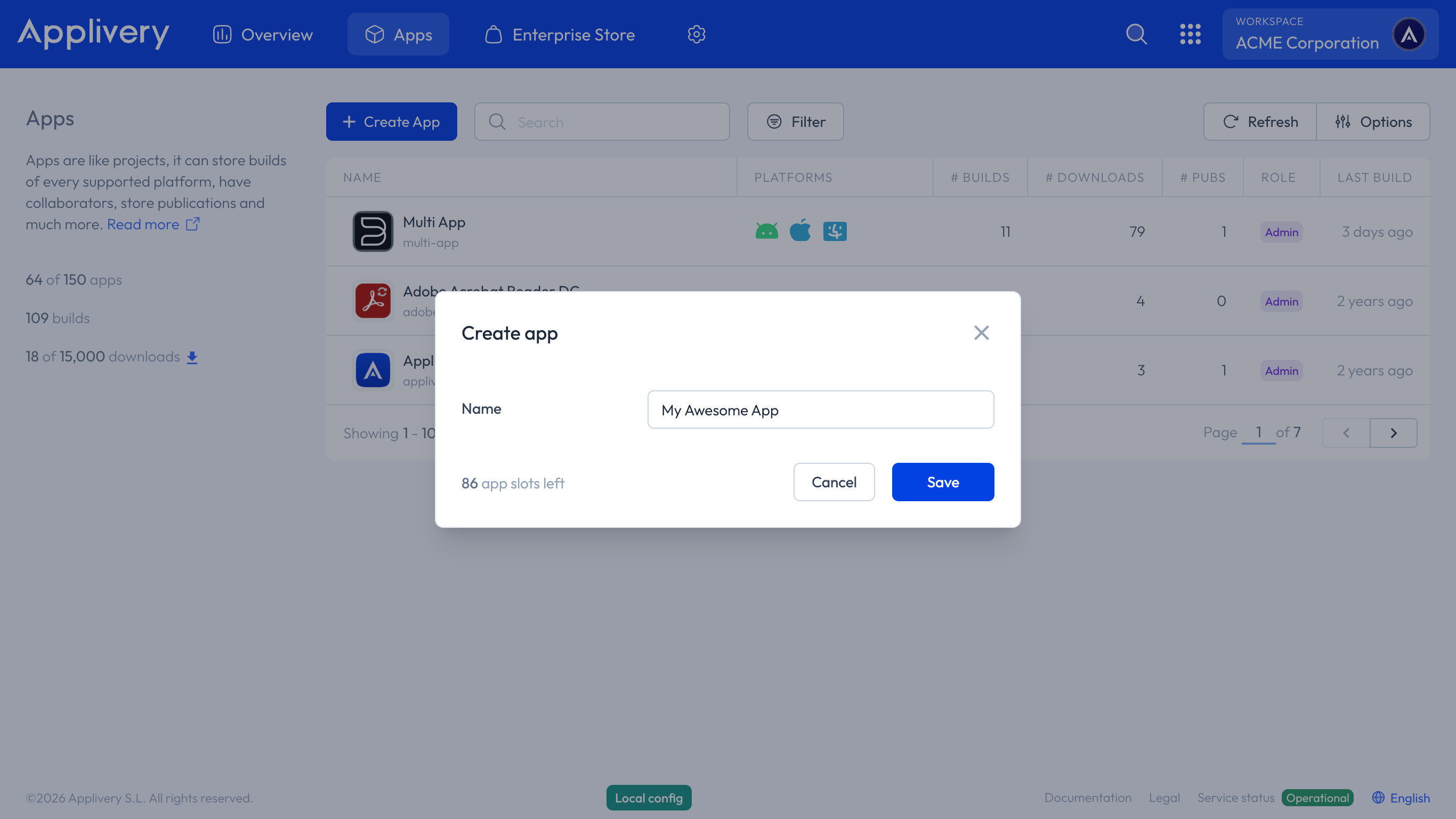
create app form

Congratulations! You have successfully created your first App in Applivery. You can now start uploading Builds and managing your App Distribution.

Key Takeaways

  • Apps are central to Applivery's functionality.
  • You can create multiple apps for different projects or environments.
  • App creation involves naming the app.
  • After creation, you can manage builds and distribution.

In Applivery, an App represents a managed application with its builds, analytics, user permissions, and distribution options.

You can create separate Apps for different projects, versions, team segregation, or environments (Development, Staging, Production).

To create a new App, click the '+ Create App' button and then choose an easy-to-identify App name and click 'Save'.

Within an App, you can manage builds, analytics, user permissions, version management, and distribution options.

After creating an App, you can start uploading Builds and managing your App Distribution.

Yes, you can create multiple Apps for the same project to manage different versions or team-level segregation.

Yes, creating separate Apps for each environment (e.g., Development, Staging) helps differentiate between them.

Last updated: April 1, 2026