Favicon

You are here: Home > App Distribution > Integrations > Slack

Integrate with Slack for Mobile App Build Notifications

Connect Applivery with Slack to get real-time notifications for new Builds, feedback, and Certificate expirations.

5 min read

TL;DR

Integrate Applivery with Slack to receive instant notifications about new builds, feedback, bug reports, and expiring certificates directly in your Slack workspace.

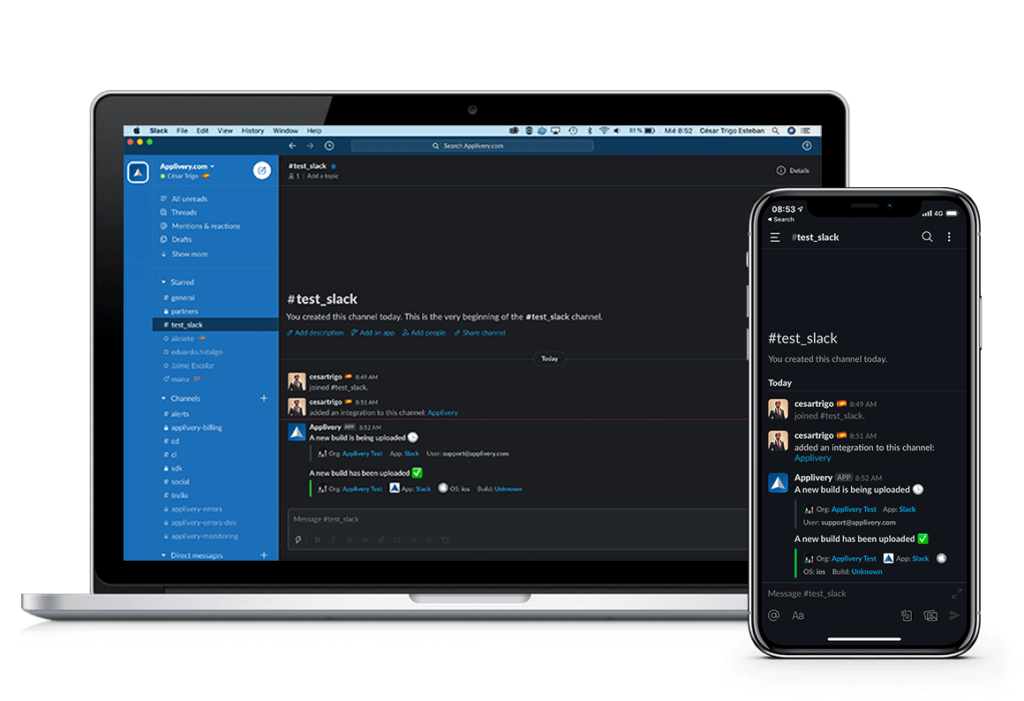
applivery-slack-macIphone | Applivery

Now you can integrate Applivery with Slack and start receiving notifications when the following events take place:

  • A new Build has been uploaded.

  • A new Build has been processed and is ready to install.

  • A new Feedback report has been received.

  • A new Bug report has been received.

  • An App enterprise certificate is about to expire.

Integrating Applivery in your Slack team is quite simple thanks to our Official App, and the configuration will take you less than 1 minute. Just follow the next steps.

Getting started

Slack integration can be configured at the Workspace level, so notifications from all Apps and Builds activity within your organization are sent to a specific #channel or @user.

1
Navigate to Integrations

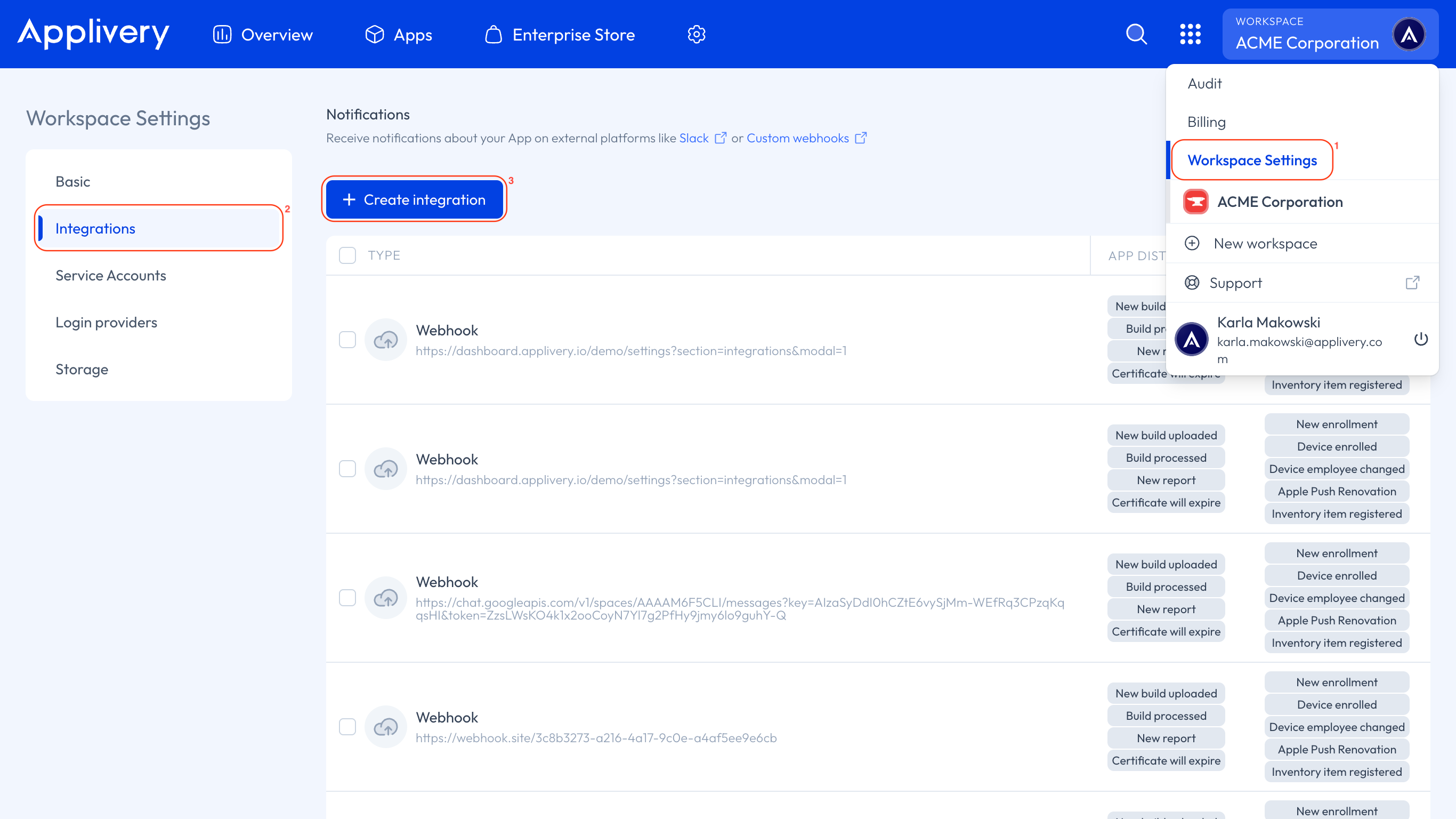
Once in the Applivery Dashboard, go to your Workspace Settings 1 from the top dropdown menu, then open Integrations 2 in the left-hand menu and click the + Create integration 3 button.
integrations
2
Slack events

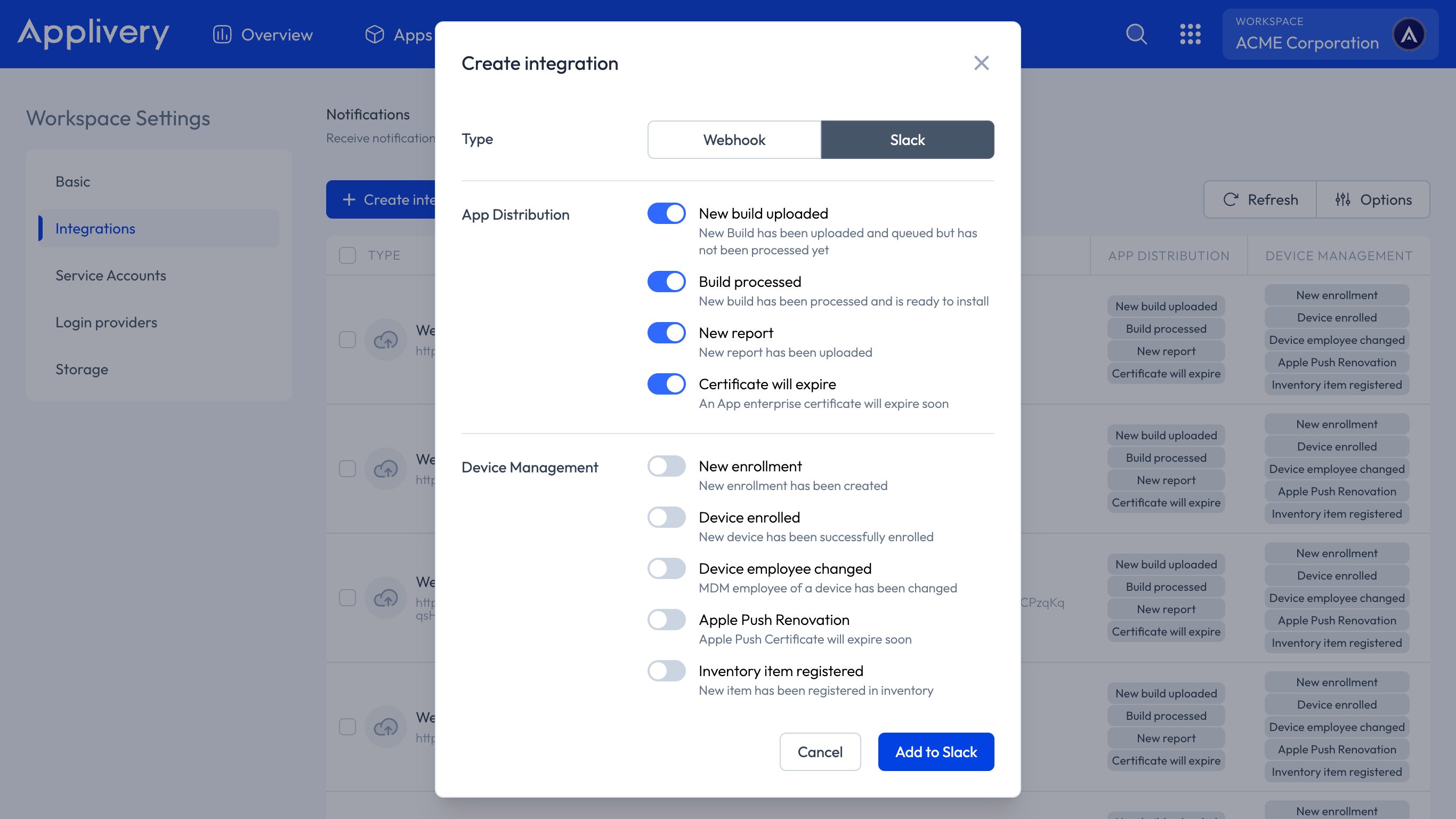
Choose the Slack option, select the events you want to receive from the list, and then click Add to Slack button.
slack integration
3
Authorize the integration

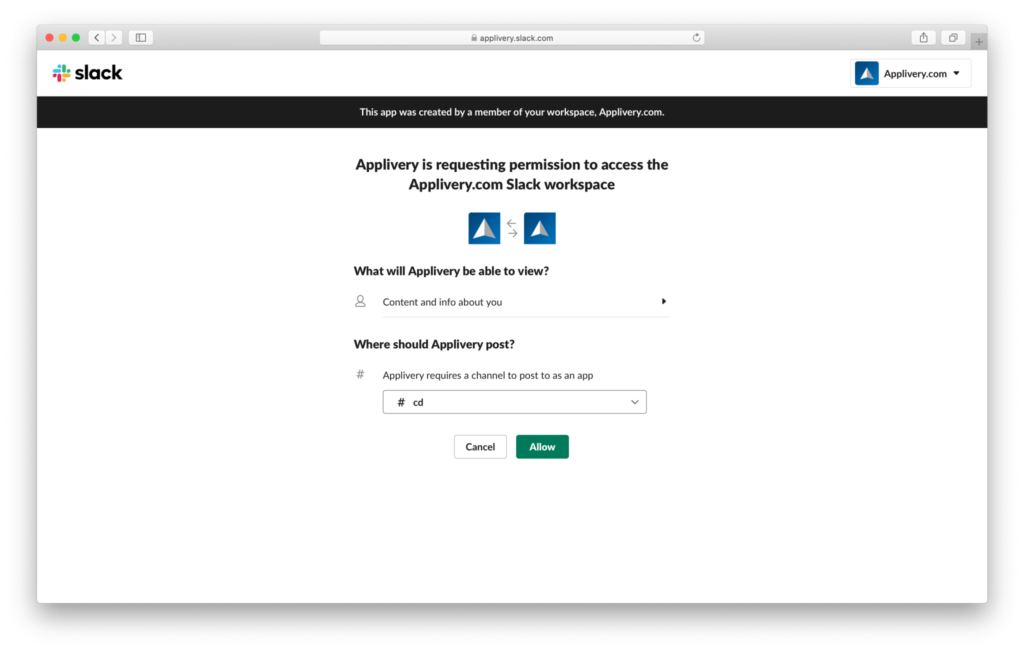
Now it’s time to sign into your team, so you’ll need to enter your Slack account email address and Slack password. After that, select where the messages from Applivery should be posted using the bottom drop-down menu that will display the list of available users and channels under your Slack team. Once done, click the Allow button.
slack-step4-1 | Applivery
4
Manage Slack integrations

You will be automatically redirected to the Integrations section, where the new Slack integration should be listed, including all the details you have selected:

  • Type: Slack.

  • Configuration: #channel or @user that will receive the messages.

  • Events: list of events that will be notified.

slack-step4-1 | Applivery

That’s all! You’ll be automatically redirected back to Applivery, and we’ll start sending notifications to your Slack team immediately.

5
Update Slack integration settings

You can edit your current Slack Integrations at any time by going to the Integrations section of your Workspace and then clicking one of your existing Slack Integrations. A side panel will be opened, allowing you to choose which events will be posted to your @users or @channels. You will be able to also delete the integration by clicking the Delete button.

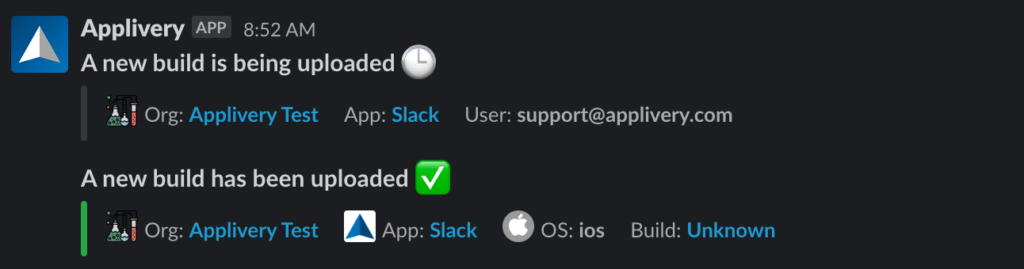
Notification examples
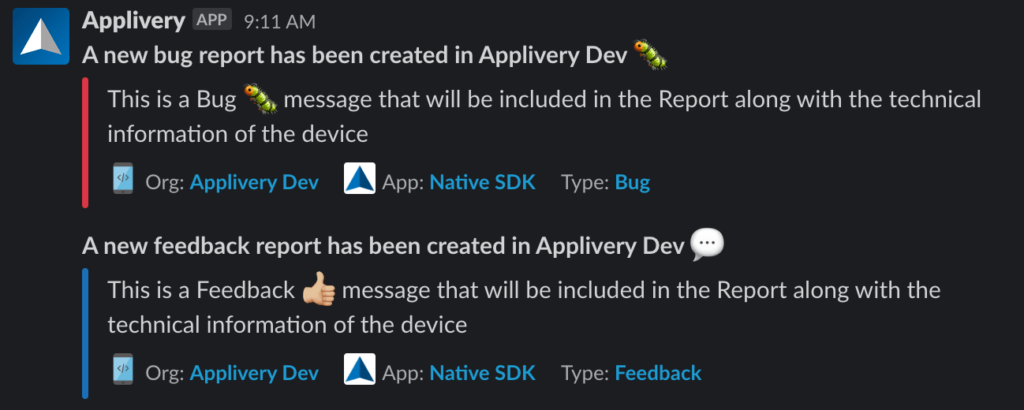
new-Builds-messages | Appliverynew-feedback-messages | Applivery

Custom Webhooks
Learn how to configure custom webhooks for advanced integration scenarios.

Key Takeaways

  • Applivery integrates with Slack to provide real-time notifications.
  • Integration is configured at the workspace level.
  • You can choose which events trigger Slack notifications.
  • Notifications can be sent to specific Slack channels or users.

Slack notifications can be triggered by new builds, processed builds ready to install, new feedback/bug reports, and expiring enterprise certificates.

In Applivery, go to Workspace Settings > Integrations > Create integration, choose Slack, select events, and authorize the integration with your Slack account.

Slack integrations are configured at the Workspace level in Applivery, allowing notifications for all Apps and Builds activity.

Yes, you can select a specific Slack channel (#channel) or user (@user) to receive Applivery notifications during the integration setup.

Go to the Integrations section of your Workspace, click the Slack integration, and use the side panel to edit events or delete the integration.

The integration details show the type (Slack), the configured channel/user, and the list of events that will trigger notifications.

In the Applivery Dashboard, access the Integrations section via Workspace Settings in the top dropdown menu.

Last updated: April 18, 2026