
Favicon

You are here: Home > Device Management > Windows > Get Started

Activating Windows Enterprise for Device Management

Activate Windows Enterprise in Applivery to enable Windows Device Management and create Smart Enrollments for your Devices.

2 min read

TL;DR

Activate Windows Enterprise in Applivery to enable Windows Device Management and smart enrollments.

Before using Applivery Windows Device Management, you must enable your Workspace to interact with Windows services and register your Windows Enterprise organization.

Activate Windows Enterprise

Sign in to the Applivery Dashboard and navigate to the Setting section. Locate the Windows Setup section on the left-hand menu. Besides Step 1, click the Activate button.
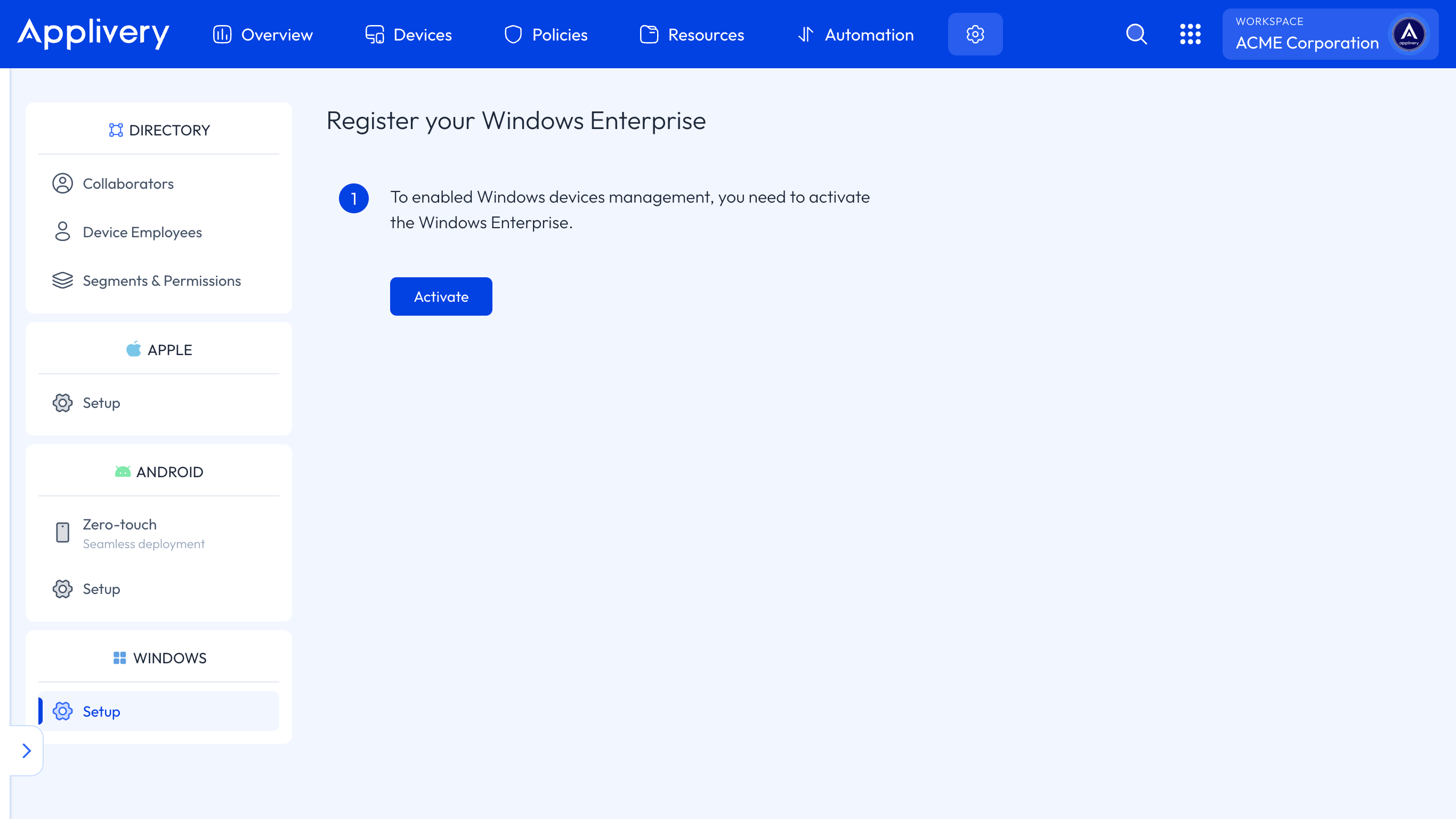
windows enterprise
Tip

Make sure you have the necessary permissions to activate Windows Enterprise within your Applivery account.

You will now be able to customize the domain to enroll Devices and start creating Smart Enrollments.

Key Takeaways

  • Activating Windows Enterprise is required for Windows Device Management in Applivery.
  • Activation is done through the Applivery Dashboard in the Settings section.
  • After activation, you can customize the domain and create smart enrollments.

Sign in to the Applivery Dashboard, navigate to Settings, then Windows Setup, and click the 'Activate' button next to Step 1.

The Windows Setup section is located in the Settings section of the Applivery Dashboard, on the left-hand menu.

You need the necessary permissions within your Applivery account to activate Windows Enterprise.

After activating, you can customize the domain for device enrollment and create Smart Enrollments.

You can find information about Smart Enrollments in the Applivery documentation.

Last updated: April 1, 2026