
Favicon

You are here: Home > Device Management > Apple > iOS & iPadOS > Commands > Set Time Zone

Remotely Configure Time Zone on iOS Devices

Remotely set the time zone on supervised iPads and iPhones running iOS/iPadOS 14 or later using Applivery Device Management Commands.

3 min read

TL;DR

Use Applivery to remotely set the time zone on supervised iOS devices (iOS/iPadOS 14+) via the Device Management section.

With Applivery, you can change the time zone on a supervised iPad or iPhone with iPadOS or iOS 14 or later.

Note

The time zone cannot be changed on Devices with the Force Automatic Date and Time restriction enabled.

Setting the Time Zone

Once in the Applivery Dashboard, go to any of your Devices. Click the Action button and select Set Time Zone.

Ensure the time zone entered is a valid IANA time zone name.
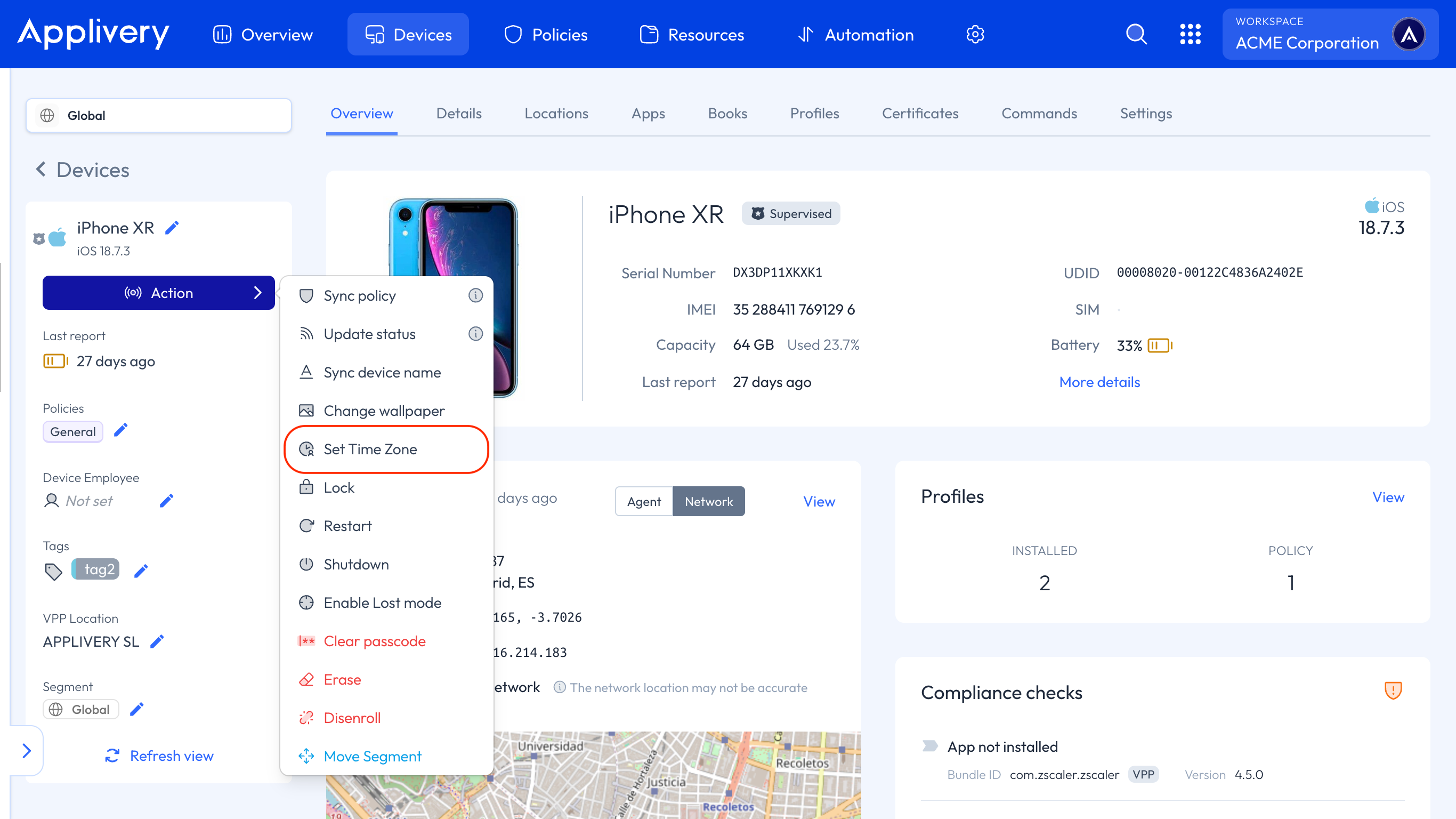
time zone
Note

Additionally, you can set the time zone in bulk from the Devices list by clicking the Action button, selecting Apple as the platform, and choosing the Set Time Zone command.

Key Takeaways

  • Applivery allows remote time zone configuration on supervised iOS devices.
  • Requires iOS/iPadOS 14 or later.
  • Time zone must be a valid IANA name.

In the Applivery Dashboard, go to Devices, click Action, and select Set Time Zone. Ensure you enter a valid IANA time zone name.

You need iPadOS or iOS 14 or later to change the time zone on a supervised device with Applivery.

The time zone cannot be changed if the 'Force Automatic Date and Time' restriction is enabled on the device.

An IANA time zone name is a standard identifier for time zones, used when setting the time zone in Applivery.

Yes, you can set the time zone in bulk from the Devices list by using the Action button, selecting Apple as the platform, and choosing the Set Time Zone command.

The 'Set Time Zone' option is found under the Action button for a specific device in the Devices section of the Applivery Dashboard.

Last updated: June 9, 2026