

Windows Kiosk in Multi-App mode is designed for scenarios where a Device must run more than one approved application under strict control.
Unlike traditional single-app kiosks, this configuration supports multiple Apps while enforcing restrictions that prevent unauthorized use.
Administrators can define the App set and manage user access consistently across Devices. This ensures a locked-down environment that is secure and aligned with organizational requirements.
Configuration for a multi-app kiosk
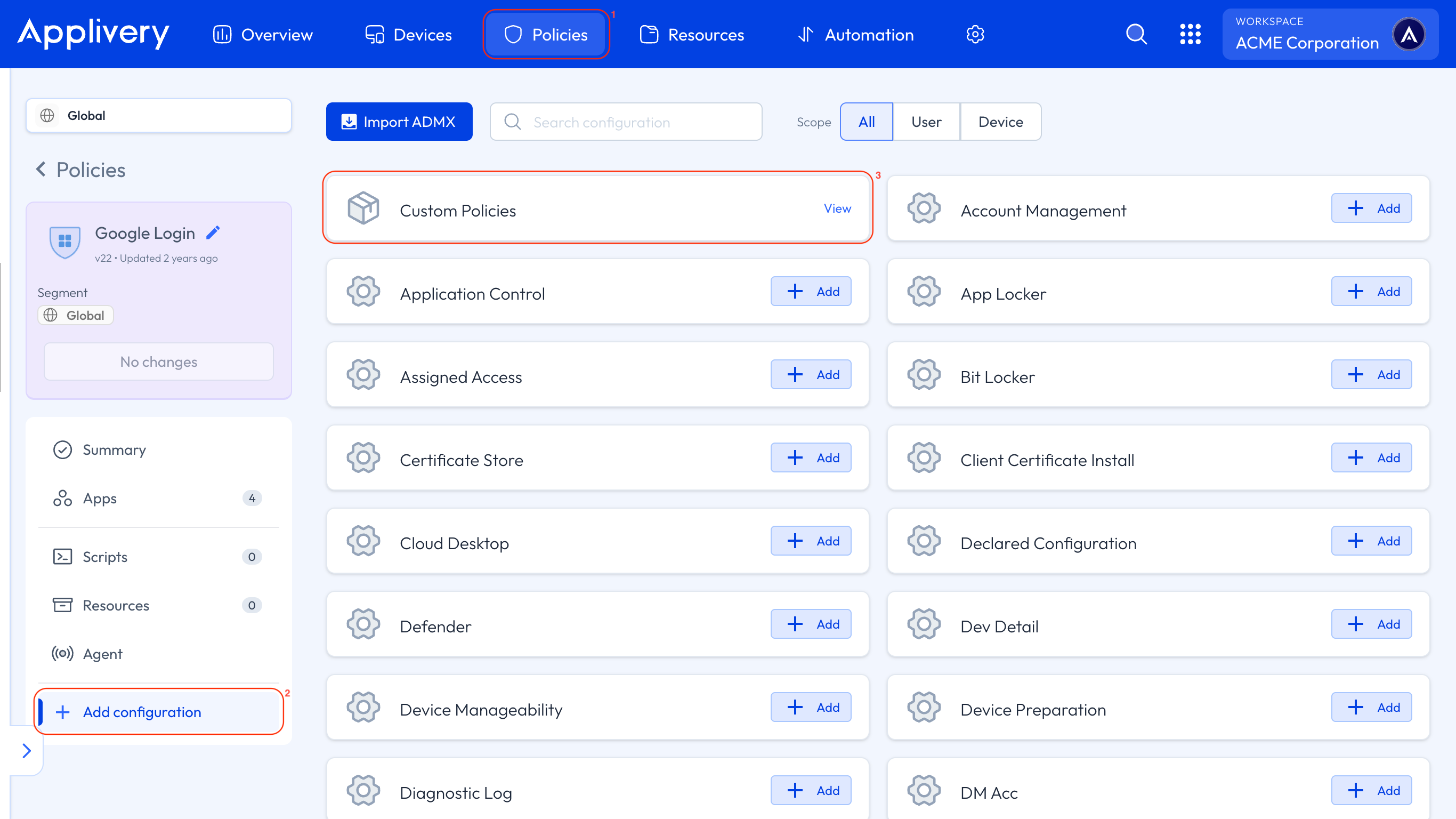
Once in the Applivery Dashboard, head to Policies 1 and select the Policy you want to configure for a multi-app kiosk.
Next, in the left-hand menu, select + Add configuration 2, search for Custom Policies 3, and then click + Add Value to create the new configuration.
Use the following OMA-URI to create a kiosk user:
OMA-URI:
./Device/Vendor/MSFT/Accounts/Users/$USERNAME/Password.Replace the
$USERNAMEvariable in the OMA-URI with the desired username.Format: String (chr).
Value: This value sets the password for the kiosk user.
Use the following OMA-URI to enable Shared PC Mode:
OMA-URI:
./Vendor/MSFT/SharedPC/EnableSharedPCMode.Format: Boolean (bool).
Value:
true.Enables Shared PC Mode, optimizing the Device for multiple users with restricted access.
Defines the account model in Shared PC Mode:
OMA-URI:
./Vendor/MSFT/SharedPC/AccountModel.Format: Integer (int).
Value:
2(this indicates a mode with disposable or restricted accounts).
Defines the account model in Shared PC Mode:
OMA-URI:
./Vendor/MSFT/AssignedAccess/Configuration.Format: String (chr).
Value:
<?xml version="1.0" encoding="utf-8"?>
<AssignedAccessConfiguration xmlns:xs="http://www.w3.org/2001/XMLSchema" xmlns="http://schemas.microsoft.com/AssignedAccess/2017/config" xmlns:default="http://schemas.microsoft.com/AssignedAccess/2017/config" xmlns:rs5="http://schemas.microsoft.com/AssignedAccess/201810/config" xmlns:v3="http://schemas.microsoft.com/AssignedAccess/2020/config" xmlns:v5="http://schemas.microsoft.com/AssignedAccess/2022/config">
  <Profiles>
    <Profile Id="{9A2A490F-10F6-4764-974A-43B19E722C23}">
      <AllAppsList>
        <AllowedApps>
          <App AppUserModelId="Microsoft.WindowsCalculator_8wekyb3d8bbwe!App" />
          <App AppUserModelId="Microsoft.Windows.Photos_8wekyb3d8bbwe!App" />
          <App AppUserModelId="Microsoft.BingWeather_8wekyb3d8bbwe!App" />
          <App DesktopAppPath="C:\Windows\system32\cmd.exe" />
          <App DesktopAppPath="%windir%\System32\WindowsPowerShell\v1.0\Powershell.exe" />
          <App DesktopAppPath="%windir%\explorer.exe" />
          <App AppUserModelId="windows.immersivecontrolpanel_cw5n1h2txyewy!microsoft.windows.immersivecontrolpanel" />
          <App AppUserModelId="%ProgramFiles(x86)%\Microsoft\Edge\Application\msedge.exe" />
        </AllowedApps>
      </AllAppsList>
      <rs5:FileExplorerNamespaceRestrictions>
        <rs5:AllowedNamespace Name="Downloads" />
        <v3:AllowRemovableDrives />
      </rs5:FileExplorerNamespaceRestrictions>
      <v5:StartPins>
        <![CDATA[{
          "pinnedList":[
            {"packagedAppId":"Microsoft.WindowsCalculator_8wekyb3d8bbwe!App"},
            {"packagedAppId":"Microsoft.Windows.Photos_8wekyb3d8bbwe!App"},
            {"packagedAppId":"Microsoft.BingWeather_8wekyb3d8bbwe!App"},
            {"desktopAppLink":"%APPDATA%\\Microsoft\\Windows\\Start Menu\\Programs\\System Tools\\Command Prompt.lnk"},
            {"desktopAppLink":"%APPDATA%\\Microsoft\\Windows\\Start Menu\\Programs\\Windows PowerShell\\Windows PowerShell.lnk"},
            {"desktopAppLink":"%APPDATA%\\Microsoft\\Windows\\Start Menu\\Programs\\File Explorer.lnk"},
            {"packagedAppId": "windows.immersivecontrolpanel_cw5n1h2txyewy!microsoft.windows.immersivecontrolpanel"},
            {"desktopAppLink": "%ALLUSERSPROFILE%\\Microsoft\\Windows\\Start Menu\\Programs\\Microsoft Edge.lnk"}
          ]
        }]]>
      </v5:StartPins>
      <Taskbar ShowTaskbar="true" />
    </Profile>
  </Profiles>
  <Configs>
    <Config>
      <AutoLogonAccount rs5:DisplayName="$USERNAME" />
      <DefaultProfile Id="{9A2A490F-10F6-4764-974A-43B19E722C23}" />
    </Config>
  </Configs>
</AssignedAccessConfiguration>
The Profiles Section defines a profile with a unique ID ({9A2A490F-10F6-4764-974A-43B19E722C23}) and specifies a whitelist of allowed applications under <AllowedApps>. This includes UWP Apps such as Microsoft Calculator, Photos, and Bing Weather, as well as desktop Apps like Command Prompt, PowerShell, and File Explorer.
File Explorer restrictions (rs5:FileExplorerNamespaceRestrictions) are applied to allow access to the Downloads folder only, while still permitting the use of removable drives. The Start Menu pinned Apps (v5:StartPins) section defines which applications appear pinned to the Start Menu, corresponding to the allowed Apps. Taskbar configuration is enabled (<Taskbar ShowTaskbar="true" />), ensuring the taskbar is visible in kiosk mode.
In the Configs Section, Auto Logon automatically signs in the user, with $USERNAME replaced by the actual username for the kiosk. Profile assignment sets the defined profile as the default. Ensure you replace $USERNAME in the <AutoLogonAccount rs5:DisplayName> element with the username of the previously created user intended for this kiosk mode.
Installing the App and allowing it are two separate things. The App Policy installs the application on the machine; the Assigned Access XML decides what the kiosk user can actually launch. An App that installed perfectly stays unreachable in kiosk mode if it is missing from <AllowedApps>.
This differs from Android, where the Apps in the Policy are allowed in kiosk mode automatically. On Windows the list is maintained separately, so every new App has to be added in both places.