
Favicon

You are here: Home > Device Management > Windows > App Management > Block Microsoft Store

How to Block the Microsoft Store

Disable access to the Microsoft Store on company-owned Windows Devices using Applivery Policies to enhance security and compliance.

3 min read

TL;DR

Learn how to block the Microsoft Store on Windows devices using Applivery to improve security and compliance.

Because any user can download and install Apps from the Microsoft Store, it can become a security risk for company-owned Devices. Unauthorized Apps may introduce vulnerabilities, violate compliance Policies, or interfere with enterprise configurations. To maintain a secure and controlled environment, it’s recommended to disable access to the Microsoft Store on managed Windows Devices.

This can be achieved easily through Applivery by configuring the appropriate policy.

Set up your Policy

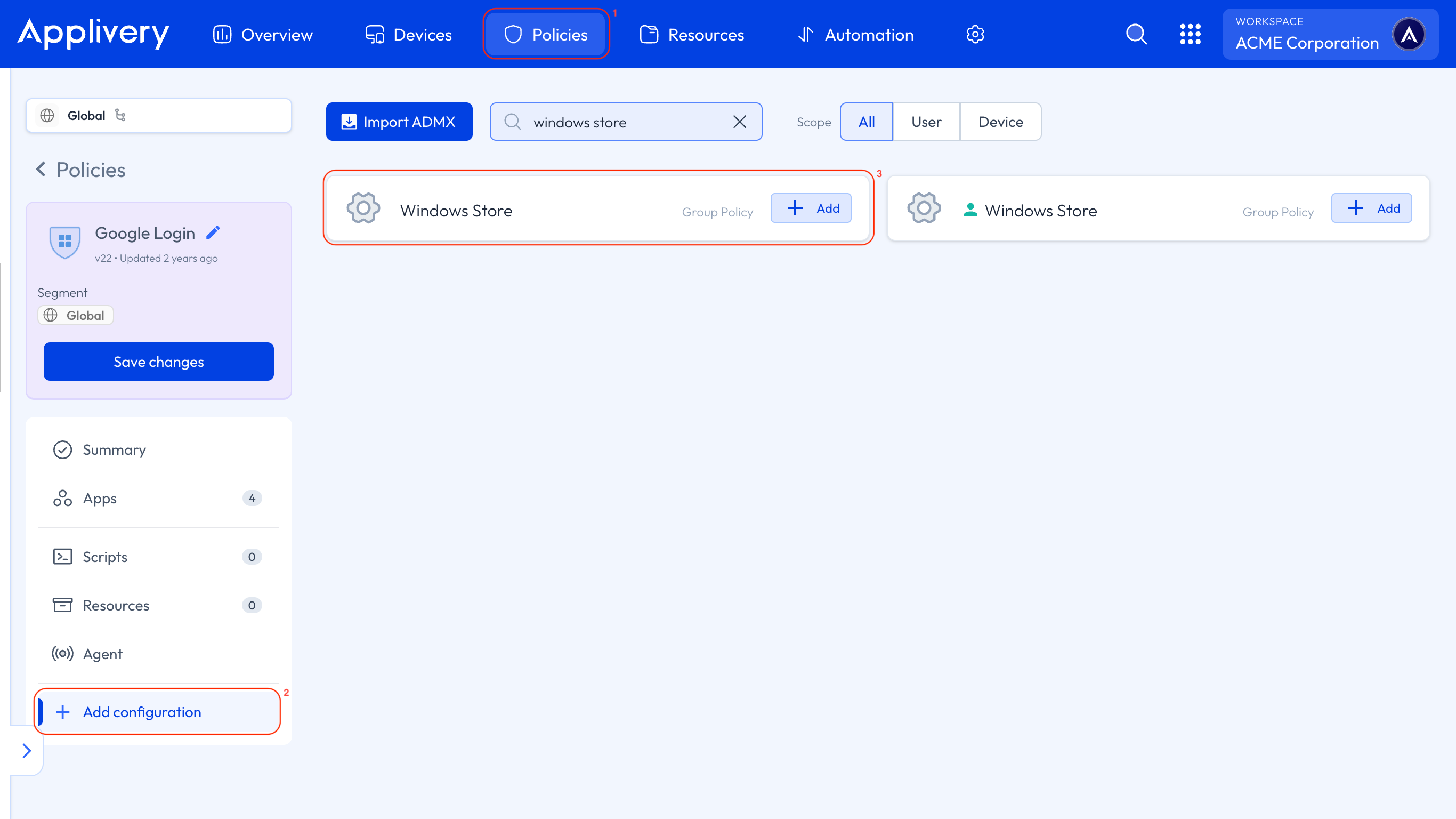
Once in the Applivery Dashboard, head to Policies 1. Choose the Policy where you want to block the Microsoft Store.

Then, from the left-hand menu, click + Add configuration 2 and use the search bar to find the Windows Store 3 Group Policy.
microsoft store

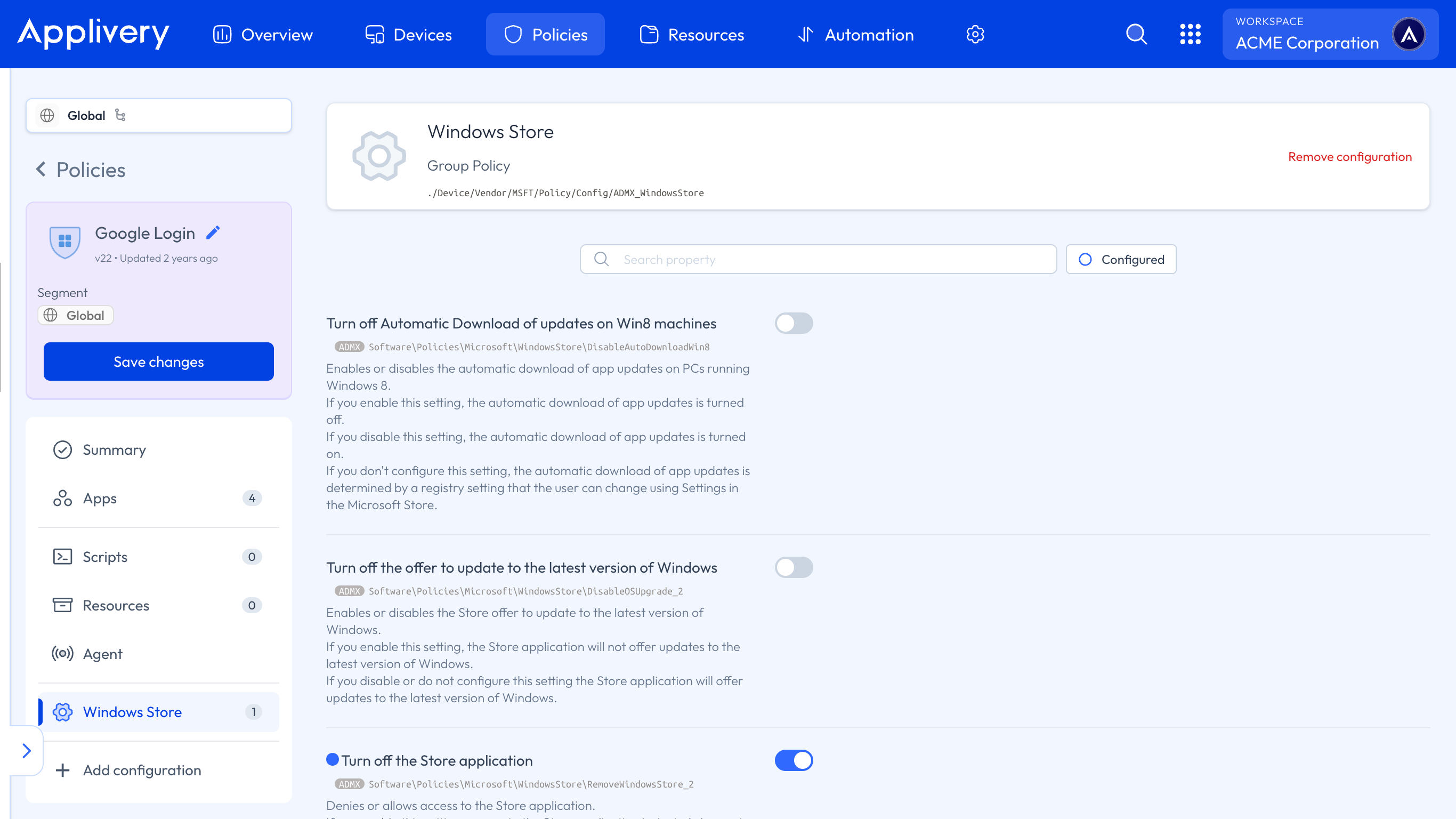
Next, enable the Turn off the Store application setting to disable the Microsoft Store on your Devices.
turn off store

Key Takeaways

  • Blocking the Microsoft Store enhances device security.
  • Applivery simplifies Microsoft Store management.
  • Policy configuration is key to device control.

Disabling the Microsoft Store helps prevent unauthorized apps, security vulnerabilities, compliance violations, and interference with enterprise configurations on managed devices.

In the Applivery Dashboard, go to Device Management > Policies and select the policy you want to modify.

In your selected policy, click '+ Add configuration' from the left-hand menu and search for the 'Windows Store' configuration.

Enable the 'Turn off the Store application' setting within the Windows Store configuration in Applivery.

The first step is to navigate to the 'Device Management' section in the Applivery Dashboard and select 'Policies'.

Risks include the introduction of vulnerabilities, violation of compliance policies, and interference with enterprise configurations due to unauthorized apps.

Yes, by applying the policy with the disabled Microsoft Store to the specific devices you want to manage.

Last updated: June 9, 2026